
Paralives ships with a built-in mod menu that makes adding custom content far less painful than manually dropping files into obscure folders. Whether you want new interactions, fresh items for your Parafolks, or something you built yourself, the whole process runs through a single screen. Here's exactly how to get it working.
How do you access the mod menu in Paralives?
The mod menu lives right on the start screen, so you don't need to be in an active save to manage your content. Open it from there and you'll see every installed mod listed in one place.
If your list is empty, that's your cue to head over to the Steam Workshop. The mod menu gives you direct access to browse and download mods without leaving the game. You'll find everything from new interactions to extra items your Parafolks can use.
Each mod entry includes a folder icon you can click to see exactly where that mod is stored on your computer. That's useful when you need to back up files or troubleshoot a conflict.
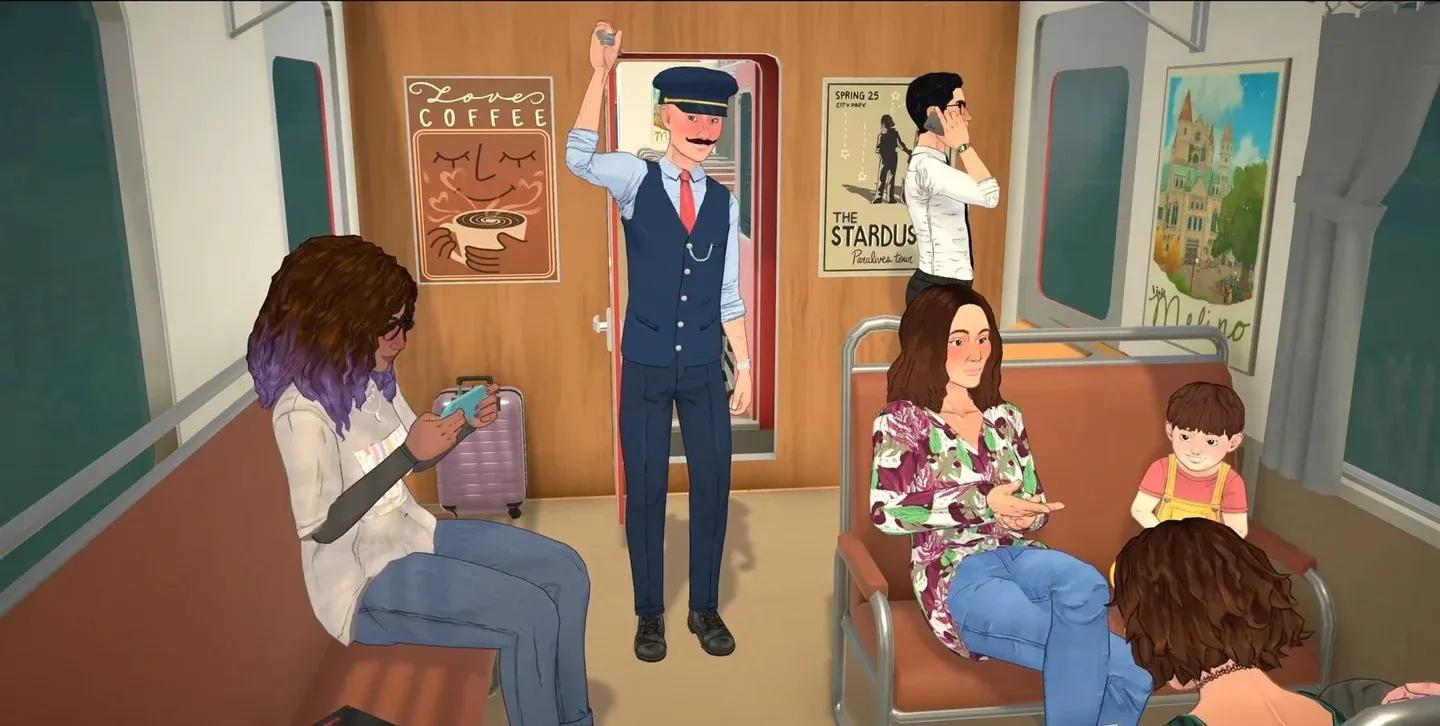
Paralives mod menu overview


How to install mods from Steam Workshop
Installing mods through the Steam Workshop integration is straightforward:
- Open the mod menu from the start screen.
- Select the option to browse the Steam Workshop.
- Find a mod you want and subscribe to it.
- Return to the mod menu and the content will appear in your installed list.
The types of content available include new interactions and new items for your Parafolks. The Workshop is the primary source for community-made content, so expect the library to grow as the game matures.
How do you disable mods in Paralives?
Disabling a mod doesn't delete it. Click the blue toggle button next to any installed mod and it goes inactive until you switch it back on. That's the cleanest way to test whether a mod is causing problems without losing your setup.
The backup step matters more than most guides admit. If something goes wrong after disabling or removing a mod, a saved backup gets you back to exactly where you were.
How to create your own mods
Paralives includes a Create New Mod button in the mod menu for players who want to build their own content. After creating a new mod entry, you access its settings through the "Edit this Mod" section in the Control Panel.
From there, you can adjust global settings for your game. One example is the ability to adjust the rate of twins and triplets globally, or alternatively reduce the birthrate entirely. That's a meaningful tool if you want tighter control over how households grow.
Once your mod is ready, the direct Steam Workshop integration means you can publish it and share it with other players without needing external tools.

Creating a custom mod in Paralives
Safe modding practices
A few habits make modding in Paralives much less stressful:
- Back up saves regularly, especially before adding or removing mods from an active playthrough.
- Disable rather than delete when troubleshooting. The toggle keeps everything reversible.
- Test new mods on a fresh save before adding them to a household you care about.
- Check the folder location for any mod you plan to back up manually.
These aren't just precautions for edge cases. Modded saves are more fragile than vanilla ones, and a five-second backup can save a lot of frustration.
For more ways to shape your Paralives experience, the full Paralives guides collection covers everything from growing your household with the how to have a baby guide to adjusting your finances with all money cheats if you'd rather skip the grind entirely.