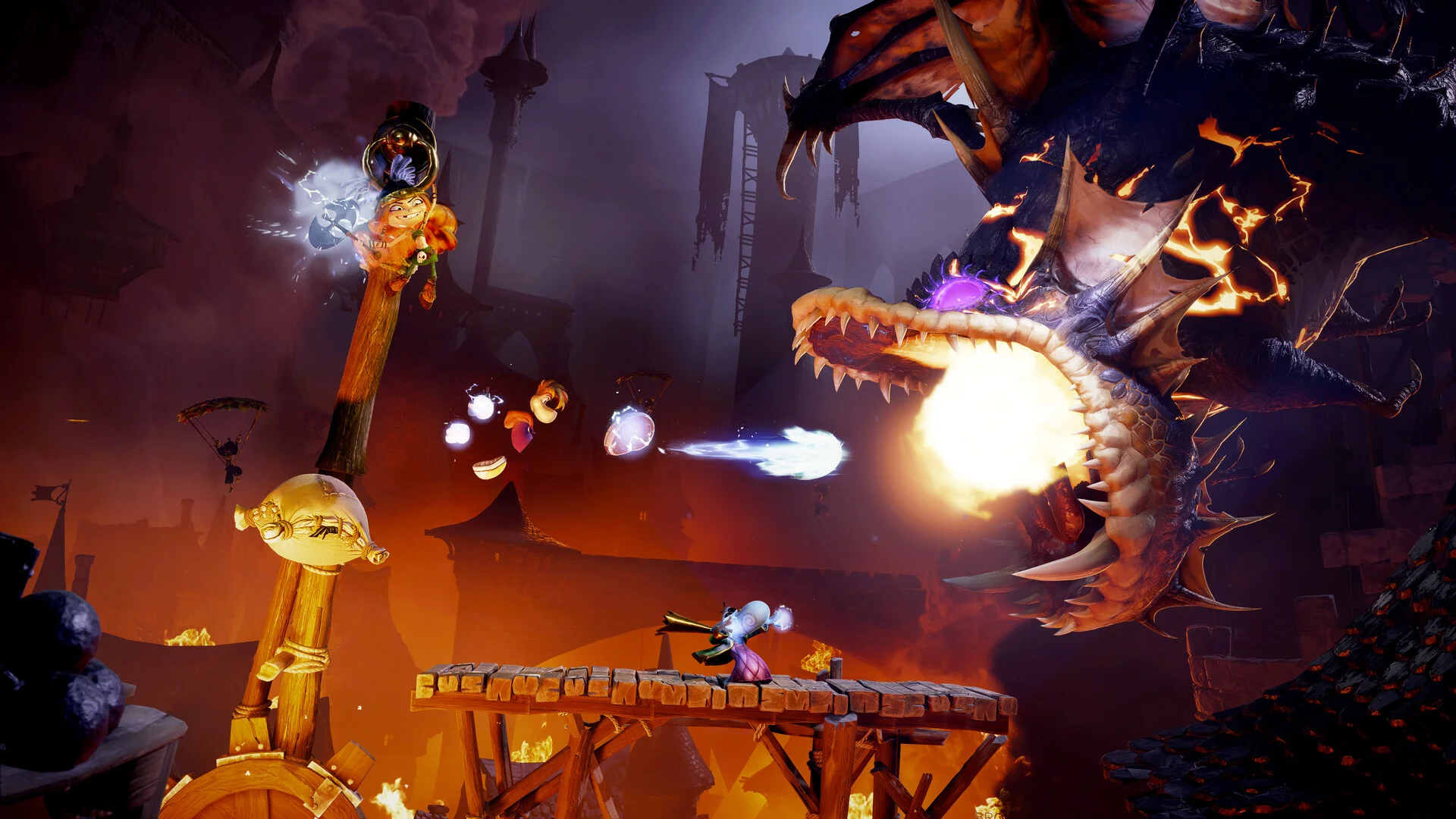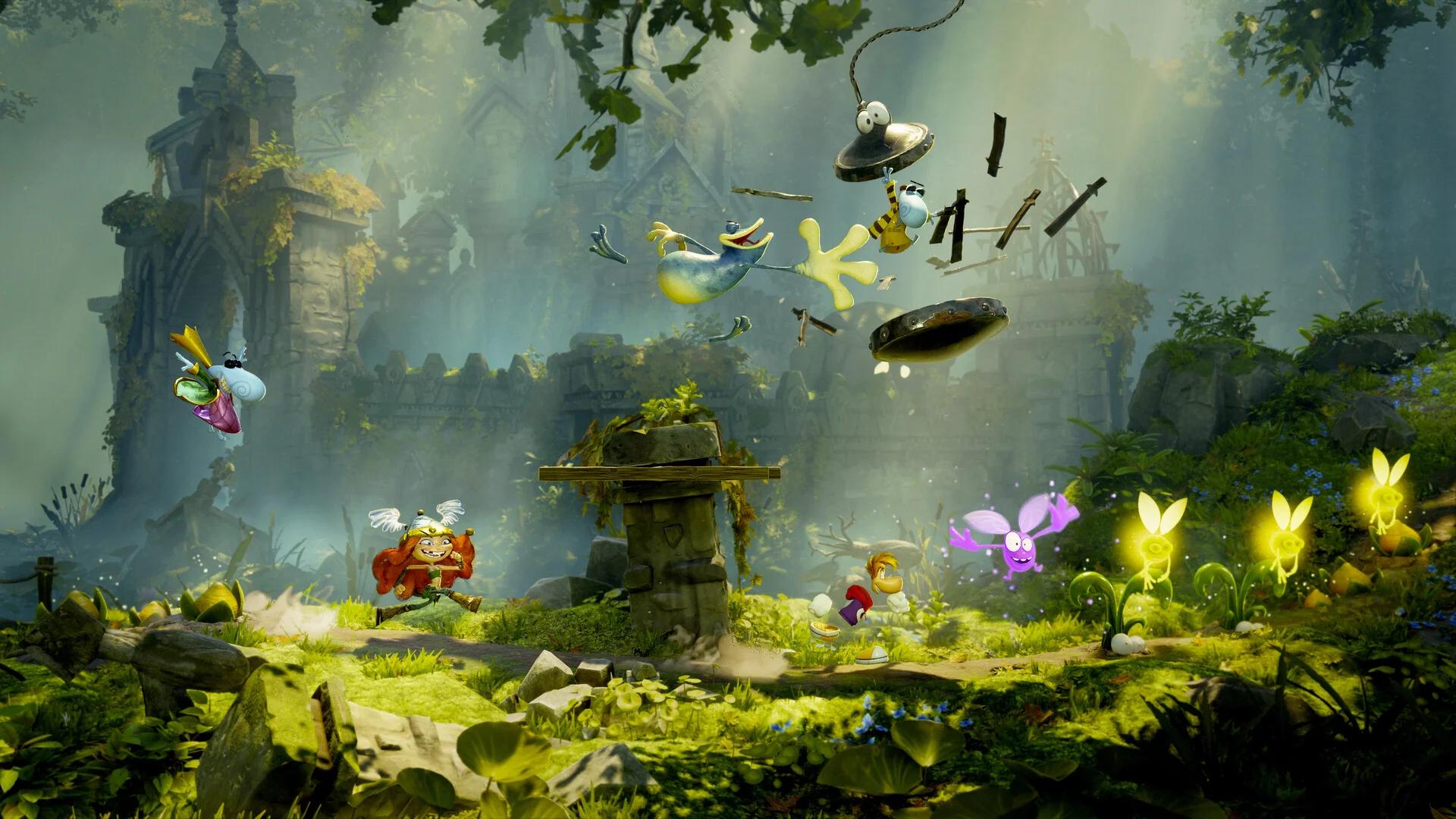

To achieve the best PC settings for Rayman Legends Retold, match your hardware to one of Ubisoft’s 60 FPS tiers and use Quality upscaling. These configurations ensure a stable visual experience, while accessibility options like Highlights and High Contrast Mode further improve gameplay readability.
Rayman Legends Retold is scheduled for December 3, 2026. Its published PC profiles pair resolution, preset, and upscaling, so selecting High alone does not reproduce the complete target configuration. Start with the profile your PC meets, then adjust presentation and controls separately. These are pre-release starting profiles, not guaranteed minimum frame rates.
Display and resolution settings
Choose an output resolution that suits both your display and your hardware. A 4K monitor does not mean you should select the 4K Ultra profile if your PC only meets a lower tier.
Ubisoft’s PC specifications list these four combinations. Each uses Quality upscaling, including the highest-resolution profile.
| Output resolution | Graphics preset | Listed upscalers | Upscaling mode |
|---|---|---|---|
| 1920×1080 | Low | FSR or XeSS | Quality |
| 1920×1080 | High | DLSS, FSR, or XeSS | Quality |
| 2560×1440 | High | DLSS, FSR, or XeSS | Quality |
| 3840×2160 | Ultra | DLSS or FSR | Quality |
Hardware needed for each profile
Match the whole row, including the processor and memory. If your components fall between profiles, start with the lower complete configuration. A graphics card that meets a higher tier does not replace that tier’s CPU and RAM requirements.
| Profile | CPU | GPU examples | Dual-channel RAM |
|---|---|---|---|
| 1080p Low | Intel Core i3-8100 or AMD Ryzen 3 3100 | NVIDIA GTX 1660 6 GB, AMD RX 5500 XT 4 GB, or Intel Arc A580 8 GB | 8 GB |
| 1080p High | Intel Core i5-8400 or AMD Ryzen 5 3600 | NVIDIA RTX 2060 Super 8 GB, AMD RX 5700 8 GB, or Intel Arc A750 8 GB | 16 GB |
| 1440p High | Intel Core i5-8400 or AMD Ryzen 5 3600 | NVIDIA RTX 3070 8 GB, AMD RX 6750 XT 12 GB, or Intel Arc B580 | 16 GB |
| 4K Ultra | Intel Core i5-9400 or AMD Ryzen 5 3600 | NVIDIA RTX 4080 16 GB or AMD RX 7900 XTX 24 GB | 16 GB |
Every tier requires 33 GB of available SSD space and DirectX 12. The minimum profile lists 64-bit Windows 10, while the three higher profiles list Windows 11. Memory capacity alone is not the full requirement: Ubisoft specifies dual-channel RAM.
Graphics options to adjust first
Treat the preset as your first performance adjustment. If your selected profile delivers uneven motion after release, lower the preset before reducing output resolution. This gives you a chance to retain the current output resolution while reducing graphics demands.
Use this order instead of changing several options together:
- Lower the graphics preset. Keep the output resolution and upscaler unchanged for the initial adjustment.
- Lower output resolution if needed. Move to a lower published resolution profile if the preset change is insufficient.
- Keep Quality upscaling as your baseline. Avoid changing resolution, preset, and reconstruction mode simultaneously.
Ubisoft has not published Retold-specific FPS gains for individual graphics changes. A claim that one shadow, texture, or effects setting delivers a particular improvement would be premature.
Which upscaler should you use?
Select an upscaler listed for your profile and exposed by the game on your hardware. The table does not establish DLSS, FSR, or XeSS as a universal image-quality winner.
If reconstruction artifacts make the picture difficult to read, use Quality and try another listed upscaler for the same profile. Choose the clearest result on your display. Do not force a missing option through a third-party configuration workaround.
The 4K profile lists DLSS and FSR, but not XeSS. That omission does not establish that XeSS is unavailable at every other resolution or configuration.
Frame rate and frame pacing
Prioritize consistent motion over moving to a higher resolution or preset. An occasional sharp image is not much help if uneven delivery makes movement uncomfortable to follow.
Once the PC version is available, use ordinary gameplay to judge whether your starting profile feels consistent. Change one graphics variable at a time when making the adjustments above. This helps you avoid sacrificing resolution and preset quality together when a smaller change may be enough.
Ubisoft’s target does not establish a measured average or minimum across every level and system configuration. 120 FPS support and frame generation remain unconfirmed, so do not build a high-refresh setup around either feature.
Input latency and controller setup
Rayman Legends Retold supports keyboard and mouse, PC gamepads, and gameplay-control remapping. Use the device you prefer for action games, then move awkward commands to comfortable keys or buttons.
Remapping changes how you reach an action. It should not be treated as a graphics optimization or a promised reduction in engine latency. The useful decision is whether you want direct manual control, a toggle, or assistance with repeated inputs.
Use toggles for held actions
The game supports hold-or-toggle choices for Glide, Run, and Murphy: Eat Cake. Select toggle behavior if keeping a button pressed makes those actions uncomfortable.
Vibration can also be turned off. Use that option if controller feedback distracts you, without expecting it to change the published performance target.
Reduce repeated firing on Dragon Rides
Autoshoot is designed for Dragon Rides, which can be visually crowded and demand fast manual inputs. When enabled, it launches fireballs automatically once your dragon is within a certain distance of a target.
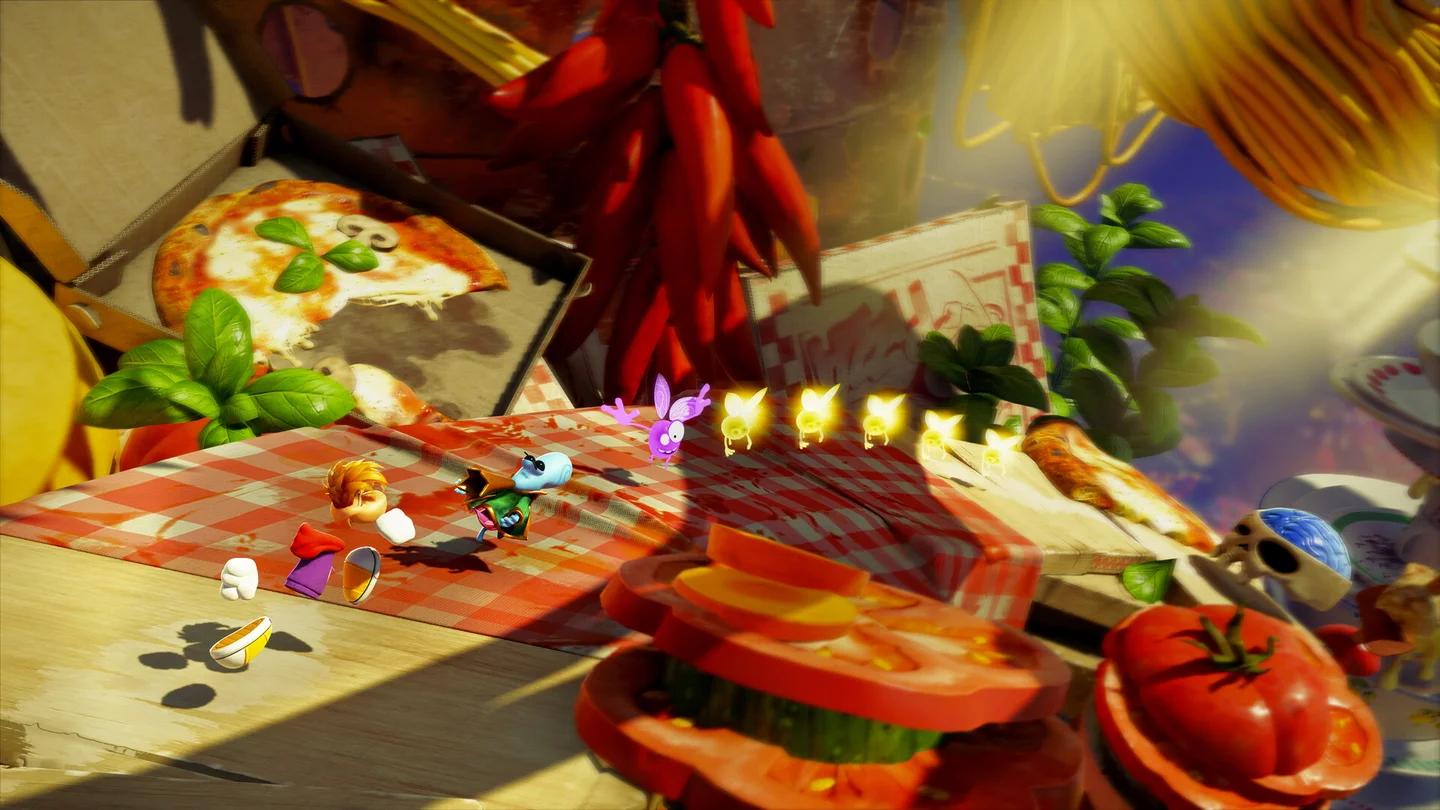
Dragon Rides in Rayman Legends Retold
Use Autoshoot if repeated firing inputs make those sections uncomfortable. It reduces the number of inputs needed; it is separate from display and frame-rate settings.
Visibility and accessibility options
Highlights and high contrast
If you’re struggling with distinguishing gameplay elements from the scenery, start with Highlights. You can use it as an alternative to High Contrast Mode or combine the two.
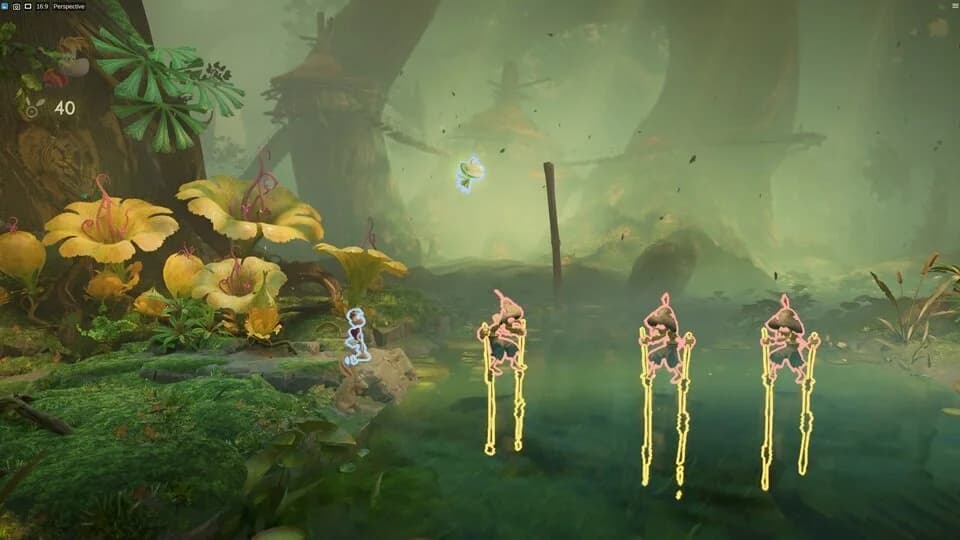
Gameplay element highlights
The highlight categories let you focus on the information you find hardest to recognize:
| Highlight category | Recommended use |
|---|---|
| Enemies & Harmful Objects | Start here when threats are difficult to pick out |
| Rewards | Enable when collectibles are easy to miss |
| Interactive Ingredients | Enable when interactive elements blend into the scene |
| Players | Enable when you lose track of player characters |
High Contrast Mode is designed to make gameplay elements easier to perceive. Use it when highlights alone do not provide enough separation, or choose it as your main readability aid.
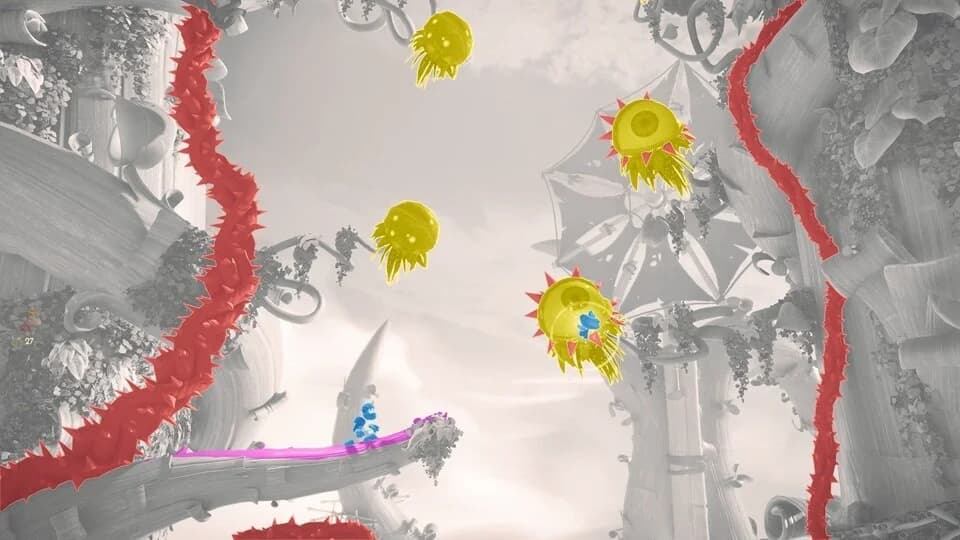
High Contrast Mode gameplay
Disable camera shake if screen movement makes platforming harder to follow. These presentation choices address readability and comfort, not a demonstrated FPS improvement.
HUD backgrounds, subtitles, and fonts
Set HUD Background to 50% opacity as a starting point. Increase it to 100% if scenery still interferes with on-screen information. The feature places a dark background behind HUD elements.
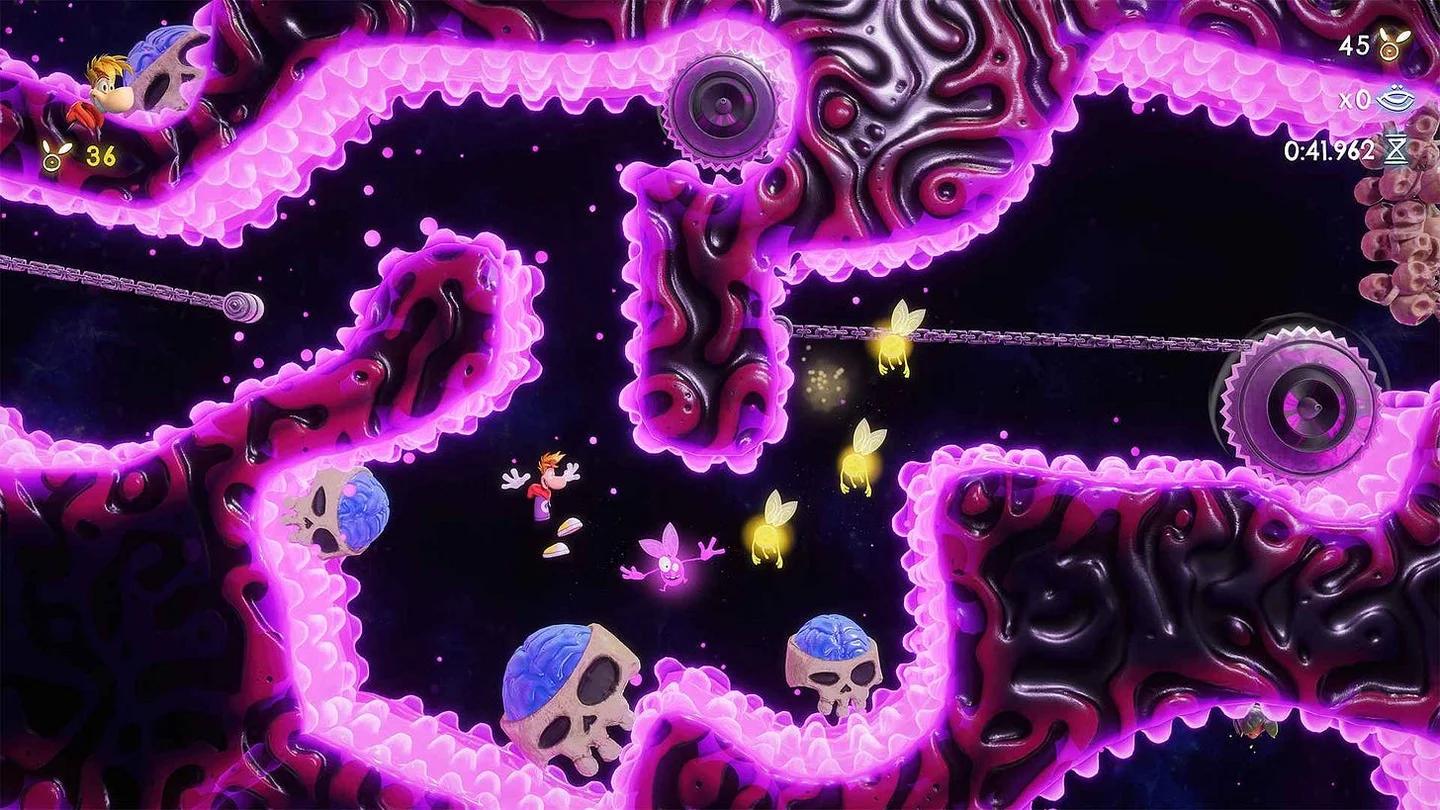
Dark backgrounds behind the HUD
Subtitles offer Small, Medium, and Big font sizes, plus no background, 50% background opacity, or 100% background opacity. Enable speaker names when you want clearer identification during dialogue.
An alternative sans-serif font is also available for readability. Choose the font and subtitle size you can comfortably read at your normal viewing distance.