
To play Rayman Legends Retold couch co-op with up to 4 players, connect compatible controllers to one system and join the local session.
Set up the group before opening a stage so you can sort out player assignments without juggling jumps and enemies. The most useful preparation is choosing how you'll handle movement, mistakes, and assists, especially when some players are still learning the controls.
What you need for local co-op
One local copy is enough for everyone in the room. You do not need separate purchases for each participant, and Deluxe does not unlock extra multiplayer slots.
Prepare these before starting:
- A supported system: PlayStation 5, Xbox Series X|S, Nintendo Switch 2, or PC.
- Enough compatible input devices: Four supported controllers are the straightforward arrangement for a full group.
- Local users or guests where prompted: Assign additional console controllers before entering the game.
- A screen everyone can see clearly: Characters use the same view throughout campaign stages.
Standard and Deluxe include the same campaign co-op. Deluxe adds Retro Pack costumes and an in-game Art Gallery, so choose it for those extras, not for multiplayer access.
On PC, keyboard-and-mouse input is supported, but support for several keyboards at once is unconfirmed. Use gamepads for predictable player assignments. Steam also requires a Ubisoft account.
Connecting controllers and adding players
Pair the additional controllers through your console or PC before launching the game. Connecting a pad and joining the session are separate steps: the system needs to recognize the device before the game can assign its player.
- Connect or pair every controller you intend to use.
- On consoles, assign a local user or guest to each additional controller when prompted.
- Launch Rayman Legends Retold with the host profile.
- At the player-join prompt, press a button on each additional controller.
- Continue to character selection once everyone has joined.
The platform-specific differences are mostly about input devices and account assignments:
| Platform | Controller setup | Detail to account for |
|---|---|---|
| PlayStation 5 | Pair additional DualSense controllers and assign users or guests | Remote Play is separate from adding local controllers |
| Xbox Series X|S | Pair additional Xbox controllers and assign the corresponding profiles | The host's controller counts toward the session's player limit |
| Nintendo Switch 2 | Connect supported controllers for each participant | One attached pair of Joy-Con does not provide enough inputs for a full group |
| PC | Connect compatible gamepads before launching | Four gamepads avoid uncertainty around multi-keyboard assignments |
On Steam Deck or SteamOS, external Bluetooth or USB controllers may need to be selected through the Quick Access Menu. First-time setup also requires an internet connection.
Remote play is a different setup
Steam Remote Play Together streams the host's local multiplayer session to remote friends and shares their inputs with the game. One copy can host that shared session. It is not a separate Ubisoft-hosted campaign lobby.
PS5 Remote Play streams a console session to a compatible device. Nintendo Switch 2 GameShare is also listed, but its listing does not establish a 4-console campaign arrangement. Starting online GameShare requires a Switch 2, GameChat, internet access, Nintendo Accounts, and a Nintendo Switch Online membership, with availability varying by country.
If you're comparing upcoming games for friends in different homes, native online campaign co-op remains unconfirmed for Rayman Legends Retold. Steam's cross-platform multiplayer label does not establish cross-platform story matchmaking.
Starting a stage together
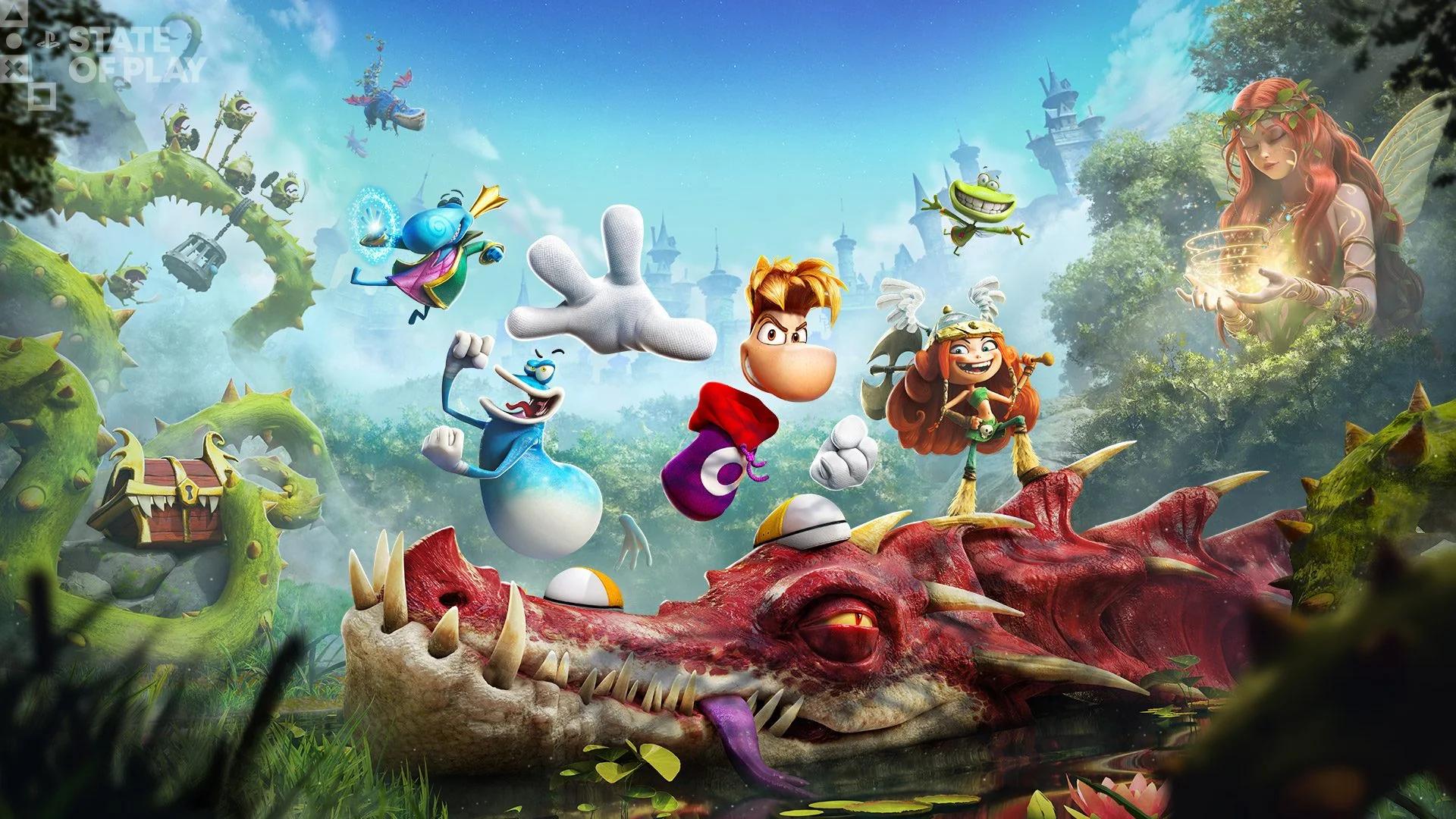
Choose from the returning heroes, including Rayman, Globox, Barbara, and a Teensie. Pick visually distinct characters so each player has a recognizable figure to follow when the group bunches together.
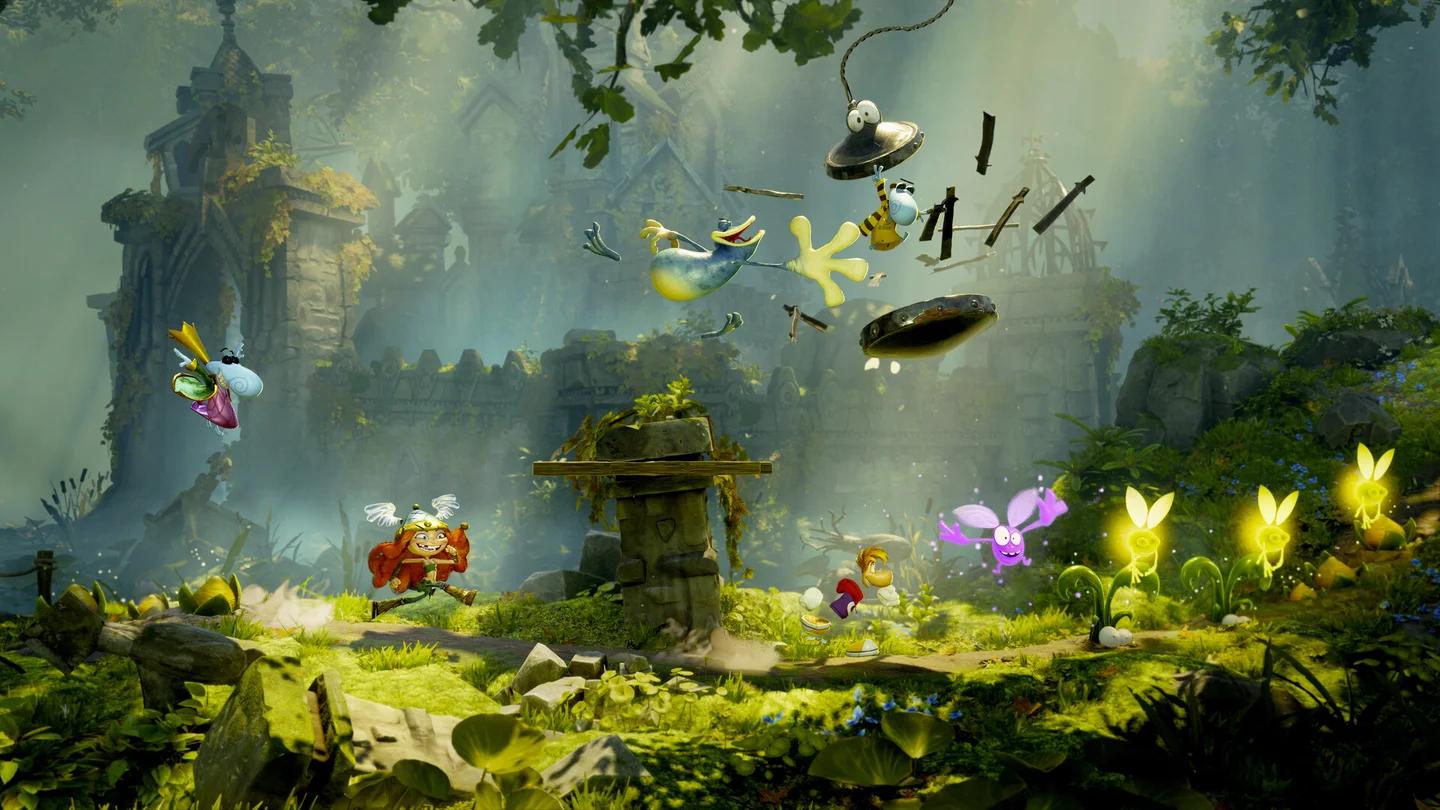
Barbara in Rayman Legends Retold
The entire campaign supports couch co-op, including returning stages, the new sixth realm, musical stages, and dragon rides. You do not need to switch to a separate multiplayer campaign to play those sections together.
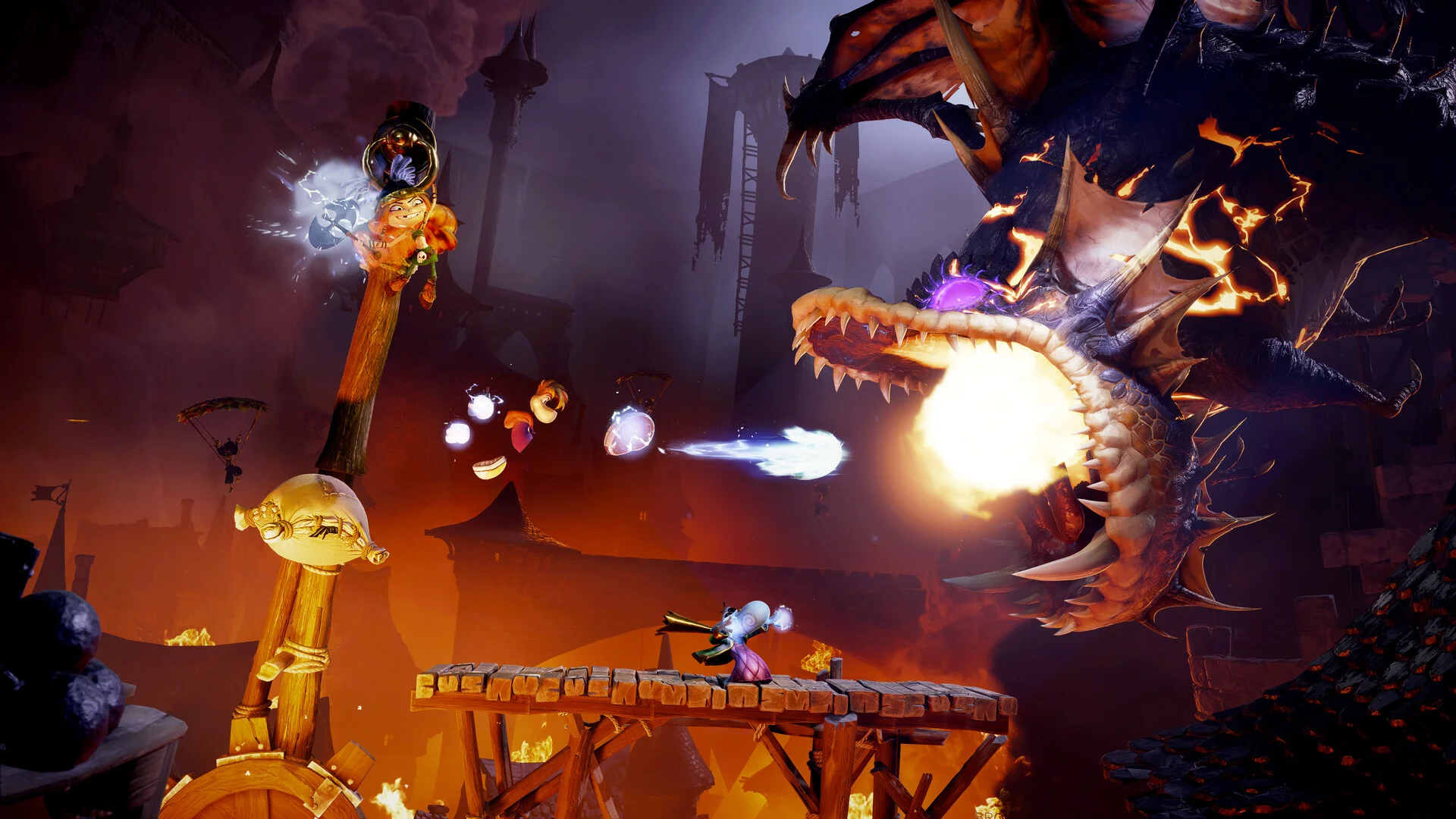
Dragon-riding stages change the movement task: you steer up, down, left, and right to avoid obstacles and fight enemies. Dragons can breathe fire to destroy obstacles and enemies, so coordinate positioning as well as attacks.
Campaign or Kung Foot Evo?
Choose the campaign when you want shared progress through platforming stages. Kung Foot Evo is a separate competitive football-style mode with power-ups and customizable rules, accessed through Kung Foot Island.
| Option | What the group does | Best reason to choose it |
|---|---|---|
| Campaign | Clears stages, rescues Teensies, collects Lums, and handles enemies | Progress through the adventure together |
| Kung Foot Evo | Competes in football matches, including 2v2 doubles | Take a competitive break from platforming |
Local drop-in/drop-out is supported. Use the gap between stages to change the group without interrupting a difficult platforming sequence.
How shared-screen play works
The campaign uses one shared camera, not separate views for each participant. Steam's broader Shared/Split Screen category does not mean everyone gets an independent portion of the display.
Enemy attacks demand the attention familiar from action games, while the shared camera also requires your group to coordinate movement. Agree on a direction before spreading out for collectibles. If someone needs time for a jump, avoid turning the next stretch into a race.
Musical stages can become especially crowded because characters overlap and cluster along the route. Colored highlights distinguish players, objects, enemies, and the intended path. High Contrast Mode separates gameplay elements from the background.
Murfy handles environmental interactions such as cutting, cranking, moving, and rotating objects. Divide the work when those prompts appear: one participant can focus on the interaction while the others handle enemies or cages. Murfy is an assist character, not a fifth human player slot.
Handling mistakes and restarting
A defeated player can float in an energy sphere, with their silhouette visible through scenery. Pressing a button draws that floating player toward the leading character; holding it keeps them attached until they are ready to rejoin.
Use that regrouping option when someone is struggling to keep pace. A player who repeatedly misses the same stretch can stay with the leader instead of immediately attempting another difficult jump. Partners can also revive one another after mistakes.
When you retry from a checkpoint, settle the immediate problem before moving again:
- Missed jumps: Let the struggling player attempt the route without everyone racing ahead.
- Enemies interrupting movement: Have another player focus on clearing the threat.
- Environmental tasks: Assign someone to the Murfy interaction before the rest advance.
- Too much visual clutter: Enable highlights or High Contrast Mode before another attempt.
Agree on the purpose of the next attempt, too. A run focused on reaching the exit calls for different pacing from one spent searching for Teensies and Lums. Campaign players can knock one another away, so save the friendly interference for a stretch the group can handle.
Tips for mixed-skill groups
Start with visibility and health options, then add stronger assistance if the same obstacle keeps stopping progress. These settings address different problems: an outline helps you find your character, while extra protection helps you survive an eligible hit.
Choose the right health option
Rayman Legends Retold offers three health choices:
| Setting | Effect |
|---|---|
| Default Health | Uses the original Legends health behavior |
| Red Heart | Permits one eligible hit |
| Golden Heart | Permits two hits, then changes to Red Heart |
If you're struggling with losing track of your hero, use colored highlights before changing the health setting. For repeated damage from enemies, a heart option addresses the problem more directly.
Use Fairy Blessing for difficult campaign stretches
Fairy Blessing allows flight, prevents damage, and still lets you fight and collect items. It can revive both your character and floating allies, and it has no usage limit. Enable it through Settings or Betilla.
The default Fairy Blessing input is L2 on PlayStation, LT on Xbox, and ZL on Nintendo Switch 2. The control can be remapped.
Fairy Blessing is disabled in hubs, Kung Foot Evo, and every Cave of Trials challenge. Use it to keep a campaign group moving, but do not plan a competitive match or trial around its protection.