
The Blood of Dawnwalker can push mid-range hardware hard, especially in the dense forests of Vale Sangora and during combat with heavy particle effects. The good news is that you do not need to flatten every setting to Low. A handful of options carry the majority of the performance cost, and targeting those first lets you recover serious frames while keeping the game looking respectable.
The settings that actually matter for FPS
Not every graphics option hits performance equally. Testing at 1440p on an RTX 5080 showed the full preset swap from Ultra to Low roughly doubling output, from the 40 FPS range up to around 80 FPS. Within that gap, Reflections Quality produced the single largest isolated gain, jumping from roughly 68 FPS to 83 FPS when dropped to Low. Shadow Quality moved the needle from about 69 to 75 FPS, and Light Quality added around four more frames on top.
On more common hardware, an RTX 4060 at 1440p climbed from a 50 FPS average on High to 62 FPS with a custom config that set Shadow Quality to Low and kept Light, Foliage, and Detail Quality at Medium. Those numbers are scene-specific and hardware-specific, but the priority order holds across systems.

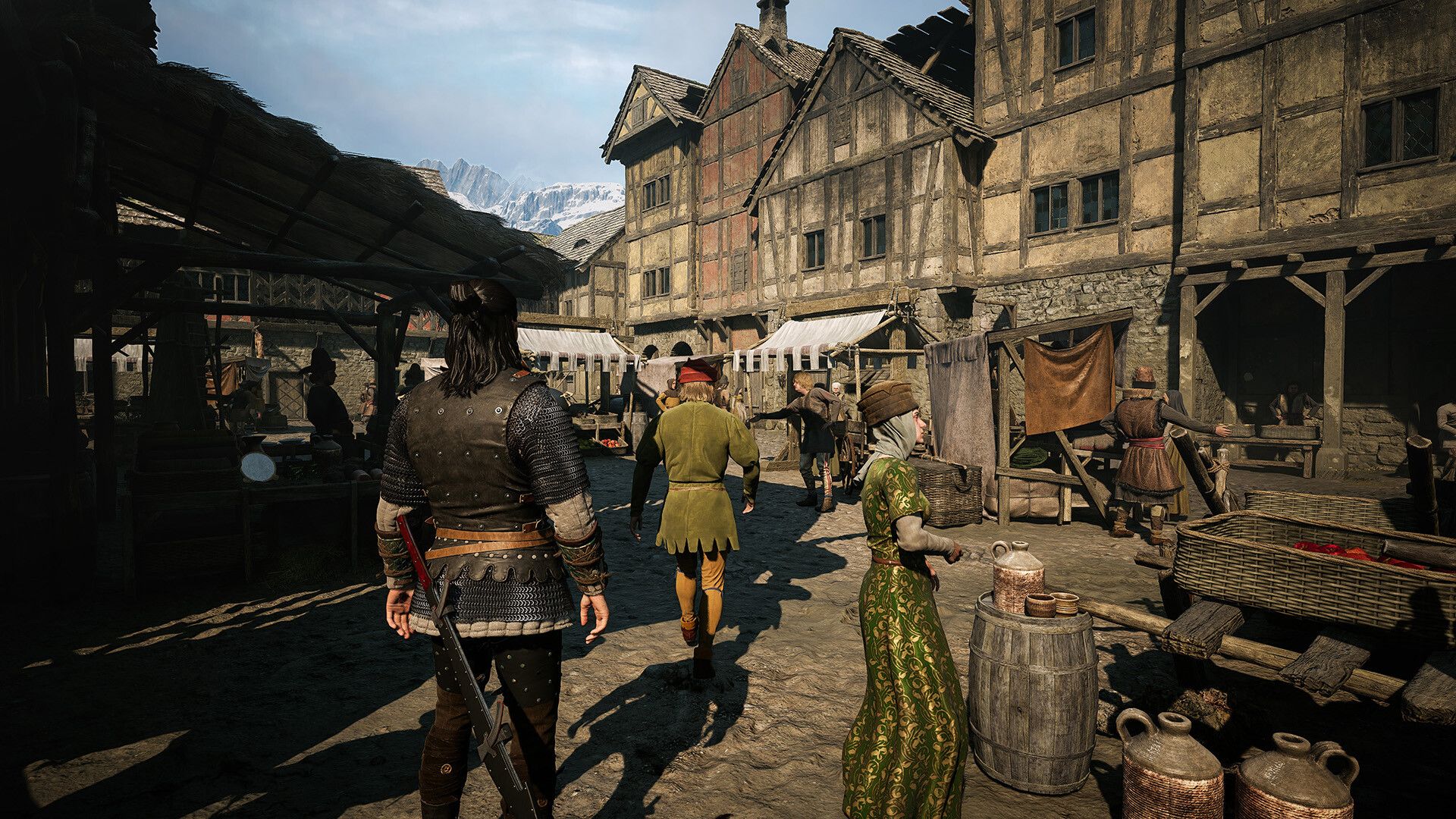
Recommended PC Settings
The table below is a practical starting point for higher FPS without stripping Vale Sangora down to a flat render. Setting names match the options in the PC version.
| Setting | Recommended Value |
|---|---|
| Display Mode | Fullscreen or Borderless Windowed |
| Resolution | Monitor's native resolution |
| Frame Rate Limit | Off, or capped to a stable target |
| VSync | Off with G-Sync or FreeSync |
| Quality Preset | Custom |
| Reflections Quality | Medium; Low for more FPS |
| Effects Quality | High on stronger PCs; Low on weaker PCs |
| Shadow Quality | Low |
| Light Quality | Medium; Low for more FPS |
| Detail Quality | Medium; Low for more FPS |
| Foliage Quality | Medium; Low if forests cause drops |
| Volumetric Quality | Medium |
| Shading Quality | Medium |
| Texture Quality | As high as VRAM allows |
| Post-Processing Quality | Medium |
| Upscaling Technology | DLSS, FSR, or XeSS |
| Upscaling Quality | Quality or Balanced |
| Frame Generation | Optional after testing base FPS |
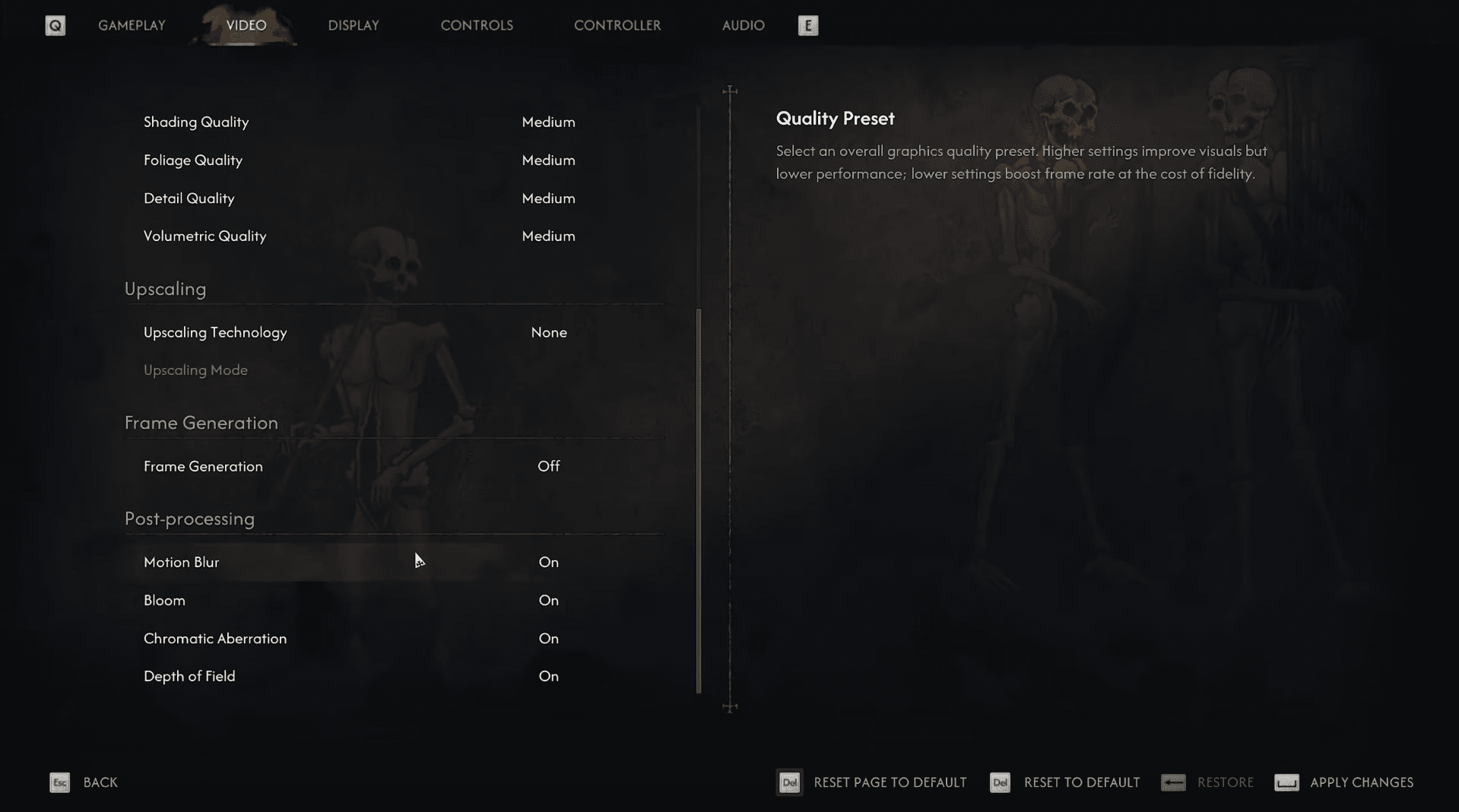
| Motion Blur | Off |
| Bloom | Personal preference |
| Chromatic Aberration | Off |
| Depth of Field | Personal preference |
Display settings
Fullscreen is the first mode to test when raw performance is the goal. Borderless Windowed is fine if alt-tabbing matters to you and testing shows no meaningful FPS difference between the two.
Keep resolution at your monitor's native value. Dropping it manually can raise FPS, but running an upscaler at native resolution produces a cleaner result than reducing output resolution directly. The Frame Rate Limit can stay disabled when you want the highest possible output, though a cap helps when your system cannot hold a consistent frame rate or when you are running OBS alongside the game.
Disable VSync if your monitor supports G-Sync or FreeSync. If screen tearing persists without variable refresh rate, you can turn VSync back on. Turning off the Play Intro Cinematic on Startup option also gets you to the menu faster, though it has no effect on in-game performance.
How to configure each graphics setting
The Blood of Dawnwalker Guide: Best PC Settings for Max FPS
Reflections Quality
This is the first option to reduce. Medium recovers significant performance over High or Ultra while keeping water and surface reflections recognizable. Drop it to Low when every frame counts.
Shadow Quality
Set this to Low for a max-FPS configuration. Shadows still render, but shadow pop-in becomes more noticeable in the open world. The FPS return justifies the trade-off on most systems.
Light Quality
Medium is the sensible stopping point. Low gives a smaller additional gain with limited visual change during normal gameplay, so it is worth trying if you are still short of your target frame rate after adjusting shadows and reflections.
Detail Quality
This setting controls environmental detail and terrain deformation. Medium works well for a balanced config. Low is the right call when chasing the highest possible FPS. Ultra should only stay enabled when the extra terrain detail is worth the cost.
Effects Quality
High is a reasonable default on stronger hardware. CPU-limited systems or weaker GPUs should drop this to Low. Ultra is only worth keeping if it does not interfere with your target frame rate.
Foliage Quality
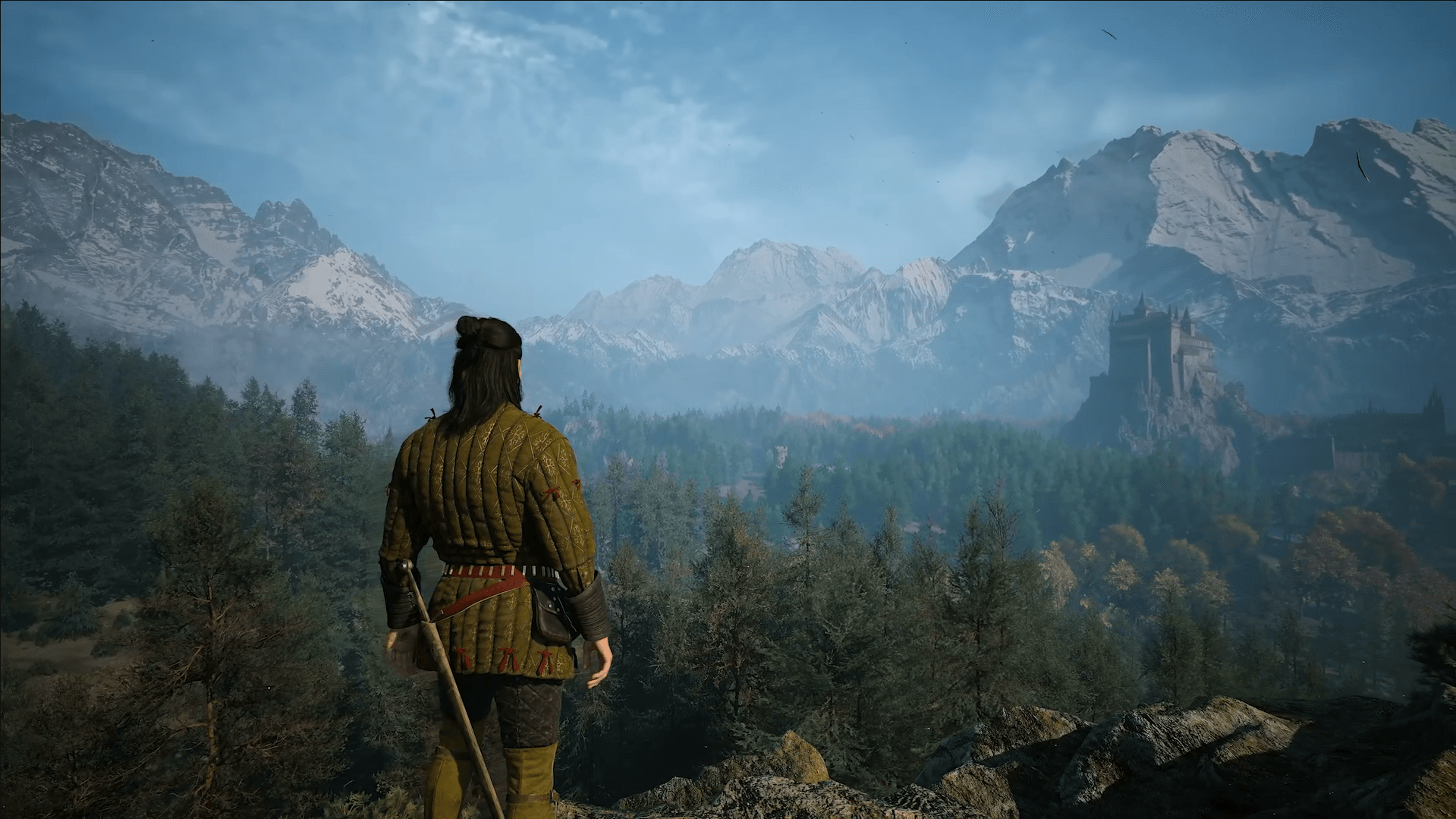
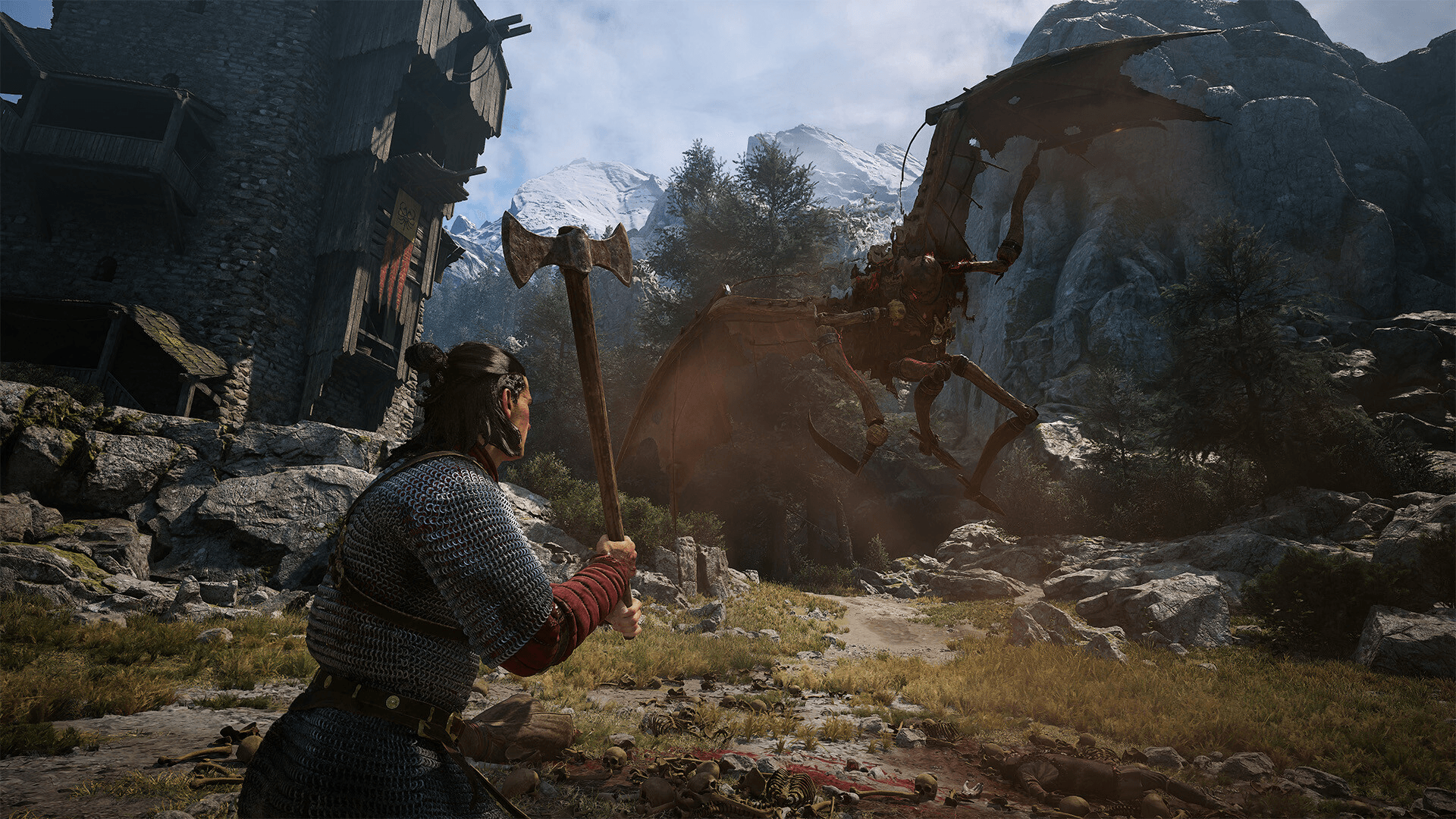
Medium keeps forests in Vale Sangora looking populated. Drop to Low specifically if you notice frame rate dips while moving through vegetation-heavy areas.
Volumetric Quality
Controls fog, clouds, and atmospheric effects. Medium is a sensible floor because reducing it further tends to produce only a small gain in most scenes.
Shading Quality
Generally has less impact than shadows, lighting, detail, or reflections. Keep it at Medium unless you still need a few extra frames after adjusting the higher-priority settings.
Texture Quality
Texture Quality is more dependent on available VRAM than raw GPU speed. It can usually stay higher than other settings because it improves clothing, skin, terrain, and building surfaces without heavily cutting FPS when enough memory is available.
Lower it if the game stutters, textures load slowly, or VRAM usage hits your card's limit. Cards with limited VRAM should start at Medium. Cards with more headroom can test High or Ultra.
What upscaling mode should you use?
Upscaling delivers one of the largest performance gains available in the game. The right technology depends on your GPU:
- Nvidia RTX: DLSS
- AMD Radeon: FSR
- Intel Arc: XeSS
- Older GPUs without DLSS support: FSR or XeSS, depending on compatibility and image quality
At 1080p, start with Quality mode. Lower modes can make hair, foliage, and moving objects look unstable at that resolution. At 1440p, Quality gives the cleaner image while Balanced offers more performance. At 4K, Balanced is a reasonable starting point, with Performance reserved for systems that still cannot hit their target.
Ultra Performance should be a last resort. Its low internal rendering resolution introduces blur, shimmering, and visible breakup around vegetation and character edges.
The Blood of Dawnwalker Guide: Best PC Settings for Max FPS
One important note: the official PC requirement targets were measured with Balanced upscaling. The GTX 1060 and RX 580 minimum spec targets 1080p, 30 FPS, and the Low preset. Hardware at the minimum spec will not hit 60 FPS natively.
Should you enable Frame Generation?
Frame Generation inserts generated frames between normally rendered frames, raising the displayed FPS without improving actual input responsiveness at that same rate. Treat it as a smoothing option rather than a fix for genuinely low performance.
Get your base frame rate stable first, ideally around 50 to 60 FPS or higher, by lowering the demanding settings and selecting an appropriate upscaling mode. Then test Frame Generation on top of that.
In RTX 4060 testing, experimental 2x Frame Generation raised a 50 FPS average to 73 FPS, but it also introduced occasional visual artifacts and slightly increased input latency. If you notice heavier-feeling controls, image breakup around Coen, or artifacts during quick camera movement, turn it off.
Post-processing: small impact, personal preference
The individual post-processing options have a smaller performance cost than shadows, reflections, lighting, and upscaling. Adjust them to taste.
- Motion Blur: Off for a clearer image during camera movement
- Bloom: On or Off based on preference; the FPS difference is minimal
- Chromatic Aberration: Off for cleaner screen edges
- Depth of Field: On for cinematic dialogue scenes, Off for sharper backgrounds
What order should you lower settings if FPS is still low?
If you are still short of your target after applying the table above, work through this priority order:
- Shadow Quality to Low
- Reflections Quality to Low
- Light Quality to Low
- Detail Quality to Low
- Foliage Quality to Low
- Change Upscaling Quality from Quality to Balanced
- Reduce Texture Quality only if VRAM is the limiting factor
Getting the most out of your hardware
The settings above are a starting point, not a fixed prescription. Performance varies by GPU, CPU, resolution, driver version, and the specific area of the world you are in. Dense forest sections and particle-heavy combat will always cost more than open terrain, so benchmark in those areas rather than the main menu or a quiet indoor space.
For everything else you need before and after launch, including how long a full playthrough takes and what each edition includes, the full Blood of Dawnwalker guides collection has you covered across every platform and playstyle. If you play other RPG games on PC, the same general priority order for shadows, reflections, and upscaling tends to apply across most modern open-world titles.