
WWE 2K26 Universe Mode is the sandbox at the heart of the game, and it rewards players who treat it like a long-term booking project rather than a quick exhibition run. Whether you're rebuilding a brand from scratch or running a multi-show operation with custom storylines, knowing how the mode's systems connect makes all the difference. This guide covers setup, booking strategy, and the creative tools that separate a forgettable save file from one you'll still be playing six months from now.
What is Universe Mode in WWE 2K26?
WWE 2K26 Universe Mode is the game's long-form career sandbox. You control the entire WWE operation: which superstars appear on which shows, how championships are defended, and how rivalries develop over weeks of programming. There's no fixed endpoint. You set the pace, the drama, and the direction.
The mode sits apart from MyGM and MyRise. It doesn't track a season budget or lock you into a character arc. Think of it as a blank booking sheet where every decision is yours.
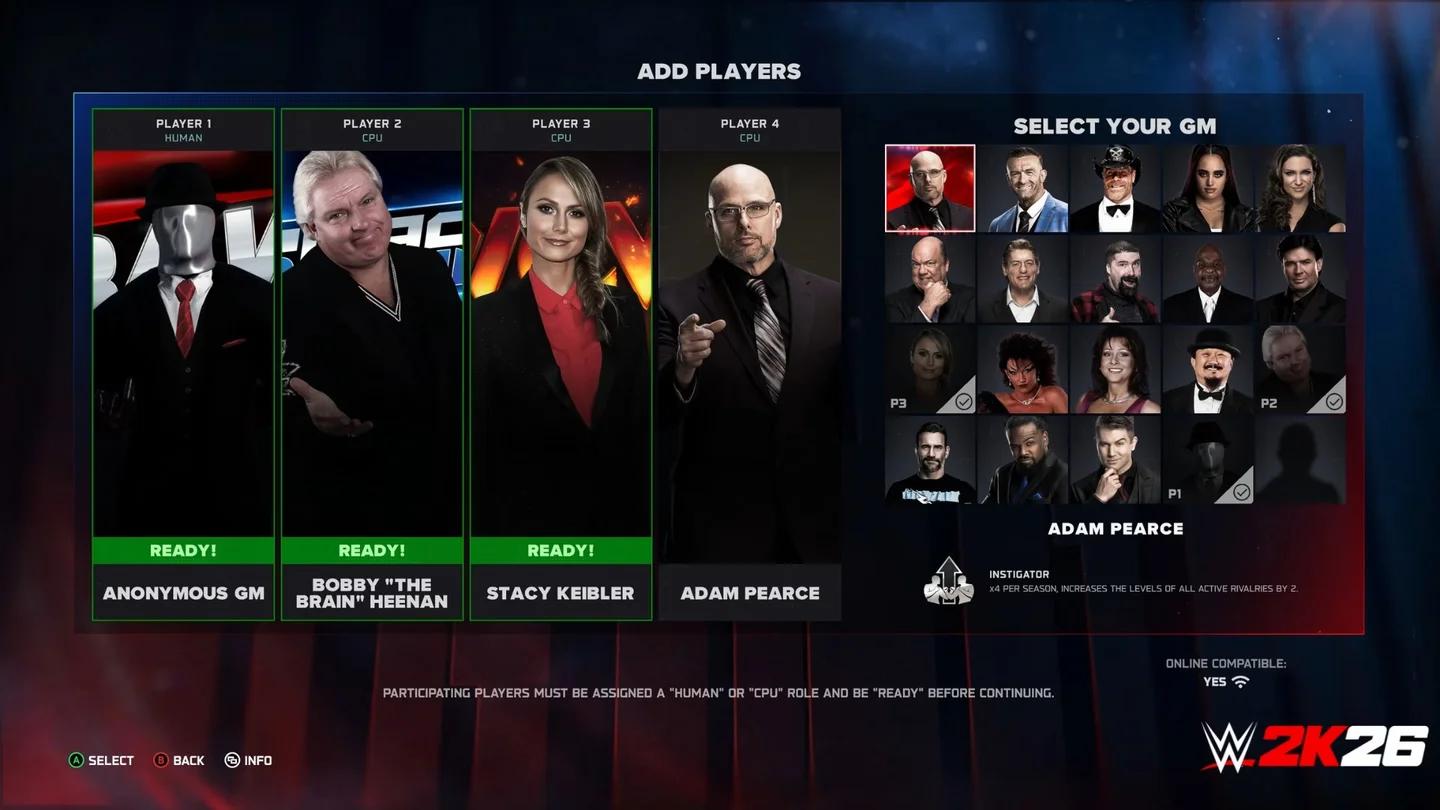
Universe show setup screen

How do you set up Universe Mode correctly?
The setup phase matters more than most players realize. Rushing through it means spending hours correcting avoidable problems later.
Choose your shows and rosters carefully
Start by deciding how many shows you want to run. Running two or three active brands is manageable. Running five simultaneously spreads your roster thin and makes meaningful rivalries harder to track. Assign superstars to specific shows before your first week begins, because the auto-assign option often produces rosters that feel random rather than curated.
If you're building around a specific era or theme, this is the moment to set it up. Move legends to the shows where they fit, keep championship pictures clean, and decide which titles will be active from day one.
Configure match and show settings
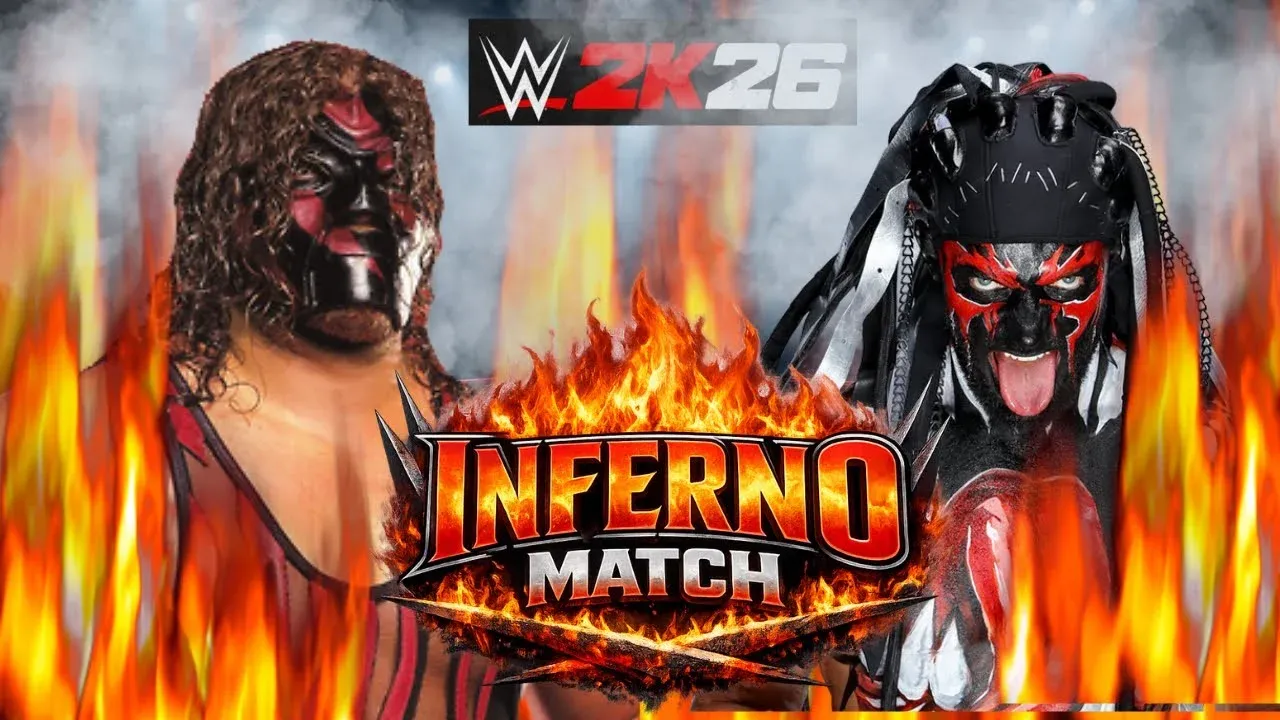
Before simulating anything, check your show settings. You can control how many matches appear per episode, which match types are available, and how frequently title matches are booked. Setting these early prevents the CPU from booking championship matches every single week, which kills long-term storytelling momentum.
How does booking work in WWE 2K26 Universe Mode?
Booking is the core loop. Each week you're presented with a show card and you decide what gets played, what gets simulated, and how storylines progress.
Playing vs. simulating matches
You don't have to play every match. Simulating undercard bouts while playing the main event keeps sessions from dragging. The simulation engine respects superstar ratings, so a 90-rated superstar will win simulated matches at a much higher rate than a 70-rated one. Use this to protect your top talent without having to manually control every match.
Where you should always play: championship matches, rivalry payoffs, and any match where you want a specific outcome that contradicts the ratings (an upset, a screwjob finish, a count-out that advances a story).
Championship booking strategy
The mistake most players make is putting the title on the most popular superstar immediately and then running out of challengers within four weeks. Build a contender's picture first. Run two or three matches on separate shows to establish who deserves a title shot before the championship match happens.
Changing titles too frequently also deflates their value in your save. A good rule of thumb: let a reign run at least four to six weeks before planning a change, unless the story demands otherwise.
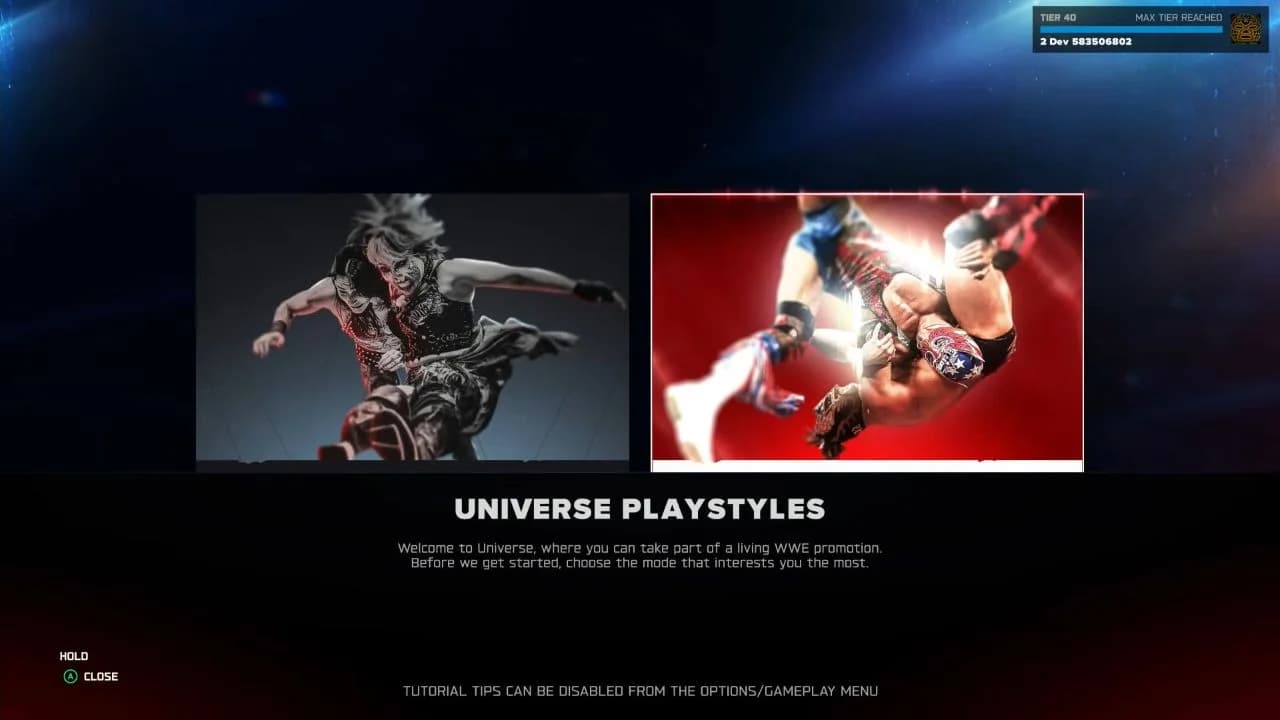
Championship booking in Universe
What creative tools does Universe Mode offer?
This is where WWE 2K26's expanded flexibility shows up. The mode gives you more control over presentation and storytelling than previous entries.
Custom shows and arenas
You can assign custom arenas to specific shows, which makes branded programming feel distinct. Pairing a custom arena with a custom show logo turns a generic Raw episode into something that feels like your own promotion.
Rivalry management
Rivalries in WWE 2K26 Universe Mode track intensity over multiple weeks. A rivalry that's been running for six weeks with consistent interactions will generate higher-rated matches and more dramatic cutscenes than one that started last week. Patience pays off here. Let feuds breathe before booking the blowoff.
You can also manually trigger rivalry events, like a backstage attack or a contract signing segment, to push intensity faster when you need to hit a specific storyline beat.
Superstar roles and alignment
Assigning heel and face alignments to superstars affects how the CPU books them in rivalries and how crowd reactions play out during matches. Keep these updated as your storylines evolve. A superstar who turns heel mid-rivalry should have their alignment updated immediately so the game's logic reflects the change.
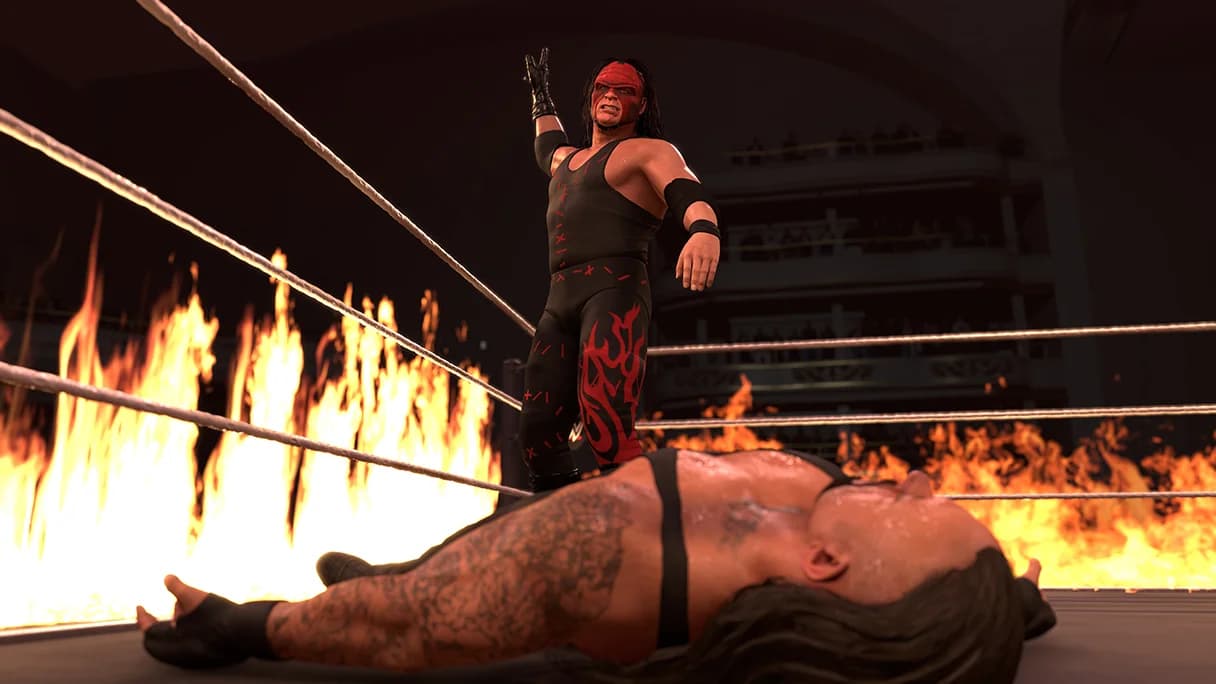
Rivalry intensity tracker
Tips for long-term Universe Mode saves
Most Universe Mode saves die around week 20 because the initial excitement fades and the booking starts to feel repetitive. Here's how to keep momentum going.
Rotate your main event picture
Push midcard talent into the main event scene every few months. This prevents the top of your card from stagnating and gives you fresh matchups that feel earned rather than recycled. Use the midcard titles as a proving ground: a superstar who holds the Intercontinental Championship for eight weeks and defends it consistently has a credible path to the main event.
Create your own pay-per-view calendar
Universe Mode lets you customize the pay-per-view schedule. Building a custom calendar with themed events gives your save a structure that keeps booking purposeful. If you know a big event is six weeks away, you'll naturally build toward it instead of booking week-to-week without direction.
Use created superstars to fill gaps
If your roster has a thin tag team division or no credible heels in a certain weight class, create superstars to fill those gaps. WWE 2K26's creation suite gives you enough tools to build convincing characters who can serve specific roles in your booking without disrupting the real roster.
Comparison: Universe Mode vs. MyGM vs. MyRise
| Feature | Universe Mode | MyGM | MyRise |
|---|---|---|---|
| Creative control | Full | Partial | None |
| Budget management | No | Yes | No |
| Player character | No | No | Yes |
| Season structure | Open-ended | 50 weeks | Linear |
| Rivalry system | Manual + auto | Auto | Scripted |
| Custom shows | Yes | Limited | No |
For players who want total booking freedom, Universe Mode is the right choice. If you prefer structured competition with financial strategy, the WWE 2K26 MyGM mode guide covers that mode in full.
Common Universe Mode mistakes to avoid
- Booking title matches too frequently, which makes championships feel meaningless
- Ignoring alignment settings after a character turn
- Running too many shows simultaneously without enough roster depth
- Simulating every match and never engaging with the mode's match systems
- Forgetting to update custom show settings before starting a new season
Frequently asked questions
Can you add created superstars to Universe Mode? Yes. Any superstar in your roster, including created characters, can be assigned to a show and booked in matches.
Does Universe Mode have an end point? No. It runs indefinitely until you reset or start a new save.
Can you change show names and logos? Yes, through the show customization menu before or during your save.
What happens if you simulate a match you wanted to play? The result is generated by the CPU based on ratings. You can manually override the result in the match history before it affects storylines, but this window is limited.
Is Universe Mode connected to MyFACTION or MyRise progress? No. The modes are separate, though unlocked superstars from other modes appear in your full roster. For a full breakdown of how to unlock every superstar, the WWE 2K26 superstar unlock guide has everything you need.
For everything else the game has to offer, the full WWE 2K26 guides collection covers every mode in detail, including the WWE 2K26 beginner's guide if you're still getting comfortable with the core mechanics.