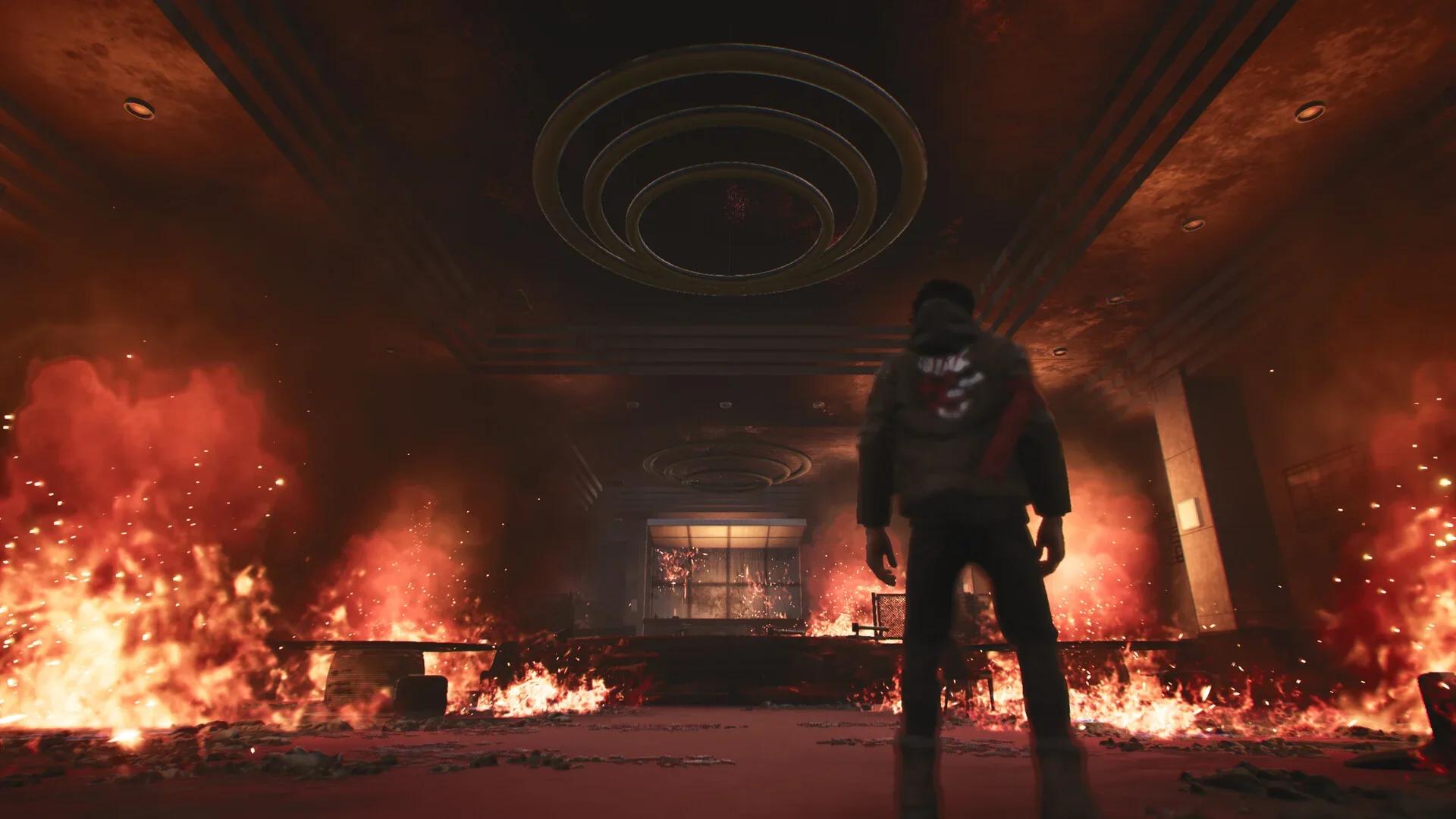

Start troubleshooting Acts of Blood PC crashes and stuttering with game updates, Steam file verification, graphics drivers, and overlay settings. These are general Steam and Windows troubleshooting steps, not confirmed fixes for a particular Acts of Blood bug. Work through the sections in order and change one thing at a time. If the game starts normally but hitches during fights, move to the frame-pacing section after completing the basic checks.
Check system requirements and game updates
Official minimum and recommended PC requirements were still unannounced as of November 20, 2026. That dated status does not establish the launch requirements, so no specific CPU, GPU, RAM amount, or storage target is presented here as an official specification.
Start with the installed game. Open Steam's Downloads page and let any queued Acts of Blood update finish before launching. If Steam itself has an update waiting, finish that update and restart the client.
Separate the symptom before choosing your next step:
| What happens | Problem type | Troubleshooting priority |
|---|---|---|
| The game closes before reaching a usable menu | Startup crash | Installed files, drivers, and software conflicts |
| The game runs, then closes during play | In-game crash | File integrity, drivers, and repeatable triggers |
| Movement pauses briefly, then resumes | Stuttering | Frame delivery and competing background activity |
| Movement remains consistently sluggish | Low frame rate | Rendering load and a sustainable frame-rate target |
A crash alone does not identify a failing component. Avoid buying replacement hardware before working through the software steps below.
Verify game files
Steam's file verification checks installed game files and downloads replacements when needed. Use it before attempting a full reinstall, particularly if a download was interrupted or the game stopped launching after an update.
Run Steam's integrity check
- Close Acts of Blood.
- Open your Steam Library.
- Right-click Acts of Blood and select Properties.
- Open Installed Files.
- Select Verify integrity of game files.
- Wait for verification and any replacement downloads to finish, then launch the game normally.
Verification repairs the installation; it does not update your graphics driver or remove a conflicting overlay. If Steam finishes without resolving the problem, continue to the next section instead of repeatedly running the same check.
Do not manually delete configuration folders or save files as part of this step. Those are separate changes, and no Acts of Blood-specific reset procedure is established here.
Update graphics drivers
Install a graphics driver supplied by the maker of your GPU. NVIDIA, AMD, and Intel provide their own driver tools and downloads. Choose the package that matches your graphics hardware and Windows version, not a third-party driver updater.
For an NVIDIA system, the NVIDIA App's Drivers section provides the driver update interface. This is a graphics-driver step, not an Acts of Blood setting.
Retest after installation
Finish the installation and restart Windows if the installer requests it. Launch Acts of Blood before reopening recording software, performance overlays, or other optional utilities.
If the crashes began immediately after a driver change, returning to a previous driver supplied by the GPU maker is a separate troubleshooting option. Avoid switching driver versions while also changing game settings, because you lose the ability to identify which change helped.
Troubleshoot startup crashes and overlays
A startup failure gives you little opportunity to change settings inside the game. Focus first on software that interacts with the game process and any custom launch configuration you added yourself.
Disable optional overlays
Start with Steam's per-game overlay:
- Right-click Acts of Blood in your Steam Library.
- Open Properties, then General.
- Turn off Enable the Steam Overlay while in-game.
- Close the properties window and try launching again.
Next, fully exit optional chat overlays, GPU performance displays, screen recorders, and frame-rate monitoring tools. Hiding an overlay's display may leave its software running, so use the application's exit control when testing.
If the game starts successfully, reopen those tools individually. Leave the conflicting tool disabled while playing.
Remove custom launch changes
Clear launch options that you previously added in Properties > General > Launch Options. An empty field restores Steam's normal launch behavior without requiring a guessed graphics API command.
Launch through Steam while troubleshooting. Avoid adding administrator mode, compatibility settings, or copied launch flags as a bundle of supposed fixes.
Reduce stuttering during combat
Steady frame delivery makes combat easier to read in action games. A high peak frame rate is less useful when fights repeatedly pause or slow down. For this part of troubleshooting, compare performance in the same playable area so that a quieter scene does not disguise the problem.
Remove competing background activity
Pause large downloads and stop unnecessary recording sessions before playing. Open Task Manager with Ctrl + Shift + Esc and close applications you recognize and do not need, such as a browser running video streams.
Leave unfamiliar Windows processes alone. The aim is to remove optional workloads, not disable system services.
On a laptop, connect the power adapter and turn off battery-saving operation while testing. Keep ventilation openings clear so the machine can maintain its normal cooling airflow.
Choose a sustainable frame-rate target
If the game exposes a frame-rate limit, choose a target it can maintain during combat. A 60 FPS limit is a reasonable trial when performance remains above 60 FPS, but it is not a promise that every PC can sustain that target.
A cap cannot repair frames that already take too long to render. If performance regularly falls below your chosen limit, reduce rendering load before judging the result.
Use only graphics controls actually present in the game. If resolution or rendering-quality options are available, lower one setting, return to the same area, and compare. Keep the change only if it helps enough to justify the visual trade-off.
Do not paste configuration commands from another game into Acts of Blood files. Similar-looking games do not necessarily share supported settings, file paths, or rendering behavior.
What to include in a bug report
If the problem remains, describe the failure precisely. A useful report separates an unexpected exit from a brief freeze and explains whether the problem happens on every attempt or only under particular conditions.
Include:
- Failure point: Before the menu, while loading, or during gameplay.
- Exact error: Copy the full message or attach a readable screenshot if one appears.
- Reproduction steps: Explain what you did immediately before the failure and whether repeating those actions triggers it again.
- PC details: CPU, GPU, RAM, Windows version, and graphics-driver version.
- Game version: Include the version or build number if the game displays one.
- Previous troubleshooting: List the changes already attempted and whether each affected the problem.
- Visual evidence: Attach a short clip for stuttering when practical, noting whether recording changes the behavior.
If the game crashes at a repeatable point, name the location or activity as it appears in the game. Back up your saves before attempting a full reinstall or deleting any game data.
