Search games, articles, guides...CtrlK
Sign InGet Started

Master Borderlands 4s demanding PC settings with our expert optimization guide. Fix stutters, boost FPS, and enjoy smooth vault hunting.

Written by Mostafa Salem
Head of Gaming Research
See more GAMES.GG guides on Google
Add us as a preferred source and our guides show up first in your results.
Borderlands 4 Guide: All Legendary Class Mods in Story Pack 2
Every Legendary Class Mod in Story Pack 2 for all six Vault Hunters, with full effects and farming tips for Providence Island.

Borderlands 4 Loveless Build Guide: Best Builds for Every Playstyle
Master Loveless in Borderlands 4 with the best Plague Star, VPN sniper, and Malignant Construct builds for endgame domination.

Borderlands 4 C4SH Skill Tree Guide: All Actions, Passives, and Augments
Master C4SH's Fortune-based skill trees in Borderlands 4. Full breakdown of all Action Skills, passives, and Augments across all three trees.
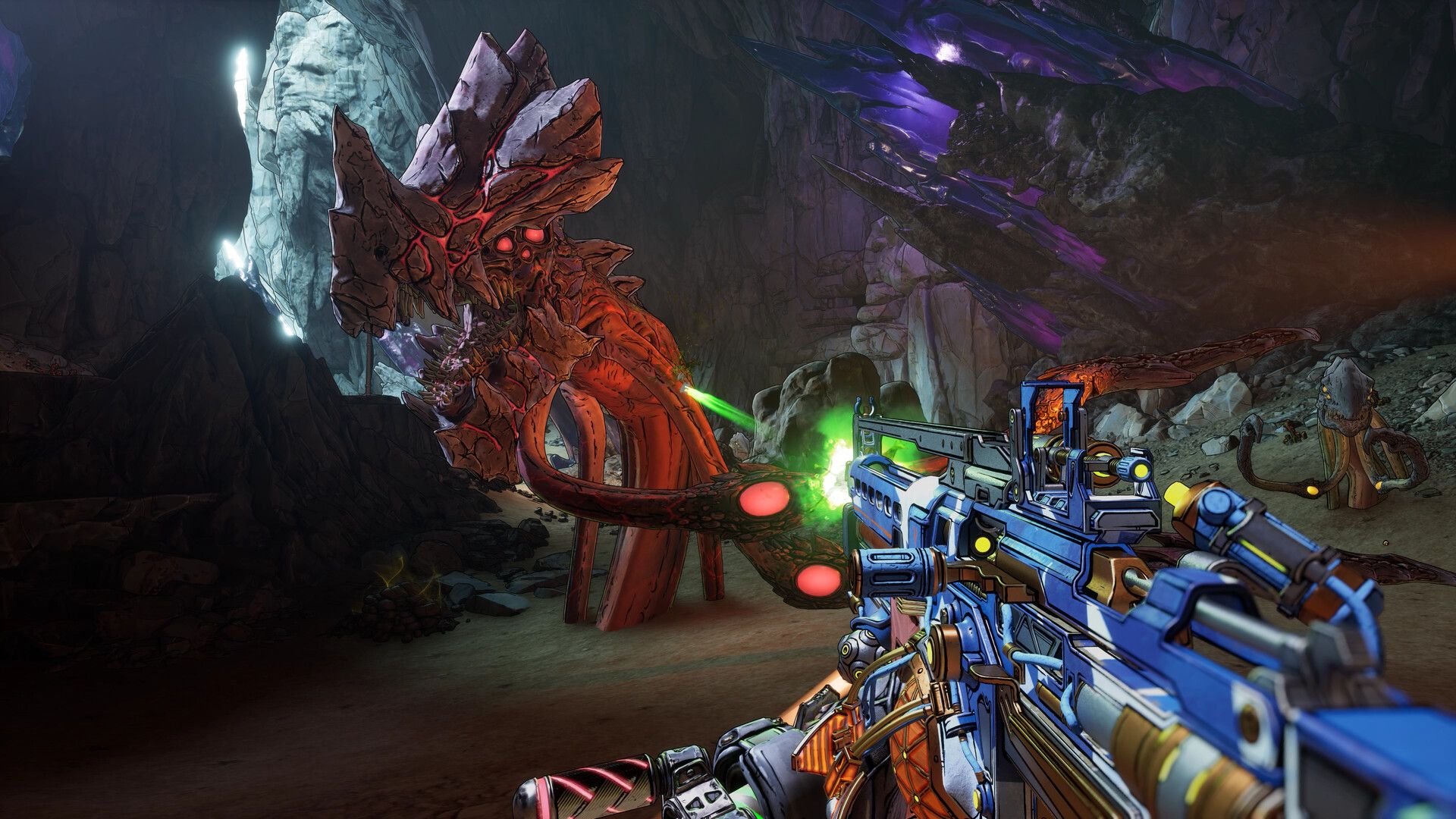
Borderlands 4 has arrived with stunning visuals that push PC hardware to its limits. While the game delivers an incredible looter-shooter experience, many players are struggling with performance issues, stuttering, and frame drops. Do not let technical problems ruin your vault hunting adventure. With the right settings tweaks, you can achieve smooth gameplay while maintaining the game’s signature cel-shaded beauty.
Built on Unreal Engine 5, Borderlands 4 demands significantly more from your system than previous entries. The game's seamless open world, enhanced lighting, and complex particle effects create a perfect storm for performance challenges. Even high-end rigs can struggle without proper optimization.
The official specs tell the story: minimum requirements target 1080p at 30 FPS with Low Preset settings, while recommended specs aim for 1440p at 60 FPS with Medium Preset settings. These targets assume you're using the optimization techniques we'll cover.
Your graphics configuration makes the biggest impact on frame rates. Here's how to balance visual quality with smooth performance:
| Setting Category | Recommended Value | Performance Impact | Visual Trade-off |
|---|---|---|---|
| Graphics Preset | Custom | High | None (manual control) |
| Texture Quality | High (8GB+ VRAM) / Medium (≤6GB) | Medium | Minimal on high-end cards |
| Shadow Quality | Medium | Very High | Barely noticeable in action |
| Volumetric Fog | Low | High | Slight atmosphere reduction |
| Reflection Quality | Low | Medium | Minor visual impact |
Texture Streaming should stay on Medium - this prevents the constant texture pop-in that ruins immersion. If you're running the game from an SSD (which is required), this setting works beautifully without hammering your frame rate.
Global Illumination deserves special attention. Set it to Medium for the sweet spot between visual fidelity and performance. The Very High setting tanks FPS for minimal visual improvement in Borderlands' stylized art style.

Borderlands 4 optimised settings guide ...
The advanced settings menu holds the real optimization gems. These options can transform your experience from stuttery to silky smooth:
Choose your upscaling method based on your GPU:
Frame Generation deserves caution. Only enable it on RTX 40/50 series cards, and always pair it with NVIDIA Reflex Low Latency set to Enabled + Boost. This combination minimizes the input lag that frame generation typically introduces.
Set your Frame Rate Limiter to match your monitor's refresh rate. This prevents your GPU from working overtime and maintains consistent frame pacing. For 144Hz monitors, cap at 144 FPS rather than letting frames run unlimited.
Future Frame Rendering should stay Off - this reduces input lag by preventing the CPU from preparing too many frames ahead of what you're seeing.
Your camera settings directly impact both performance and gameplay quality:
Set Field of View between 100-110 degrees. This wider perspective helps you spot enemies at screen edges during chaotic firefights. The performance cost is minimal compared to the tactical advantage.
Vehicle 3rd Person FOV works best at 80-85 degrees - wide enough for situational awareness without the distortion that higher values create.
Turn off these performance-killing visual effects:
These effects add visual noise without improving the game's aesthetic. Disabling them provides cleaner visuals and better enemy visibility.

Best Settings, Borderlands 4 PC ...
Your display configuration affects both performance and responsiveness:
| Setting | Recommendation | Reason |
|---|---|---|
| Fullscreen Mode | Fullscreen | Maximum performance, lowest input lag |
| Resolution | Native monitor resolution | Sharpest image quality |
| Vertical Sync | Off | Eliminates input lag (use G-Sync/FreeSync instead) |
| HDR | On (if supported) | Enhanced color range |
Brightness should sit around 50-60 - bright enough to spot enemies in dark areas without washing out the game's vibrant color palette.
Proper audio configuration helps you track enemies and react to threats:
Understanding what your hardware can realistically achieve prevents frustration:
If you experience stuttering after changing settings, this is normal shader recompilation. The game needs time to optimize for your new configuration. Play for 15-20 minutes before making additional changes.
Monitor your VRAM usage through tools like MSI Afterburner. If you're hitting your limit, reduce Texture Quality first - it has the biggest VRAM impact while maintaining visual quality in other areas.
Borderlands 4 absolutely requires SSD storage. If you're experiencing hitching or long load times, move the game to an SSD immediately. The seamless world design relies on fast storage access.

Borderlands 4 review: Gearbox's looter ...
Yes, but smart optimization matters more. A well-configured mid-range system often outperforms a poorly optimized high-end rig. Focus on the settings that provide the biggest performance gains: shadows, volumetric effects, and upscaling technology.
Remember that Borderlands 4 pushes current-generation hardware hard. If you're running below minimum specifications, expect performance challenges regardless of settings optimization.
The key to enjoying Borderlands 4 lies in finding your system's sweet spot between visual quality and smooth performance. Start with our recommended settings, then fine-tune based on your specific hardware and preferences. With proper optimization, you'll experience the chaotic joy of vault hunting without technical frustrations holding you back.
Console players are not left behind. Check out our full Console Settings Guide for platform-specific tips to keep your adventure running flawlessly.