
Ready to transform your Call Of Duty Black Ops 7 experience from frustrating to phenomenal? You're about to discover the game-changing settings that separate casual players from those who dominate every match. Whether you're grinding through the intense campaign missions or diving into the chaotic multiplayer action, these optimizations will give you the competitive edge you've been searching for.
Why Your Default Settings Are Holding You Back
Most players jump straight into Black Ops 7 without touching a single setting, and that's exactly why they struggle. The default configuration prioritizes visual appeal over performance, leaving you with sluggish controls, distracting visual effects, and audio that masks crucial enemy footsteps.
The difference between optimized settings and defaults can mean the difference between landing that clutch shot or watching your opponent walk away victorious. Professional players spend hours fine-tuning these configurations because they understand one fundamental truth: your settings directly impact your skill ceiling.

Controller Settings for Stronger Aim
Even on PC, many players stick with a controller. Sensitivity, curves and deadzones are the foundation of reliable aim. The table below contains the settings that offer the best balance between responsiveness and precision.
| Category | Setting | Recommended Value |
|---|---|---|
| Sensitivity | Horizontal Sensitivity | 1.8 |
| Sensitivity | Vertical Sensitivity | 1.65 |
| ADS Settings | ADS Sensitivity Transition | Instant |
| Aim Response | Response Curve Type | Dynamic |
| Per Zoom Sensitivity | Low Zoom | 0.85 |
| Per Zoom Sensitivity | Medium Zoom | 0.95 |
| Per Zoom Sensitivity | High Zoom | 1.00 |
This setup keeps horizontal aim fast enough for close range fights while keeping vertical aim controlled for recoil and elevation differences.
Deadzone Calibration
| Category | Setting | Recommended Value |
|---|---|---|
| Deadzone | Left Stick Min | 0 (increase slightly if drift occurs) |
| Deadzone | Right Stick Min | 0 (increase slightly if drift occurs) |
| Deadzone | Test Stick Deadzone | Enable |
| Deadzone | Left Stick Max | 70 |
| Deadzone | Right Stick Max | 99 |
These values remove drift without sacrificing responsiveness, which improves micro-adjustments while aiming.
Graphics Settings for Maximum Performance
Visual clarity is one of the biggest competitive advantages in Black Ops 7. Heavy effects and cinematic filters only interfere with target tracking. Performance also affects input latency, so a clean graphics setup directly improves accuracy.
| Setting | Recommended Value | Reason |
|---|---|---|
| Motion Blur (World) | Off | Removes visual smearing during movement |
| Motion Blur (Weapon) | Off | Keeps weapon visibility sharp |
| Depth of Field | Off | Prevents background blur during aiming |
| Screen Space Reflections | Off | Removes distracting reflections |
| NVIDIA Reflex | On + Boost (CPU bound) / On (GPU bound) | Reduces latency |
| DLSS or FSR | Balanced | Strong FPS with clear visuals |
| Field of View | 110 to 120 | Wider awareness without shrinking targets too much |
Turning off blur and reflections sharpens the screen, which makes enemy silhouettes much easier to detect.
Audio Settings
Audio is just as important as visuals. Footsteps, reloads and equipment cues give you positional information before enemies appear on screen. Black Ops 7’s default mix buries these sounds under background music and environmental noise.
| Category | Setting | Recommended Value |
|---|---|---|
| Audio Mix | Headphones | Best directional audio |
| Master Volume | 70 to 80 | Clear without being overwhelming |
| Effects Volume | 100 | Boosts footsteps, reloads and equipment |
| Music Volume | 0 | Removes distraction |
| Dialogue Volume | 60 | Clear character callouts |
| Enhanced Headphone Mode | Test On or Off | Based on headset compatibility |
| Reduce Tinnitus | On | Removes loud ringing |
| Mono Audio | Off | Keeps directional cues |
This configuration prioritizes information over ambience which directly improves awareness.
Interface and HUD Customization
A clean HUD reduces visual noise and makes your field of view easier to read. Enemy colors, crosshairs and scale all affect how fast you pick up targets.
| Category | Setting | Recommended Value |
|---|---|---|
| HUD Preset | Classic | Clean and familiar layout |
| HUD Scale | 90 percent | Reduces clutter but remains readable |
| Crosshair Dot | Larger | Clearer aim anchor |
| Enemy Color | Bright Red | Highest visibility |
Telemetry Settings
| Indicator | Recommended Value |
|---|---|
| FPS Counter | On |
| Latency Display | On |
| Packet Loss | On |
| Network Icons | On |
Movement and Combat Optimization
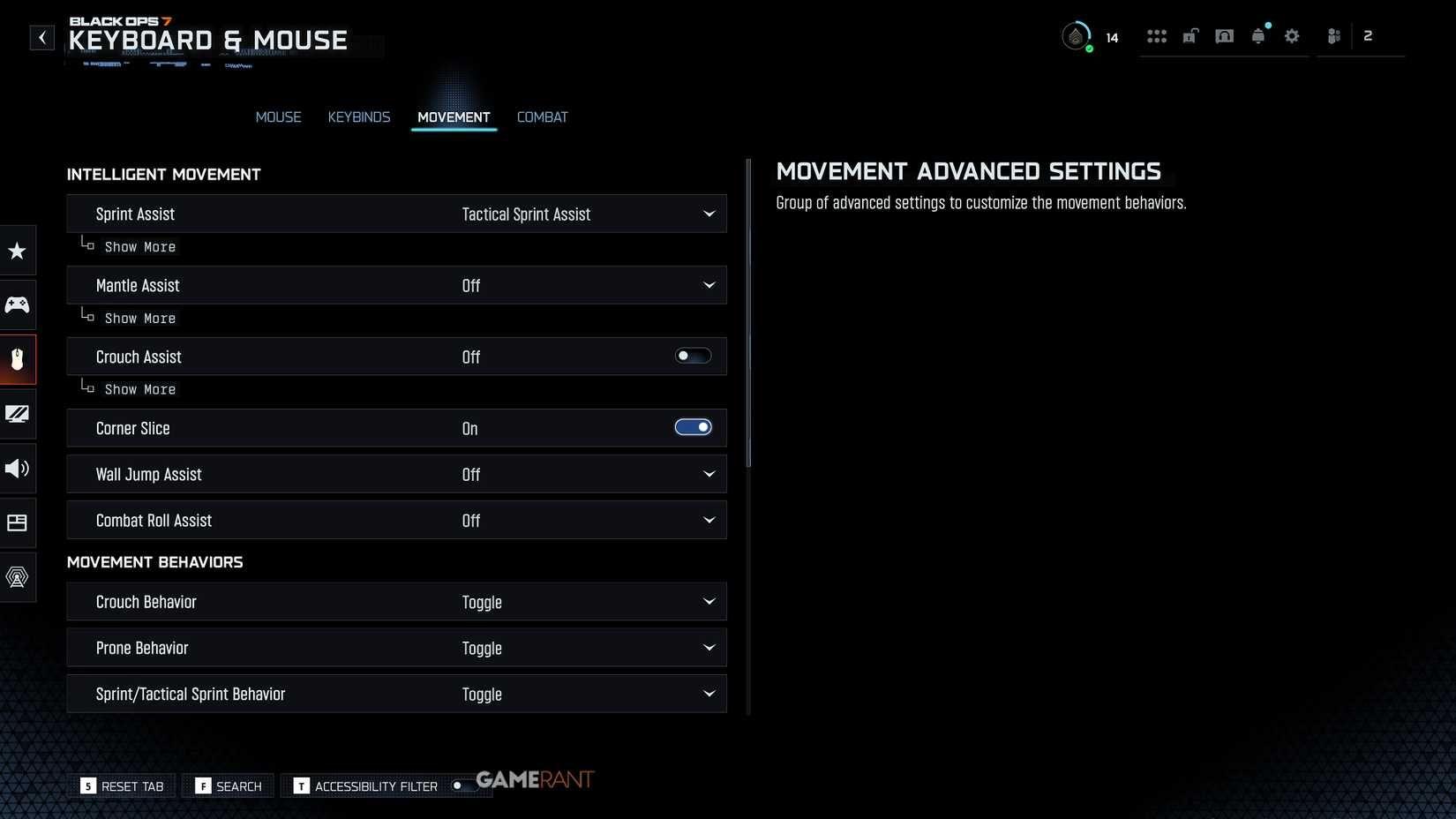
Movement settings affect how cleanly you can navigate during gunfights. Poorly tuned sprinting and mantling often cause accidental movements that get players eliminated.
| Category | Setting | Recommended Value |
|---|---|---|
| Sprint Assist | On | Keeps movement consistent |
| Sprint Delay | 1 to 2 | More control over activation |
| Tactical Sprint Assist | On | Easier tactical sprint access |
| Mantle Assist | Off | Avoids accidental mantling |
| Slide and Dive | Tap to Slide | Faster movement transitions |
Combat Behavior Tweaks
| Category | Setting | Recommended Value |
|---|---|---|
| ADS Behavior | Hold | More responsive |
| Weapon Mount | ADS + Melee | Prevents accidental mount |
| Armor Plate Behavior | Apply One | Faster plating in multiplayer |
| Equipment Behavior | Hold | Prevents accidental throws |
Keyboard and Mouse Optimization
Mouse users benefit from consistent DPI, polling rate and sensitivity. Smooth micro-adjustments are crucial for long-range fights.
| Category | Setting | Recommended Value |
|---|---|---|
| DPI | 800 to 1600 | Balanced speed and precision |
| Polling Rate | 1000 Hz | Lowest input lag |
| Windows Sensitivity | 6 of 11 | Industry standard baseline |
| Mouse Acceleration | Off | Keeps aim predictable |
| In Game Sensitivity | Start Low | Increase gradually based on comfort |
Testing Your New Configuration
After applying the tables above, spend 15 to 20 minutes in the practice range or a private match. Test long-distance tracking, crosshair placement, recoil control and movement transitions. If aim feels off, adjust sensitivity by small increments. If the game stutters, adjust graphic quality or DLSS mode.
During testing, monitor these:
Consistency in crosshair control
Visibility of targets in different lighting
Clarity of footsteps and reloads
Stable FPS with minimal spikes
Smooth transitions between sprinting and ADS
For more insights into optimizing your Black Ops 7 experience, check out our Call Of Duty Black Ops 7 Deep Dive and stay updated with the latest Call Of Duty Black Ops 7 Zombies Early Info for upcoming content.
Remember, the best settings are the ones that feel natural to you after proper adjustment time. Start with these recommendations, then fine-tune based on your playstyle and hardware. The investment in proper configuration will pay dividends in every match you play.