
Keep default controls as your starting point for Grand Theft Auto 6, then adjust only the options actually present, one at a time.
A fixed sensitivity number or brightness percentage is not a useful recommendation without knowing the game's adjustment scale and how it behaves. The approach below is a conditional setup checklist, not a confirmed Grand Theft Auto 6 preset. It separates practical controller and display checks from unconfirmed performance claims, so you can work toward comfortable aiming, a readable road view, and clear text without copying invented menu values.
Settings to check first
Start by recording the original value of anything you change. Keep your controller, display, and seating position consistent during comparisons. If an adjustment makes one task easier but another harder, you need a way to return to the previous setup.
Use the following checklist only where the corresponding adjustment exists. It does not establish which controls Grand Theft Auto 6 includes.
| Priority | Adjustment to look for | What to compare | Reason to keep the change |
|---|---|---|---|
| Aiming | Sensitivity or camera speed | Small corrections and larger turns | You can stop on your intended point consistently |
| Driving | Vehicle camera position or behavior | Road ahead, corners, and nearby vehicles | You can read the road without repeatedly correcting the view |
| Visibility | Brightness or display calibration | Dark detail and bright surfaces | Important detail remains readable at both extremes |
| Text | Subtitles and text presentation | Readability from your usual seat | You can follow text without leaning toward the screen |
Keep hardware capability separate from game support when using the Grand Theft Auto 6 PS5 and Xbox Series X|S comparison to assess your setup. A console specification does not establish that the game includes a particular graphics mode or an individual ray-tracing toggle.

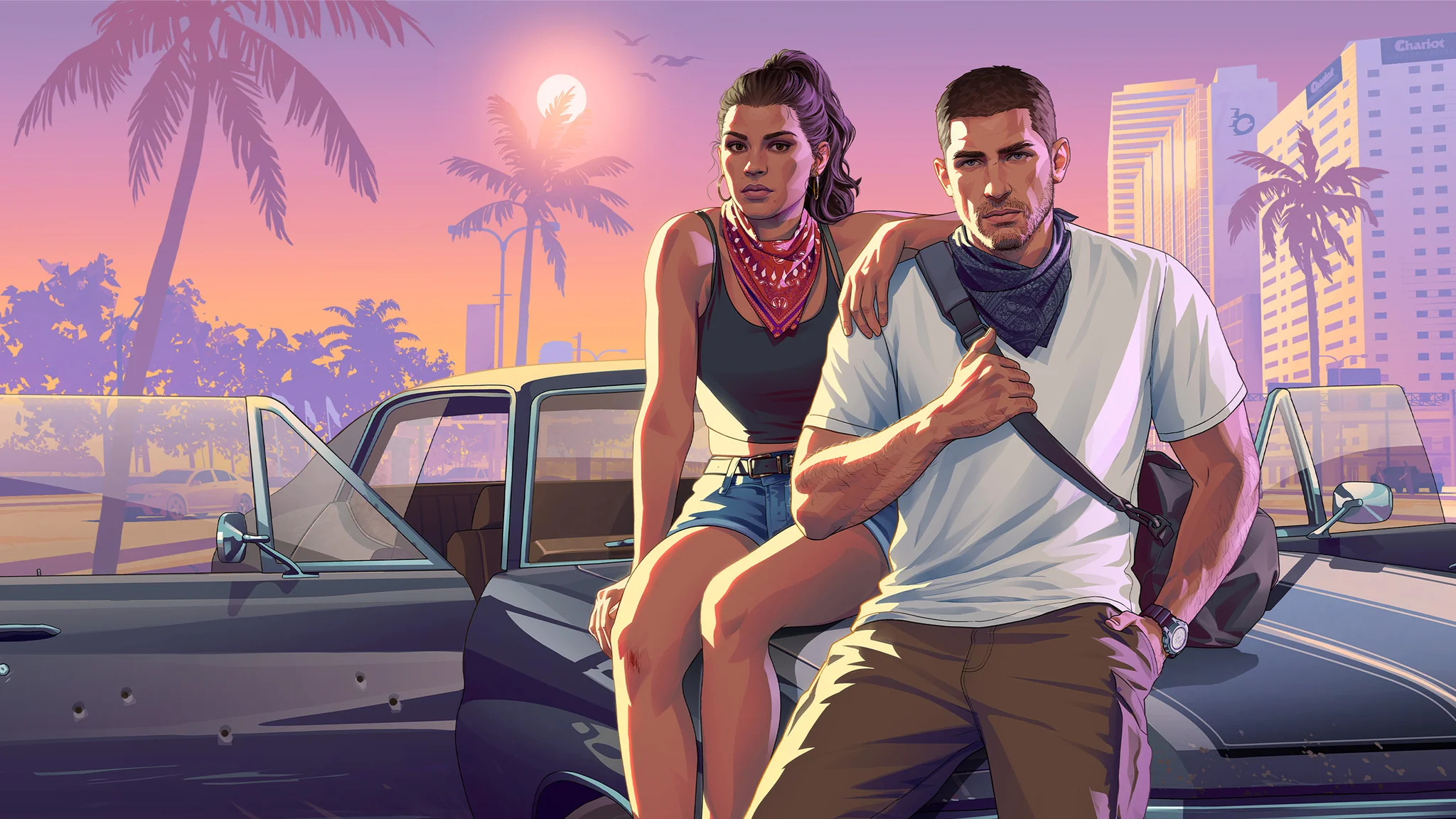
Display calibration and brightness
Compare dark and bright scenes
If the game presents a calibration screen, follow its instructions before making further changes. Do not substitute a brightness percentage copied from another game, because that number does not establish an equivalent image here.
Compare a dark scene with a brighter outdoor scene after each adjustment. Look for readable shadow detail without losing the distinction between bright surfaces. Increasing brightness until every dark area looks pale is a different result from making useful detail easier to see.
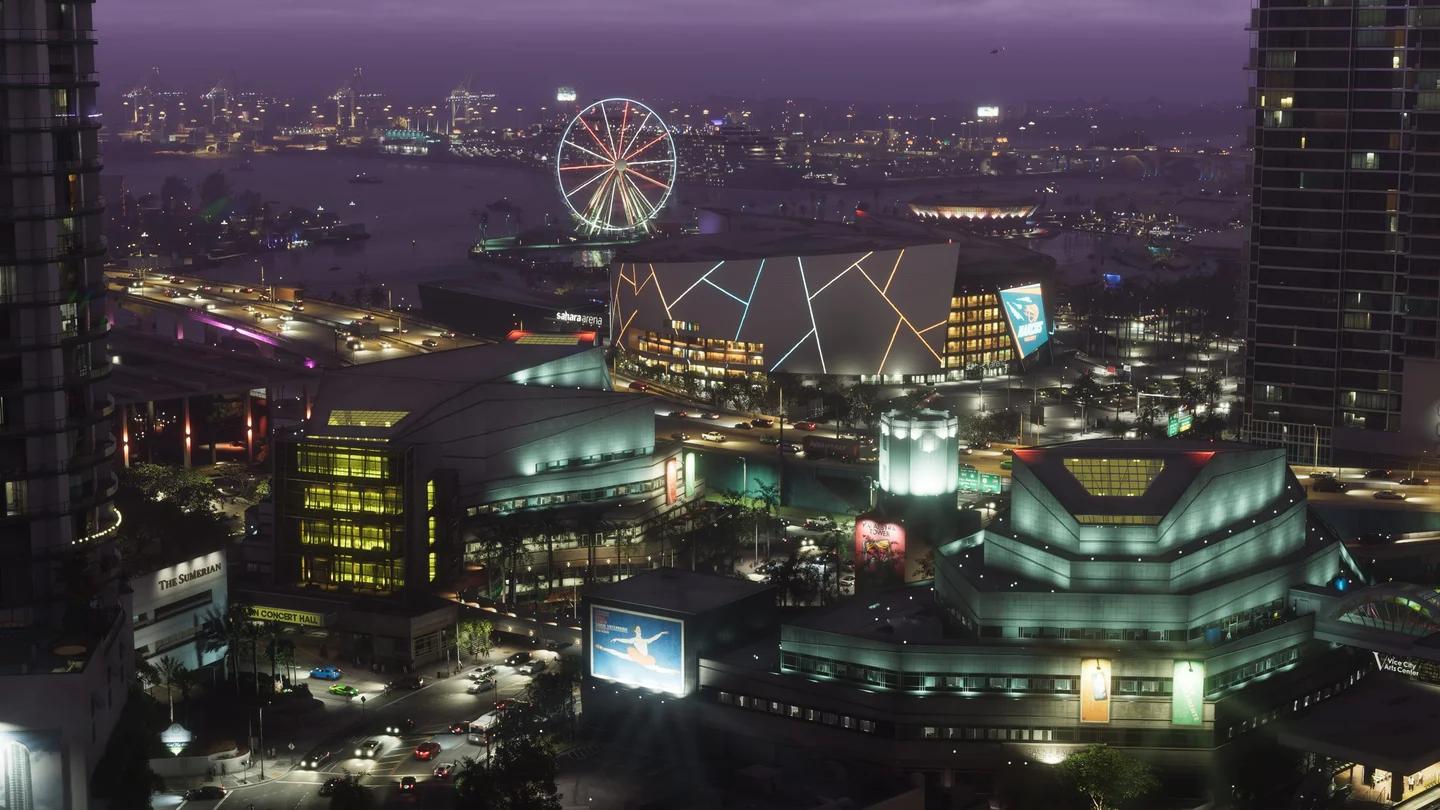
Grand Theft Auto 6 after dark
Keep the room lighting consistent while comparing settings. A choice made in a dark room may be uncomfortable under different lighting, so judge the image under the conditions in which you normally play.
Separate brightness from graphics modes
Brightness calibration and a graphics-mode choice answer different questions. One concerns the image you can read on your display; the other concerns whatever rendering choices the game actually offers.
Do not assume a predicted 30 fps baseline or a purported 40 fps PS5 Pro mode means those labels will appear in the menu. Those figures are unconfirmed estimates. Choose between actual options only after checking their descriptions and comparing the same scene.
Aiming sensitivity and camera controls
Check corrections before chasing faster turns
If aiming sensitivity is adjustable, begin with a repeatable task: move your aim away from a visible point, then bring it back. Compare small corrections separately from a larger camera turn. A setting that makes turning quick may still leave you making repeated corrections around your intended point.
If you're struggling with overshooting, try a small reduction to the relevant sensitivity control, if one exists. If reaching the intended point consistently feels too slow, try a small increase. Keep the change only if the same task becomes easier to repeat.
Change aiming and general camera movement separately if the game offers separate controls. Otherwise, check both tasks after each adjustment. Avoid changing several controls together, because you will not know which adjustment caused the improvement or the new problem.
Keep the aiming task consistent
Use the same weapon and distance when comparing adjustments. If your next decision is which combat role to practice, the Grand Theft Auto 6 provisional weapon tier list separates revealed weapons by range and role. Keep those provisional weapon judgments separate from conclusions about controller response.
Do not assume aim-assist modes, dead-zone controls, acceleration sliders, or their numerical scales carry over from an earlier Grand Theft Auto game. Adjust such a control only if it is present and its description explains what it changes.
Driving controls and camera preferences
Judge the road view separately from steering
If vehicle camera choices are available, compare them on the same route at a manageable speed. Look at how clearly you can judge the road ahead, nearby traffic, and the space around your vehicle.
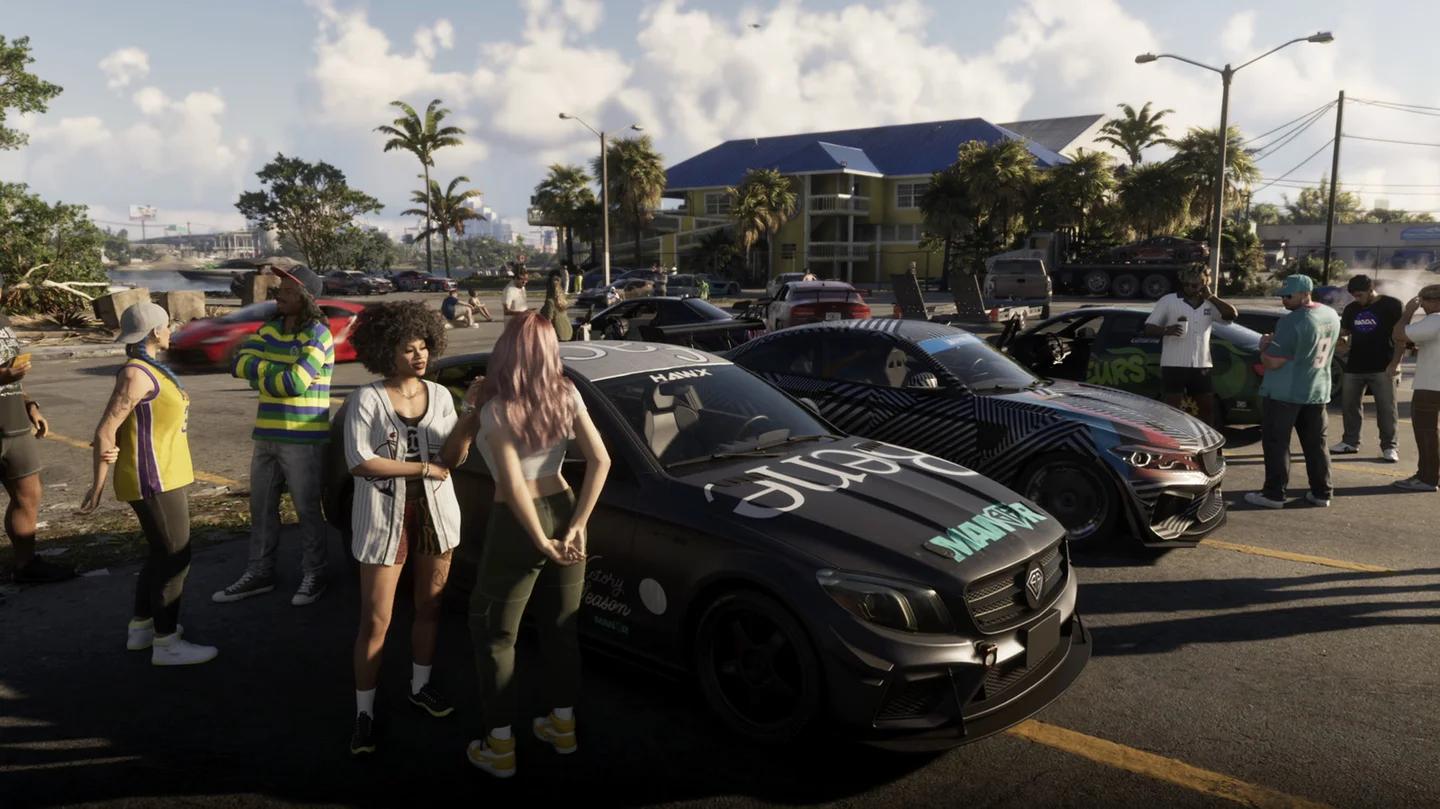
Grand Theft Auto 6 road vehicles
Keep camera changes separate from driving-control changes. If you alter both together, a clearer view can be mistaken for more predictable steering. First decide whether you can see the road comfortably, then assess the controls.
A camera preference does not need to match the view you use on foot. Keep the view that helps you judge turns and surrounding vehicles, provided the game offers that choice. No specific camera distance or steering value is established by the console-performance estimates.
Subtitles and accessibility options
Check readability from your normal seat
If subtitles are available, enable them and check a complete line of dialogue from your usual seating position. For an available toggle labelled On and Off, choose On. Adjust text size, backgrounds, or contrast only where those controls exist.
Check more than whether you can decipher the text. You should be able to follow it without leaning forward or losing track of the rest of the screen. Apply the same check to any interface text that the game lets you resize.
When organizing your setup alongside the Grand Theft Auto 6 pre-launch checklist, keep your preferred changes in a short note. Record the original value, the replacement, and the problem the change addressed.
Finish with a combined check: make a small aiming correction, judge a road turn, and read a line of text. Keep the adjustments that solve a clear problem, and restore anything that makes another task harder.