
To save manually in Grand Theft Auto 6, open the pause menu and select Game > Save Game after manual saving unlocks.
Use an empty slot when you want a new backup, or overwrite a file you no longer need. Keep an earlier save before a decision you may want to undo, so your latest progress does not become your only return point. During the prologue, you must rely on autosave instead.
How saving works
Grand Theft Auto 6 supports automatic and manual saving. Autosave handles checkpoints as you play, while manual saving lets you choose which points to preserve. The two save types have separate slots.
| Save type | Available slots | Who controls when it saves? | Best use |
|---|---|---|---|
| Autosave | 1 | The game | Keeping up with routine progress |
| Manual save | 15 | You, through the save menu | Preserving specific points you may want to revisit |


Keep backups for missions you may revisit
There is no mission replay option for completed missions. To revisit one, you need a file from before that mission and must continue from that saved point.
A chapter-based save plan helps spread your backups across the story. Reserve 10 manual files for the start and end of the game's five chapters, then rotate the remaining five for everyday progress. Make your first chapter-start backup as soon as manual saving becomes available.
If you are planning a Grand Theft Auto 6 trophy run, keep an early Chapter 1 file. The meditation with Lucia at Jason's house becomes unavailable after that chapter and may be required for Positive Mental Attitude. Its trophy requirement remains uncertain, so retaining a backup is a precaution.
How to save manually
Once manual saving is available, use the pause menu to create your file:
- Open the pause menu.
- Select Game.
- Choose Save Game.
- Select an empty manual slot to create a new file, or select an existing manual file to overwrite it.
Choose the destination slot carefully
Overwriting updates the selected file with your current progress. Use this for a regular progress file, but leave chapter backups untouched if you still want access to their earlier story points.
The save slot screen is where you choose between keeping another file and replacing an existing one. Before selecting an occupied slot, decide whether its older state still has a use. A backup before a major mission can be more valuable than another copy of the same recent progress.
When autosave triggers
Autosave triggers after you complete missions or open-world events. You do not need to choose a manual slot for those automatic checkpoints.
An automatic checkpoint after an activity preserves the later state. If you want the option to try that activity again from its beginning, make a manual backup before starting it. Waiting until the result is saved will not preserve the earlier setup.
How to recognize the autosave file
The autosave appears as a separate file in the load list, alongside your manual saves. Choose that entry when you want the automatic checkpoint, not one of the points you saved yourself.
Do not assume a manual file contains your latest progress just because you normally use it. You may have completed another mission or event since updating that file.
How to load a save
Loading uses the same Game section as saving, but a different menu option:
- Open the pause menu.
- Select Game.
- Choose Load Game.
- Select the autosave or the manual file you want to resume.
- Choose Load.
Resume the correct point
Choose your file by the progress you want to recover. Use the autosave for the automatic checkpoint or a preserved manual file for an earlier story position.
Save any current progress you want to keep in a separate manual slot before loading an older file. Loading returns you to the selected saved state; it does not replay a single mission while keeping your current story progress in place.
When saving is unavailable
During the opening sequence
Manual saving remains locked throughout the prologue. Continue until you finish the opening sequence and reach Jason's house at the marina, usually after completing your first job for Brian. That arrival is the milestone to reach before using the manual save menu.
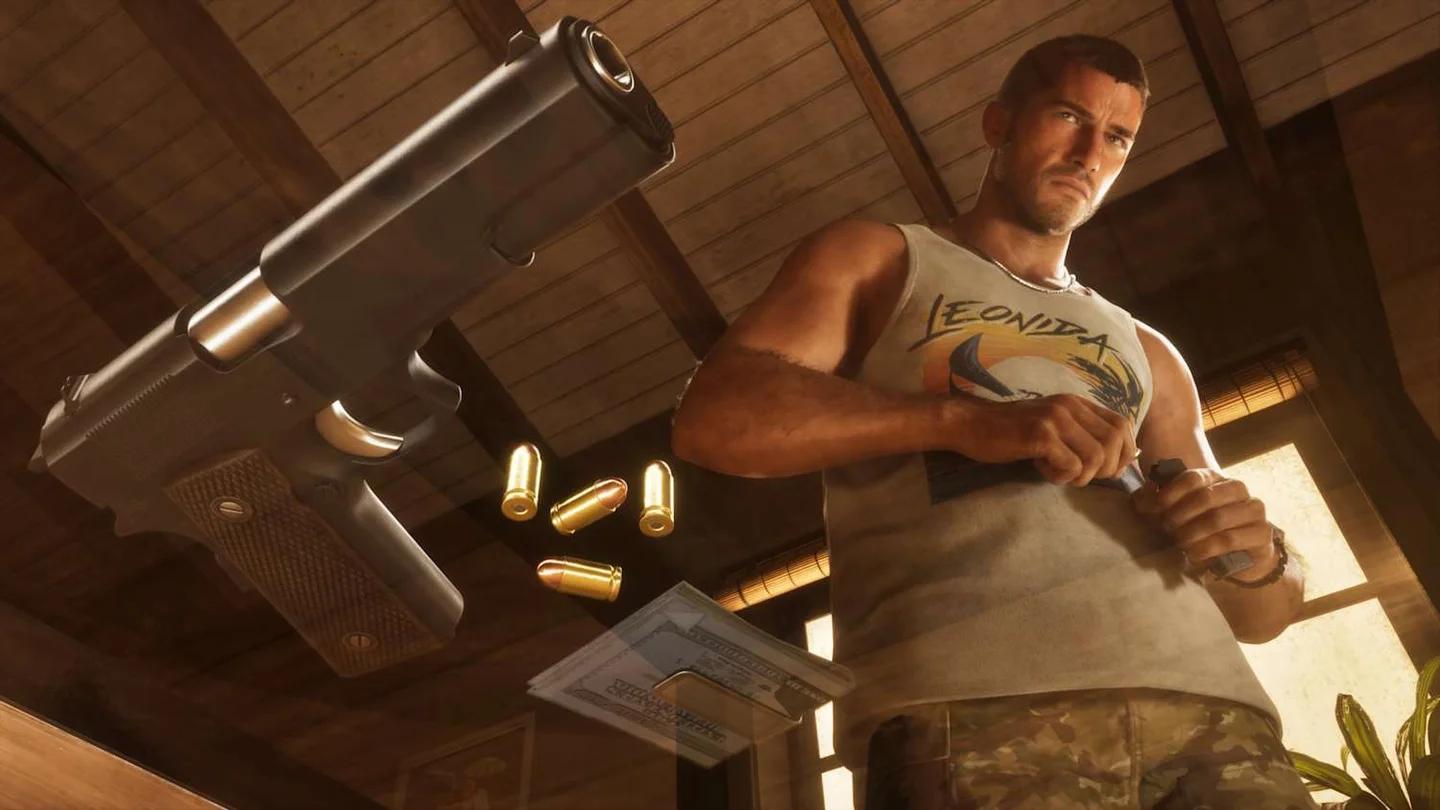
Jason's house at the marina