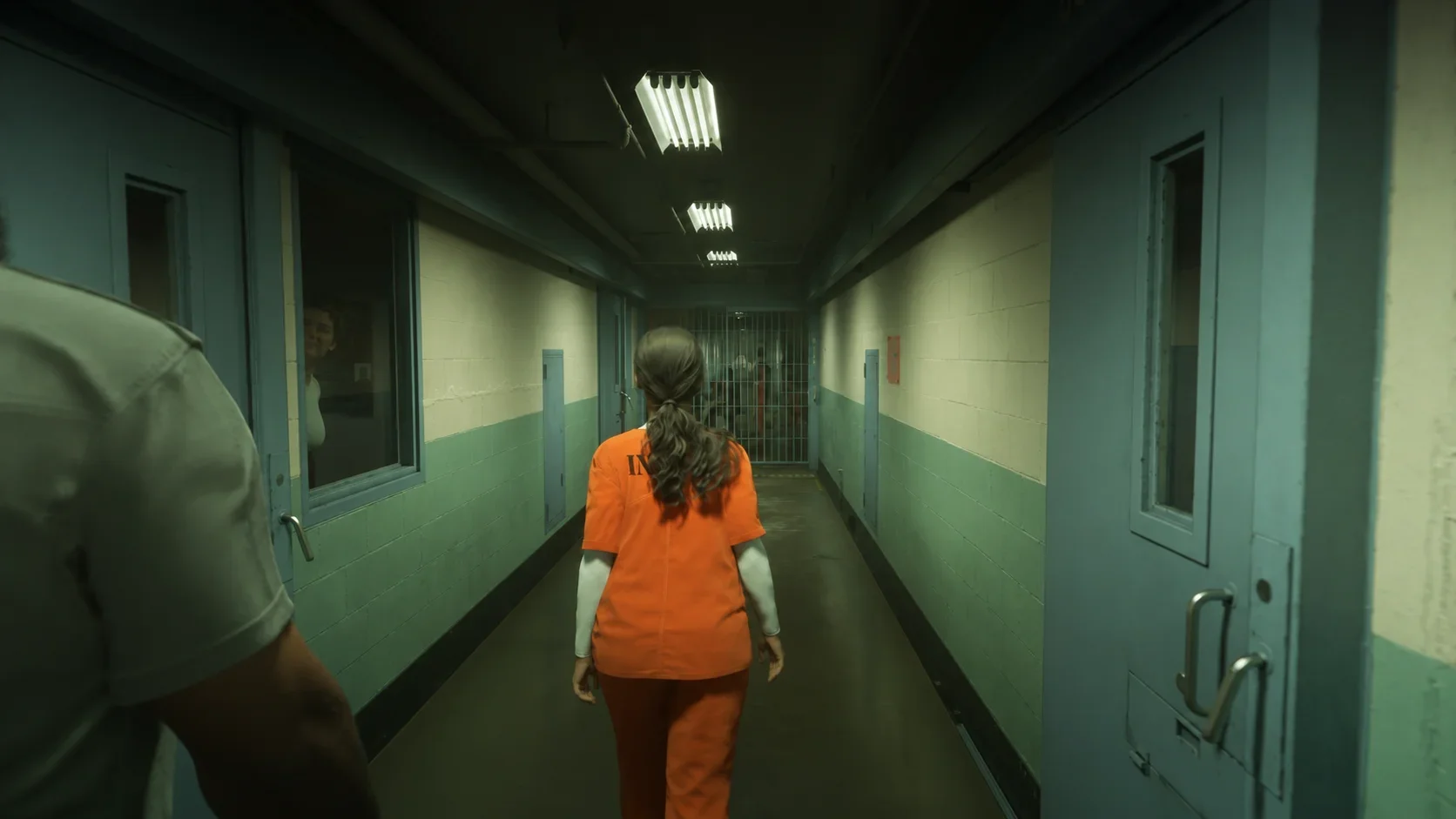

The best TV settings for Grand Theft Auto 6 are Game Mode, motion smoothing off, HGiG where available, and a warm white balance.
Start with a responsive picture preset, then adjust HDR and color. A brighter or smoother-looking image can involve extra processing, so decide whether each change improves visibility without making aiming and steering feel delayed. These recommendations cover TV controls and console output, with LG OLED menu names where useful. They do not depend on a particular in-game graphics preset or a promised frame rate.
Best TV settings at a glance
Use this as your starting configuration. Menu names and numeric scales vary between TV models, so match the function before copying a value.
| Setting | Recommended starting point | Alternative or trade-off |
|---|---|---|
| Picture mode | Game Mode, or LG Game Optimiser | Cinema presets can expose extra processing options |
| Motion smoothing | Off | Interpolation prioritizes apparent smoothness over responsiveness |
| HDR tone mapping | HGiG, if available | Dynamic Tone Mapping can favor a brighter presentation |
| White balance | A warm preset | Exact slider values depend on the model |
| Energy saving | Off while setting up and playing | Automatic brightness changes can alter the picture |
| PS5 resolution | Automatic | Manual output changes should address a specific compatibility issue |
| PS5 ALLM | Automatic | Check the TV's picture mode manually if it does not switch |
The most useful order is connection, picture mode, HDR, then color. Avoid changing several picture controls at once, because you will have no clear way to identify which adjustment helped.


Connect the console and activate the gaming preset
Check the HDMI input first
A Grand Theft Auto 6 PS5 or Xbox Series X|S setup still needs a compatible TV input to use supported display features. Check the labels beside the HDMI sockets and the TV's input specifications for 120 Hz and VRR support.
Do not assume every socket has the same capabilities. Some TVs provide HDMI 2.1 features through only one or two inputs. Moving the cable to the appropriate port should come before troubleshooting refresh-rate options in the console menus.
Verify that Game Optimiser is actually active
Open the TV's picture settings while the console input is selected. On LG OLEDs, check both the selected picture preset and the Game Optimiser controls. Selecting a gaming picture preset and enabling its gaming features can involve separate controls.
Automatic console detection does not always select the expected mode. On PS5, open Settings and Screen and Video to check the output options listed in the table. Then return to the TV menu to verify that it has responded correctly.
A useful control check is to move the camera or steer while keeping the same controller settings. Adjust your Grand Theft Auto 6 aiming and driving settings after settling the TV configuration, so controller changes do not compensate for avoidable display processing.
Set HDR tone mapping before calibration
Choose between HGiG and dynamic tone mapping
HGiG is the accuracy-focused starting point. It stops the TV's automatic dynamic tone mapping from continually reworking an HDR image that the gaming system is already preparing for the display.
On LG OLEDs, look for Dynamic Tone Mapping in the HDR picture controls or the Game Optimiser screen settings. The exact route changes between models and software versions. Make sure an HDR signal is active when checking the HDR picture configuration.
Dynamic Tone Mapping set to On is a different preference. It lets the TV adjust brightness across scenes and can produce a brighter-looking picture in a room with ambient light. Choose it for that presentation, not as an accuracy upgrade.
| HDR approach | Best reason to choose it | What to consider |
|---|---|---|
| HGiG | A more consistent, accuracy-focused gaming setup | The image may look less aggressively bright |
| Dynamic tone mapping on | A brighter-looking presentation | The TV actively changes the image's tonal balance |
Choose your preferred approach before running console calibration. Switching the TV's HDR behavior afterward changes the conditions under which you made those adjustments.
Calibrate HDR on PS5
On PS5, open Settings, enter Screen and Video, and select Adjust HDR. The calibration contains three screens, including two bright-symbol adjustments and a final dark-screen adjustment.
Follow this sequence:
- Keep your chosen HDR picture mode active.
- Work through the first bright-symbol screen, following its visibility instruction.
- Repeat the process for the second bright-symbol screen.
- On an LG OLED, take the final dark-screen adjustment to its minimum.
- Finish calibration before judging the picture in a game.
Avoid continuing several steps beyond the bright symbol's disappearance. Excessive adjustment can sacrifice detail in very bright areas. There is no useful universal click count for every TV, because the calibration must suit the connected display.
Adjust color and brightness without maxing every slider
Use a warm white balance as a starting point
White balance changes the color of neutral tones. A cooler setting pushes whites toward blue, while a warmer setting reduces that cast. Give the warmer image time before deciding that it looks too yellow simply because it differs from the previous preset.
For LG OLEDs, Warm 50 is a starting point on older models, while some newer panels may suit a setting closer to Warm 40. Treat those as model-dependent starting points, not proof that every panel is calibrated accurately at that number.
Keep Colour Depth and Colour Gamut separate from white balance. Raising saturation or choosing Native gamut deliberately emphasizes color. Neither is required to activate HDR or reduce input delay, so leave those controls at the gaming preset's baseline while adjusting white balance.
Remove automatic brightness variation
Energy-saving controls can change screen brightness with room conditions. Removing that variation makes it easier to judge whether a dark image comes from your chosen HDR presentation or from an automatic dimming adjustment.
Do not copy maximum OLED brightness, contrast, saturation, and sharpness as one package. Those controls affect different parts of the image. Change one, compare the same content, and reverse it if detail or color looks less natural.
Should you use TruMotion for Grand Theft Auto 6?
For aiming and driving, the recommended configuration prioritizes the time between your controller input and the visible response.
Interpolated smoothness is not native 120 fps
LG's TruMotion creates intermediate frames to make movement look smoother. It is a TV processing feature, not a setting that makes the console render Grand Theft Auto 6 at a higher frame rate.
A 30 fps signal can therefore look smoother on a high-refresh display without becoming native 120 fps gameplay. Check Grand Theft Auto 6 performance mode support when deciding whether the console offers a higher-frame-rate option; the television cannot create that rendering mode.
Interpolation also adds input delay. A smoother camera pan is a poor trade if steering starts to feel disconnected.
Treat Cinema Home as an optional experiment
On LG OLEDs, accessing TruMotion may require leaving Game Optimiser and selecting a preset such as Cinema Home. The De-Judder and De-Blur controls then adjust the interpolation effect.
Save or note your gaming configuration before experimenting. Judge both camera movement and controller response, rather than deciding from a stationary scene. Return to the gaming preset if the processing makes control feel delayed.
Keep these display terms separate when reviewing the result:
- Refresh rate describes how frequently the panel can update.
- VRR synchronizes the display with compatible variable-frame-rate output to reduce tearing.
- Motion interpolation creates additional displayed frames through TV processing.
None of those labels, by itself, establishes the game's rendered frame rate. Finish with the configuration that preserves readable detail and responsive controls, then make any remaining brightness adjustment one setting at a time.