
Keeping your Hytale server updated ensures you get the latest features, bug fixes, and security improvements. Whether you're running a small private server for friends or managing a larger community, staying current is essential for the best gameplay experience.
Why Regular Server Updates Matter
Server updates bring crucial improvements that directly impact your multiplayer experience. You'll get performance optimizations, new content, and important security patches that protect your server from vulnerabilities. Plus, updated servers maintain compatibility with the latest client versions, preventing connection issues for your players.
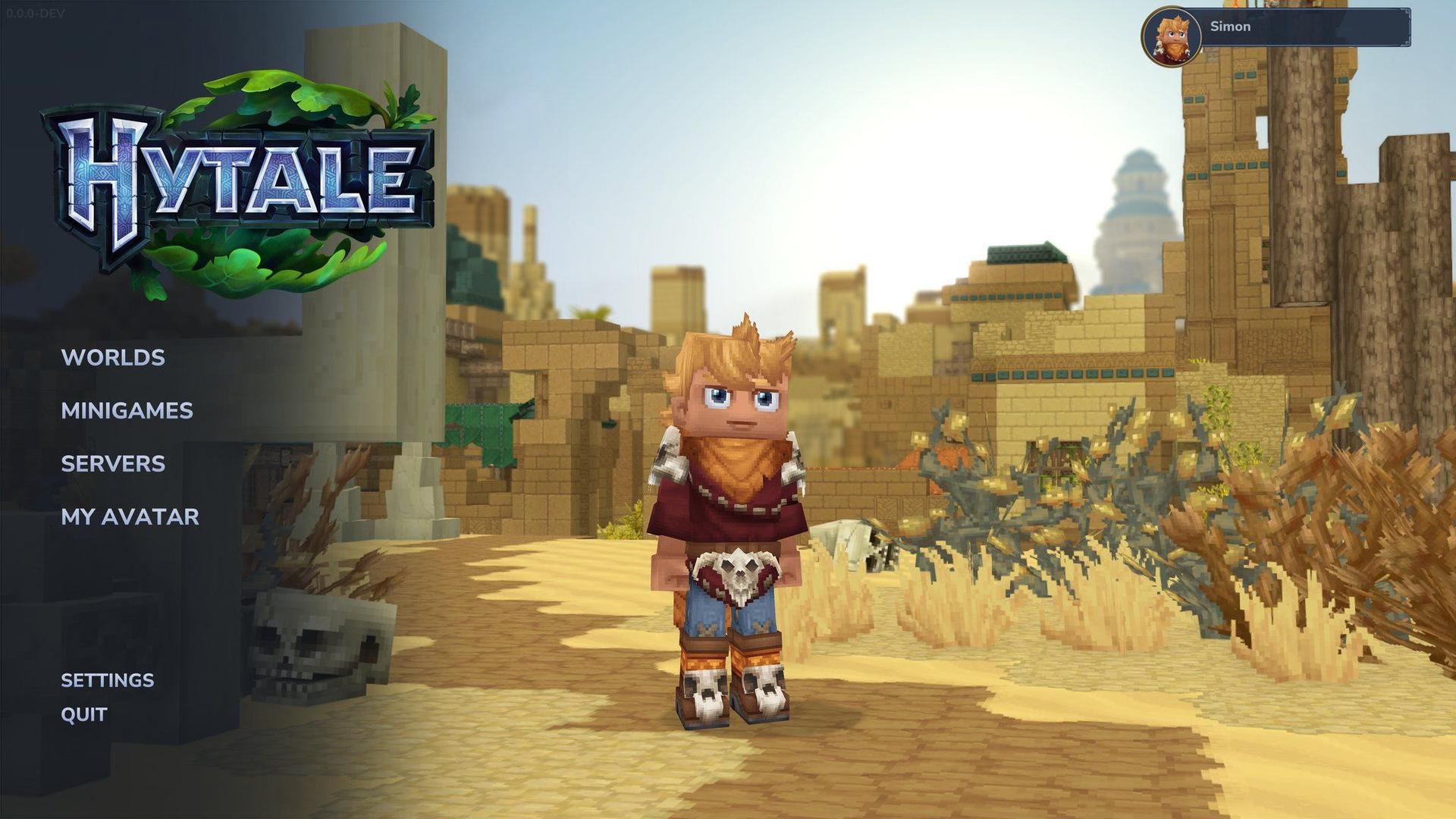
Server version display

Method 1: Update Using Launcher Files
The quickest way to update your server involves copying files from your existing Hytale installation. This method works perfectly for most server administrators and requires minimal technical knowledge.
Locating Your Game Files
First, you need to find where Hytale stores its files on your system. Press Windows Key + R to open the Run dialog, then paste this path:
`` %appdata%\Hytale\install\release\package\game\latest ``
For Linux users, navigate to: `` $XDG``
macOS users should check: `` ~/Application Support/Hytale/install/release/package/game/latest ``

Game installation folder
Copying Updated Files
Once you've located the game files, you'll see a Server folder and Assets.zip file. These contain everything needed for your updated server:
- Open your current server directory
- Copy the entire Server folder from your game installation
- Paste it into your server directory, replacing existing files
- Copy Assets.zip and replace the old version
- Update your startup script if it points to a specific assets location
Method 2: Using the Hytale Downloader CLI
For production servers or automated workflows, the Hytale Downloader CLI provides a more robust updating solution. This official tool downloads the latest server files directly and supports various configuration options.
Setting Up the CLI Tool
Download the Hytale Downloader from the official source and extract it to your server directory. The tool requires authentication on first use but remembers your credentials for future updates.
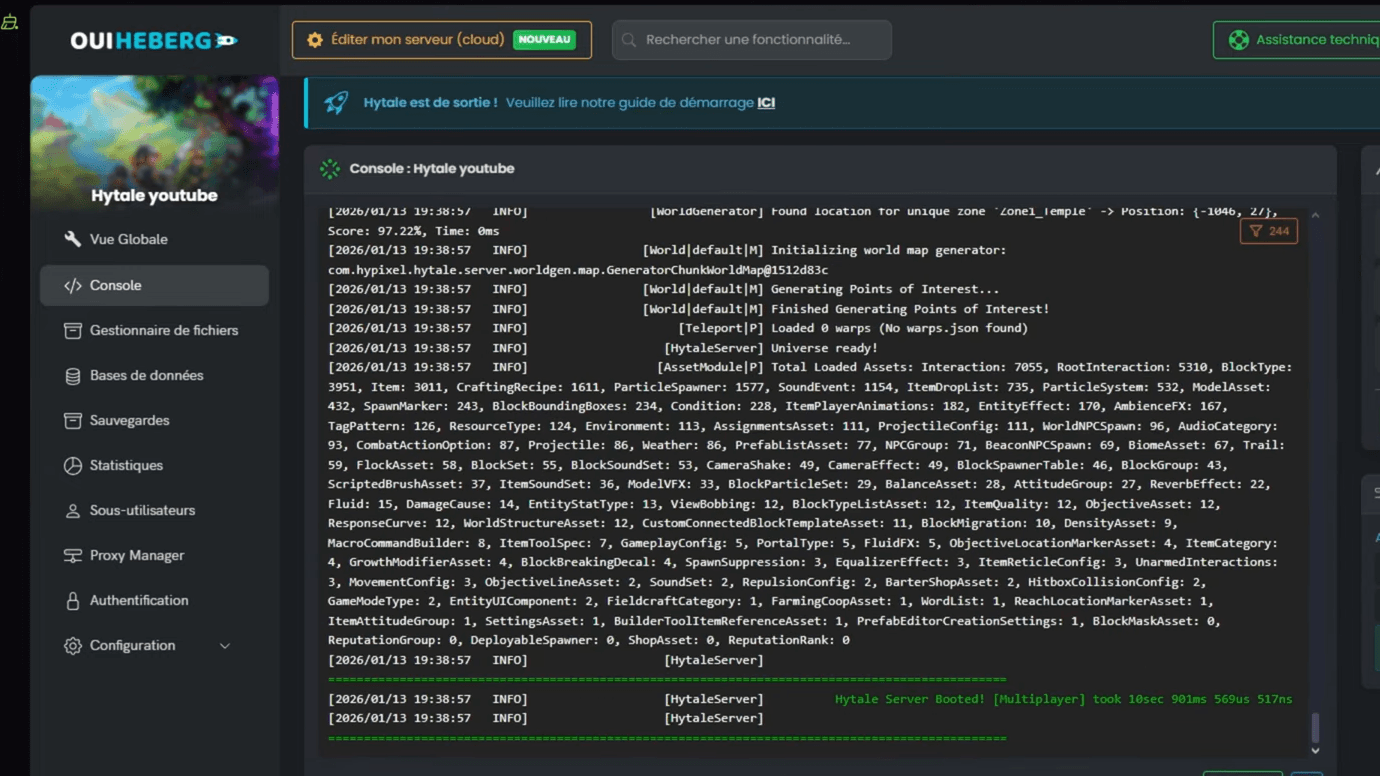
CLI downloader interface
Essential CLI Commands
| Command | Function |
|---|---|
| ./hytale-downloader | Download latest server version |
| ./hytale-downloader -print-version | Check available version without downloading |
| ./hytale-downloader -check-update | Verify if CLI tool needs updating |
| ./hytale-downloader -download-path game.zip | Save to specific file location |
Running Your First CLI Update
Execute the downloader in your server directory:
`` ./hytale-downloader ``
The tool will authenticate (if needed) and download a compressed file containing updated server files and assets. Extract this file to replace your existing server components.
Switching to Pre-Release Builds
Hytale offers pre-release builds that provide early access to upcoming features. These experimental versions let you test new content before official releases, though they may contain bugs or incomplete features.
Using Launcher for Pre-Release
If you prefer using launcher files for updates:
- Open Hytale launcher settings
- Change Patch Line from "release" to "pre-release"
- Allow the launcher to download pre-release files
- Navigate to your game installation directory
- Look for the pre-release folder instead of release
- Copy server files from: install/pre-release/package/game/latest
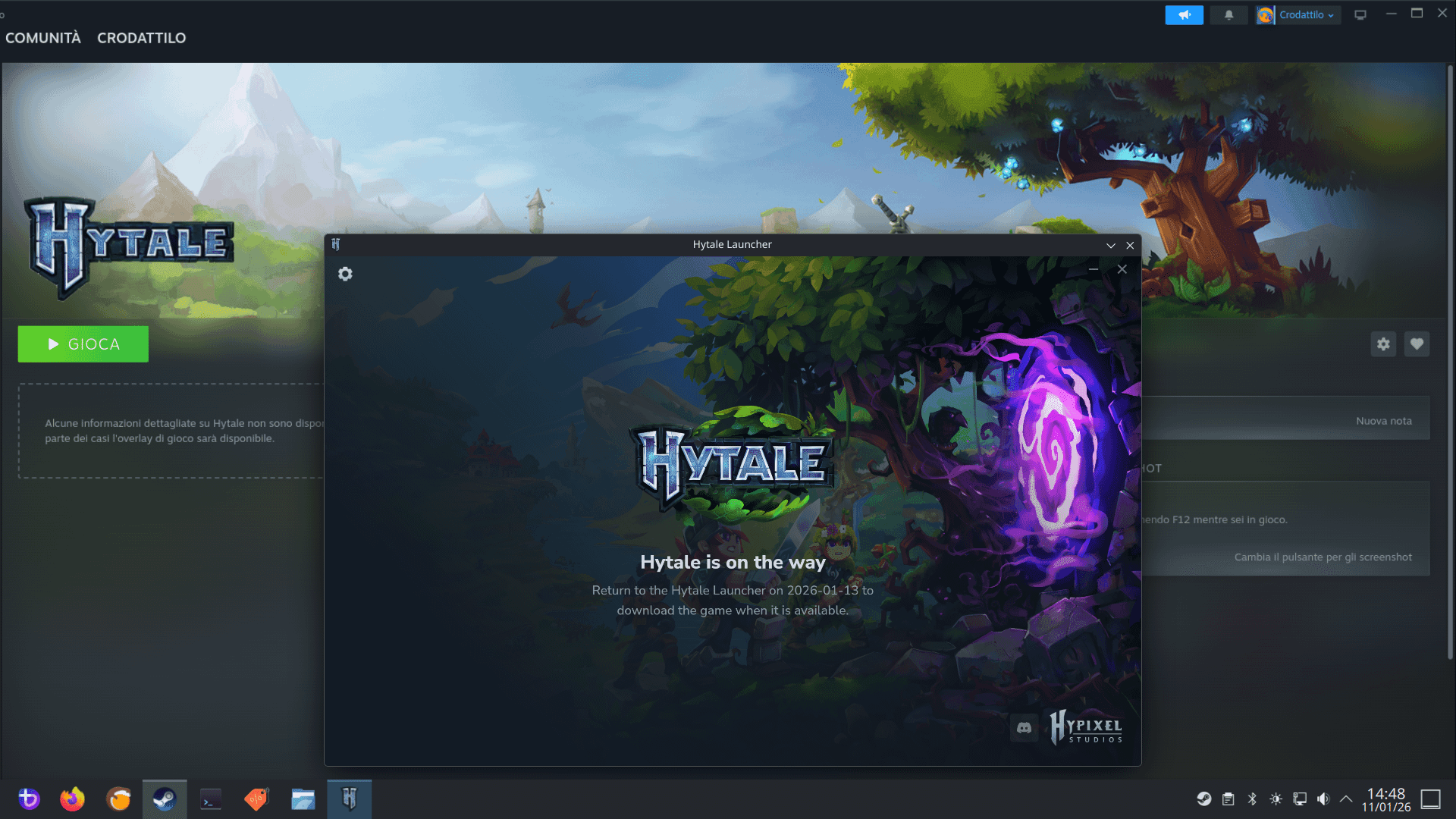
Patch line settings
CLI Pre-Release Downloads
For CLI users, add the patchline parameter:
`` ./hytale-downloader -patchline pre-release ``
This downloads the experimental build with all the latest features and changes. Remember that pre-release versions may have different mod compatibility or introduce breaking changes.
Managed Server Updates
If you're using a hosting provider, updates become much simpler. Most managed Hytale hosting services offer one-click updates through their control panels.
Check our Hytale Guide: How to Play With Friends & Setup Multiplayer Servers for hosting recommendations and setup tips.
Cloud Provider Benefits
- Automatic backup creation before updates
- Rollback options if issues occur
- No manual file management required
- Instant application of patches
Update Best Practices
Pre-Update Checklist
Before applying any update, complete these essential steps:
- Create a full server backup including world data
- Notify players about planned downtime
- Test the update on a staging server if possible
- Review update notes for breaking changes
- Verify mod compatibility with the new version
Post-Update Verification
After updating, confirm everything works correctly:
- Start the server and check for error messages
- Verify all mods load without conflicts
- Test basic gameplay functionality
- Confirm player data remains intact
- Monitor performance for any degradation
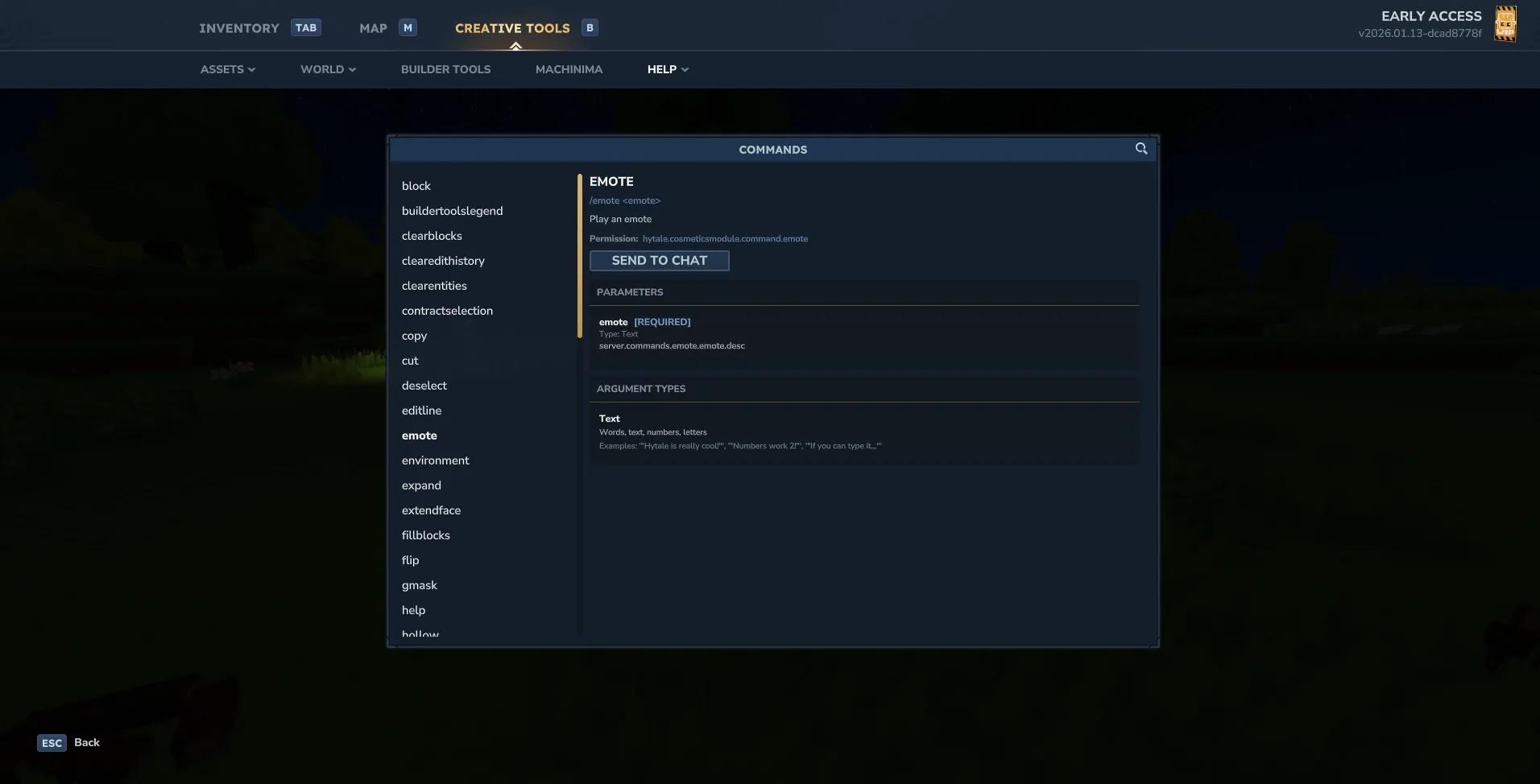
Server startup console
Troubleshooting Common Update Issues
Authentication Problems
If the CLI downloader fails to authenticate, try these solutions:
- Run /auth login device in the server console
- Visit the provided URL and enter the authentication code
- Ensure your Hytale account has proper permissions
- Check that your account owns the game
For persistent authentication issues, consult our Hytale Connection Problems Solved: Failed to Connect to Server Fix guide.
File Permission Errors
Linux and macOS users may encounter permission issues:
``bash chmod +x hytale-downloader-linux-amd64 sudo chown -R $USER:$USER /path/to/server/ ``
Version Mismatch Issues
If players can't connect after updating:
- Verify all players have the same client version
- Check that your server is running the correct build
- Restart both server and client applications
- Clear client cache if connection problems persist
Automating Server Updates
Scheduled Updates
For production servers, consider automating updates during low-traffic periods:
```bash #!/bin/bash # Stop server gracefully ./stop-server.sh
# Backup current installation cp -r server-files backup-$(date +%Y%m%d)
# Download and apply updates ./hytale-downloader
# Restart server ./start-server.sh ```
Update Notifications
Set up monitoring to alert administrators when updates are available. Many hosting providers offer webhook notifications for new Hytale releases.
Advanced Update Strategies
Staging Environment Testing
Professional server administrators should maintain a staging environment that mirrors production. This allows thorough testing of updates before applying them to live servers.
Gradual Rollout Process
For large communities, consider a phased update approach:
- Update staging server first
- Test with a small group of trusted players
- Monitor for issues over 24-48 hours
- Apply update to production if stable
Keeping Track of Changes
Update Documentation
Maintain a log of all server updates including:
- Update date and version numbers
- Changes made to configuration files
- Mod compatibility notes
- Player feedback and reported issues
Version Control for Configurations
Use Git or similar tools to track configuration changes. This makes it easy to revert problematic settings or understand what changed between versions.
Additional Resources
For more server management guidance, explore our comprehensive guides:
- Hytale Guide: How to Get Copper Ore and Craft Ingots - Essential resource gathering
- Hytale Backpack Guide: How to Unlock and Maximize Storage - Inventory management tips
- Hytale Mods Tier List: Best Mods and How to Install - Mod recommendations and installation
Regular updates keep your Hytale server secure, stable, and equipped with the latest features. Whether you choose the simple launcher method or the powerful CLI approach, staying current ensures the best possible experience for your community.