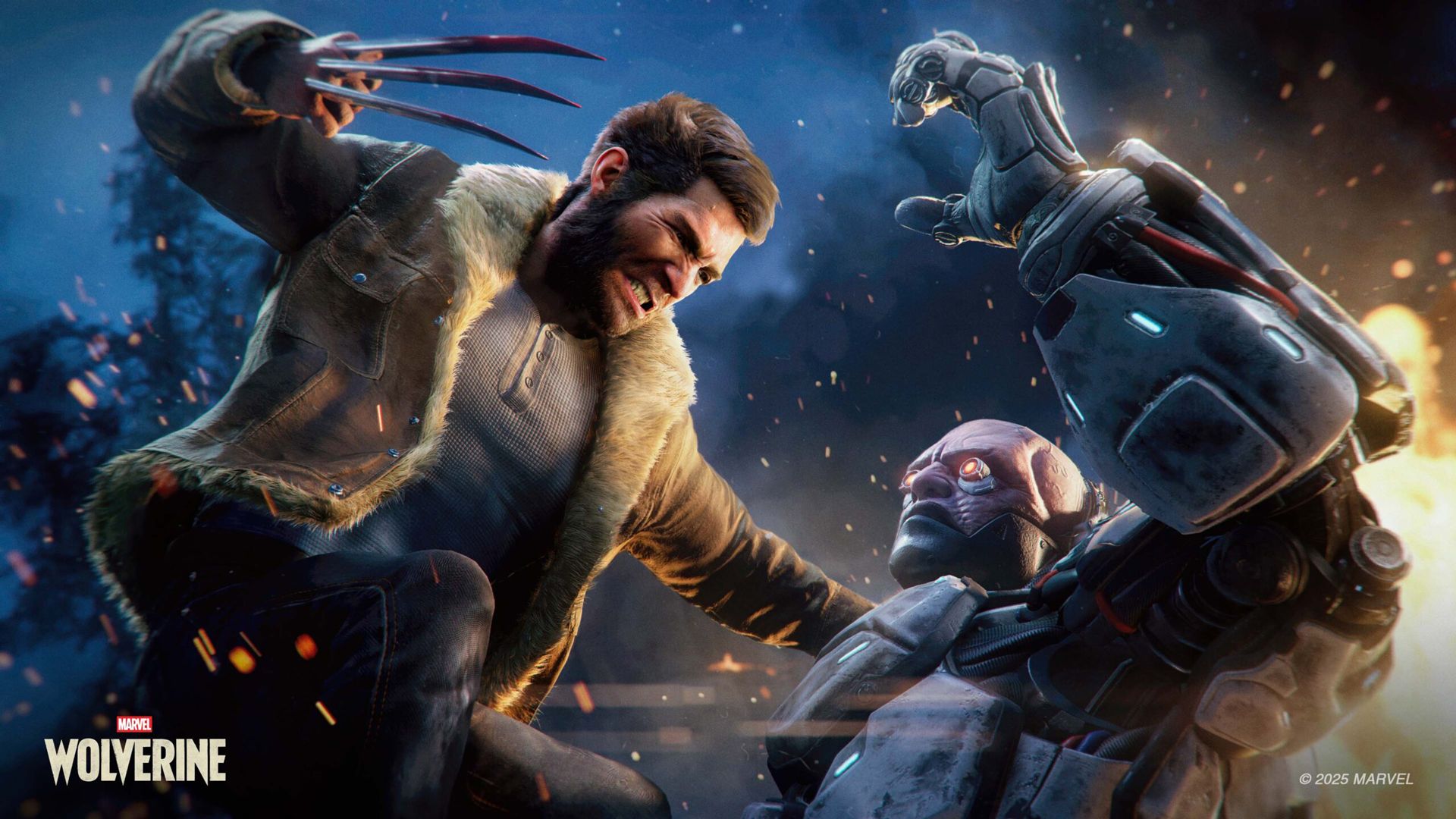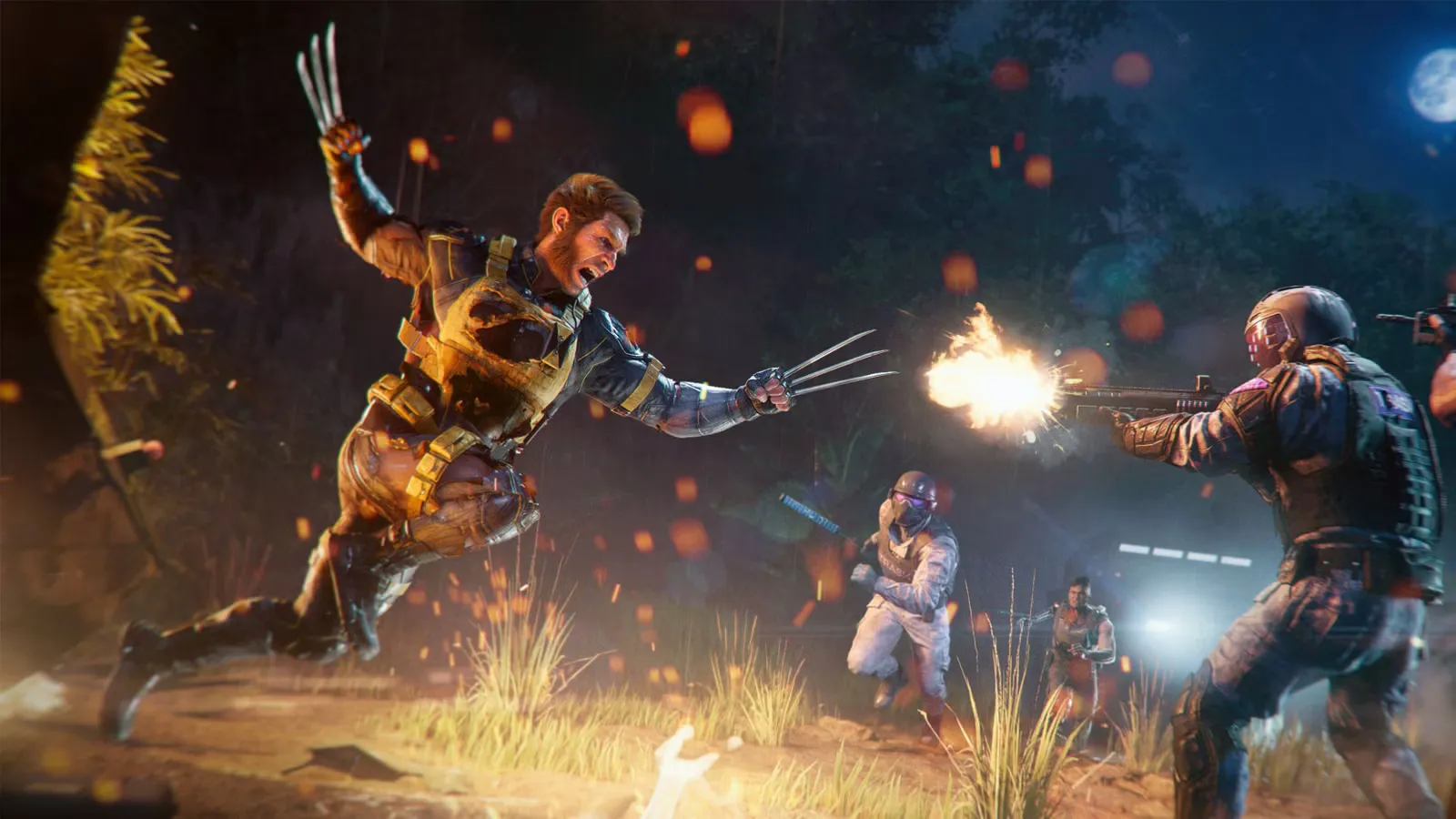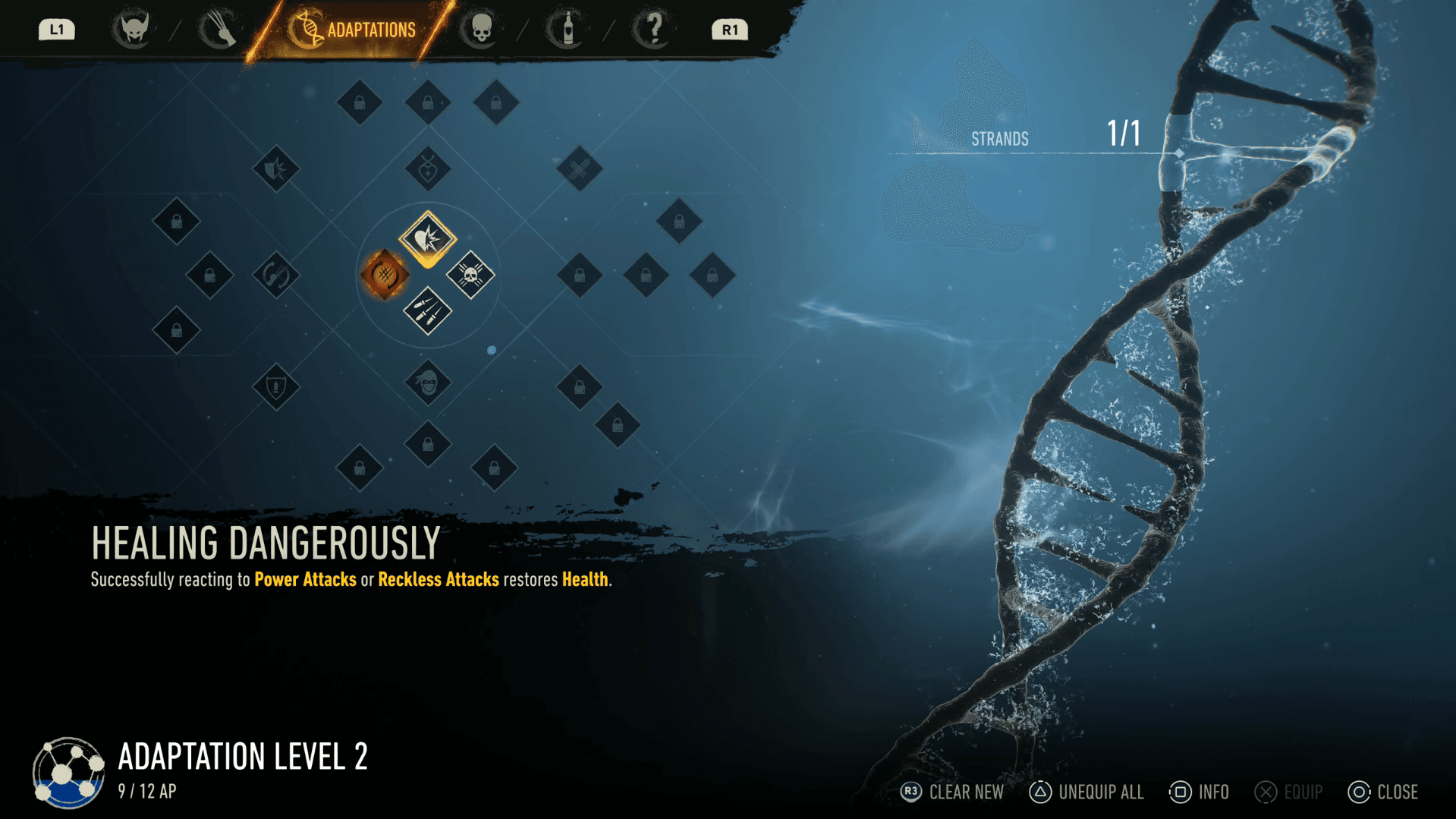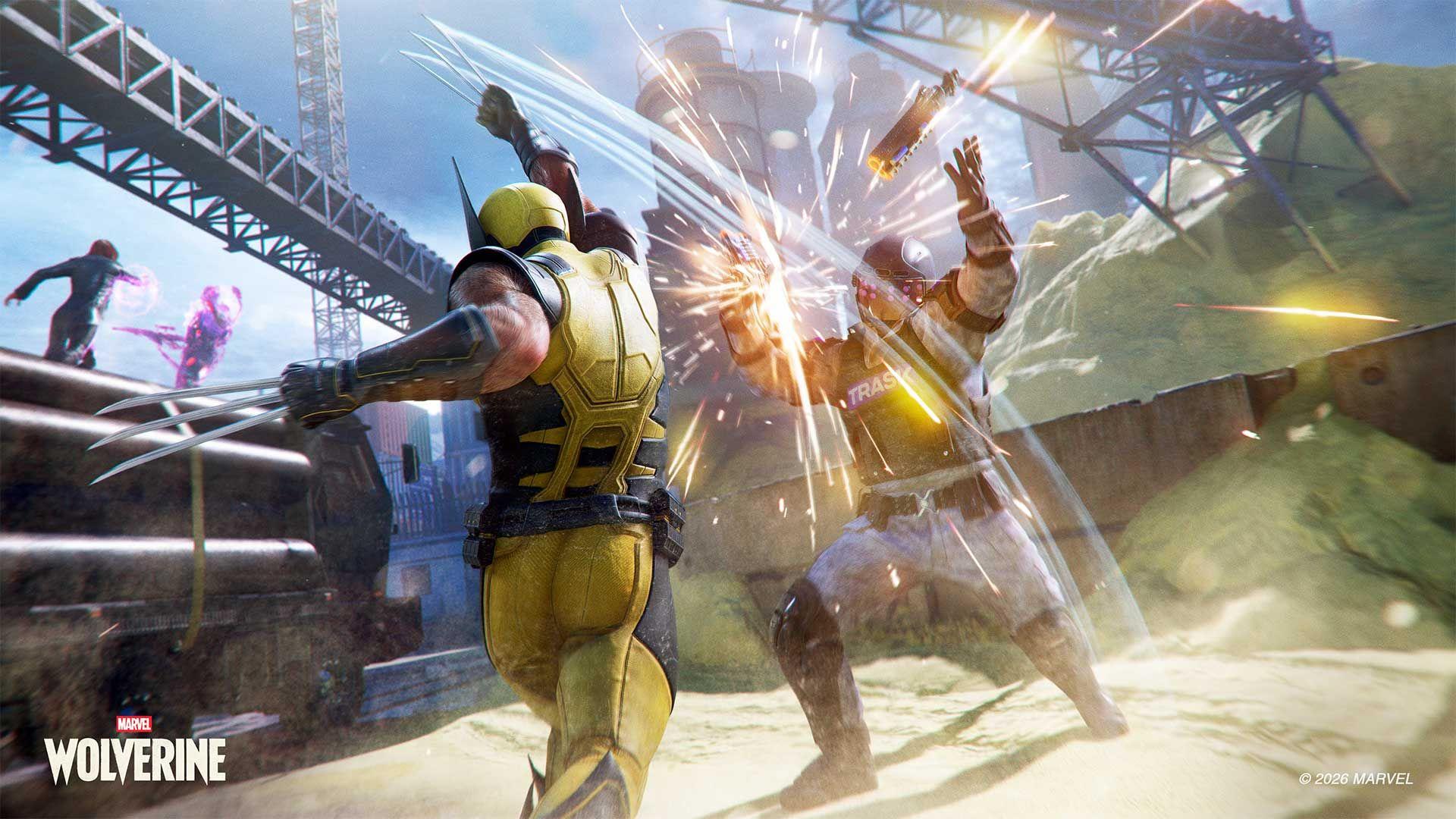

Marvel's Wolverine runs well straight out of the box, but the default configuration leaves some performance and visual quality on the table. A handful of targeted changes, particularly around graphics mode, chromatic aberration, motion blur, and camera sensitivity, can make combat feel noticeably more responsive and the image look considerably sharper. The right setup also varies depending on whether you're on a standard PS5 or PS5 Pro, and whether your display supports 120 Hz and VRR.
What are the best graphics settings for Marvel's Wolverine?
Graphics settings have the biggest impact on how the game looks and plays. The table below covers the recommended configuration for most players:
| Graphics Setting | Recommended | Why |
|---|---|---|
| Graphics Mode | Performance / Performance Pro | Targets 60 FPS with ray-traced effects |
| Chromatic Aberration | Off | Produces a sharper, cleaner image |
| Motion Blur | Off | Eliminates smearing at 60 FPS |
| Contrast | 60 | Adds depth to darker areas |
| Film Grain | 10 (or 3-5) | Preserves gritty style, or cleaner look |

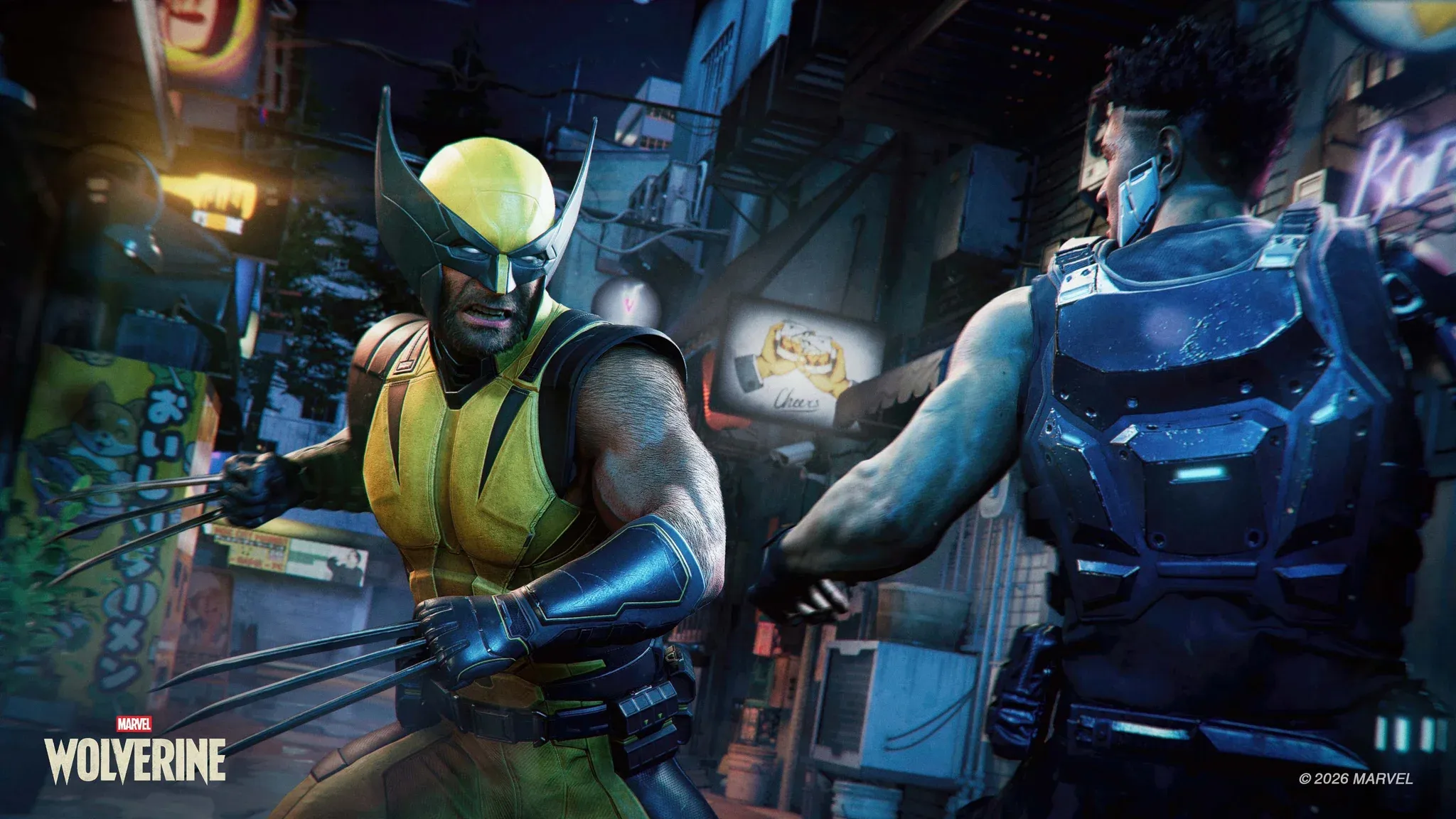
Performance or Fidelity: which mode should you pick?
Performance Mode is the right call for the vast majority of players. On a standard PS5, it targets 60 FPS while keeping ray-traced effects active, giving you a strong balance between visual quality and responsive gameplay. On PS5 Pro, the equivalent is Performance Pro, which is the recommended starting point there.
Wolverine's combat demands quick inputs: parries, dodges, rapid attack chains, and constant camera rotation between multiple enemies. The extra frames from Performance Mode make all of that feel tighter. The visual difference between Performance and Fidelity is real, but it's far less noticeable mid-fight than the frame rate difference is.
Fidelity Mode is worth considering only if you're playing on a standard 60 Hz display and genuinely prioritize image quality over responsiveness. It targets a lower frame rate in exchange for improved shadow detail and overall visual fidelity. For an action game with this pace, most players won't find that trade worthwhile.
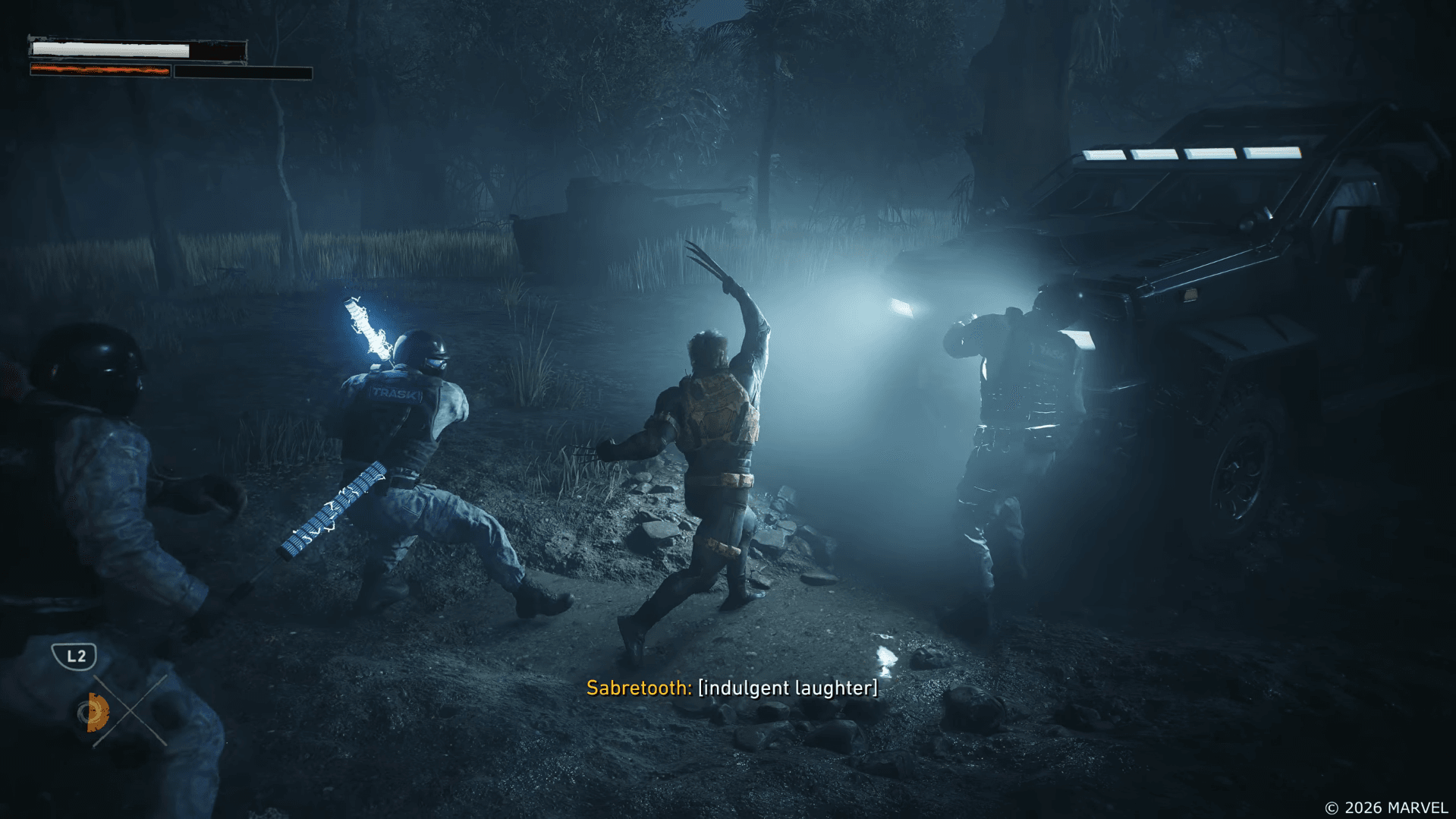
Marvel's Wolverine Guide: Best PS5 Settings for Optimization
Should you turn off Chromatic Aberration?
Yes. Chromatic Aberration should be turned off. The effect adds colored fringing around edges and objects, which gives the image a slightly soft, filmic quality. With it disabled, the picture is noticeably sharper, especially during fast movement when those fringes become most distracting.
Should you turn off Motion Blur?
At 60 FPS, Motion Blur should be off. It's not doing useful work at that frame rate and tends to smear the image when Logan moves quickly or the camera sweeps between targets. The table below covers the recommendation by mode:
| Graphics Mode | Motion Blur |
|---|---|
| Performance | Off |
| Performance Pro | Off |
| Fidelity | On, or personal preference |
Fidelity players running at a lower frame rate may want to keep it enabled, since blur can smooth out the appearance of movement when frames are fewer. At 60 FPS, though, it's just visual noise.
What are the best VRR and 120 Hz settings?
If your display supports 120 Hz and VRR, these settings are worth configuring:
| Display Setting | Recommended |
|---|---|
| 120 Hz Display Mode | Auto |
| VRR | Smoothed |
| Performance Preference | Smoothed |
| Uncapped VRR | Optional |
Smoothed is the better VRR option for most players. It prioritizes a consistent frame delivery over raw frame count, which means fewer jarring fluctuations during heavy combat sequences. The Uncapped option lets Performance Mode exceed its normal 60 FPS ceiling on compatible displays, which sounds appealing but can produce a less consistent experience depending on your hardware.
Before any of this matters, make sure 120 Hz Output and VRR are both enabled in the PS5's Screen and Video system settings. The in-game options won't do anything useful if the console-level settings aren't configured first.
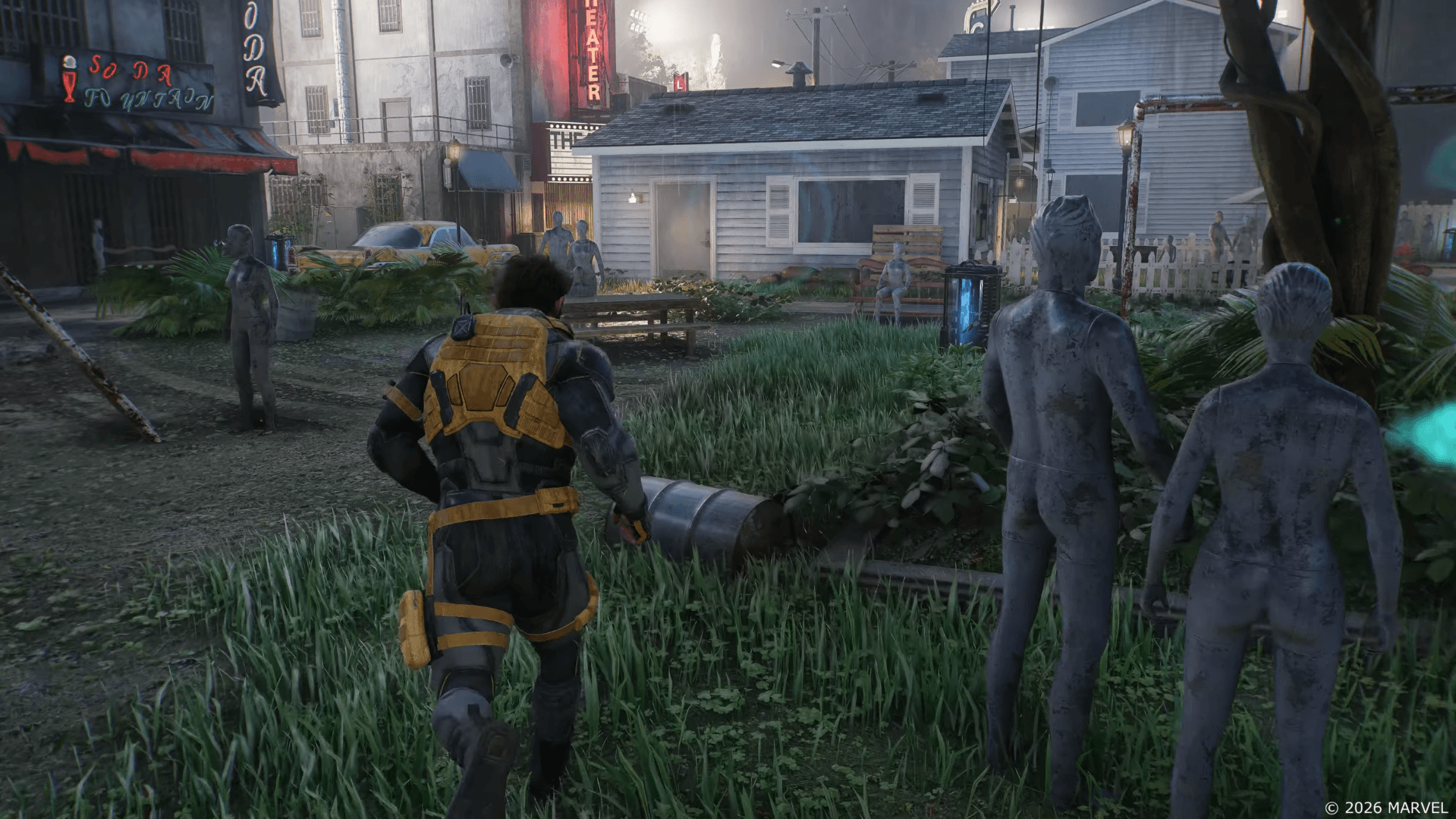
Marvel's Wolverine Guide: Best PS5 Settings for Optimization
What are the best contrast and film grain settings?
These two settings are more personal than the others, but there are reasonable starting points:
| Setting | Recommended | Alternative |
|---|---|---|
| Contrast | 60 | Default if dark areas lose detail |
| Film Grain | 10 | 3-5 for a cleaner image |
Pushing Contrast to around 60 gives darker areas a little more definition without dramatically shifting the image. If shadows start losing detail on your specific display, dial it back toward the default.
Film Grain at 10 (the default) fits the game's rough visual identity reasonably well. Wolverine's world is gritty by design, and a low level of grain supports that. If you find it distracting or want a crisper image, dropping it to somewhere between 3 and 5 is a clean compromise.
What is the best camera sensitivity for Marvel's Wolverine?
The default Look Sensitivity of 5 feels sluggish at 60 FPS, particularly when you're surrounded by multiple enemies and need to rotate quickly between targets.
| Look Sensitivity | Use Case |
|---|---|
| 5 | Default, may feel slow |
| 6-7 | Comfortable middle ground |
| 8 | Recommended for most players |
Setting it to 8 makes turning between enemies faster and gives combat a more immediate feel. If 8 feels too twitchy, 6 or 7 offers a comfortable middle ground. Sensitivity is personal enough that it's worth spending a few minutes in an early combat encounter to dial it in before committing.
What are the best D-pad shortcut assignments?
Marvel's Wolverine lets you assign actions to the left and right D-pad buttons. The most useful general setup is:
| Shortcut | Recommended Action |
|---|---|
| Left D-Pad | Photo Mode |
| Right D-Pad | Collectible / Interact Tracker |
| Alternative | Special Techniques |
The Collectible / Interact Tracker on the right D-pad is particularly handy if you're pushing toward 100% completion. It surfaces nearby collectibles and interactable objects without requiring you to dig through menus. If you're working through the full trophy list, having this on a quick shortcut saves real time.
Players who aren't chasing collectibles can swap the right shortcut to Special Techniques instead, which keeps frequently used abilities accessible during combat without interrupting the flow.
What accessibility settings are worth enabling?
Most accessibility options are fine at their defaults. Two are worth knowing about:
| Accessibility Setting | Recommended | What It Does |
|---|---|---|
| QTE Autocomplete | Personal preference | Handles Quick Time Event inputs automatically |
| Navigation Assist | Personal preference | Guides camera toward objectives |
QTE Autocomplete removes the need to manually complete Quick Time Event prompts. Enable it if you'd rather not deal with them; leave it off if you want the full interactive experience.
Navigation Assist adds objective guidance and can orient the camera toward your destination. One thing to note: it operates separately from Wolverine's built-in Senses navigation system. Toggling Navigation Assist won't affect those tracking visuals, so don't expect them to disappear if you disable it.
Best overall settings
For players who want a solid configuration without adjusting every option individually:
| Setting | Best Choice |
|---|---|
| Graphics Mode | Performance / Performance Pro |
| Chromatic Aberration | Off |
| Motion Blur | Off |
| VRR | Smoothed |
| 120 Hz Mode | Auto |
| Contrast | 60 |
| Film Grain | 10 or 3-5 |
| Look Sensitivity | 8 |
| Left D-Pad | Photo Mode |
| Right D-Pad | Collectible / Interact Tracker |
The four changes that matter most are Performance Mode, Chromatic Aberration Off, Motion Blur Off, and Look Sensitivity at 8. Those alone produce a cleaner image and more responsive combat. Everything else is refinement.
Players with a 120 Hz and VRR display should also configure those features at the system level and set VRR to Smoothed in-game. Contrast and Film Grain can be fine-tuned based on your display and personal taste.
For everything else you need before jumping in, the Marvel's Wolverine guides collection covers the game's structure, release timing, and what to expect from the full experience.