
Project Zomboid is one of those simulation games that genuinely changes when you add other players. The tension of a solo run gets replaced by something messier and more interesting: coordinating loot runs, arguing about base locations, and watching a friend sprint directly into a horde they swore was clear. Getting into multiplayer takes about five minutes once you know where to look, and this guide covers every step from hosting your first server to fixing lag mid-session.
How do you host a Project Zomboid server for friends?
The built-in hosting option is the fastest way to get a private game running. No third-party software, no extra cost. Here's exactly what to do:
- From the main menu, click HÉBERGER (the Host button). This opens the server configuration screen.
- Allocate memory to the server. The minimum is 2 GB, but 4 GB is the recommended starting point for a stable session.
- Decide whether to make the server public or private. For a friends-only game, keep it private and set a password.
- Use the left-side menu tabs to configure zombie behavior, loot scarcity, weapon frequency, and time progression speed.
- Toggle PvP on or off depending on whether your group wants pure co-op or a more chaotic survivor-vs-survivor experience.
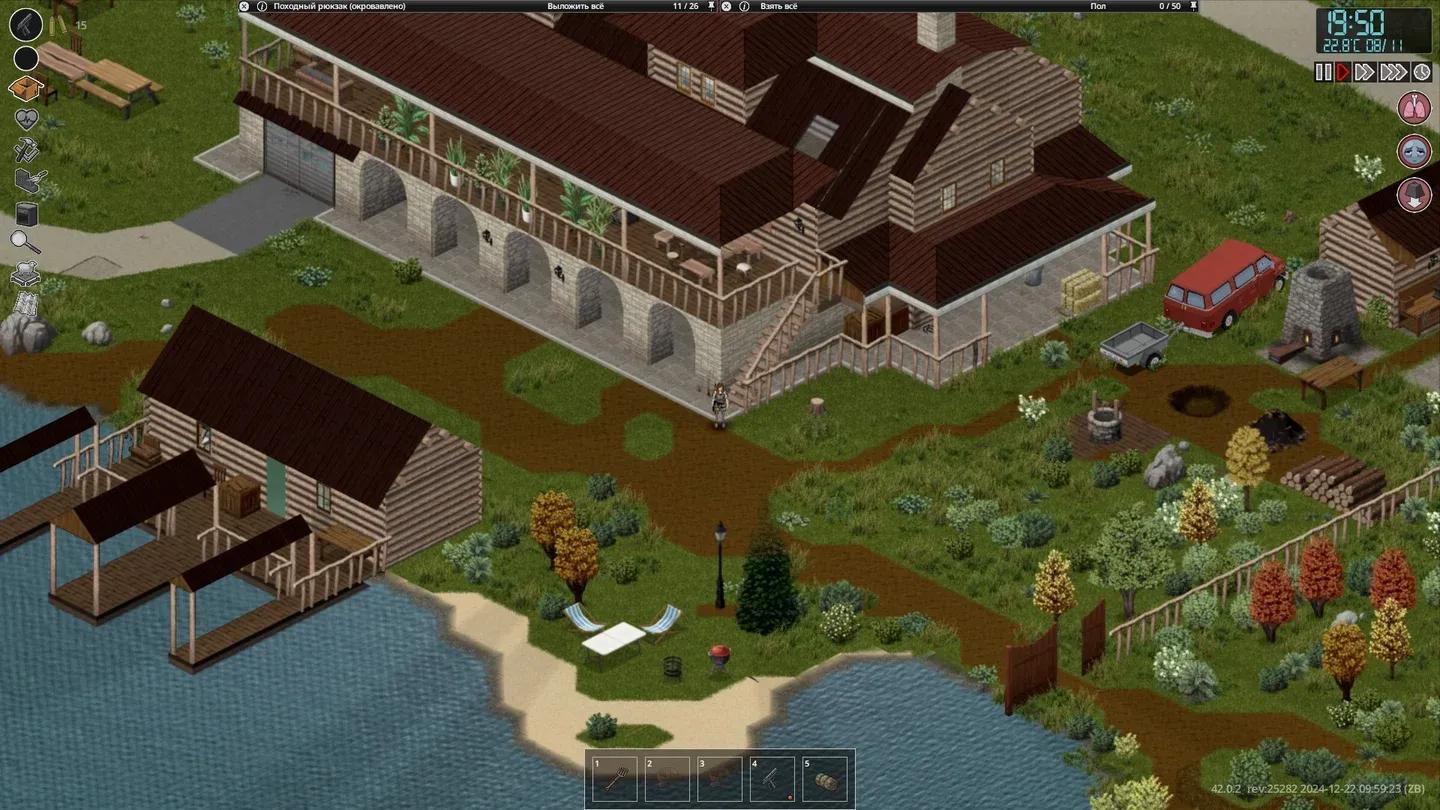
Co-op base coordination tips
How do you join a friend's Project Zomboid server?
Joining is simpler than hosting, but you need one piece of information before you start: the host's IP address. Your friend needs to send this to you directly, along with the server password if one is set.
From the main menu:
- Click ONLINE to open the server browser.
- Search by the server name your friend used, or skip the browser entirely.
- For the fastest connection, use direct connect by entering the IP address and port number manually.
- The default port is 16261. Use this unless your friend has changed it.
- Enter the password when prompted if the server is private.
Once the IP and password are accepted, you load straight into the world. From there, coordinate with your group about spawn locations before anyone starts running.
What server settings should you change before playing?
The default settings are functional, but spending ten minutes in the configuration tabs before your first session saves a lot of frustration later. Here's what actually matters:
- Zombie population and behavior: Reduce zombie count for new groups, or crank it up if your crew has hundreds of hours in. The default can overwhelm players who are still learning.
- Loot abundance: Lower loot scarcity for casual sessions. Spending two hours finding nothing tends to kill momentum fast.
- Time speed: The default day/night cycle moves quickly. Slowing it down gives players more daylight hours to learn the map.
- PvP toggle: Keep this off for co-op groups. Friendly fire accidents at 2 AM are not the kind of drama anyone wants.
- Mods: The server configuration menu lets you add Steam Workshop mods directly. Agree on a mod list with your group before the session starts so everyone has the same files installed.
How do you fix lag and connection bugs in co-op?
Lag in a co-op session usually comes from one of two sources: not enough RAM on the host machine, or a version mismatch between players. Here's the fix order to work through:
- Restart the server first. A clean reboot clears most minor bugs without any deeper troubleshooting.
- Increase RAM allocation if the lag starts after multiple players join. The server is almost certainly hitting its memory limit.
- Verify everyone is on the same version. Go to Steam, right-click Project Zomboid, and check Properties to confirm the build number matches across all players.
- Check the Steam forums for the specific bug. The community has documented most known issues, and solutions are usually already posted.
- If none of the above resolves it, submit a detailed bug report through Steam support with the exact error message and your server specs.
Co-op survival tips that actually work
Getting connected is the easy part. Staying alive together is where most groups fall apart. A few habits make a significant difference:
- Use Discord for voice chat. The in-game text chat works, but trying to type while a zombie is chewing on your arm is not ideal. External voice keeps communication instant.
- Divide roles early. One player focuses on food management, another reads skill books to unlock crafting recipes for the group. Specialization makes the whole team more effective than everyone doing the same thing.
- Share map knowledge. Mark cleared areas and resource caches so players who get separated aren't walking into danger zones blind.
- Build individual competence. Every player should be able to handle basic survival tasks alone. Groups that depend entirely on one person collapse the moment that person dies.
For more guides on surviving the apocalypse with friends, the full Project Zomboid guides collection covers everything from base building to mod recommendations.