
To get voice chat on Roblox, pass an age check as 13 or older, enable voice in settings, and allow microphone access. Voice must also be offered in your country, and the experience you join must support it.
A missing voice toggle and a silent microphone need different fixes. Account eligibility controls whether you can access voice, while device permissions and in-game controls determine whether anyone can hear you. Start with the requirements below, then follow the setup steps for your account and microphone.
Roblox voice chat requirements
Your age-check result determines age eligibility. Entering a birthday on your account does not replace that check, and the voice setting stays hidden until the check is complete.
| Age-check result | Access to in-experience voice chat |
|---|---|
| Under 13 | Not available |
| 13 to 15 | Available in supported regions unless a linked parent restricts it |
| 16 and older | Available in supported regions |
Creators decide whether their experiences support voice. Roblox limits the feature to places with a maximum server capacity of 100 players or fewer, but meeting that limit does not automatically mean an experience has voice enabled.
Use a computer, phone, or tablet for this setup. You need a working built-in or connected microphone, but no voice-changing software is required.

Can you get Roblox voice chat without an ID?
Yes. Roblox offers a selfie-based face estimate as well as government photo ID verification. The face estimate can unlock voice eligibility when its result places you at the required age. The government photo ID route is available to players aged 13 and older.
Choose the age-check method that suits you. An ID is not mandatory when the face-estimation route gives you an eligible result.
How to enable voice chat on Roblox
Complete the age check
Open your account settings and start the age-check process:
- On a computer, select the gear icon and open Settings. On a phone, open Settings through More.
- Select Account Info.
- Choose the age-check option and follow the prompts for your selected method.
The verification controls sit in Account Info, separate from the communication settings used to enable your microphone afterward.
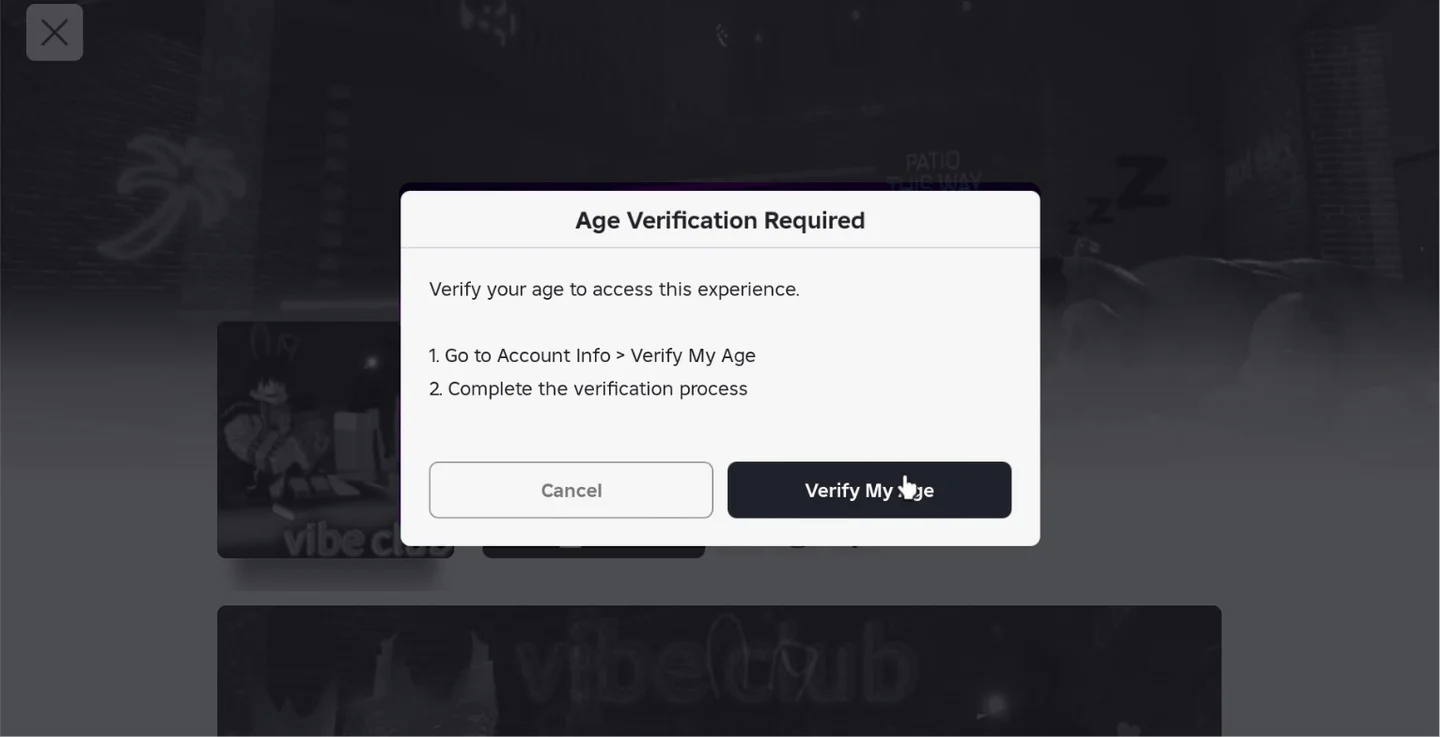
Roblox account age verification
Turn on the voice setting
Return to Settings and open the privacy section, which may appear as Privacy & Content Maturity. Select Communication > Voice Chat, then enable Use microphone to chat with voice. Menu and toggle names can differ slightly between devices and app versions.
This account setting enables the feature, but your operating system must also let Roblox access the microphone. Complete the device-permission step before joining a conversation.
Allow microphone access on your device
Use the permission route for your device. If Roblox displays a microphone-access prompt, allow it.
| Device | Where to allow microphone access |
|---|---|
| iPhone or iPad | Open device Settings > Privacy & Security > Microphone, then allow Roblox |
| Android | Open device Settings > Apps > Roblox > Permissions > Microphone, then allow access |
| Computer | Allow Roblox in your operating system’s microphone privacy settings |
If you previously denied access, change the permission and reopen Roblox. Changing an in-game voice toggle cannot override a microphone block imposed by your device.
On a computer, open the Roblox menu during an experience and go to Settings. In the audio controls, set Input Device to the microphone you intend to use. A connected headset does not guarantee that its microphone is the selected input.
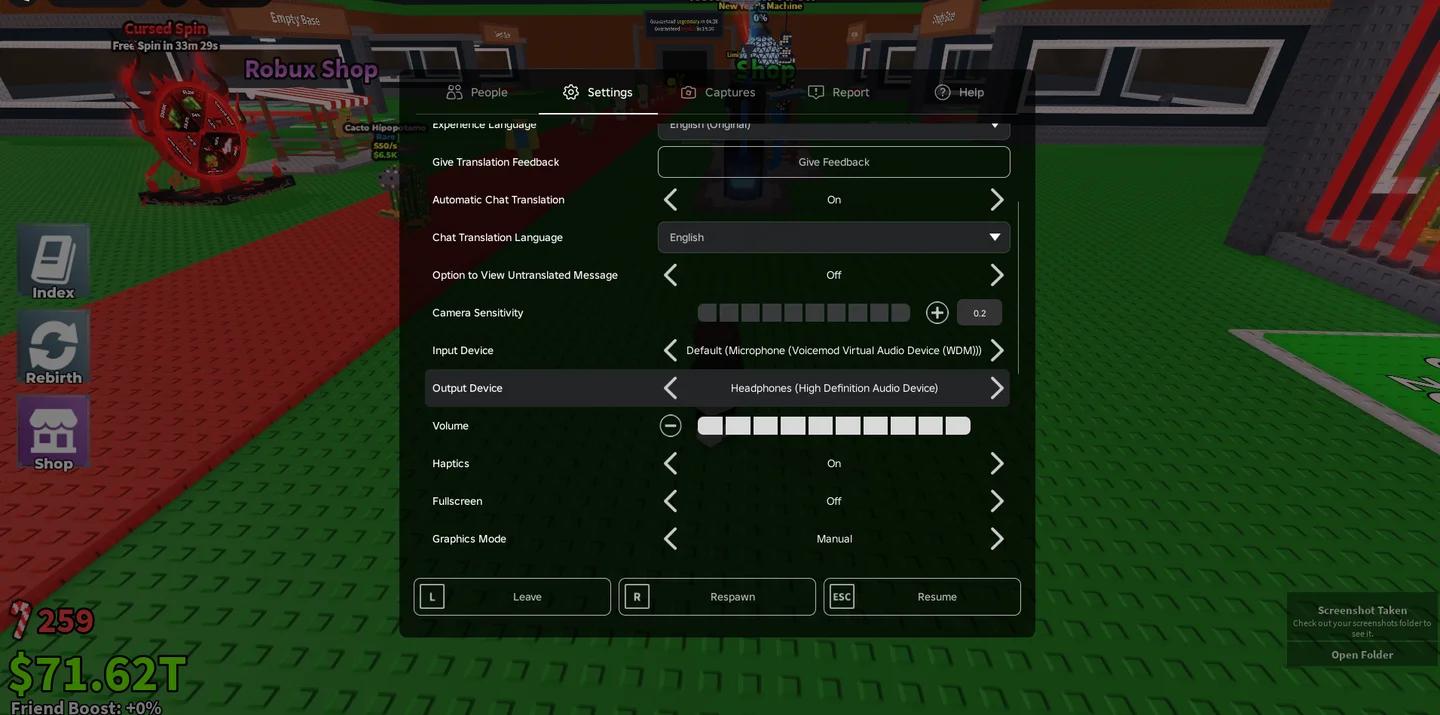
Roblox microphone input settings
How to talk in a voice-enabled experience
Before joining, open the experience’s About page and look for Microphone in its Communication information. This identifies voice support without assuming every Roblox experience offers it.
Once you are inside, open the Roblox menu and select Settings. The Voice Chat line reads Connected when your voice connection is active. You can also connect or disconnect voice from this menu.
Use the microphone icon at the top left of the screen to mute or unmute yourself. A red slash through the icon means you are muted. Tap or click it when you want to speak.
Understand proximity voice and player icons
Roblox’s default in-experience voice is proximity-based: nearby players sound louder, and voices become quieter as the distance between avatars increases. Moving away from someone can make them harder to hear without indicating a microphone fault.
Open the Roblox menu’s People tab to see a speaker icon beside players who have voice chat enabled. Another player still needs their own eligible account and working voice setup to take part.
To disable voice across your account, turn off the microphone toggle in the account’s Voice Chat settings. Muting yourself during a session does not switch off that account-level setting.
Why Roblox voice chat is missing or not working
Start with the symptom you see. A missing account option points toward eligibility or restrictions; a connected voice session with no microphone input points toward audio settings.
| Symptom | What to do next |
|---|---|
| Voice Chat is missing from account settings | Complete the age check. Its result must meet the minimum age requirement |
| The age check is complete, but voice is unavailable | Regional availability can still block access |
| Voice is restricted on an account aged 13 to 15 | Ask the linked parent to adjust the account’s chat permissions |
| Voice works in one experience but not another | Use an experience that supports microphone communication and meets the server-capacity limit |
| Voice shows Connected, but nobody hears you | Remove the in-game mute, allow device microphone access, and select the intended input |
| A headset is connected, but its mic stays silent | Turn off its physical mute and select its microphone instead of another input |
Test a silent microphone
Use your operating system’s microphone test or input-level indicator. Say a short sentence at your normal speaking volume and look for an input response. If your speech does not register there, fix the device input before changing more Roblox settings.
Keep the same microphone selected while troubleshooting. Switching between a headset mic and a built-in mic makes it harder to identify which input is failing.
If the input responds outside Roblox and the permissions are correct, update Roblox and restart your device. Test ordinary microphone input before adding optional voice effects, so a separate audio tool does not complicate the setup.
How Party voice chat with friends works
A Party lets friends join the same experience together. Its voice rules are separate from the proximity voice used to speak with nearby players inside an experience.
- Teens: Party voice is tied to Trusted Friends, a closer friendship tier that both players agree to. Two age-checked teens who have added each other as Trusted Friends can use Party voice.
- Adults: In a one-to-one conversation between two age-checked adults, Roblox enables Party voice without requiring a Trusted Friend connection.
A normal friend connection is not the same as Trusted Friends access. For players aged 13 to 15, a linked parent’s chat restrictions can also affect Party communication.
Roblox still monitors Party conversations for critical harm, including grooming.