
You can play Roblox on a laptop without a mouse by using W, A, S, and D to move and your trackpad to control the camera.
The main adjustment is separating character movement from camera movement. You can also use the arrow keys for basic walking and turning, although their layout works differently from WASD. This guide covers the standard movement inputs, how to perform camera drags with a trackpad, and how to set up destination-based movement with Click to Move.
Set up your laptop controls
With Roblox installed, open it, sign in, and join an experience. You can use your existing Roblox account if you already play on another device.
Choose your movement scheme through the in-experience Settings. Keyboard movement gives you direct control over each step. Click to Move lets you select a destination with the trackpad and have your character travel toward it.
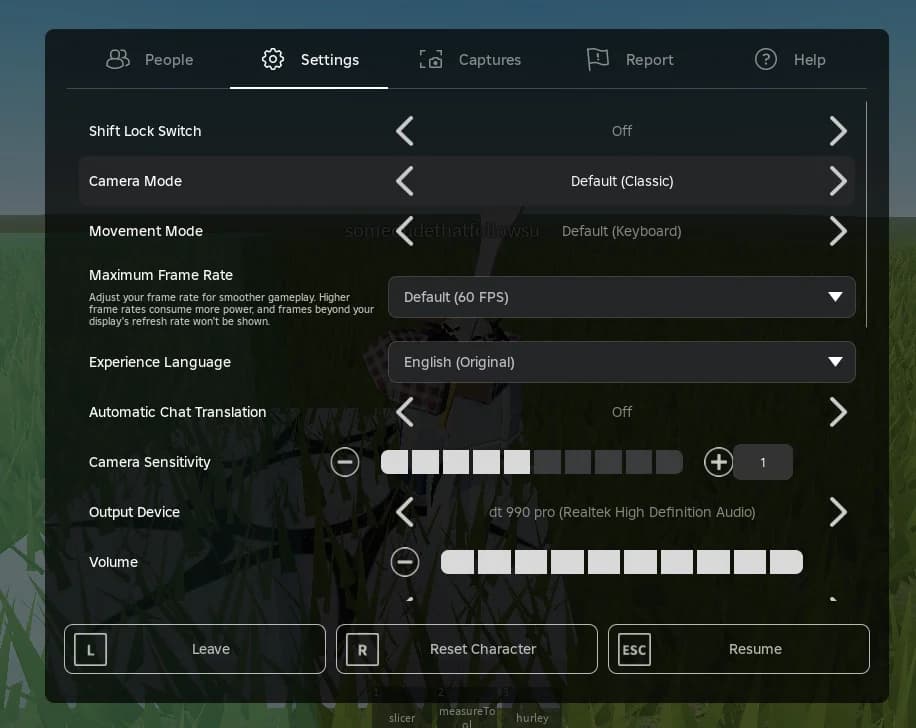
Roblox movement settings
For a keyboard-and-trackpad setup, place one hand near WASD and keep the other available for the trackpad. The trackpad handles pointing and clicking, including menu selections and cursor-based actions. Playing without an external mouse does not mean you have to give up the pointer.
Start somewhere with enough room to walk and turn. Learn ordinary navigation before adding an experience's special movement, combat, or vehicle inputs.

How to move in Roblox on a laptop
WASD is the straightforward starting point for standard walking. The arrow keys offer another layout, but the left and right arrows rotate the camera instead of moving your character sideways.
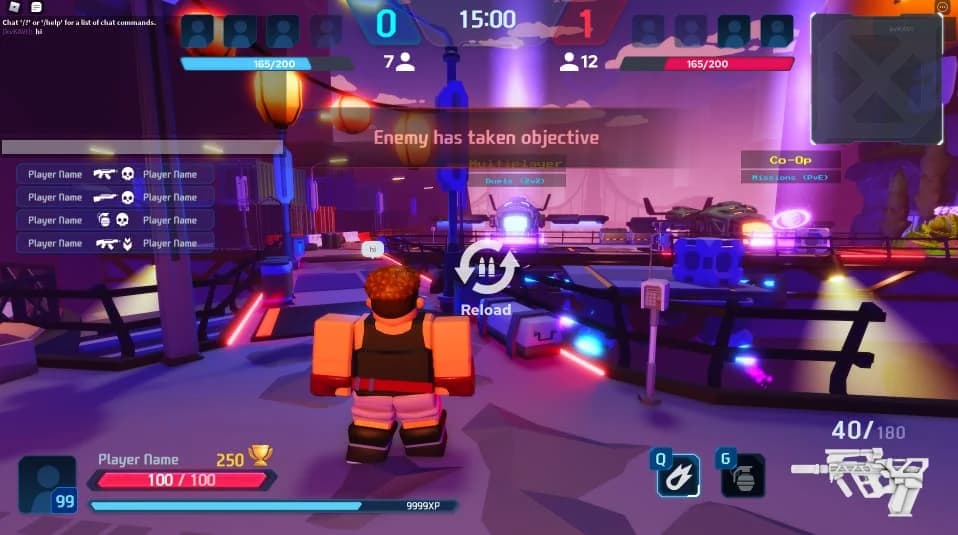
Third-person Roblox gameplay
| Action | WASD input | Arrow-key input |
|---|---|---|
| Move forward | W | Up Arrow |
| Move backward | S | Down Arrow |
| Move left | A | Left Arrow turns the camera left instead |
| Move right | D | Right Arrow turns the camera right instead |
The forward and backward arrow inputs move your character relative to the camera. If you rotate the view toward a different route, moving forward follows that new view direction.
Practice walking and turning with the keyboard
Use this sequence to follow a simple route without touching the trackpad:
- Hold Up Arrow to walk forward across clear ground.
- Release it before a corner, then hold Left Arrow or Right Arrow until the next part of the route is ahead of you.
- Release the turning key and hold Up Arrow again to continue.
Stopping before each turn makes the inputs easier to separate while you learn. Once that feels comfortable, combine movement and turning where the route allows it.
Advanced movement still needs the experience's own action bindings. For example, the Parkour Champions controls guide covers wall runs, dives, and rolls beyond ordinary Roblox walking.
How to control the camera with a trackpad
Roblox's standard free camera input is hold right-click and move the pointer. Your laptop's trackpad needs to produce that same held-button input, not just a brief secondary click.
Perform a right-click drag
Use this sequence when you need to adjust the view freely:
- Press and hold the trackpad's right-click input.
- Keep it held while moving a finger across the touch surface.
- Release the right-click input when the view is positioned where you want it.
If your trackpad has separate physical buttons, hold its right button while sliding a finger across the touch surface. The important part is maintaining the hold throughout the movement. Tapping right-click and then moving the pointer does not reproduce a right-click drag.
Keep camera adjustments small while learning. Line up the route before walking into a narrow area so you do not have to correct both your position and your view at the same time.
Use the keyboard-turning method above if holding and dragging is awkward. The trackpad camera input is the option for looking in directions beyond those basic left and right turns.
How to use Click to Move without a mouse
Click to Move replaces continuous steering with destination selection. It is a practical alternative when you prefer choosing a patch of ground with the trackpad to holding movement keys throughout a journey.
Enable destination-based movement
Set up the control scheme inside the experience:
- Open the in-experience Settings.
- Change the movement control scheme to Click to Move.
- Return to gameplay and use the trackpad to click a reachable patch of ground.
This scheme must be enabled manually. Clicking the ground while another movement scheme is active does not automatically switch you into destination-based movement.
Roblox shows a glowing blue destination marker where you click. If your character cannot find a way to the selected spot, they shrug and shake their head.
Choose open ground while learning this mode. A destination on the other side of an obstacle still needs a route your character can follow.
Which controls change between Roblox experiences?
Boats commonly support WASD too, while other vehicles and flying tools can have their own controls and interfaces.
Special movement and combat
The standard walking inputs are a starting point, not a complete action list for every experience. Use Bizarre Lineage controls and keybinds for that experience's actions alongside this laptop navigation setup.
When learning extra inputs, practice one action at a time while keeping the camera steady. This separates the action's timing from any difficulty holding and dragging on the trackpad.
Cars, boats, and flying tools
Many newer cars use WASD after you sit in the driver's seat.
For a driving-focused experience, the BloxNG beginner's guide covers its controls and vehicle systems. Use those experience-specific inputs when the car's actions go beyond the standard movement keys.

BloxNG vehicle gameplay
Some experiences give you a driving or flying tool when you enter the driver's or pilot's seat. Use that tool's displayed controls for its extra actions; its interface may also show speed and remaining vehicle health.