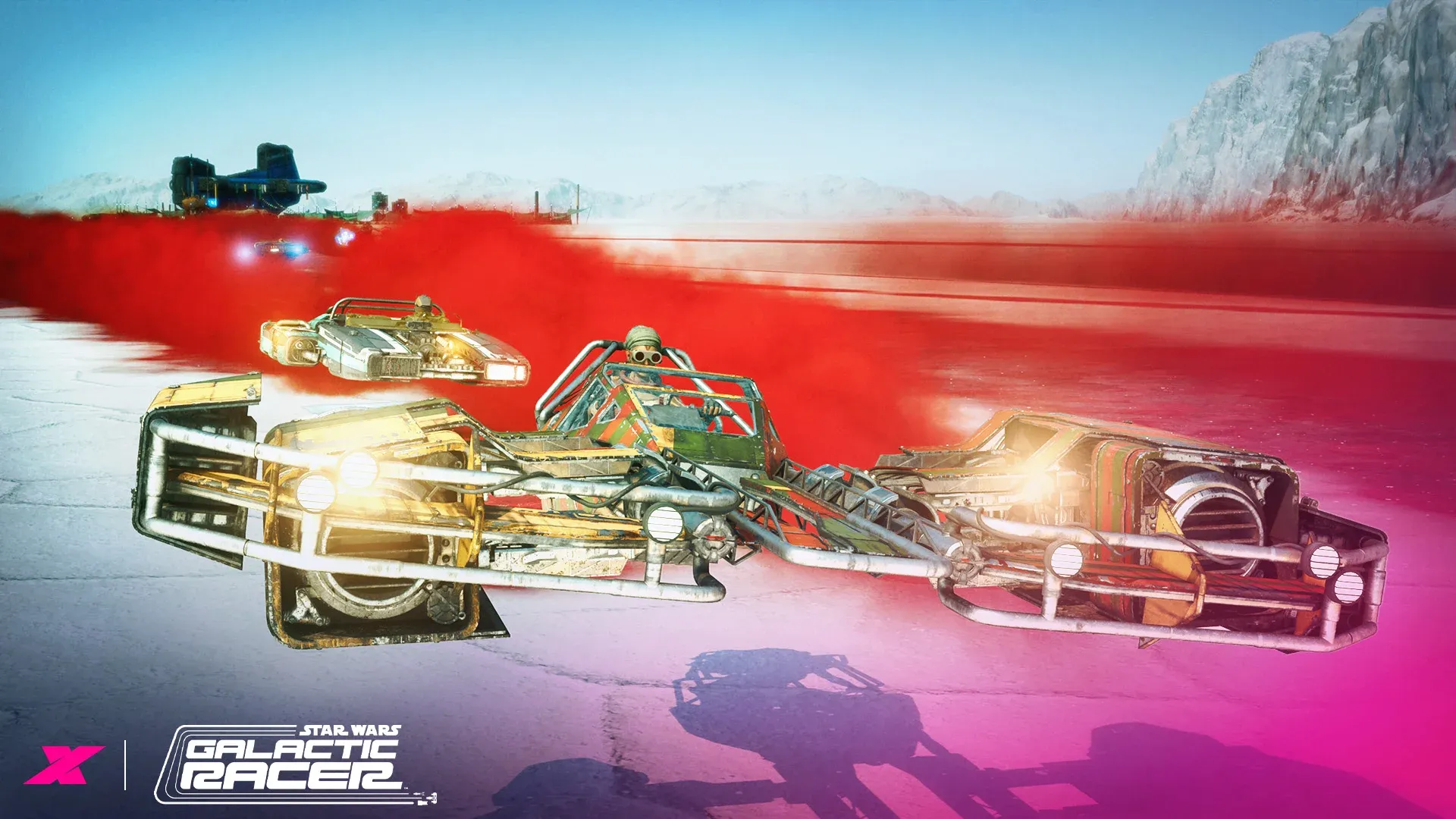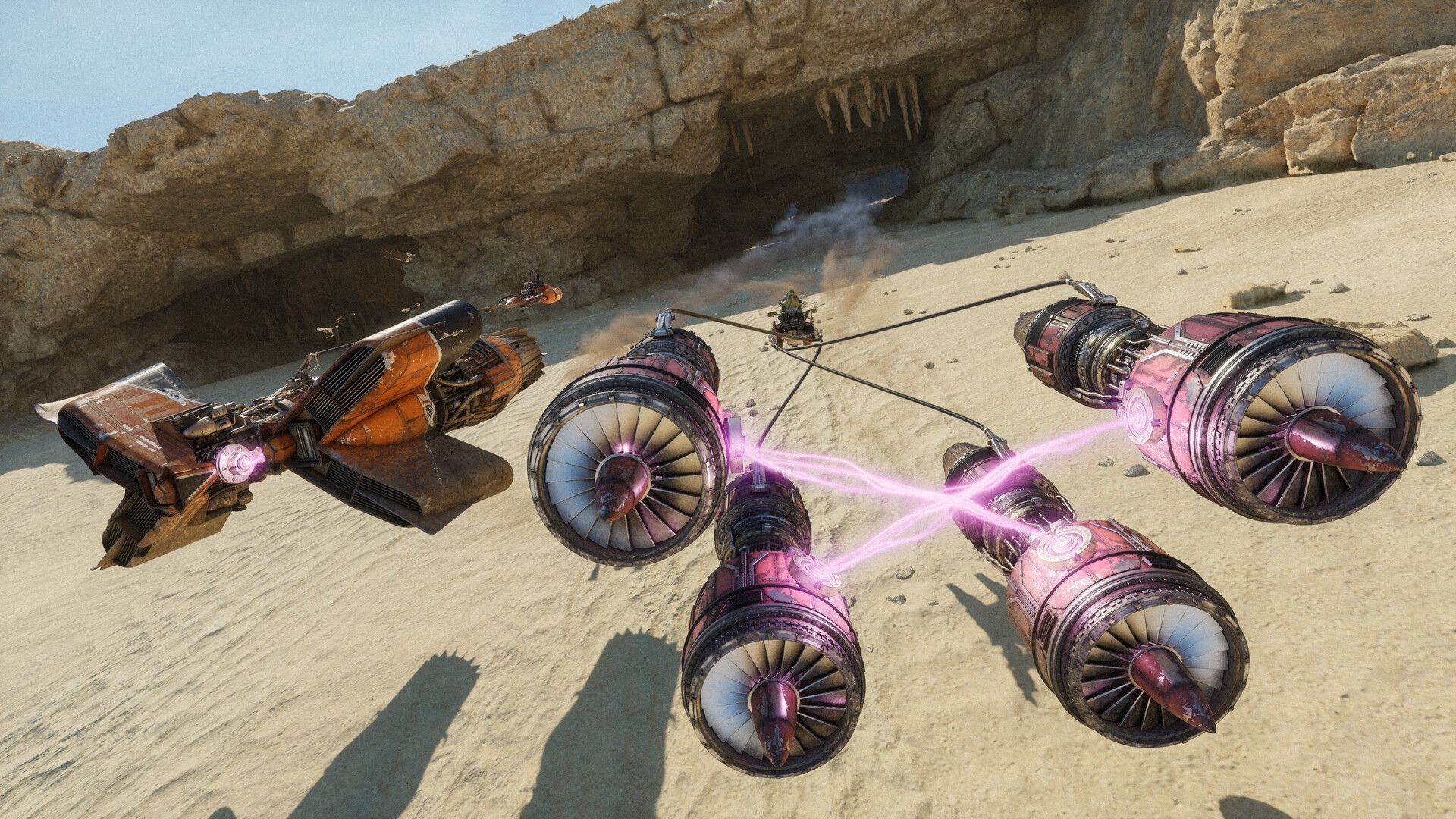

STAR WARS: Galactic Racer launched on October 6, 2026, and the podrace action moves fast enough that even a minor stutter can cost you a race. The good news is that this isn't a particularly demanding game on capable hardware. The bad news is that the developers shipped without a recommended spec list, and the Steam Deck experience takes some real work to get right. Here's exactly what to change, and why.
What are the best PC settings for Star Wars: Galactic Racer?
Here's the short answer: prioritize a stable 60 FPS over visual fidelity. The racing is fast-paced enough that smoothness matters far more than shadow quality or foliage detail. Testing on hardware around the minimum spec range confirms that 60 FPS is the practical sweet spot. Pushing to 90 FPS produces no noticeable gameplay difference, so there's no reason to burn the extra GPU headroom.
Before touching anything in-game, update your GPU drivers and close background applications. Reducing CPU overhead before launch makes a measurable difference on mid-range systems.

Display settings
| Setting | Recommended Value |
|---|---|
| Display Mode | Personal preference (Windowed Fullscreen works well) |
| Aspect Ratio | 16:9 |
| Display Resolution | Match your monitor's native resolution |
| Target Framerate | 60 FPS |
| VSync | Off (enable only if you see tearing) |
| Motion Blur | Off |
| Camera Shake | Off |
| HUD Visibility | On |
Turning off Motion Blur and Camera Shake is non-negotiable at high speeds. Both settings add visual noise that makes reading the track harder, and neither contributes to actual frame delivery.
Graphics quality settings
The Preset should be set to Custom so individual options don't get overwritten. The settings below are tuned for systems near the minimum spec range. If your rig is significantly above minimum, bumping everything to High or Epic is completely reasonable.
| Setting | Recommended Value |
|---|---|
| Anti-Aliasing Quality | Medium |
| Foliage Quality | Low |
| Global Illumination Quality | Low |
| Landscape Quality | Low |
| Post Process Quality | Medium |
| Reflection Quality | Low |
| Shader Quality | Medium |
| Shadow Quality | Low |
| Visual Effects Quality | Medium |
| Texture Quality | Low |
| View Distance Quality | Medium |
| Full Screen Effects | Off |
| Upscaler | Enabled |
| Scaling | Performance |
| Frame Generation | Off |
The logic here is straightforward. Foliage, Shadows, and Reflections are expensive settings with minimal visual payoff during a race, because you're moving too fast to appreciate them. Anti-Aliasing, Post Process, and Visual Effects at Medium keep the image clean without tanking performance. Leaving Frame Generation off avoids the added latency it introduces, which matters in a twitch-based racing game.
For powerful PCs, set everything to High or Epic and run uncapped or at your display's max refresh rate. The game handles it without issues on capable hardware.
What are the best Steam Deck settings for Star Wars: Galactic Racer?
The Steam Deck can run Star Wars: Galactic Racer, but calling it a smooth experience out of the box would be generous. The hardware is aging, and this is a visually polished AAA title with fast-paced action that benefits heavily from high framerates.
The mistake most players make is targeting 60 FPS on the Deck. It can't hold it consistently. The better approach is to lock to 30 FPS and set that cap through the Steam Deck's system overlay rather than the in-game settings. Testing confirms this produces a more stable result than using the in-game framerate cap.
Steam Deck display settings
| Setting | Recommended Value |
|---|---|
| Display Mode | Windowed Fullscreen |
| Display Resolution | 1280 x 800 |
| Target Framerate | 60 FPS (then cap to 30 via Steam overlay) |
| Resolution Quality | 50% |
| VSync | Off |
Steam Deck graphics quality settings
| Setting | Recommended Value |
|---|---|
| Anti-Aliasing Quality | Low |
| Foliage Quality | Low |
| Global Illumination Quality | Low |
| Landscape Quality | Low |
| Post Process Quality | Low |
| Reflection Quality | Low |
| Shader Quality | Low |
| Shadow Quality | Low |
| Visual Effects Quality | Low |
| Texture Quality | Low (or High if testing) |
| View Distance Quality | Low |
| Full Screen Effects | On |
| Anti-Aliasing Mode | TAAU |
| Resolution Scaling | AMD FSR |
| Resolution Scaling Quality Mode | Performance |
One alternative worth knowing: the game's single-player mode is available to stream via Amazon Luna. If your internet connection is fast and stable, streaming sidesteps the Deck's hardware limits entirely. The caveat is that streaming latency and podrace reaction times don't mix well, so test it before committing to a long session.
Should you use the Upscaler on PC?
Yes, always. With Upscaler enabled and Scaling set to Performance, the game renders at a lower internal resolution and reconstructs the image. On mid-range hardware, this recovers a significant number of frames with minimal visible quality loss during actual racing. NVIDIA DLSS is available on supported GPUs and generally produces cleaner results than AMD FSR, but FSR is the fallback for everyone else and works well at the Performance preset.
Frame Generation is a different story. It adds latency to every input, and in a racing game where you're reacting to track hazards at high speed, that added delay is noticeable. Leave it off.
Common mistakes to avoid
- Leaving Motion Blur on. It looks fine in screenshots and makes actual racing harder to read.
- Targeting 90 FPS on mid-range PC hardware. There's no meaningful gameplay benefit over 60 FPS in a racing game.
- Using the in-game framerate cap on Steam Deck instead of the system-level cap. The system-level cap is more stable.
- Setting everything to Epic on a mid-range PC without first testing. Start with the recommended settings above and raise individual options one at a time.
For more on everything Star Wars: Galactic Racer has to offer, check out the full STAR WARS: Galactic Racer strategy guides collection for tips on racers, Tours, Favors, and more.
Frequently asked questions
Does Star Wars: Galactic Racer have recommended PC specs? No. As of launch, the developers have only published minimum requirements on the Steam page. The settings in this guide are calibrated for systems near that minimum baseline.
What FPS should I target on PC? 60 FPS is the practical target for mid-range systems. There's no meaningful difference between 60 and 90 FPS in this game, so don't push your hardware harder than necessary.
Can you play Star Wars: Galactic Racer on Steam Deck? Yes, but expect 30-40 FPS at best. Lock to 30 FPS via the Steam system overlay, set everything to Low, enable FSR at Performance, and set resolution quality to 50%. The experience is playable, not ideal.
Does the Upscaler help on low-end PCs? Yes. Enable it and set Scaling to Performance. DLSS is the better option on supported NVIDIA GPUs, but FSR works well as an alternative.
If you want to understand how the game's progression systems work before optimizing your settings, the Tours guide for Star Wars: Galactic Racer breaks down League Entry Tokens, permanent upgrades, and what carries between runs.