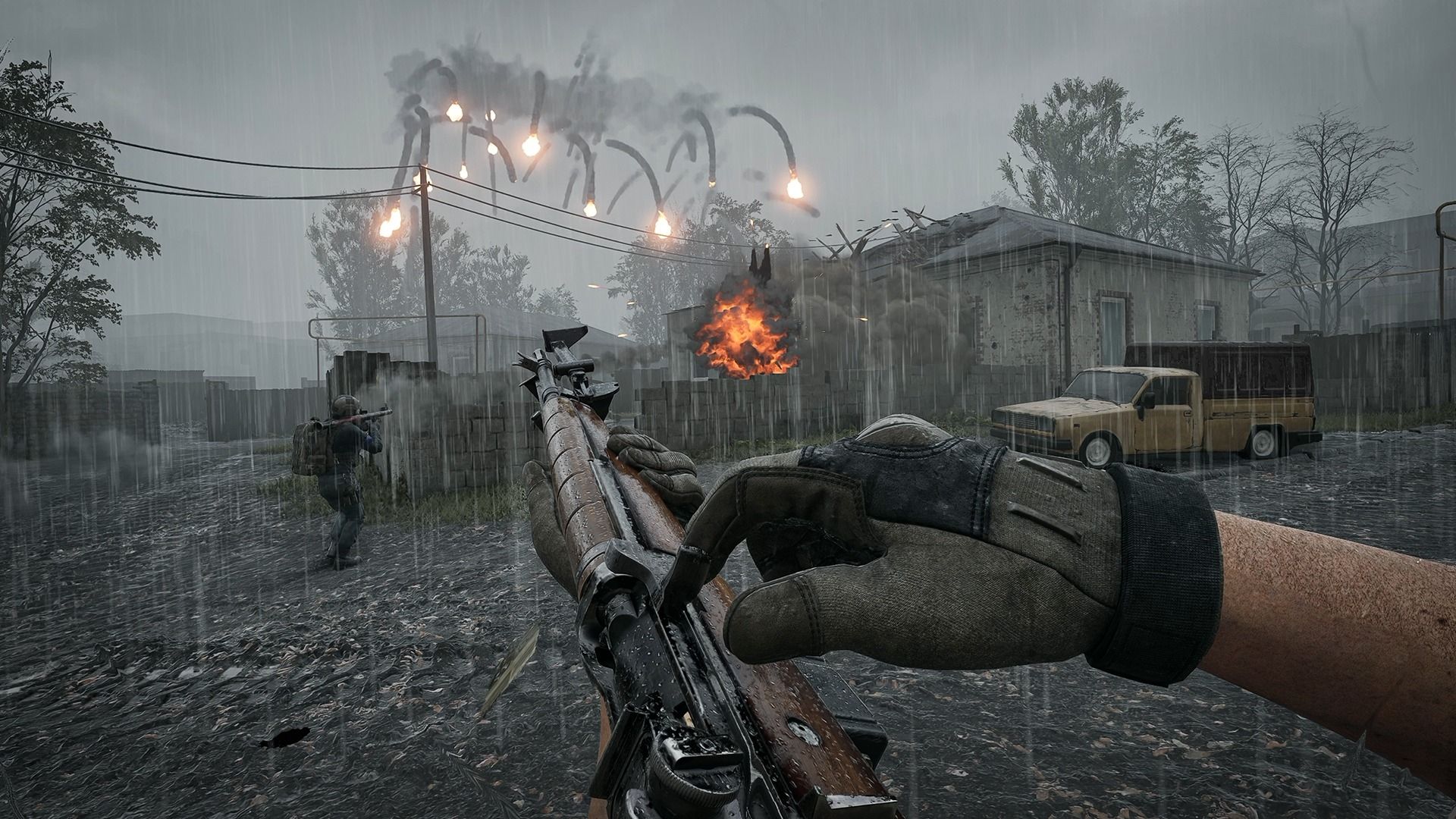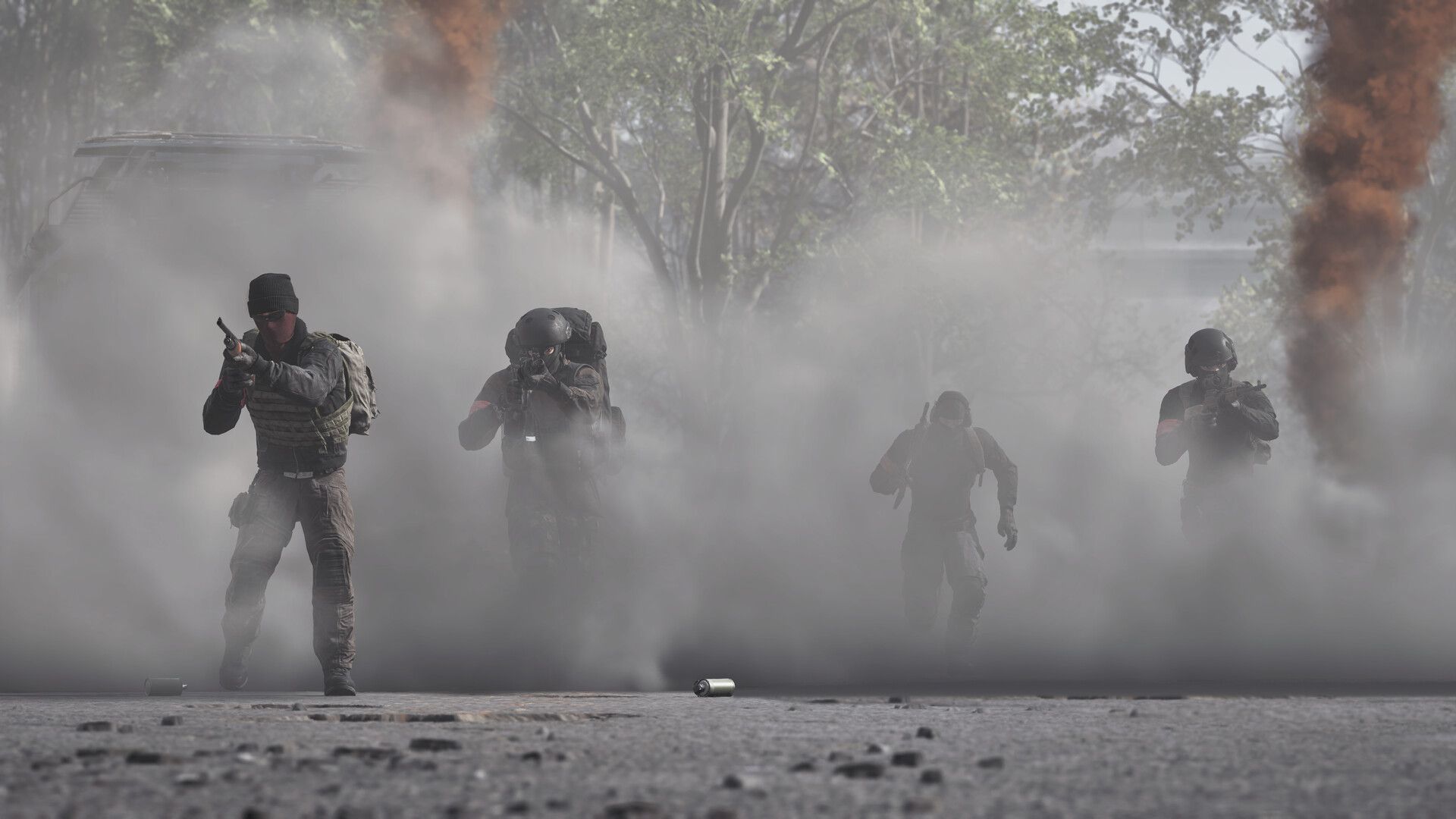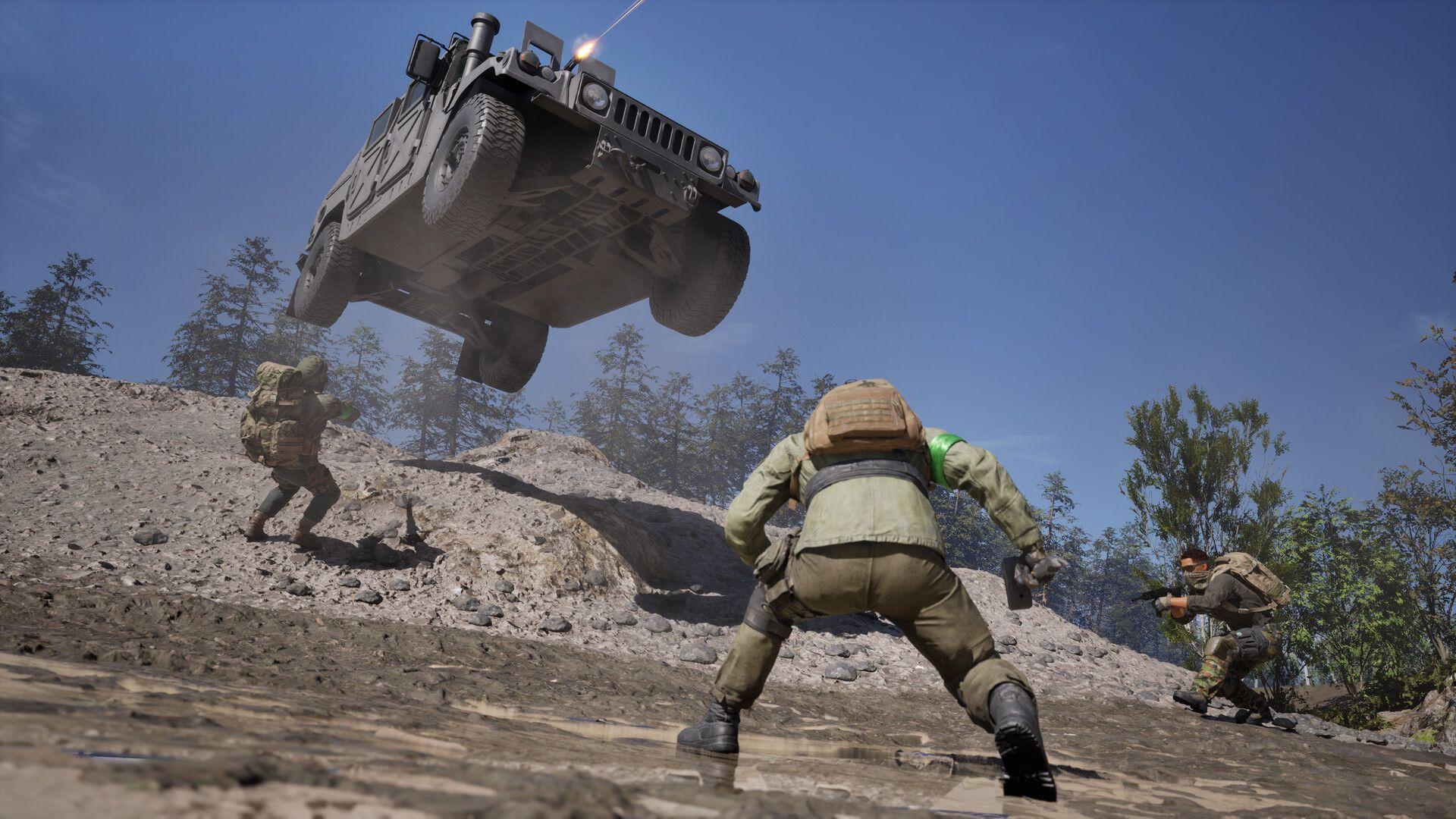

WARDOGS launched into Early Access on September 10, 2026, and the player response has been massive. But for a chunk of players, the experience has been less "tactical 100-player warfare" and more "staring at a crash screen." The two biggest culprits are a conflict between Easy Anti-Cheat and a kernel-level Windows process called inpoutx64.sys, and the usual suspects: corrupted files, outdated drivers, and overlay software. Here's every fix worth trying, ordered from fastest to most drastic.
Why is WARDOGS crashing or not launching?
Most WARDOGS startup failures trace back to Easy Anti-Cheat (EAC), the kernel-level anti-cheat service the game runs. EAC is aggressive by design. It scans for conflicting processes before the game even reaches the main menu, and if it finds something it doesn't like, it kills the session entirely.
The specific crash causing full PC reboots, not just game crashes, comes from a conflict between EAC and a kernel process called inpoutx64.sys. This issue became widespread after the Windows Security update KB5121003 rolled out on August 12, 2026. Players who went through the Closed Alpha before August 9 likely never saw this problem because that update hadn't shipped yet.
Other startup failures have different causes:
- Black screen on launch: Usually a conflict with overlays (Discord, NVIDIA ShadowPlay) or a resolution mismatch between the game and your monitor.
- Game closes immediately: A failed EAC security check, often triggered by an outdated Windows version or a firewall blocking the game's connection.
- Stuck on loading screen: Shader compilation stalling, matchmaking timeout, or an unstable internet connection causing an infinite loop.
- Missing or corrupted files: Common during high-traffic launch periods when Steam downloads get interrupted.
WARDOGS Guide: How to Fix Crashing or Not Launching on PC

How to fix the inpoutx64.sys crash (PC reboots)
This is the fix for players whose entire system restarts when WARDOGS launches. The solution is to stop the inpoutx64 process and prevent it from auto-starting. You are not deleting the file, just disabling it, so it can be re-enabled later if needed.
- Open Command Prompt as Administrator (search for cmd in the Start menu, right-click, select "Run as administrator").
- Type sc stop inpoutx64 and press Enter.
- Type sc config inpoutx64 start= disabled and press Enter.
- Reboot your PC.
- Launch WARDOGS.
To re-enable the process later, open Command Prompt as Administrator and type sc start inpoutx64.
How to fix WARDOGS not launching at all
If the game never gets past the splash screen or closes immediately after clicking Play, work through these steps in order.
WARDOGS Guide: How to Fix Crashing or Not Launching on PC
Verify game files on Steam
This should always be your first move. Open your Steam Library, right-click WARDOGS, select Properties, go to the Installed Files tab, and click Verify integrity of game files. Steam will compare your local files against the server version and redownload anything missing or corrupted.
Run Steam as administrator
Right-click your Steam shortcut and select Run as administrator. This gives the launcher the system permissions it needs to properly initialize EAC and write to protected directories.
Update your GPU drivers
NVIDIA and AMD both release "Game Ready" drivers that include optimizations for new titles. Running outdated drivers can cause fatal render errors before the game even loads. Download the latest version directly from the NVIDIA or AMD website.
Disable overlays and background apps
Turn off overlays from Discord, Steam, and NVIDIA GeForce Experience before launching. These inject code into the game's rendering process and EAC treats some of them as suspicious. RGB lighting software and macro tools are also known to trigger EAC blocks.
Add WARDOGS to your firewall and antivirus exceptions
Windows Defender's real-time protection occasionally flags EAC components as threats. Add exceptions for the WARDOGS executable and the EasyAntiCheat folder in both your Windows Firewall settings and your antivirus software.
How to fix WARDOGS Easy Anti-Cheat errors
Repair EAC
Navigate to your WARDOGS installation folder (typically SteamLibrary\steamapps\common\WARDOGS\EasyAntiCheat) and run EasyAntiCheat_Setup.exe as administrator. Select Repair from the menu.
Reinstall EAC from scratch
If the repair doesn't work, delete the EasyAntiCheat folder from C:\Program Files (x86), then go back to Steam and verify your game files. Steam will force a clean reinstall of the anti-cheat service.
Common EAC error codes
| Error Code | Likely Cause | Fix |
|---|---|---|
| 10011 | Third-party software blocking EAC | Disable RGB/CCleaner apps, repair EAC |
| 30005 | EAC service blocked by another program | Add firewall exception, repair EAC |
| EAC not installed | Service didn't install with the game | Run EasyAntiCheat_Setup.exe manually |
| EAC failed to launch | Service couldn't initialize | Repair or reinstall EAC as admin |
How to fix the WARDOGS black screen
A black screen on launch almost always comes from one of two places: an overlay conflict or a resolution mismatch.
- Disable Discord, Steam, and NVIDIA overlays first.
- If the black screen persists, add -windowed or -borderless to WARDOGS's Steam launch options. Right-click the game in your library, select Properties, and enter the flag in the Launch Options field.
- Outdated GPU drivers are also a common trigger. Update them if you haven't already.
How to fix WARDOGS crashing mid-match or after changing settings
If the game runs fine in the menu but crashes when you join a match, the problem is usually memory-related. Lowering your texture quality reduces VRAM load and can stop these crashes entirely.
For crashes after changing graphics settings like Ray Tracing or Anti-Aliasing, you may not be able to reach the menu to revert them. In that case, delete the game's configuration file from your AppData folder. Windows will regenerate it with default settings on the next launch.
Overheating is another cause worth checking. Use a monitoring tool to confirm your CPU and GPU temperatures are within safe ranges. Thermal throttling can cause the system to terminate the game process without any error message.
What about Linux and Steam Deck?
Native Linux support is not available at Early Access launch. Using Proton 9.0 or GE-Proton can sometimes get the game to the main menu, but EAC's Linux module hasn't been enabled by BULKHEAD yet. Without it, you'll be kicked from matches or hit a fatal error. The Steam Deck can run the game's graphics on Low settings, but the same EAC barrier applies. For updates on Linux and console availability, the WARDOGS console release guide covers what BULKHEAD has confirmed about platform expansion.
If you're running into other technical issues with WARDOGS, the WARDOGS voice chat fix guide covers the audio-side problems that have been hitting players alongside these launch issues. For everything else, the full WARDOGS guides collection has you covered as the game continues to evolve through Early Access.