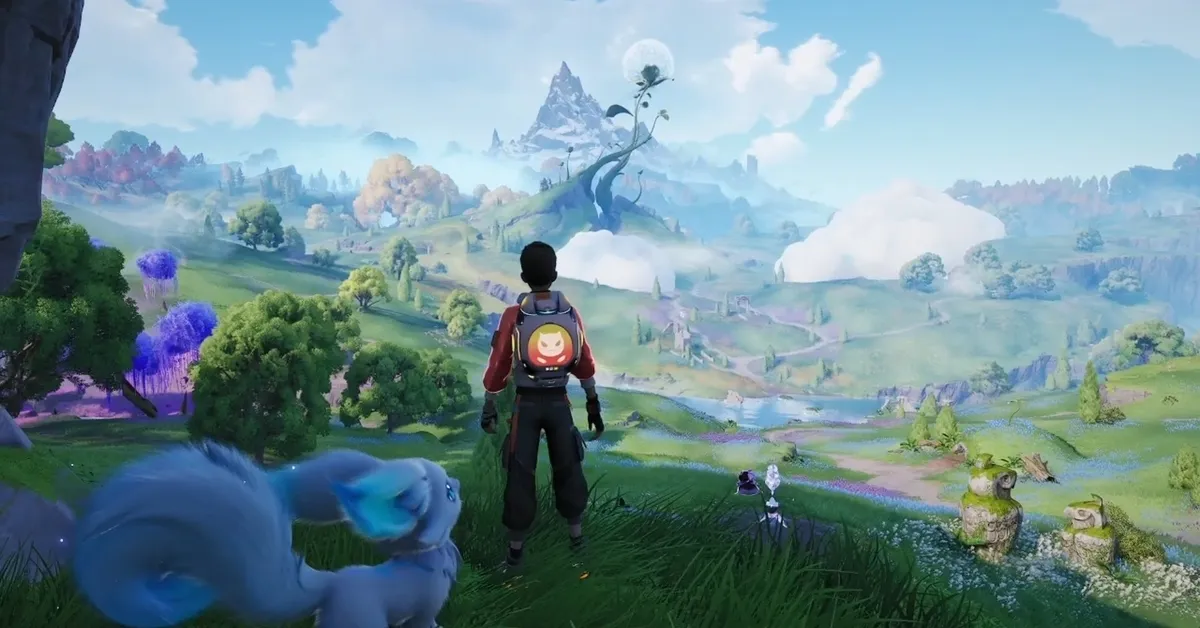


Aniimo drops you into a large open world full of creatures to catch, explore, and battle. That open world comes at a cost: FPS drops and stuttering can creep in fast, especially on mid-range or older hardware. The good news is that a handful of targeted settings changes can recover significant performance without turning the game into a blurry mess.
This guide covers the best Aniimo PC settings for graphics, upscaling, NVIDIA, AMD, and Windows to get you running smoothly.
Best Aniimo graphics settings
The table below represents a solid performance-to-quality balance. If your hardware is on the weaker side, push Global Illumination and Ambient Occlusion lower than the recommended values first.
Shadow Quality, Global Illumination, and Reflection Quality are the three settings that hit performance hardest. Drop those first before touching anything else. If the game still struggles after that, pull Global Illumination down to Low and set Shadow Quality to its Performance option.
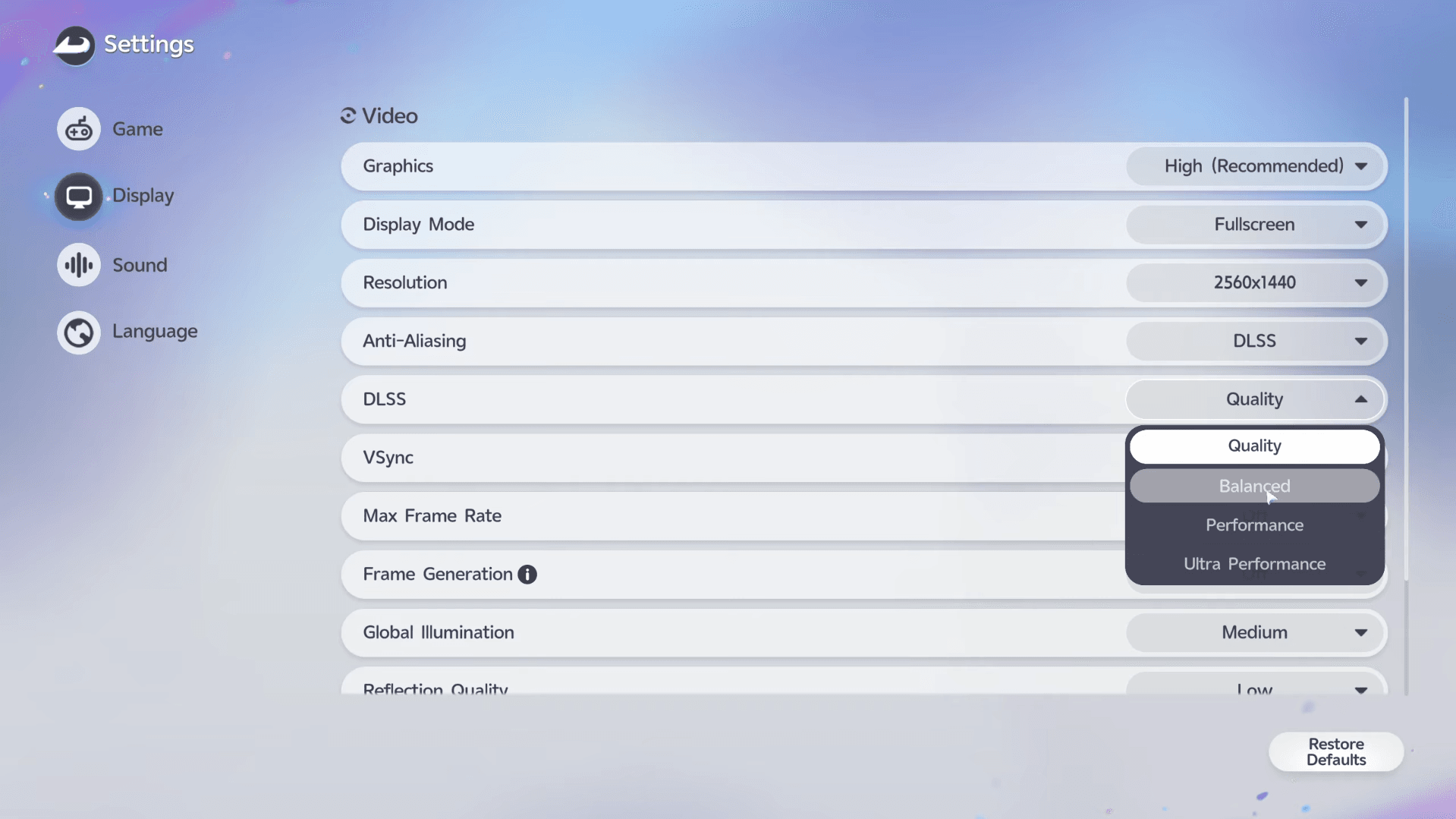
Aniimo Guide: Best PC Settings for Max Performance
What are the best DLSS and FSR settings for Aniimo?
Upscaling is one of the highest-value changes you can make. Pick the option that matches your GPU.
DLSS Quality is the right starting point for RTX users at 1080p and 1440p. At 4K, switching to Balanced frees up enough headroom to keep frame rates stable without a visible sharpness penalty at that resolution. AMD users should enable FSR directly inside Aniimo's settings rather than through the driver panel.
Frame Generation requires launching Aniimo with DirectX 12. If you do not need Frame Generation, the DirectX 11 launch option is generally more stable and is the better default for most players.
Aniimo Guide: Best PC Settings for Max Performance
Best NVIDIA settings for Aniimo
Make these changes inside the NVIDIA App using Aniimo's individual game profile, not the global settings. Changing global settings affects every game on your system.
Keep Shader Cache Size at Driver Default. Increasing it does not guarantee better FPS and can occasionally cause shader compilation hitches. If your monitor supports G-SYNC, make sure it is enabled both in the NVIDIA App and in your monitor's own OSD menu.
Best AMD Radeon settings for Aniimo
AMD users can configure these options through AMD Software: Adrenalin Edition.
If your monitor supports FreeSync, set a frame rate cap slightly below the monitor's maximum refresh rate. On a 170Hz display, a 167 FPS cap keeps the frame rate inside the FreeSync range and prevents screen tearing without the latency cost of VSync.
Best Windows settings for Aniimo
Windows has several built-in options that directly affect gaming performance and are easy to miss.
To turn on Game Mode, go to Settings → Gaming → Game Mode. For GPU selection and graphics preferences, navigate to Settings → System → Display → Graphics and set Aniimo to High Performance.
Gaming laptops running both integrated and dedicated graphics need to confirm that Aniimo is assigned to the dedicated GPU in that Graphics menu. Running the game on integrated graphics by accident is one of the most common causes of unexplained poor performance on laptops.
How to fix FPS drops and stuttering in Aniimo
If performance is still rough after applying the settings above, work through this checklist one or two changes at a time so you can identify what actually helps:
- Update NVIDIA or AMD graphics drivers to the latest stable release.
- Close background applications, particularly browsers, streaming software, and Discord video.
- Install Aniimo on an SSD if it is currently running from a hard drive.
- Set a stable FPS cap rather than leaving the frame rate unlocked.
- Lower Shadow Quality and Global Illumination before touching any other graphics option.
- Switch DLSS or FSR from Quality to Balanced if you need more headroom.
- Try the DirectX 11 launch option if DirectX 12 is causing instability and you are not using Frame Generation.
A stable, consistent frame rate matters more than chasing the highest possible number. Open-world games like Aniimo punish uncapped frame rates with unpredictable spikes, so a locked 60 FPS often feels smoother than an unlocked 80 that dips to 45 in dense areas.
For more on building the strongest possible team once you are in the game, the Aniimo best teams guide covers role-by-role compositions and elemental setups for every stage of the game. Browse the full Aniimo guides collection for tips on trophies, the event roadmap, and everything else launching alongside the game.