
Getting your console settings dialed in perfectly can mean the difference between victory and defeat in Call Of Duty Black Ops 7. Whether you're running PS5 or Xbox Series X/S, these optimized configurations will transform your gameplay experience from frustrating to phenomenal.
Why Console Settings Matter
Black Ops 7 is a fast paced shooter. Effects like motion blur, depth of field, and inconsistent sensitivity transitions make it harder to track enemies. When visual clutter and sluggish controls are removed, you gain more control and more time to react. These settings prioritize performance over presentation so you can spot enemies earlier, maintain target tracking during movement, and hear footsteps clearly.

Visual and Display Settings
Your display settings directly impact your ability to spot enemies and maintain smooth gameplay. Here's what you need to change immediately:
Essential Graphics Configuration
| Setting | PS5 | Xbox Series X/S | Why It Matters |
|---|---|---|---|
| 120 Hz Refresh Rate | On | On | Doubles your visual information |
| World Motion Blur | Off | Off | Eliminates target tracking issues |
| Weapon Motion Blur | Off | Off | Keeps iron sights crisp during movement |
| Depth of Field | Off | Off | Maintains background enemy visibility |
| Field of View | 105-110 | 105-110 | Expands peripheral vision significantly |
The 120 Hz refresh rate is your most crucial setting. If your TV or monitor supports it, this single change will make enemies appear to move more smoothly, giving you precious milliseconds to react.
Advanced Visual Tweaks
These adjustments help stabilize performance in intense situations.
| Setting | Recommended Value | Benefit |
|---|---|---|
| On Demand Texture Streaming | Minimal | Reduces stutter during combat |
| ADS Field of View | Affected | Keeps sensitivity stable while aiming |
| FidelityFX CAS | 90 | Improves sharpness without lowering performance |
| Safe Area Bounds | Tight HUD | Keeps UI elements closer for faster reading |
These settings remove visual distractions and keep your on screen image consistent during firefights. Affected ADS FOV is especially important because it eliminates unnecessary zoom changes that disrupt aim tracking.
Controller Settings
Your controller determines how smooth your aim feels and how quickly the game registers your inputs. Proper sensitivity and deadzone values create a consistent aiming environment where your muscle memory can develop naturally.
| Setting | Recommended Value | Purpose |
|---|---|---|
| Horizontal Sensitivity | 1.50 | Balanced turning speed |
| Vertical Sensitivity | 1.50 | Stable tracking without overshooting |
| ADS Sensitivity Multiplier | Default | Keeps aiming smooth and predictable |
Starting with moderate sensitivity gives you full control without making aim adjustments feel unstable. You can increase sensitivity over time once you feel comfortable.
Deadzone Configuration
| Setting | Recommended Value | Benefit |
|---|---|---|
| Left Stick Min | 0 | Maximum responsiveness |
| Left Stick Max | 65 | Prevents excessive drift |
| Right Stick Min | 2 | Removes minor drift while staying precise |
| Right Stick Max | 99 | Full aiming range |
| Trigger Deadzone Left | 0 | Faster movement activation |
| Trigger Deadzone Right | 0 | Faster weapon firing |
Deadzone tuning is one of the strongest upgrades you can make. Zero trigger deadzones give instant response for both sprinting and shooting, which is valuable in close combat situations.
Advanced Aim Settings
| Setting | Recommended Value | Why |
|---|---|---|
| Aim Response Curve Type | Standard | Most stable and consistent response pattern |
| ADS Sensitivity Transition Timing | Gradual | Prevents sudden sensitivity shifts |
| Target Aim Assist | On | Helps keep aim stable on moving targets |
| Motion Sensor Function | Off | Removes unnecessary gyro interference |
These settings keep your aiming behavior predictable so you can track targets without sudden changes in camera speed or inconsistent input curves.
Movement Settings for Competitive Edge
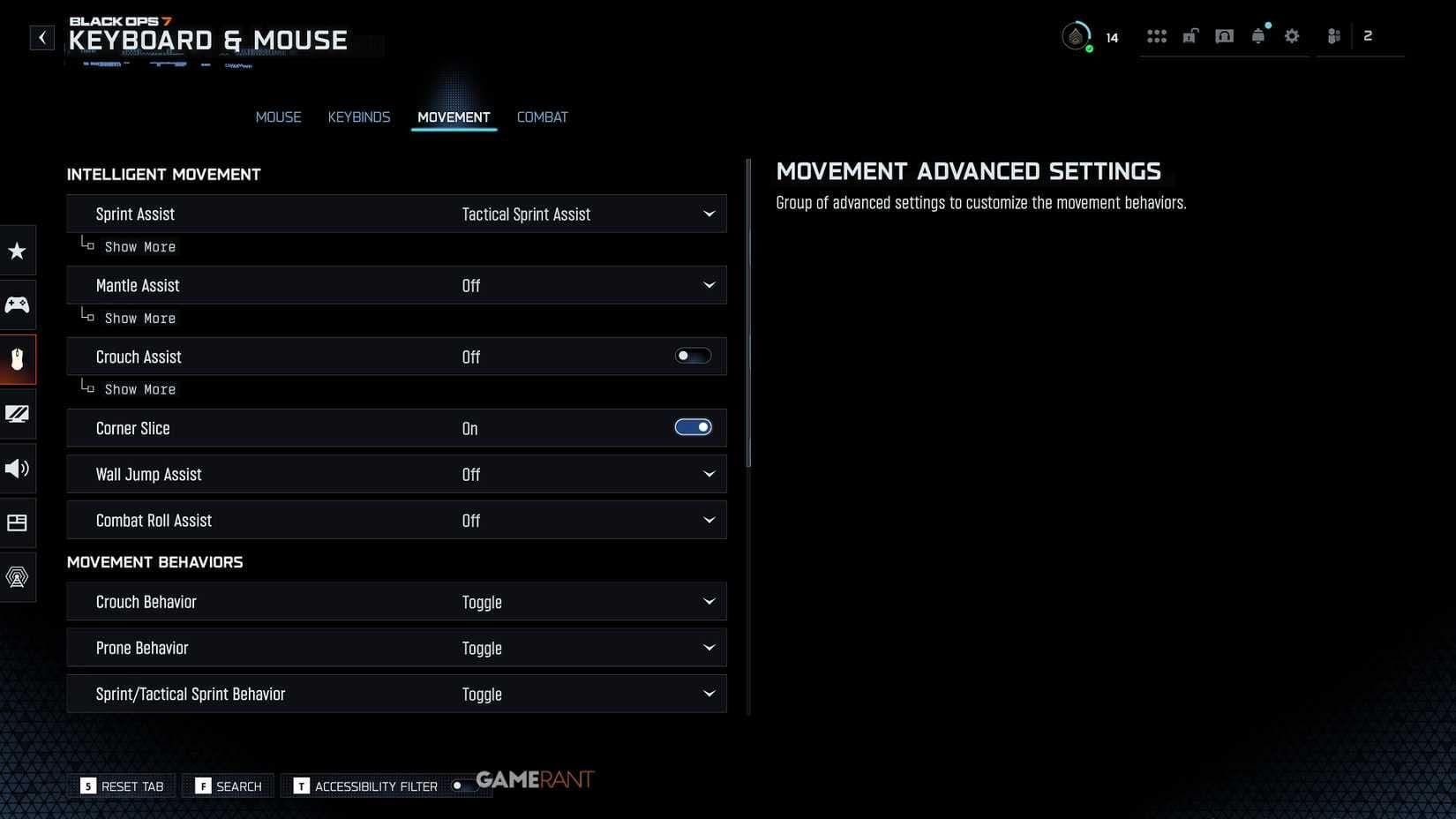
Movement often determines who wins or loses a fight. Cleaner input and tighter control help you reposition quickly, take better angles, and dodge incoming fire.
| Setting | Value | Benefit |
|---|---|---|
| Sprint Assist | Tactical Sprint Assist | Guarantees instant sprinting when needed |
| Sprint Assist Delay | 0 | Removes activation delay |
| Sprint Assist Sideways | On | Improves lateral mobility |
| Sprint Assist Backward | On | Helps during disengages |
| Mantle Assist | Off | Stops accidental climbing during fights |
| Crouch Assist | Off | Keeps crouch strictly manual |
| Slide or Dive Behavior | Hybrid | Allows both movement options freely |
The combination of Tactical Sprint Assist and zero delay makes movement feel more immediate, while Hybrid slide and dive keeps you flexible during close range fights.
Audio Settings
Sound plays a major role in locating enemies. Proper audio settings help you detect footsteps, reloads, and equipment well before enemies come into view.
| Setting | Value | Purpose |
|---|---|---|
| Master Volume | 100 | Maximum clarity |
| Gameplay Music | 0 | Removes distractions |
| Dialogue Volume | 100 | Keeps character callouts audible |
| Effects Volume | 100 | Footsteps and equipment sounds |
| Audio Mix | Sucker Punch | Improves directional audio and footstep clarity |
| Enhanced Headphone Mode | Off | Prevents double processing of audio |
| Asymmetrical Hearing Compensation | Off | Keeps directional sound accurate |
The Sucker Punch mix highlights the frequencies where footsteps and subtle movements occur. This helps you react earlier and track opponents through walls or cover.
Import Settings Like a Pro
Don't start from scratch if you've played previous titles. Navigate to Options > Account and Network > Import Settings and select Import from Previous Title. This transfers your controller, audio, and basic graphics settings instantly.
However, you'll still need to manually adjust the new visual options specific to Black Ops 7, particularly the enhanced graphics settings and movement assists.
For weapon-specific optimizations, explore our Call Of Duty Black Ops 7 Best Meta Loadouts guide to complement these settings.
Platform-Specific Considerations
PS5 Optimization
Enable Eco Mode Preset to Efficiency for consistent performance during extended sessions. The PS5's variable clock speeds can cause frame drops during intense moments without this setting.
Xbox Series X/S Tweaks
Xbox users should prioritize 120 Hz over 4K resolution in the system settings. The competitive advantage of higher refresh rates outweighs visual fidelity in multiplayer matches.
Your console is now optimized for competitive Black Ops 7 gameplay. These settings provide the foundation for improvement, but remember that consistent practice with these configurations is what transforms good players into great ones.