
To change radio audio in Forza Horizon 6, open Options > Audio, adjust the music settings, and save your changes. The controls let you change music volume, switch DJ speech off, and enable the livestreaming music option without adjusting every sound together.
This guide covers those radio settings, choosing an audio preset, and balancing music against your car. If you want your own songs inside the radio stations, that's a separate process using Forza Horizon Radio Extender, a tool that modifies the installed game's files.
How do you open the radio audio settings?
You can reach Audio before loading into a drive or while the game is paused. Use whichever route suits where you are:
- At the start menu: Select Options, then Audio.
- During a drive: Press Escape on a keyboard or the menu button to pause, select Options, then open Audio.
The Audio page separates output and presets, individual volume sliders, and on/off toggles. Start with the control for the sound you actually want to change. Turning the whole game down is unnecessary if the radio is the only thing bothering you.

Which settings change radio music and volume?
The Music slider controls music volume, while Master Game changes the volume of the game as a whole. Every volume slider runs between 0 and 100, and an arrow beneath the slider marks its default position.
For a music-first drive in racing games, use the music-specific control rather than moving every slider. If you prefer the car soundtrack, setting Music to 0 lets you mute music while leaving the other volume settings unchanged.
| What you want to change | Control in Audio | What it does |
|---|---|---|
| Music loudness | Music volume | Adjusts music independently of other volume sliders |
| All game audio | Master Game volume | Changes the game's combined volume |
| DJ speech | Radio DJ toggle | Switches radio DJ speech on or off |
| Your car's sound | Player Car volume | Adjusts your car's audio |
| Spoken navigation | GPS Voice volume and toggle | Adjusts navigation speech or switches it off |
| Livestreaming music | Streamer Mode toggle | Enables or disables the livestreaming music option |
Which output type and preset should you choose?
The Output setting changes the audio's dynamic range and equalization for the selected listening setup. Choose the option matching your equipment, with Nighttime also available:
- Home Cinema
- Soundbar
- TV
- Headphones
- Nighttime
The Preset selector is a separate choice. It offers Default, Music Focus, Car Focus, Dialogue Focus, and Custom. For radio listening, Music Focus is the relevant named preset. For a car-centered mix, choose Car Focus, or use the individual sliders to set your own balance.
Choose your Output before fine-tuning individual volumes. The output setting changes how the audio is presented, while sliders such as Music and Player Car control the relative levels you set yourself.
How do you turn off the radio DJ or enable streamer audio?
Open the toggle section of Audio and switch Radio DJ off to disable DJ speech. This is separate from the Music volume slider, so you can keep the songs without keeping the presenter.
The same area includes several other switches:
- GPS Voice controls spoken navigation.
- Horns switches horn audio on or off.
- Streamer Mode enables the game's livestreaming music option.
Use Radio DJ for presenter speech and Streamer Mode for the livestreaming music option. They handle different jobs. If navigation is what keeps interrupting your listening, change GPS Voice instead of the radio controls.
How do you keep car sounds while reducing music?
Leave Master Game alone initially and adjust Music against Player Car. You also have separate sliders for Tyres and Non-Player Cars, so reducing the radio doesn't require reducing every vehicle sound at the same time.
The distinction matters when setting up a car-focused mix: Player Car changes what you hear, not the car's tuning. If handling is your next concern, the Forza Horizon 6 tuning guide covers the settings that change the car itself.
Can you add your own music to radio stations?
Forza Horizon Radio Extender supports adding your songs alongside the original tracks, replacing original tracks without matching their duration, and disabling tracks. Version 0.5.9 also includes a marker editor for configuring how songs behave during free-roam, races, and results screens.
This customization happens outside the game's Audio menu. The basic workflow is:
- Close Forza Horizon 6.
- Launch Forza Horizon Radio Extender.
- Select a radio station.
- Add your tracks or replace existing tracks.
- Adjust track markers if needed.
- Build the modified station and wait for the process to finish.
What limits apply to custom radio stations?
A station needs at least 20 active tracks, counted across the station rather than within each individual sound bank. Dropping below that total can crash the game. Each sound bank also has a hard 2 GB limit.
Use original game banks, and restore the original files first if another radio-replacement tool has already modified them. Keep the game closed while building, because it uses the same files. Custom music may also play incorrectly until you finish the prologue.
The tool automatically backs up original files when building a modified station. It also supports manual backups of an entire selected station and restoration of the original files through its settings.
How do custom songs work during races?
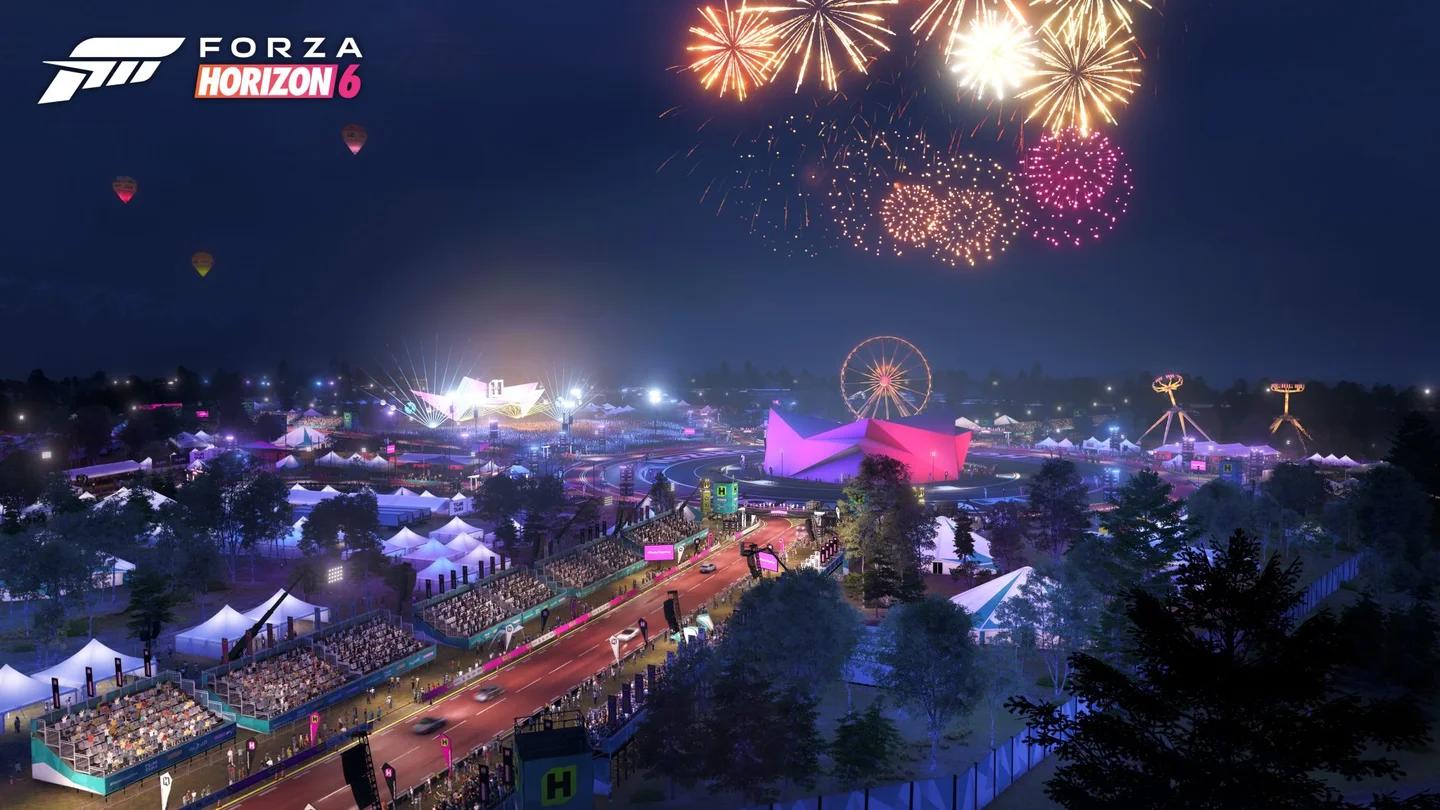
Track markers determine where a song starts after the countdown, which section repeats during the race, and what plays after you cross the finish line. The marker editor's Loop Search suggests race and post-race loops, but you should preview the transitions before choosing them.
Preview race and results music loops
Keep TrackDrop at or before TrackLoopEnd, and PostDrop at or before PostRaceLoopEnd. Every marker must remain within the track's TrackStart and End boundaries. These settings control the soundtrack; for help entering the events themselves, the Forza Horizon 6 Spec Racing guide covers that mode's setup and racing advice.
How do you save your radio settings?
After adjusting the in-game Audio settings, select Save. You can also back out and choose Save and Continue when the Unsaved Changes prompt appears.
That prompt gives you three choices:
- Save and Continue keeps your adjustments and exits.
- Discard and Continue exits without keeping the unsaved adjustments.
- Cancel returns you to the settings.
For a radio-only adjustment, keep the job simple: set Music to the level you want, choose whether Radio DJ stays on, and save. Use the broader output, preset, and car-volume controls only when you want to change the rest of the mix too.