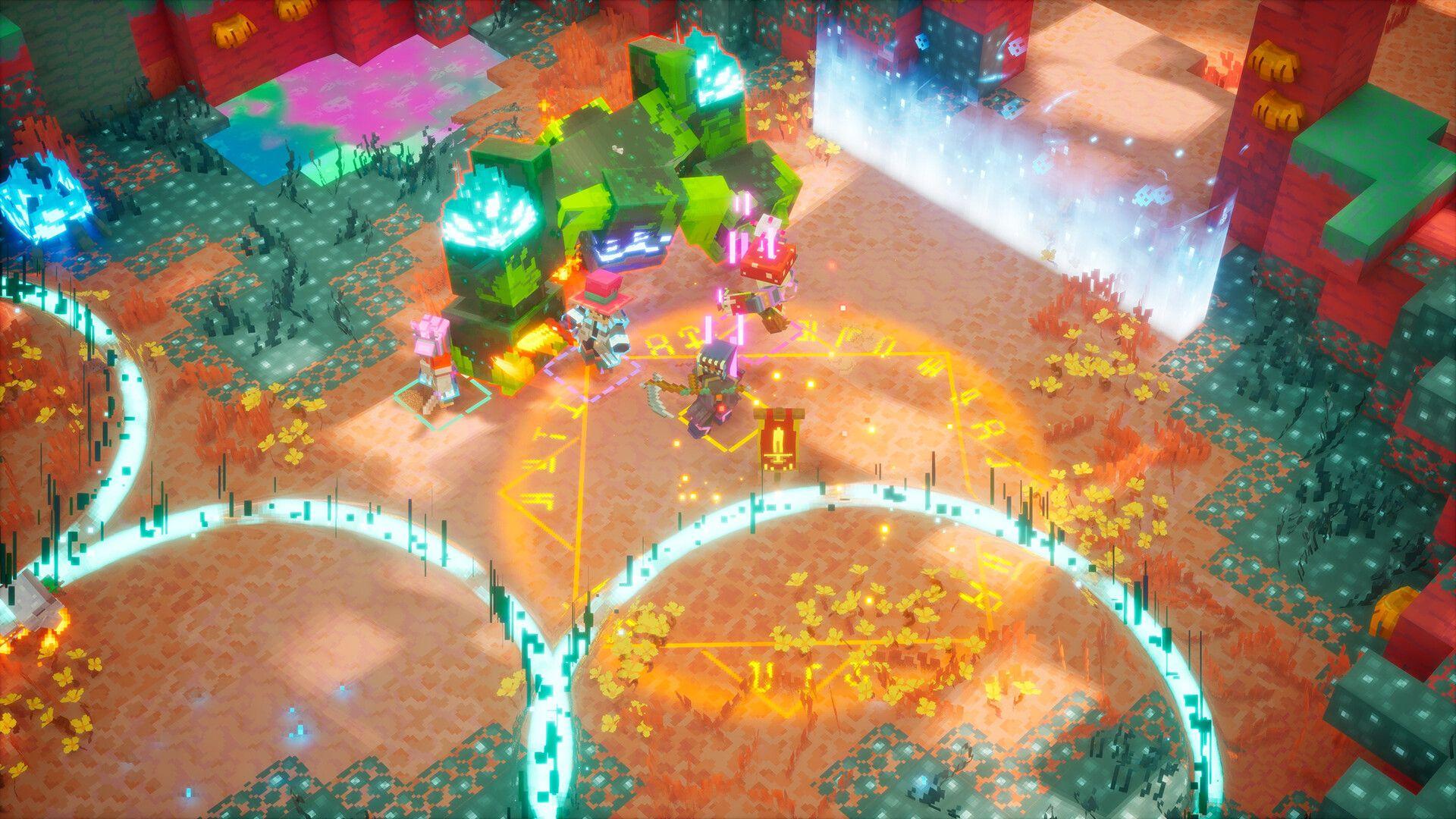


Minecraft Dungeons II is built around four-player co-op, and getting your squad together is straightforward once you know which menus to hit. The game supports online play, local couch co-op, crossplay across every platform it launched on, and a hybrid mix of local and online players in the same session. Before anyone fires off an invite, there are a couple of prerequisites worth sorting out first.
What do you need before inviting friends?
Two things gate access to multiplayer. First, you must finish the opening tutorial section. Multiplayer does not unlock until that is done, so run through it solo before expecting the invite options to appear.
Second, crossplay runs through Microsoft's network. If you or a friend is on PlayStation 5, Nintendo Switch, or Steam, you each need a free Microsoft account linked to your platform profile. This gives everyone a shared Gamertag that the game uses as a universal identifier across platforms. The linking process takes a couple of minutes at most, and it only needs to happen once.
Get these sorted before your friends are sitting in a voice call waiting. Nothing kills co-op momentum faster than a 10-minute account setup mid-session.
How to link a Microsoft account for crossplay
If you are on a non-Xbox platform and need to link your Microsoft account, the game handles it on first boot. Here is exactly what happens:
- Launch Minecraft Dungeons 2. The game displays an 8-digit alphanumeric code alongside a web address on screen.
- Open that web link on your phone or a browser and enter the code shown on your TV or monitor.
- Sign in with your Microsoft account (or create a free one if you do not have one).
- Once confirmed, your platform profile is permanently tied to your Xbox friends list.
From that point forward, friends you have added on Xbox will appear in your in-game friends list regardless of which platform they are on.
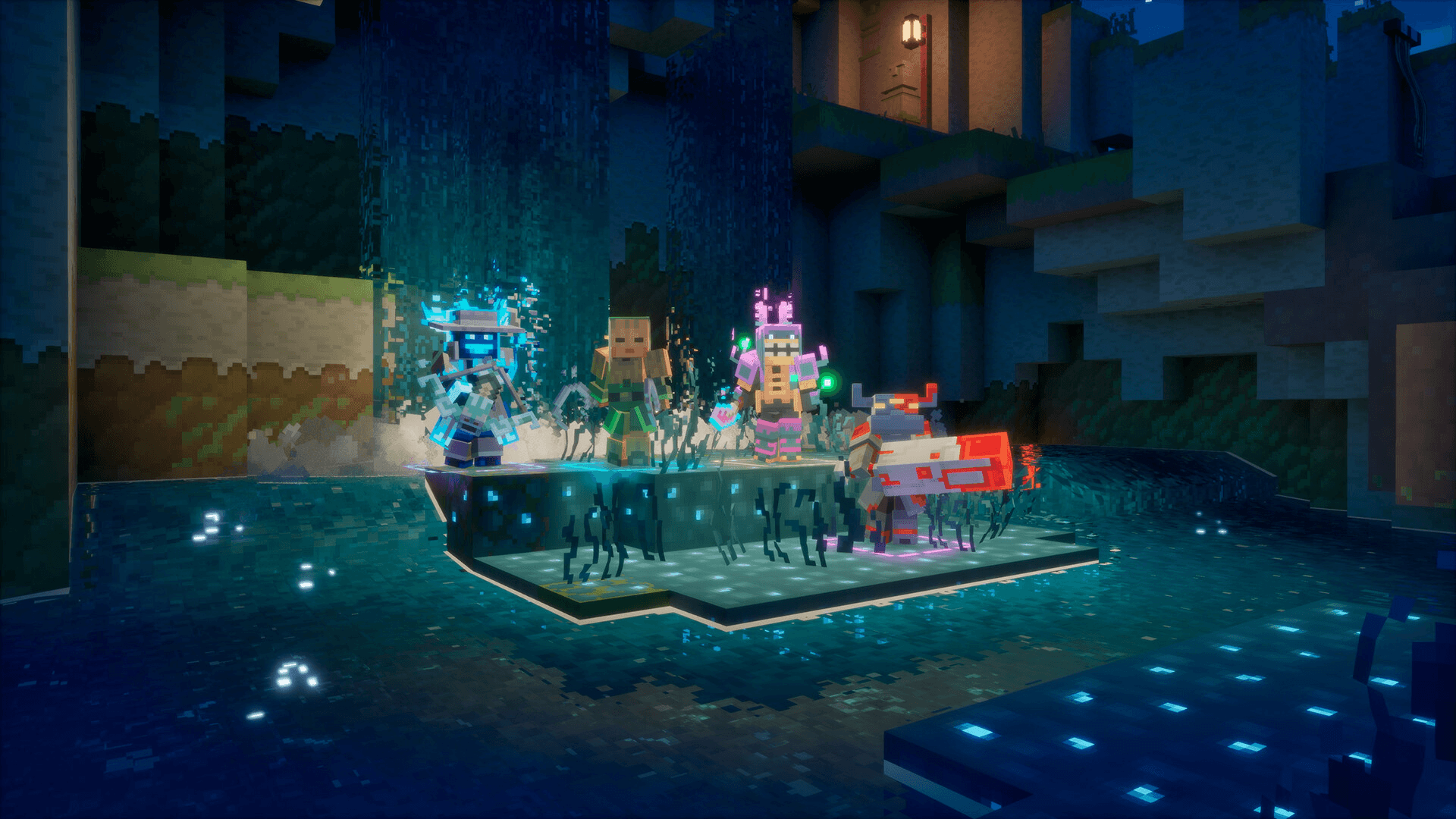
Minecraft Dungeons 2 Co-op Guide: How to Play With Friends
How to send an online invite
With the tutorial done and your Microsoft account linked, the invite process follows these steps:
- Launch the game and select Online Game from the main menu. Do not choose the offline or local option.
- Once your character loads into the hub or overworld, open the in-game menu. That is Esc on PC, Options on PlayStation, and Menu on Xbox.
- Navigate to the Friends tab. This shows which mutual friends are currently online.
- Select the friend you want to invite and choose Invite to Game.
- Alternatively, friends can visit your profile and select Join Game directly, provided your session privacy settings allow it.
As party leader, you control who enters the session. Set your session to friends-only before starting if you want to keep the group locked down.
How to use a party code
Party codes give you a cleaner way to connect specific players without relying on the friends list system. The player who creates the online session receives a code, shares it with whoever needs to join, and those players enter it through the party join menu.
This is particularly useful when you want to play with someone who is not on your friends list, or when the direct invite is not working reliably. The code does not change the party limit. Sessions still cap at four players regardless of how people join.
Can you play with random players using matchmaking?
Yes. If you do not have a full group, matchmaking finds other players who are looking for a session. The session adapts as players join or leave, so you do not need a complete four-person squad to start.
Matchmaking is less useful when you want control over exactly who is in your party. For that, the friends list or a party code is the better route.
How does couch co-op work?
When everyone is in the same room, skip the invite menus entirely. Console couch co-op supports two to four players. Each person connects their own controller, and the game runs on a shared screen with no account linking or network setup required.
You can also run a hybrid session: two players on the same couch while two more friends join online. The total still cannot exceed four players, but the mix of local and remote players is fully supported.
How does loot work in co-op?
Loot is handled per player. When a boss drops gear or a chest opens, each character generates its own drops scaled to their individual power level. There is no shared loot pool and nothing to argue over. You cannot trade or hand items directly to a friend, but your inventory and progression follow your linked account, meaning you carry the same character and gear between platforms.
What to do when a friend cannot join
Connection problems almost always come down to one of a few causes. Run through this checklist before restarting everything:
- Check that the party is not already at four players.
- Confirm both players have a stable internet connection.
- Verify crossplay is enabled if you are on different platforms.
- Check that the required online subscription is active on console.
- Try a party code instead of a direct friend invite.
- On Xbox and PlayStation, review account privacy settings and allow cross-network play.
- If the lobby still refuses to connect, restart the game and resend the invite before doing anything more complex.
Ready to run dungeons together
The full process comes down to three things: finish the tutorial, link a Microsoft account for crossplay, and start from Online Game rather than an offline session. Once those are in place, inviting friends takes under a minute. For more on what to do once your squad is assembled, the Minecraft Dungeons II strategy guides collection covers builds, weapons, and progression systems to help your group hit the ground running.