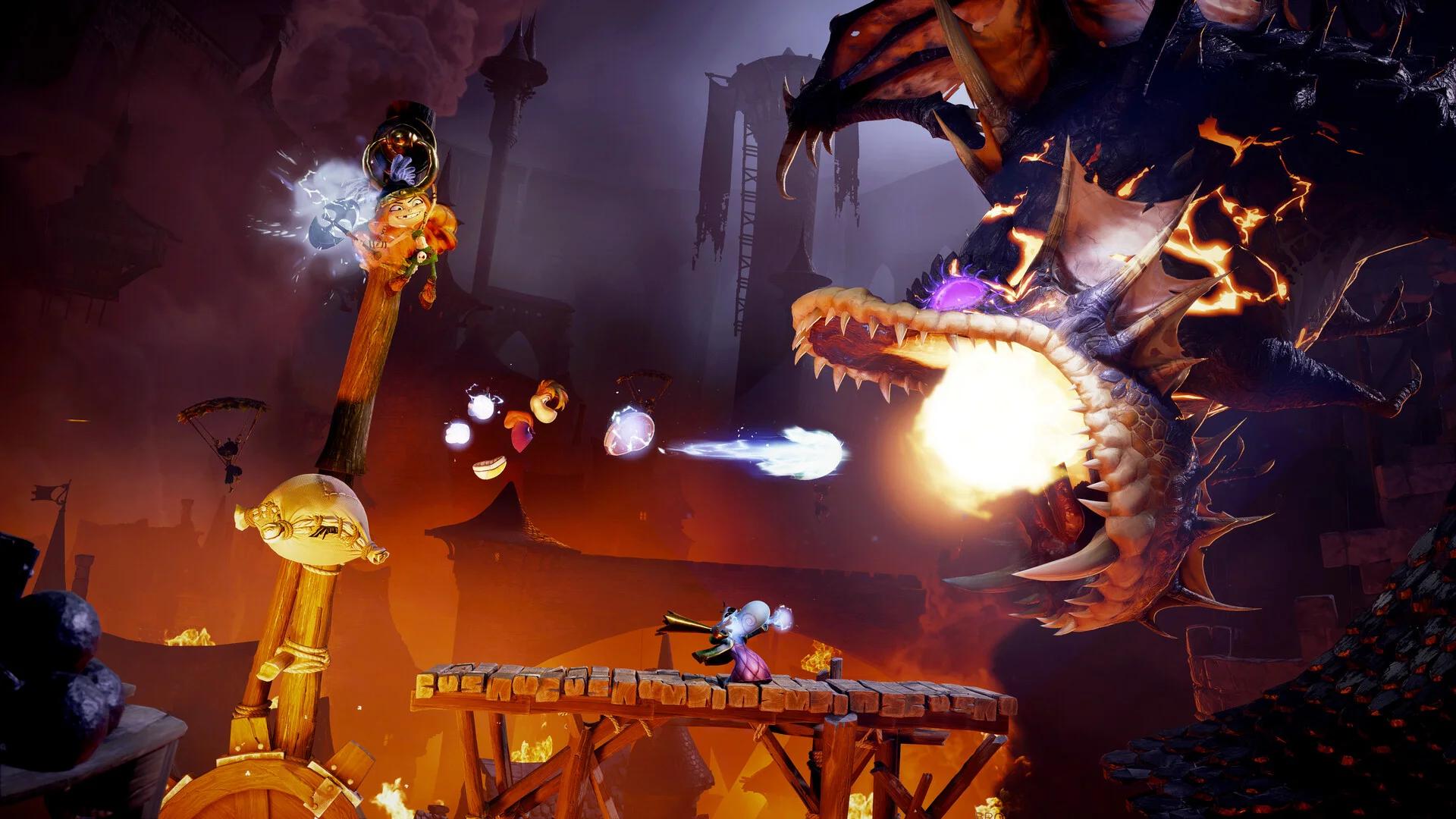

To resolve a Rayman Legends Retold crash, verify your hardware meets the system requirements and confirm your drivers are current. These general diagnostics help you isolate performance or controller faults.
The published performance targets assume an SSD, DirectX 12, dual-channel RAM, and Quality upscaling. Treat the steps below as general PC diagnostics, not confirmed workarounds for a named Retold bug. Change one setting at a time and retry the same situation before moving on. A game that closes to desktop, one that runs slowly, and a controller that misses input need different troubleshooting paths.
Check system requirements and updates
Compare your PC with the published targets
The Rayman Team's PC requirements on Steam define the following 1080p profiles. The graphics preset and upscaling settings are part of each target, so the component list alone does not describe the expected performance.
| Component | Minimum profile | Recommended profile |
|---|---|---|
| Performance target | 1080p, 60 FPS, Low preset | 1080p, 60 FPS, High preset |
| Upscaling | FSR or XeSS at Quality | DLSS, FSR, or XeSS at Quality |
| Operating system | Windows 10, 64-bit | Windows 11, 64-bit |
| Processor | Intel Core i3-8100 at 3.6 GHz or AMD Ryzen 3 3100 at 3.6 GHz | Intel Core i5-8400 at 2.80 GHz or AMD Ryzen 5 3600 at 3.60 GHz |
| RAM | 8 GB, dual-channel | 16 GB, dual-channel |
| Graphics card | GeForce GTX 1660, 6 GB; Radeon RX 5500 XT, 4 GB; or Intel Arc A580, 8 GB | GeForce RTX 2060 Super, 8 GB; Radeon RX 5700, 8 GB; or Intel Arc A750, 8 GB |
| Storage | SSD with 33 GB available | SSD with 33 GB available |
| Graphics API | DirectX 12 | DirectX 12 |
Open Windows Settings > System > About to find your processor, installed RAM, and Windows version. This page does not establish your GPU's capabilities or whether memory is running in dual-channel mode.
Lower settings do not guarantee acceptable performance below the minimum profile. Meeting the recommended profile also does not guarantee that a PC will be free of crashes.
Apply routine updates first
Install pending Windows updates and a current graphics driver from your GPU manufacturer, then restart the PC. Apply game and launcher updates when they are offered.
Use this updated configuration as your starting point. Avoid combining a driver update, several graphics changes, and new launch arguments in one attempt, because you will not know which change affected the result.
Fix crashes at startup
Start with reversible checks if the game closes immediately or never reaches a usable screen. Leave save files and manually edited configuration files alone during these first attempts.
- Reopen the game client. Close it completely, open it again, and launch the game through the client where it is installed.
- Try one launch with nonessential apps closed. Temporarily exit recording software, performance overlays, and other optional background tools.
- Remove custom launch arguments you added. Return to the normal launch configuration before trying further changes.
- Repair the installation. Use the file-verification steps below before committing to a full reinstall.
A successful launch with background tools closed gives you a narrower problem to investigate. Reopen those tools individually instead of restoring everything at once. It does not establish that every overlay or recording app is incompatible with Retold.
Keep online connection failures separate from startup crashes. The game's official technical-support page sends online-service problems through a different connectivity troubleshooting route.
Troubleshoot stuttering and frame drops
Start from a published performance profile
If your hardware is close to the minimum tier, begin with that profile's resolution, preset, and upscaling combination. Do not start at a higher resolution and assume the minimum specification still describes your target.
Retold's published 1440p and 4K profiles are separate hardware tiers. A PC that meets the recommended 1080p profile is not automatically a 4K Ultra configuration.
For a useful comparison, repeat the same section with the same player count. Retold supports up to four players in local co-op, so switching between solo and a group while changing graphics settings introduces another variable.

Rayman Legends Retold co-op
Separate slow rendering from brief stalls
Consistently low FPS and intermittent pauses are different symptoms. Use the following tests to narrow the problem without assuming either has a confirmed game-specific fix.
| Symptom | General diagnostic step | What the result can tell you |
|---|---|---|
| Motion stays consistently slow | Lower resolution or the graphics preset | An improvement shows that reducing rendering work helps |
| Short pauses interrupt otherwise smooth play | Repeat the same section with nonessential background apps closed | A change helps isolate background-software involvement |
| Problems begin after several settings changes | Return to the previous configuration | This separates the new configuration from the earlier baseline |
| The game closes during a hitch | Follow the crash and support-reporting steps | A frame-rate improvement alone does not resolve the crash investigation |
Keep a change only when it produces a useful improvement. Avoid cycling through unrelated settings after every failed attempt.
Fix controller detection and input problems
If the game runs but your controller does not respond, first establish whether Windows receives its input. These checks isolate the connection and input path; they do not assume a particular controller model has confirmed Retold compatibility.
Test the controller outside the game
- Close the game and connect one controller directly to the PC. Temporarily disconnect spare controllers and optional adapters.
- Press Win + R, enter joy.cpl, and press Enter.
- Select the controller, open Properties, and use the Test tab to check its buttons and axes.
- If the controller supports a wired connection, compare it with a data-capable USB cable when troubleshooting a wireless connection.
If Windows does not register the controller's input, focus on its connection before changing game settings. If Windows registers input but Retold does not, the problem is further along the input path.
Retry with one input configuration
For one attempt, close optional third-party remapping software and reconnect the controller before launching. Test a single controller before adding local co-op players.
Avoid changing several input layers simultaneously. If you use a launcher-level controller setting, change only that setting for the next attempt, then restore it if it does not help. No particular launcher toggle is established here as a Retold-specific fix.
Verify files and reset settings
Repair the installed files
If your copy is installed through Steam, use its standard verification tool:
- Open Library and right-click the game.
- Select Properties > Installed Files.
- Choose Verify integrity of game files.
- Let the process finish before launching again.
For another client, use its verification or repair option if one is provided. File repair is a general installation check, not proof that damaged files caused the problem.
Reset options without deleting saves
If problems began after changing settings and the game offers a defaults control, use that control before manually removing configuration files. Reapply only the preferences needed for the next test.
Keep save folders out of this process. Do not delete files from a guessed Retold configuration path or use a path copied from the original Rayman Legends. Back up your saves before a full reinstall, and do not assume reinstalling will reset every stored preference.
When to report a bug
The official Rayman Legends Retold technical-support page asks players with persistent PC problems to contact support and attach DxDiag and MSInfo reports. Prepare both if the preceding diagnostics do not resolve the issue.
Create the requested diagnostic reports
To save a DxDiag report:
- Press Win + R, enter dxdiag, and press Enter.
- Let the DirectX Diagnostic Tool finish loading.
- Select Save All Information... and save the text file.
To save an MSInfo report, open Win + R, enter msinfo32, and press Enter. In System Information, select File > Save to create an .nfo report.
Describe the failure clearly
Include the following details with your support request:
- Whether the problem is a startup crash, an in-game crash, low FPS, a freeze, or missing controller input.
- The exact error text, if one appears.
- The action or section that triggers the failure and whether it happens repeatedly.
- Your graphics configuration and the troubleshooting changes that affected the result.
- For input problems, the controller model, wired or wireless connection, and any remapping software in use.
Send diagnostic files privately through the support case. A repeatable description and both requested reports give support a more useful starting point than a list of unrelated workarounds.