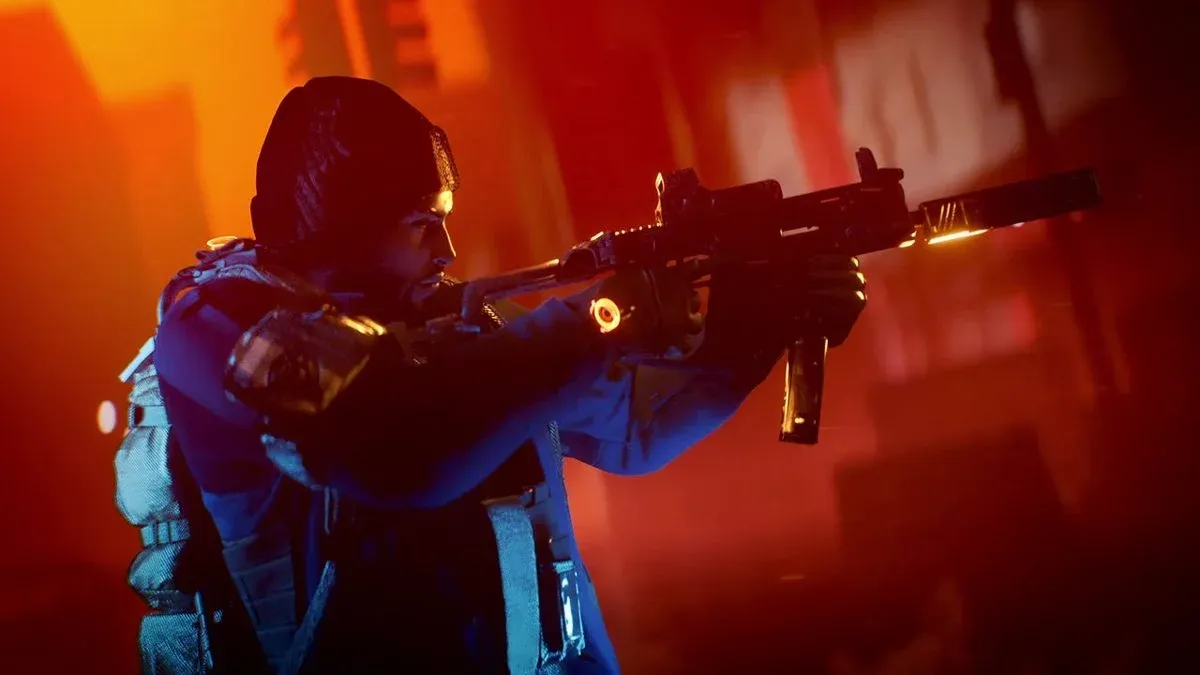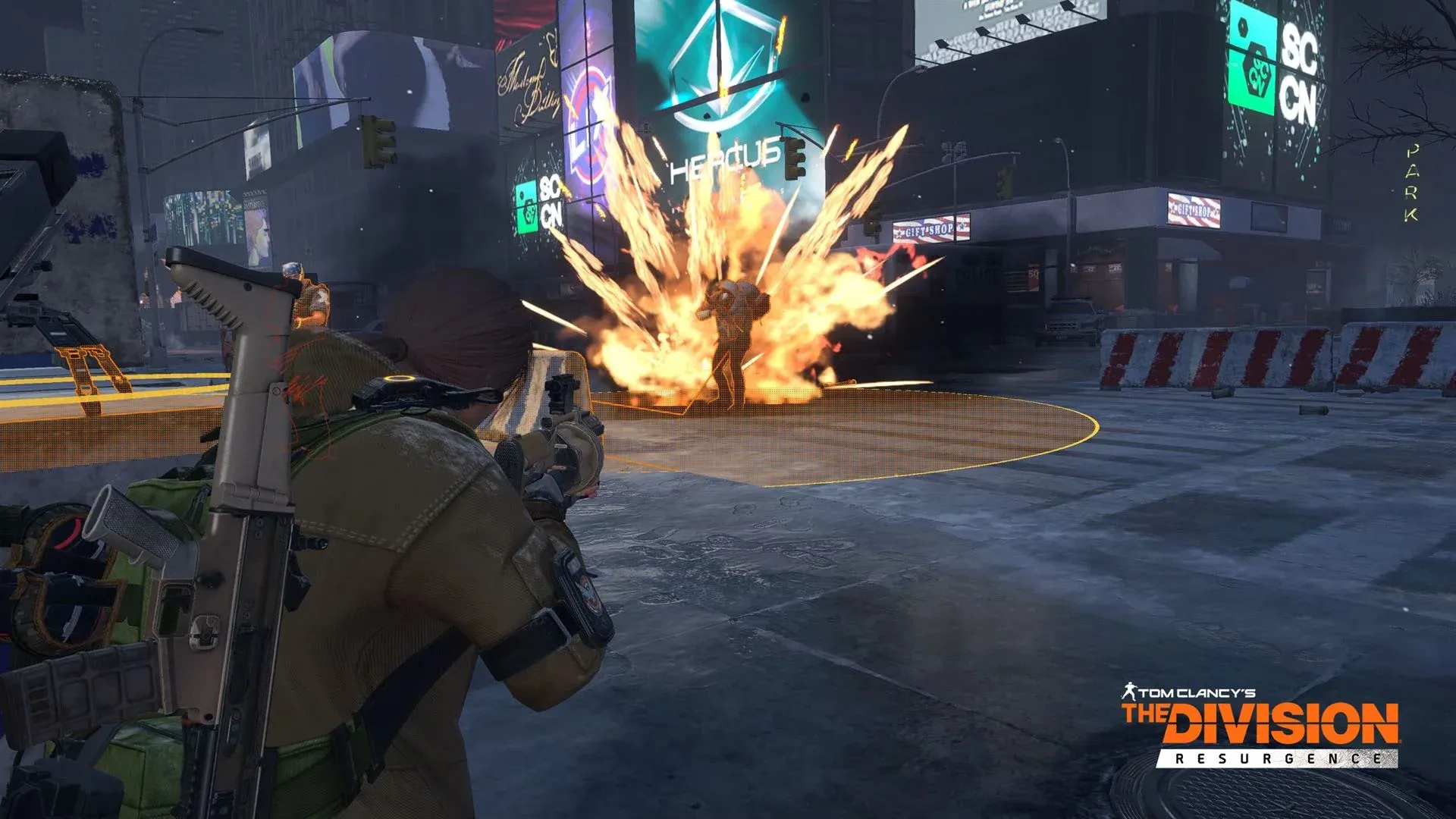
The Division Resurgence is a mobile-exclusive third-person shooter from Ubisoft, and there is no official PC client. The good news: three Android emulators handle the job well enough that you can run the game on a proper monitor with a mouse, keyboard, or gamepad. This guide covers the full setup for BlueStacks, MuMu Player, and LDPlayer, plus the in-game settings that actually matter once you're inside.
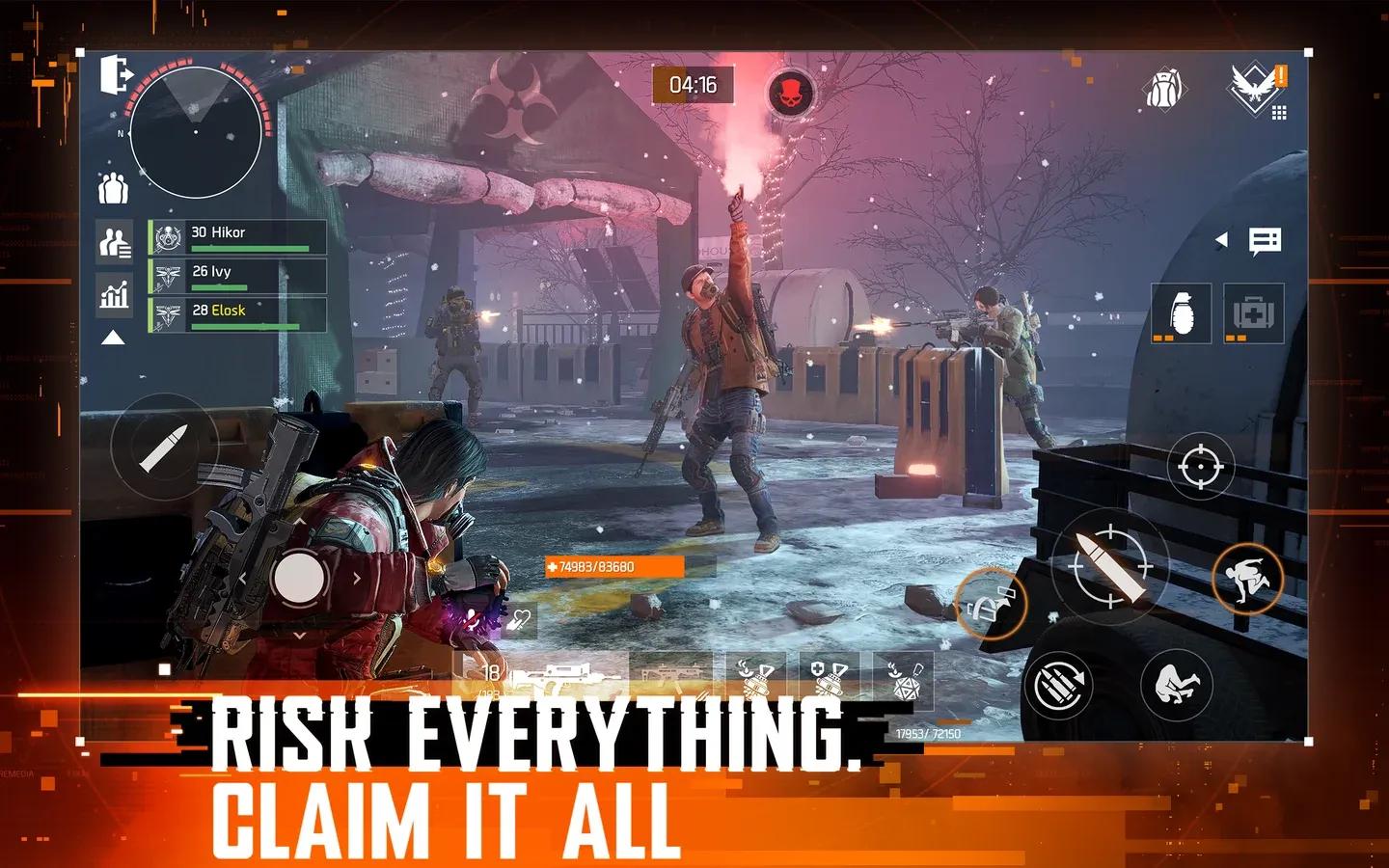
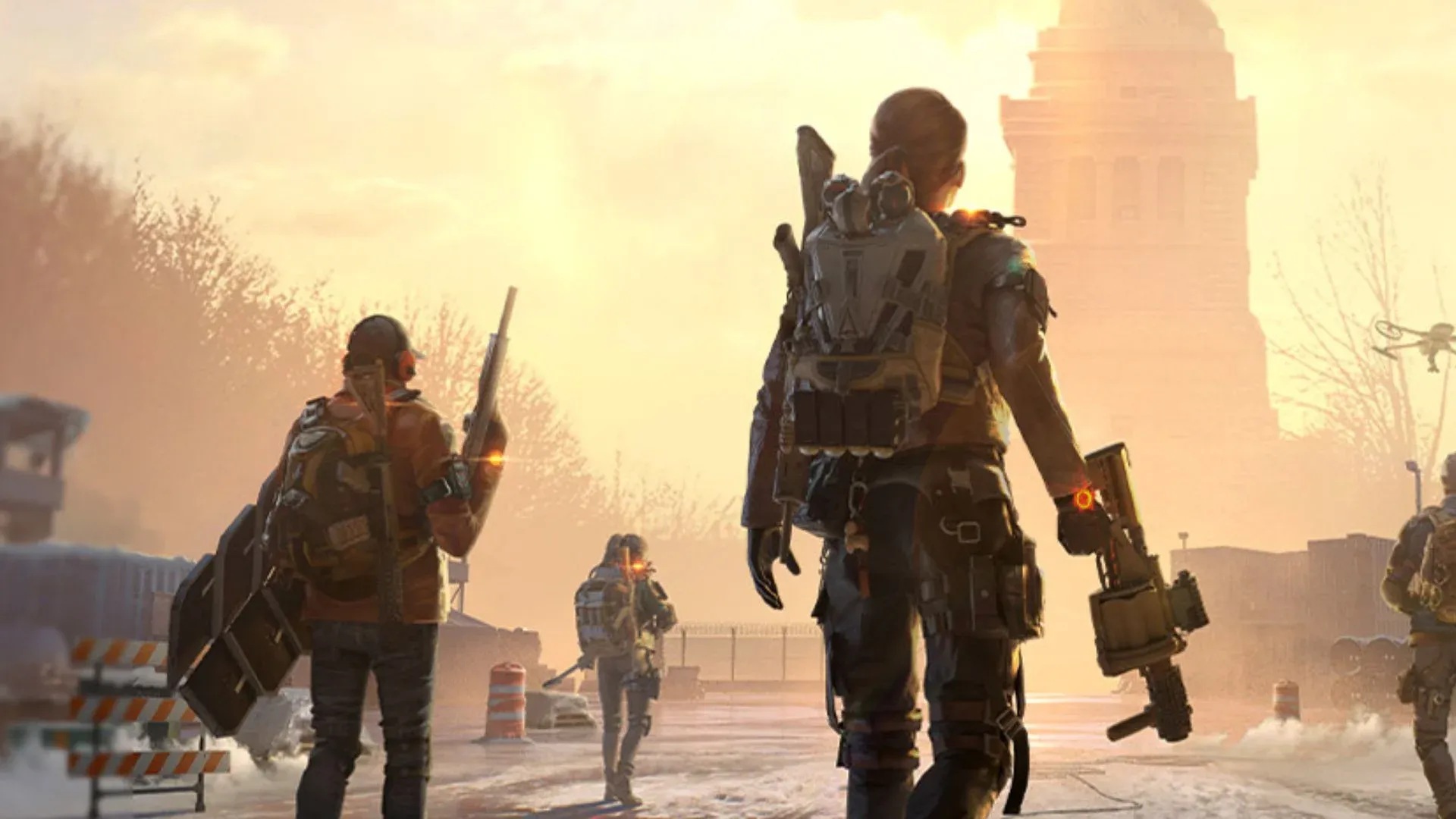
BlueStacks home screen setup
Which emulator should you use?
All three emulators covered here can run Division Resurgence, but they have different strengths. Neither BlueStacks nor MuMu Player runs the game flawlessly right now. LDPlayer is a third viable option. Here's how they compare:
| Emulator | Best For | Max Tested FPS | Key Advantage |
|---|---|---|---|
| BlueStacks 5 | Deep control customization | 120 FPS | Multi-instance support, Shooting Mode |
| MuMu Player | Sharp visuals, widescreen | 165–240 FPS | Tablet mode stretches to widescreen |
| LDPlayer 9 | Beginner-friendly setup | 120 FPS | Simple key mapping and macro tools |
If you have a PS controller and want correct button prompts, go with MuMu Player. BlueStacks sometimes shows wrong prompts for PS pads, while MuMu Player correctly identifies them.

How to set up BlueStacks for Division Resurgence
Installation steps
- Download BlueStacks 5 Pie 64-bit from the official BlueStacks site. The Pie 64-bit build matters because other versions cause stability problems with this game.
- Install and open BlueStacks, then click Home in the top-left corner.
- Open the System Apps folder and launch the Google Play Store.
- Sign in with the same Google account you used to pre-register for Division Resurgence.
- Optionally install Gmail inside the emulator. Some players receive early access links by email that only open correctly on Android.
- Search for The Division Resurgence in the Play Store and install it.
BlueStacks performance settings
Before launching the game, adjust these settings inside the BlueStacks preferences panel:
- Performance: Set CPU and RAM to the highest your PC supports. Enable High Frame Rate and target 120 FPS.
- Display: Landscape mode, 1920x1080 (or 1440p if your monitor supports it), 240 DPI.
- Graphics: Select Vulkan as the renderer. The game frequently fails to load under OpenGL or DirectX.
- Phone: Pick the most recent predefined phone profile. Older emulated phones trigger an in-game warning about antiquated system specs, which leads to rendering issues and crashes.
How to set up MuMu Player for Division Resurgence
Installation steps
- Download MuMu Player from its official site.
- Install, launch, and create a new Android device.
- Sign into the Google Play Store with your Division Resurgence account.
- Search for and install The Division Resurgence.
MuMu Player performance settings
Close the game before changing these. Navigate to the device settings and apply the following:
Performance tab:
- Graphics renderer: Vulkan
- Performance: High (CPU 6 Cores, RAM 12 GB)
- GPU memory usage: Optimal graphics quality
- Forced discrete graphics card: On
- Smart Memory Optimization: Off
Display tab:
- Resolution: 2560 × 1440 (DPI 360)
- FPS: Maximum, set to 165 or 240
- Window auto-rotation: On
- Multi-tab mode: On
Model tab:
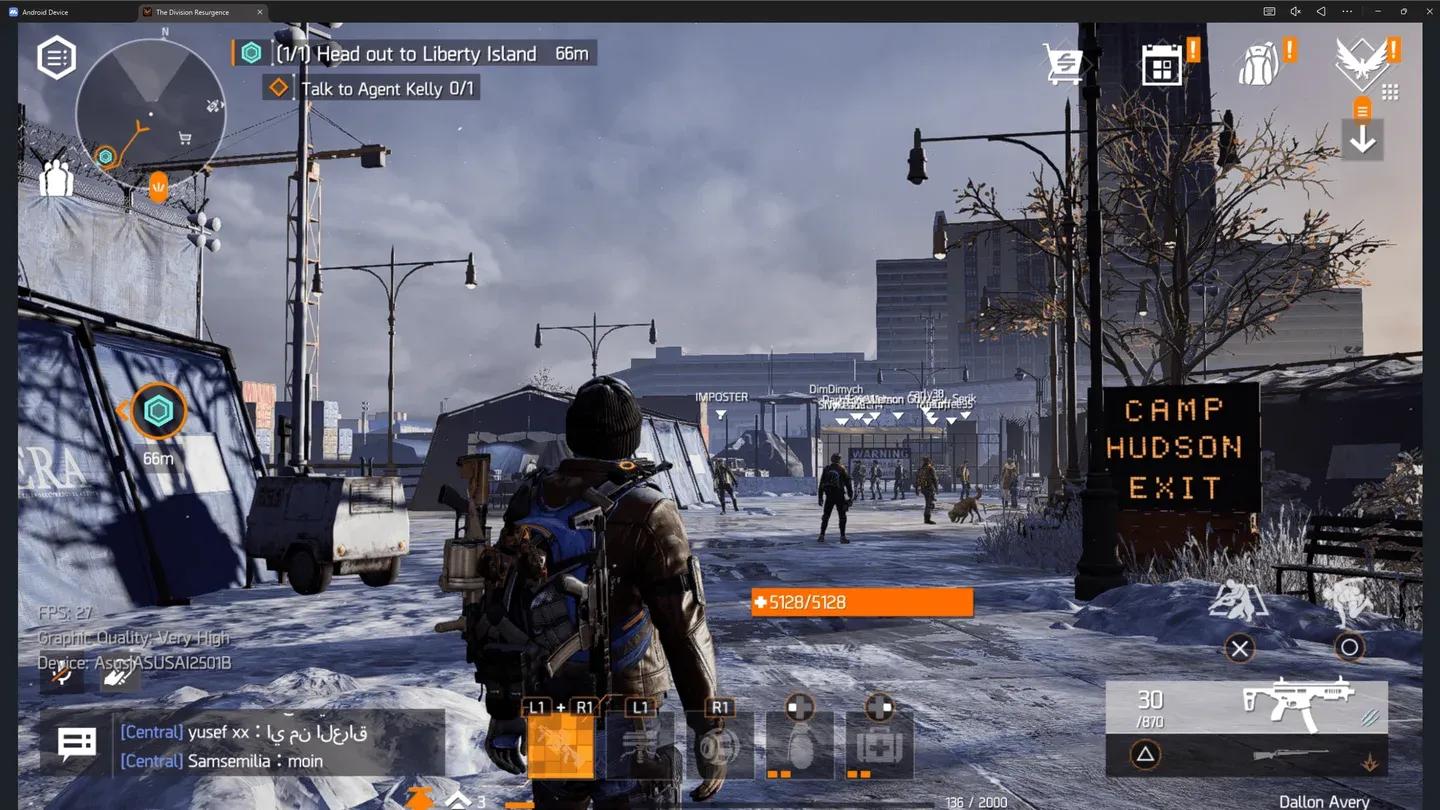
- Brand: Asus
- Device model: ROG Phone 9
- Network access model: ASUSAI2501B
- GPU Preset: High: Adreno (TM) 740
The ROG Phone 9 profile is worth selecting specifically because MuMu Player treats the game as running on a tablet, which lets you stretch the display to widescreen and get sharper visuals than any phone screen could produce.
MuMu Player device model tab
How to set up LDPlayer for Division Resurgence
Installation steps
The process runs through four stages:
- Download LDPlayer 9.0 from the LDPlayer website and run the installer.
- Open the LD Store, search for The Division Resurgence, and click Install. If it redirects to Google Play, sign in with your Gmail account first.
- After signing in and accepting terms, search again and install the game.
- On first launch, tap Confirm to download additional game data, then log in with Google or Facebook.
LDPlayer performance settings
- CPU and RAM: Go to Settings > Advanced. Set CPU to up to 6 cores and RAM to at least 6 GB. Higher RAM allocation improves stability.
- Resolution: Settings > Display. Set to 1280 × 720 as a baseline.
- FPS: Settings > Display. Enable High FPS Mode and select 120 FPS. Turn on V-Sync to prevent screen tearing.
What are the best in-game graphics settings for PC?
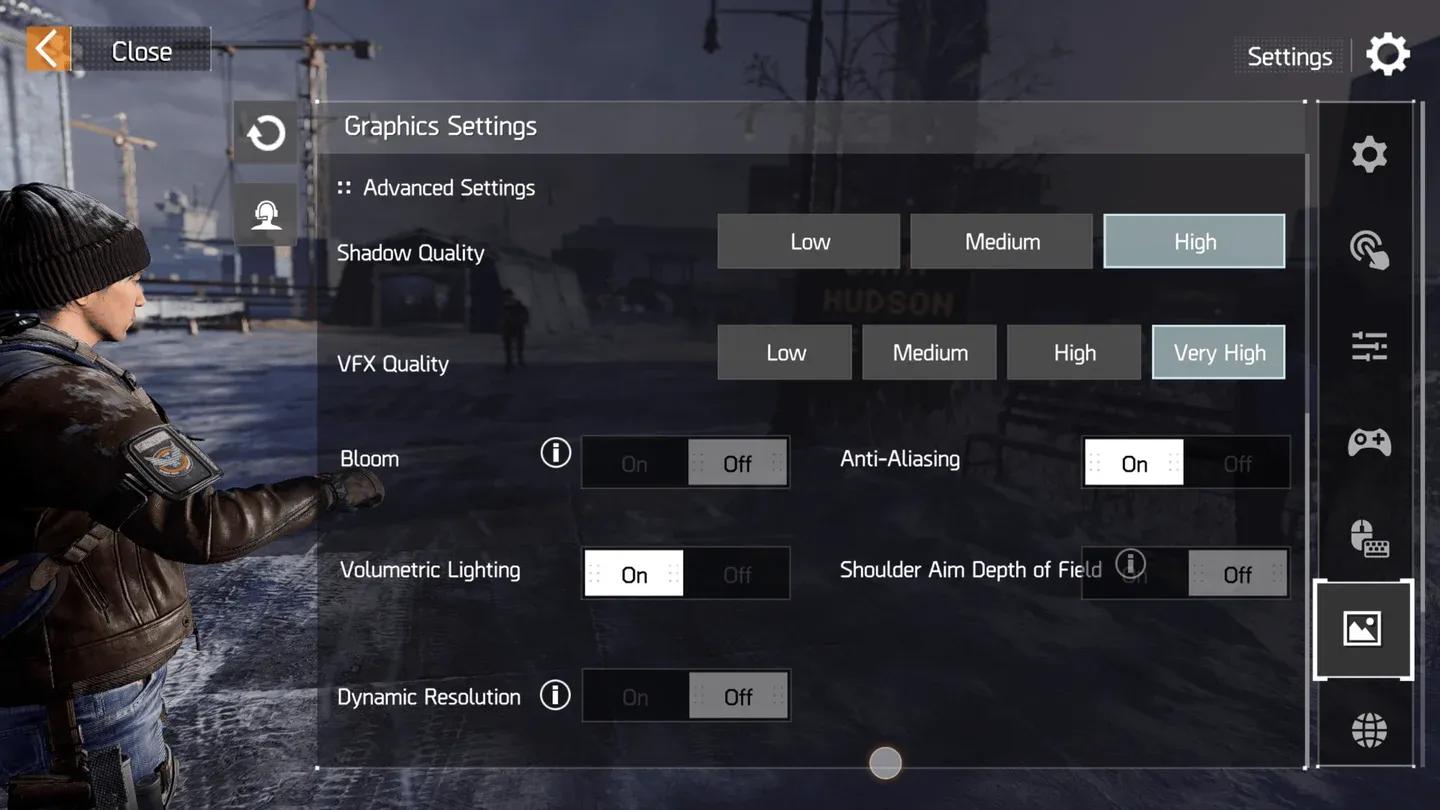
Once your emulator is running and you have completed the tutorial, these in-game settings give the best results:
Graphics Settings:
- Graphics: Very High
- Resolution: High
- Framerate: Standard (30 FPS cap)
Advanced Settings:
- Shadow Quality: High
- VFX Quality: Very High
- Bloom: Off
- Anti-Aliasing: On
- Volumetric Lighting: On
- Shoulder Aim Depth of Field: Off
- Dynamic Resolution: Off
In-game graphics settings panel
How to set up controls on PC
The game officially supports both mouse and keyboard and gamepads, with specialized UI for each input type. To enable the correct UI overlays, go to Generic Settings > External Device UI and turn on both Keyboard/Mouse Exclusive UI and Controller UI.
Default controller bindings mirror The Division 2, so if you have hours in that game the layout will feel familiar. You can rebind both controller and keyboard inputs and adjust sensitivity per weapon type and scope.
LDPlayer key mapping extras worth knowing:
- Keyboard Macro: Assign multi-step combos (jump, fire, sprint, throw) to a single key.
- Generating Repeat Touch Actions: Maps continuous auto-fire to one button, useful during sustained firefights.

LDPlayer key mapping layout
Common problems and fixes
Based on recurring issues across both BlueStacks and MuMu Player:
- Game freezes during tutorial: Make sure all background data files finish downloading before you try to progress.
- Crashes at character creation: You are almost certainly emulating an outdated phone profile. Switch to a newer preset.
- Low FPS or lag: Choose between high graphics at 30 FPS or medium graphics at 60 FPS. There is no current way to have both. Also verify your emulated device profile.
- Wrong controller prompts: Reported specifically on BlueStacks with PS pads. Switching to MuMu Player resolves it.
- Connection errors: Press retry if the option appears, or restart the emulator and relaunch the game. This is often a server-side issue unrelated to your setup.
For additional community-reported issues, the Division Resurgence subreddit has active threads on custom KB&M control schemes and crash workarounds. You can also check the official Ubisoft launch community update for crossplay details and known issues directly from the developer.
Is Division Resurgence free to play on PC?
Division Resurgence is a free-to-play mobile game. Since it is not officially released on PC, playing via emulator does not cost anything extra. You download the game through the Google Play Store inside your emulator of choice, just as you would on a phone. For background on the game's setting and its relationship to the broader Division series, the Tom Clancy's The Division Resurgence Wikipedia page has a solid overview.
For more guides covering Division Resurgence and other shooters, browse the latest gaming guides on GAMES.GG to stay up to date as the game's optimization improves post-launch.