
The best starting settings for FINAL FANTASY RESONANCE are High PC graphics, native output when offered, and a sustainable 60 FPS cap. For everyday convenience, select Instant text, turn Autosave On, and choose Invert Sprint so Rain sprints by default. Then handle visual softness and frame-rate drops separately: compare Post-Processing for the picture you prefer, and try lower Shadows if performance falls short. Console players have a simpler display setup, with brightness adjustment rather than the PC graphics categories.
Display and frame rate options

Which frame rate should you choose on PC?
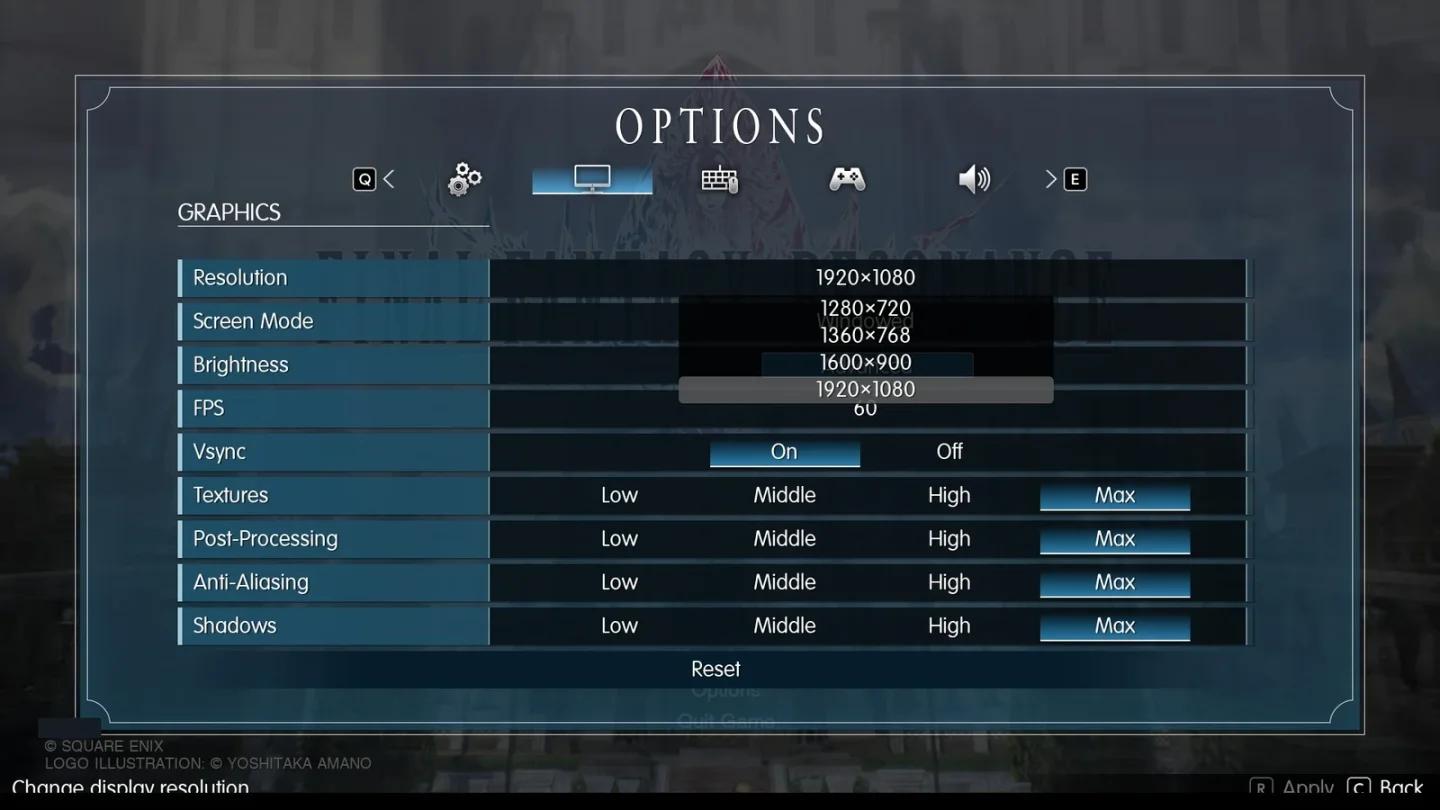
The PC FPS selector offers 30, 60, 120, 144, and Unlimited. 60 FPS is the sensible starting target, provided your PC can maintain it at a visual quality you find acceptable.
| Frame-rate target | Best for | Why choose it? |
|---|---|---|
| 30 FPS | PCs that cannot sustain 60 FPS at your preferred quality | Gives you a lower target without requiring as much visual compromise |
| 60 FPS | Your first setup comparison | A practical starting point for balancing motion and image quality |
| 120 FPS | PCs with performance headroom and a suitable display | Worth comparing when your hardware and display can support the higher target |
Selecting a cap does not guarantee consistent frame delivery or repair a stall. Compare the same short walk at different targets instead of assuming the largest number will look best.
Compare the available frame caps
What resolution and brightness should you use?
On PC, choose your display's native resolution when it is offered before judging image softness. Output resolution alone does not establish the game's internal rendering resolution.
On console, Brightness is the only display setting. Its default is 5, so begin there and adjust it to suit your display and viewing preference.
Graphics settings to adjust first
The PC Graphics menu separates Textures, Post-Processing, Anti-Aliasing, and Shadows. Each category offers Low, Middle, High, and Max, letting you change one part of the picture without lowering everything together.
Use High across those four categories for your initial comparison. High is a starting recommendation, not a measured optimum for every PC.
| Graphics setting | Starting value | First adjustment to consider | Reason |
|---|---|---|---|
| Textures | High | Leave unchanged during your first comparisons | Keeps texture quality consistent while you assess other settings |
| Post-Processing | High | Compare Middle if the picture feels too soft | Lets you judge which presentation you prefer |
| Anti-Aliasing | High | Leave unchanged initially | Avoids changing another image-quality variable at the same time |
| Shadows | High | Compare Middle if your FPS target slips | Gives you a focused performance adjustment to investigate |
How should you handle a soft-looking image?
Final Fantasy Resonance uses selective focus in its HD-2D presentation. Characters and dialogue can remain clear while foreground objects or distant scenery look softer, so inspect the party and surrounding scenery separately.
If that softness bothers you, change only Post-Processing between High and Middle, then return to the same view. Keep the setting you prefer rather than treating a lower tier as automatically clearer.
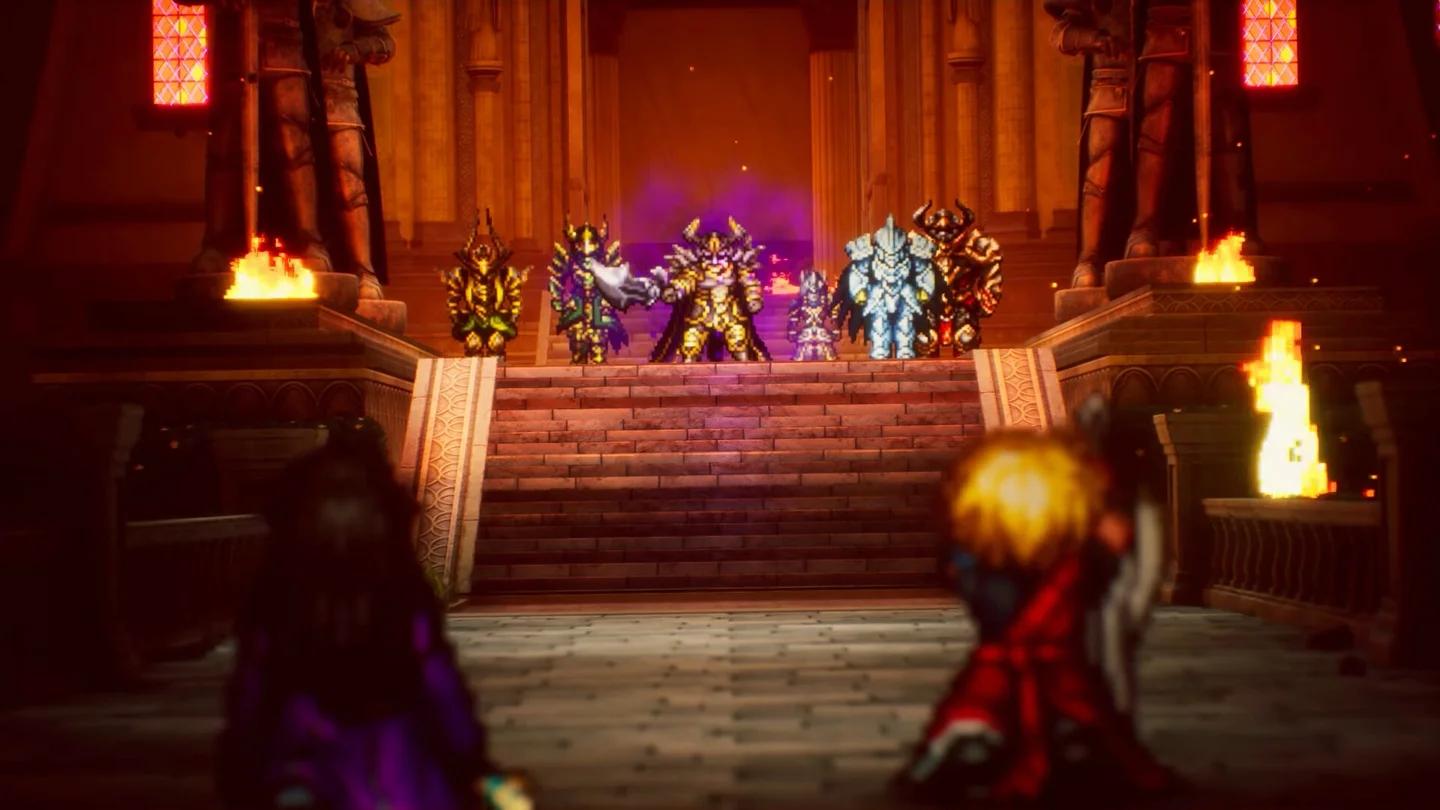
Compare post-processing quality
Should you lower shadows for more FPS?
If your PC misses its chosen target, try Shadows at Middle while leaving the other categories unchanged. Keep High if performance is already sufficient and you prefer its appearance.
There is no requirement to match quality labels. High Post-Processing with Middle Shadows is a sensible combination if you prefer that picture and it meets your frame-rate target.
Combat effects and visibility
How do you change battle speed?
Set Battle Speed to 3x when you want faster battle animations. This is a playback-speed choice, separate from the PC FPS setting.
On console, make the adjustment during combat:
- Enter an enemy encounter.
- Find the battle-speed button in the lower-left corner.
- Select the maximum setting, 3x Speed.
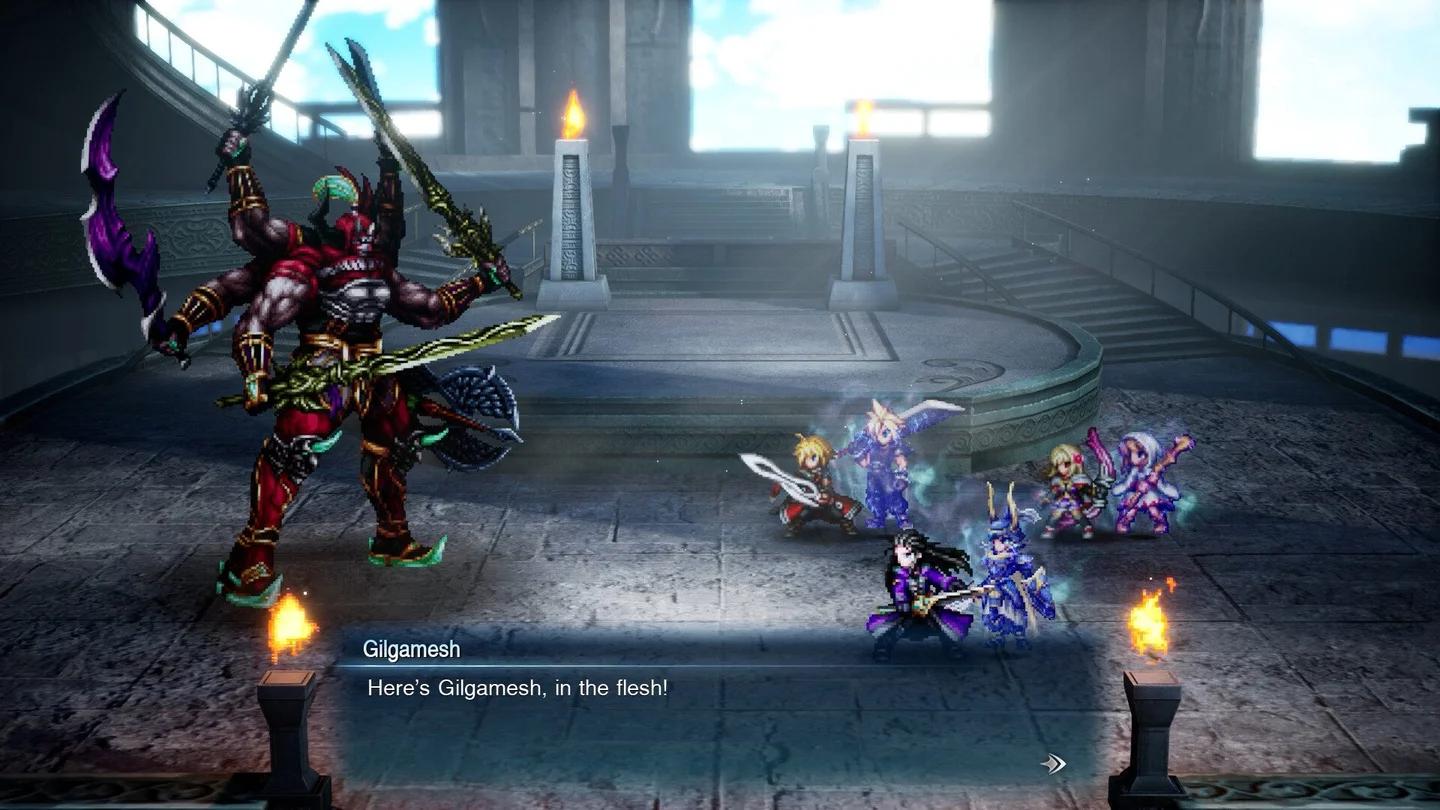
Set battle animations to 3x speed
If your priority is visual presentation, continue comparing Post-Processing and Shadows separately from battle speed. Faster animations and a higher frame-rate target solve different problems.
For help choosing your battle setup, use the best skills and ability combos guide.
Camera and interface settings
Which controls should you change first?
Sprint Type defaults to Hold. Change it to Invert Sprint if you want Rain to sprint without holding or pressing a sprint button.
| Setting | Recommended choice | Best for and why |
|---|---|---|
| Sprint Type | Invert Sprint | Players who want Rain to sprint by default |
| Autosave | On | Keeping periodic automatic saves enabled |
| Display Encounter Sensor | On if you want encounter information | Seeing the minimap's sonar-like indication of proximity to a random encounter |
| Command Cursor Position | Remember or reset to preference | Choosing whether battle commands reopen at the previous cursor position |
| Switch Confirm Button | Your preferred layout, console only | Adjusting the Confirm and Cancel button arrangement |
Command Cursor Position is worth checking if the battle command window keeps reopening somewhere you do not expect. Choose the behavior that matches how you navigate commands, rather than leaving it unfamiliar.
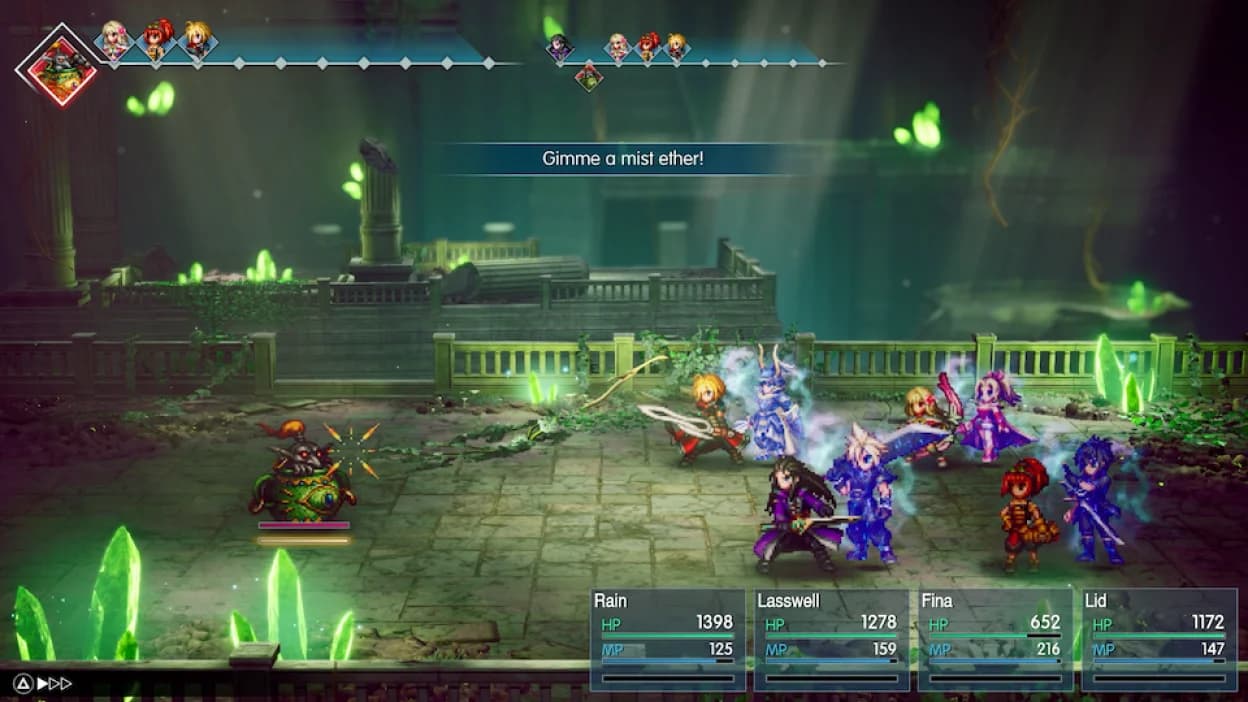
Make Rain sprint by default
How should you configure the airship camera?
Use Airship Horizontal Camera to choose normal or inverted horizontal inputs. Adjust Camera Sensitivity independently so the airship camera responds at a pace you find comfortable.
Additional Landing Marker toggles an extra marker for areas where the airship cannot land. Enable it if you want that additional landing information while flying.
Which text and audio options should you adjust?
Text Speed starts at Normal. Choose Fast if you want dialogue to appear more quickly, or Instant if you prefer the text to appear immediately.
For help with the answers themselves, keep the dialogue choices and stat bonuses guide handy while following conversations.
Final Fantasy Resonance supports eight text languages and two voice languages, Japanese and English. Text Language and Voice Language are separate settings, so configure each for your preference.
The five audio controls, Master, Music, SFX, Voice, and Ambience, all default to 10. Adjust them individually to balance dialogue, music, sound effects, and environmental audio without relying only on the Master level.
How to test performance changes
Use one repeatable section of Final Fantasy Resonance for your comparisons. Keep your resolution and FPS cap fixed while testing a graphics category, so you can connect the result to the setting you changed.
- Start with native output when available, High graphics categories, and a 60 FPS cap if sustainable.
- Walk through the same section and check whether performance meets that target.
- If it falls short, change only Shadows to Middle and repeat the walk.
- If image softness is the problem, compare Post-Processing separately using the same view.
- Restore any setting whose lower tier offers no worthwhile benefit for you.
- Consider a different FPS target after deciding which visual compromises you accept.
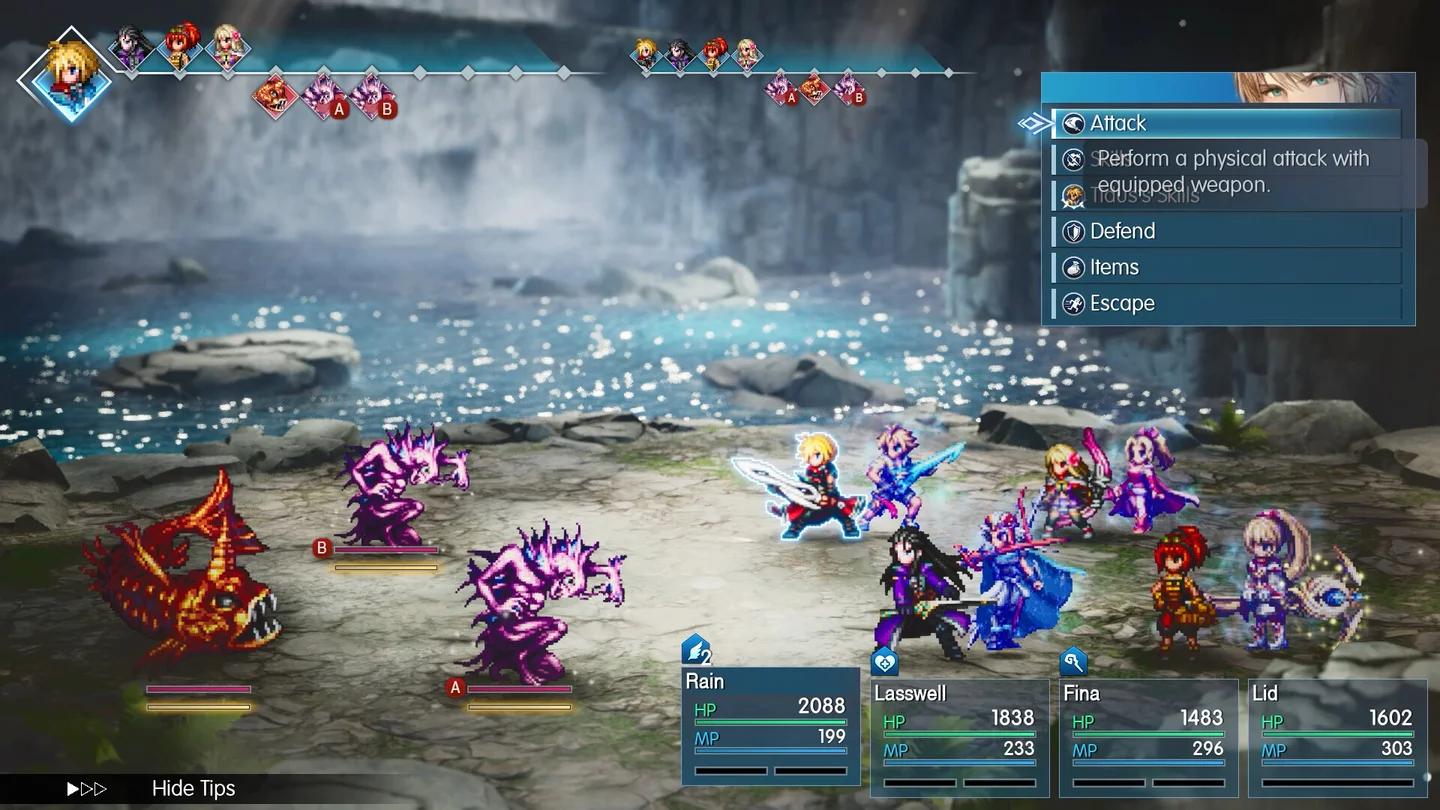
Compare High and Middle shadows
An FPS readout can help you check whether Final Fantasy Resonance reaches your selected target. Also watch the motion: reaching an average of 60 FPS does not guarantee evenly spaced frames.
Common mistakes
- Lowering every graphics category together. Keep Textures and Anti-Aliasing fixed while comparing Post-Processing or Shadows, so each change answers a specific question.
- Using battle speed to address PC performance. The 3x option speeds up battle animations; choose your frame-rate target through the PC FPS setting.
- Keeping Middle Post-Processing without preferring its appearance. Return to High if the comparison does not improve the picture for you.
- Selecting 120 FPS without checking performance. Try it when your PC has headroom and your display can make use of the higher target.
Pro tips
Keep image quality and performance decisions separate
Post-Processing at High and Shadows at Middle can be the right mix for your PC. Keep the first because you prefer its appearance, and the second if it provides a worthwhile compromise at your chosen FPS target.
Finish the convenience settings before settling in
Check Instant text, Invert Sprint, and Autosave On before continuing. On console, make your 3x Battle Speed adjustment once you enter an enemy encounter.
Menu options and behavior may change with updates. Recheck these starting values if a later Final Fantasy Resonance update changes the settings available on your platform.
Frequently asked questions
Does 3x battle speed mean 3x FPS?
No. Battle Speed changes battle-animation playback, while the PC FPS selector sets a frame-rate target. Configure them separately.
Can console players use the PC graphics recommendations?
Console display settings provide Brightness, which defaults to 5. The Textures, Post-Processing, Anti-Aliasing, Shadows, and FPS recommendations here apply to the PC graphics options.
Should you use High or Max graphics?
Start at High so you have a consistent baseline for comparison. Max is available in the four PC quality categories, but the right choice depends on the picture you prefer and the frame rate your PC can sustain.
What should you focus on after adjusting settings?
If your next priority is strengthening Rain and the rest of your party, continue with the character progression and leveling guide.