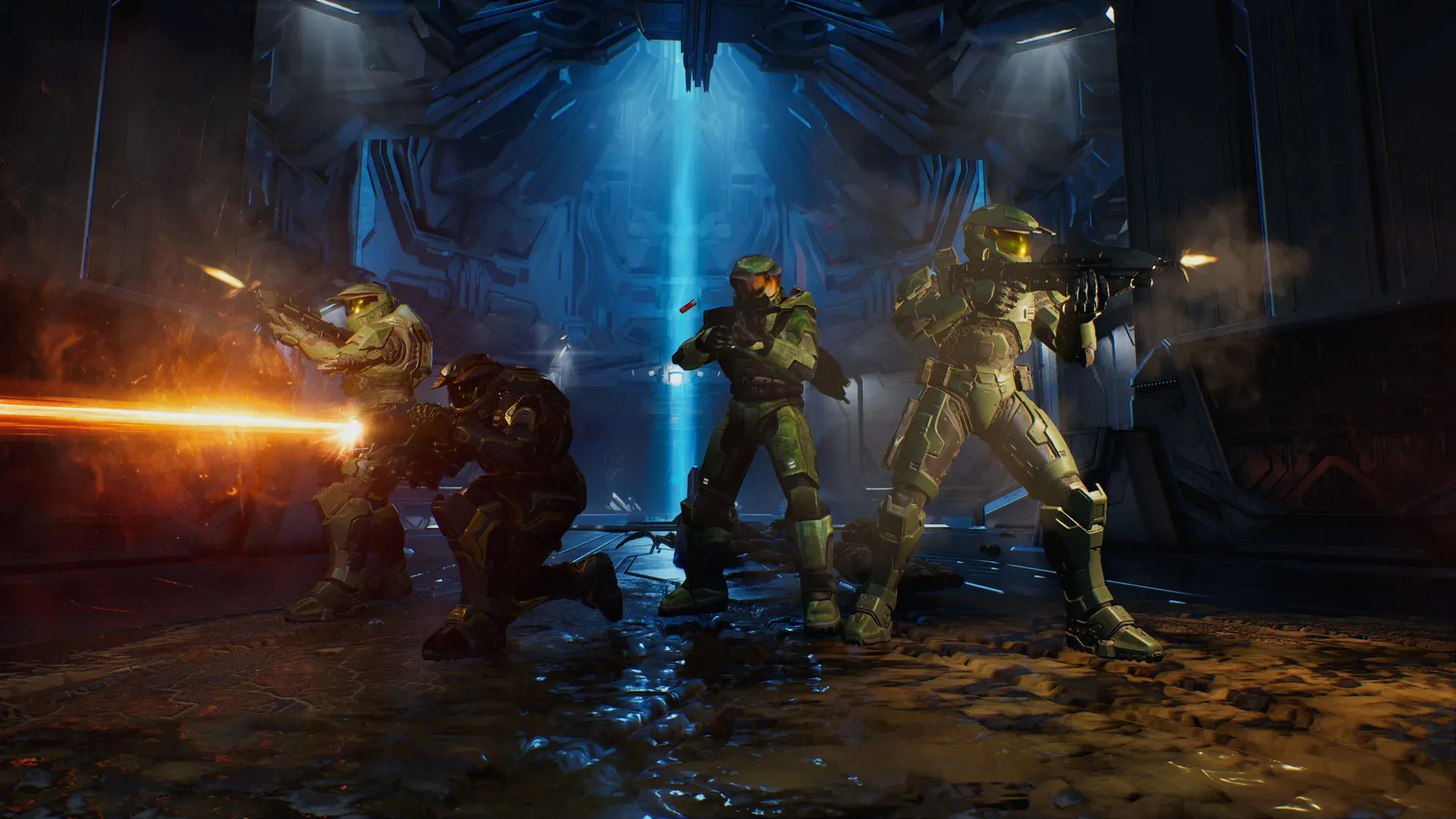


Halo: Campaign Evolved is out now on PC and consoles, and if you're playing on PC, you have a real advantage: the ability to dial in your settings for a stable, smooth experience. The default configuration isn't always kind to mid-range or lower-spec machines, and even a few targeted tweaks can be the difference between a buttery 60 FPS and a stuttery mess. This guide covers exactly which settings to change and why, so you can spend less time troubleshooting and more time fighting the Covenant.
What specs do you need to run these settings?
The settings in this guide were tested on a Ryzen 7 5700X, an AMD Radeon 9060 XT 16 GB, and 32 GB of DDR4 RAM, which sits close to the recommended spec range. The focus here is on players whose machines are closer to the minimum requirements, since those are the setups most likely to hit lag spikes and frame drops. If you're running something more powerful, you can push certain settings higher, but the configuration below gives you a reliable baseline to build from.
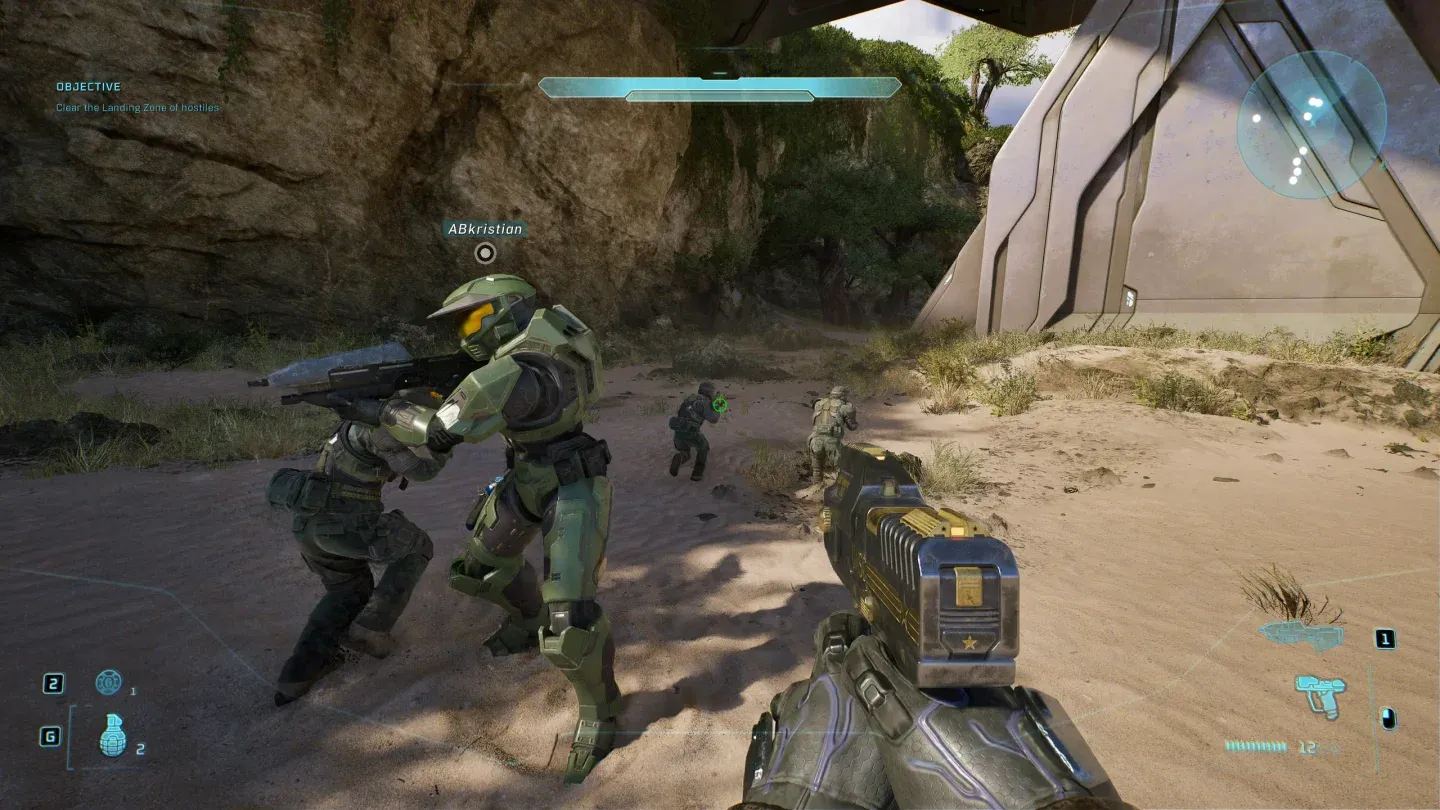
Texture Quality at Medium
Best graphics settings for Halo: Campaign Evolved
Set Quality Preset to Custom before adjusting anything else. Leaving it on a preset locks out individual controls, and you want full access to each parameter.
Display and resolution
- Display Resolution: Use your monitor's native resolution. Dropping below native introduces blurriness that upscaling can't fully recover.
- Resolution Scale: 100%. Combine this with an upscaling technique rather than dropping the internal render resolution manually.
- Frame Rate Limit: 60 FPS. Testing shows minor lag spikes appear when this is set higher or left uncapped on mid-range hardware. If your rig handles it cleanly, you can push the cap up, but avoid setting it to None entirely.
Quality settings
Texture Quality and Post-Processing Quality are kept at Medium rather than Low because dropping them further produces a noticeably degraded image with minimal FPS gain on most hardware. Everything else benefits from being pushed down as far as possible.
Motion and visual effects
- Screen Shake: Off. This has no performance impact, but it reduces visual noise during heavy combat and makes tracking enemies easier.
- Motion Blur: Off. Motion Blur is a frame-time cost with no gameplay benefit. Turn it off regardless of your hardware tier.
Async Compute and Frame Generation
- Async Compute: On. This allows the GPU to process compute workloads in parallel with rendering tasks, which helps with frame consistency on AMD hardware.
- Frame Generation: Off. Frame Generation adds latency and can introduce visual artifacts. Only enable it as a last resort if you've exhausted every other option and still can't hit a playable frame rate.
How do upscaling options affect performance?
The game supports hardware-specific upscaling techniques. AMD GPU owners should select FSR from the upscaling menu. The quality tier you pick within FSR controls how aggressively the image is reconstructed: lower quality tiers recover more frames at the cost of some sharpness. For minimum-spec machines, a Performance or Balanced FSR preset is a reasonable trade-off that keeps the image readable without tanking your frame rate.
If you're on an Nvidia GPU, check whether a comparable upscaling option is available in the settings menu, as the game's upscaling support may expand with post-launch patches.
Quick-reference settings summary
These settings prioritize frame stability over visual fidelity, which is the right call for a shooter game where reaction time matters. Once you've confirmed a stable 60 FPS baseline, you can experiment with bumping Texture Quality to High or enabling Reflections at Low to see what your hardware can absorb.
For everything else you need before jumping in, the Halo: Campaign Evolved guides collection covers preload times, edition differences, Game Pass availability, and more.