Search games, articles, guides...CtrlK
Sign InGet Started
Learn how to activate Machinima Mode in Halo: Campaign Evolved on controller and keyboard, fix the Drop Weapon conflict, and use freecam.

Written by Larc
Content Writer
See more GAMES.GG guides on Google
Add us as a preferred source and our guides show up first in your results.
Halo: Campaign Evolved Guide: All The Maw Skull Locations
Find all 3 Skulls in The Maw mission: Stowed Reload, Boom, and Thunderstorm with exact step-by-step locations.
How to Play Halo: Campaign Evolved in 3rd Person
Unlock the Perspective Skull and switch Halo: Campaign Evolved to 3rd person view with this quick step-by-step guide.
Halo: Campaign Evolved How to Unlock the This Is My Ship Now Achievement
Unlock the This Is My Ship Now achievement in Halo: Campaign Evolved by eliminating Keyes and pushing Marines to the ship's bow.
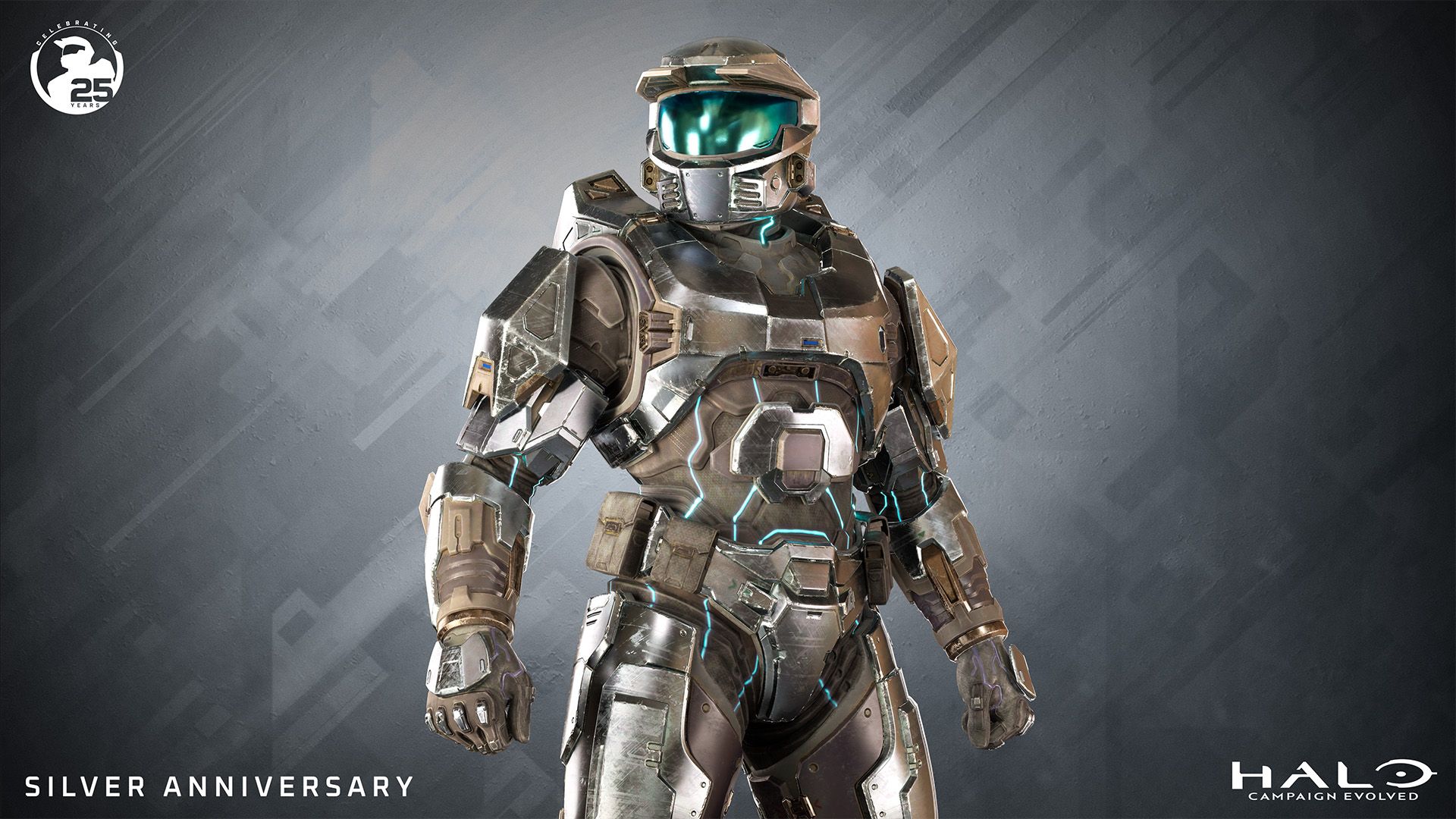
Machinima Mode has been part of Halo's DNA for decades, and Halo: Campaign Evolved brings it back as a built-in campaign tool that any player can access without unlocking a Skull or paying for extra content. Whether you want clean screenshots of Master Chief's armor, cinematic flythrough footage, or a freecam angle for a co-op skit, this is the feature you need. The catch is that controller players hit a binding conflict right out of the box, so here's exactly how to get past it.
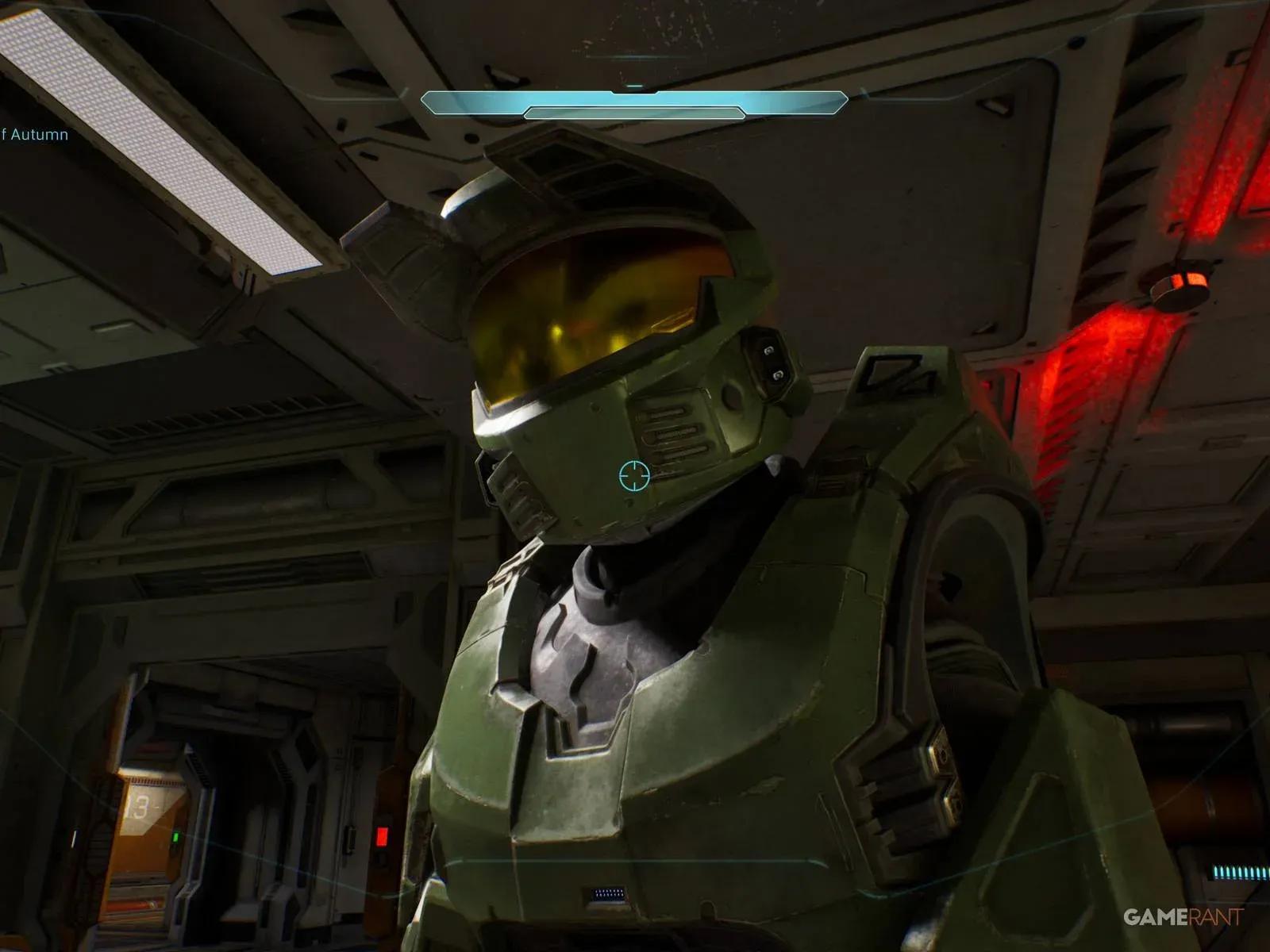
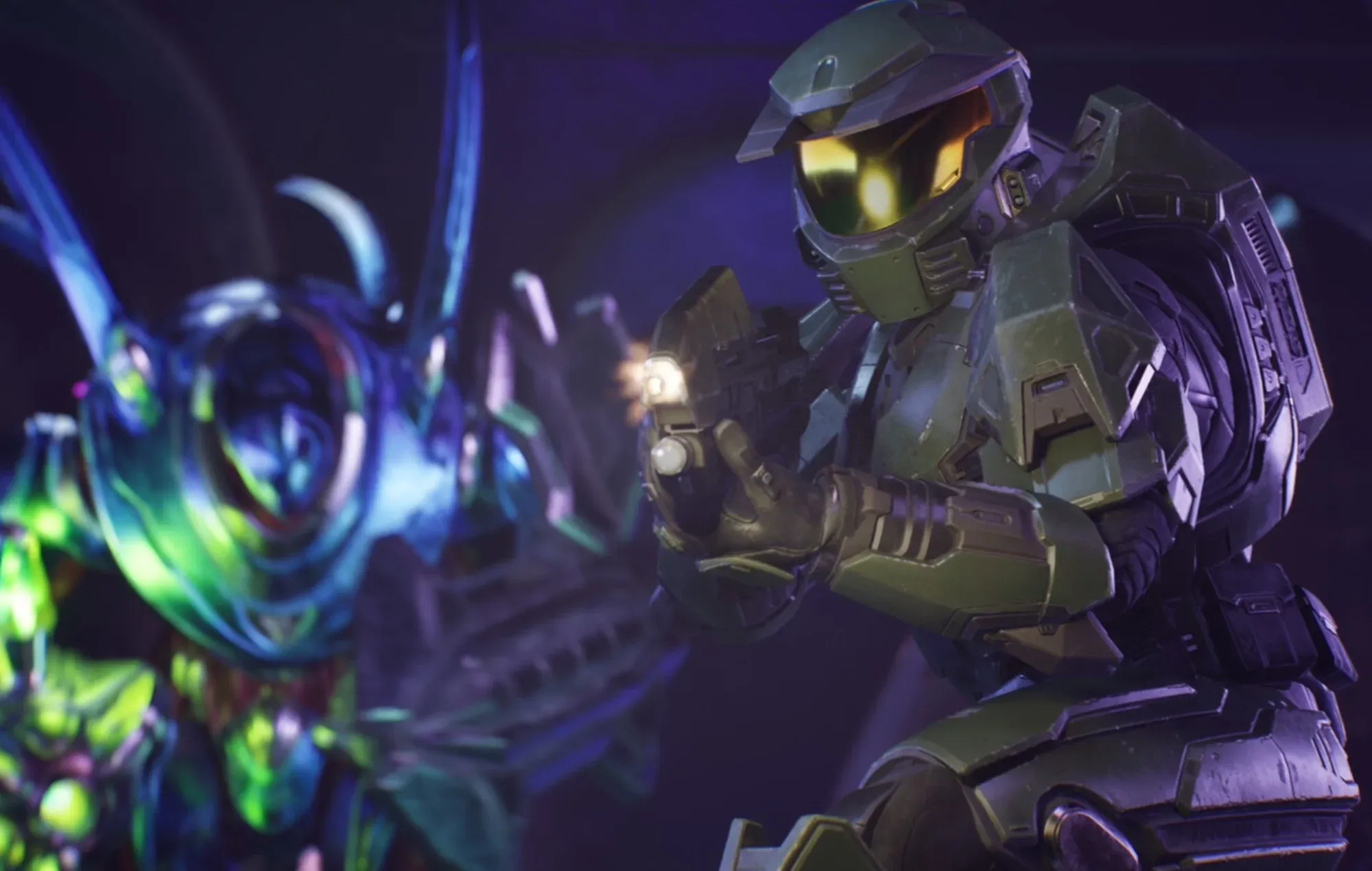
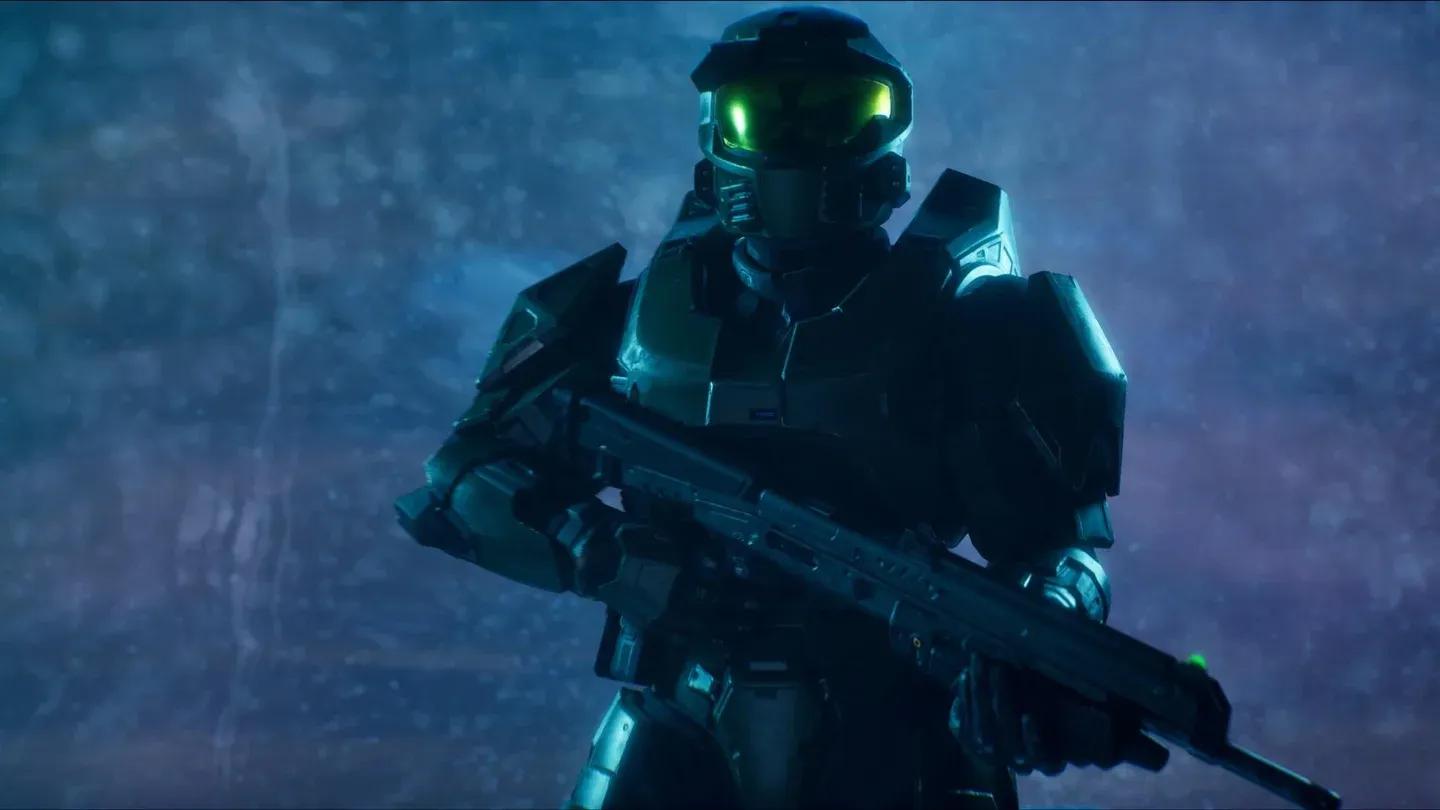
Machinima Mode pops the camera out of the normal first-person view and gives you a detached freecam you can move independently around the scene. Your Spartan stays in the world the whole time, which means you can frame a shot from outside the helmet while still controlling Master Chief's position.
Here's the full breakdown of what the mode provides:
| Feature | What it does |
|---|---|
| Freecam | Detaches the camera from the player view for custom framing |
| Lowered weapon | Drops the gun out of the first-person frame for cleaner shots |
| Spartan control in freecam | Lets you move Master Chief while the camera is separated |
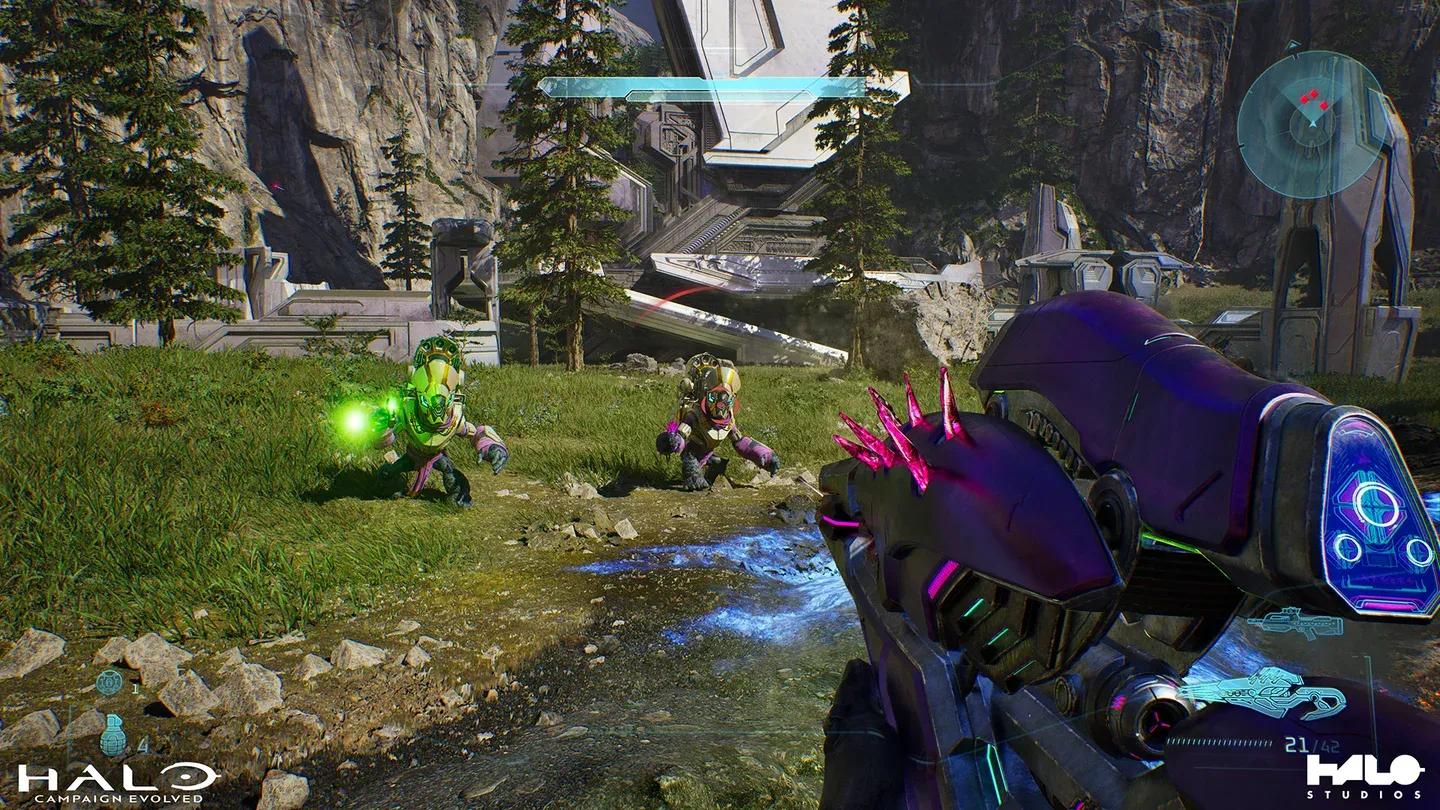
| Optional Skull pairing | Acrophobia and Blind Skulls can extend movement range and remove HUD elements |
One thing worth knowing before you start: this is a live campaign capture tool, not a Theater mode replay editor. You are working with the scene as it exists in real time, so plan your shots accordingly.
Freecam detached from Spartan
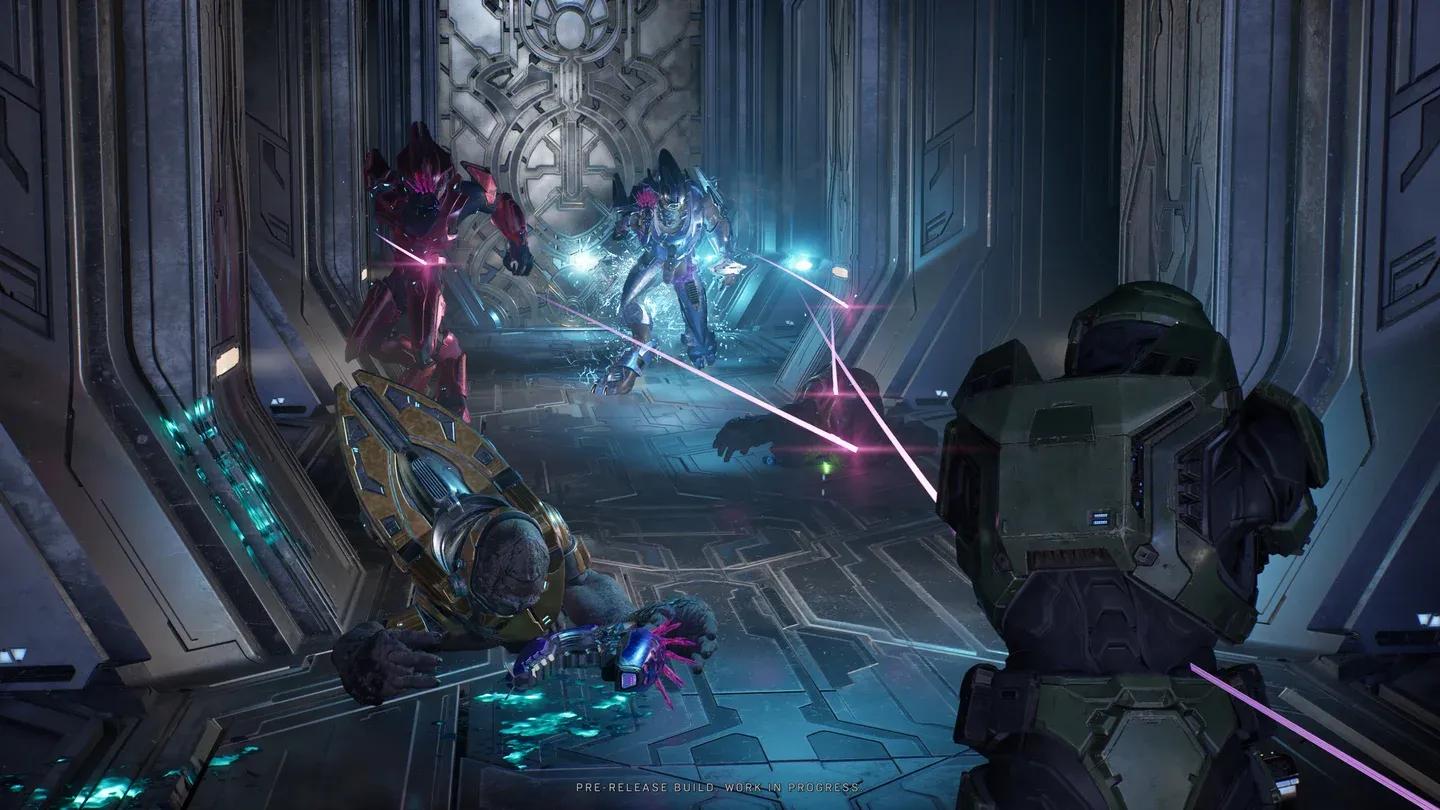
Before touching the Machinima Mode inputs on a controller, you need to deal with a default binding problem. The Down D-Pad is mapped to both the weapon-lowering step and Drop Weapon, so pressing it will throw your gun on the ground instead of lowering it into the Machinima position.
The fix takes about 30 seconds:
Once that's done, the Down D-Pad is free to do its job in the Machinima sequence.
Remap Drop Weapon here
With the binding conflict resolved, the sequence is straightforward:
You are now in Machinima Mode. To exit, use the same second input: hold Square/X + Up D-Pad again.
PC players have a smoother experience here because there are no conflicting default bindings to work around:
To exit, hold E + Up Arrow again. The same input that activates freecam also toggles it off.
Blind Skull removes HUD elements
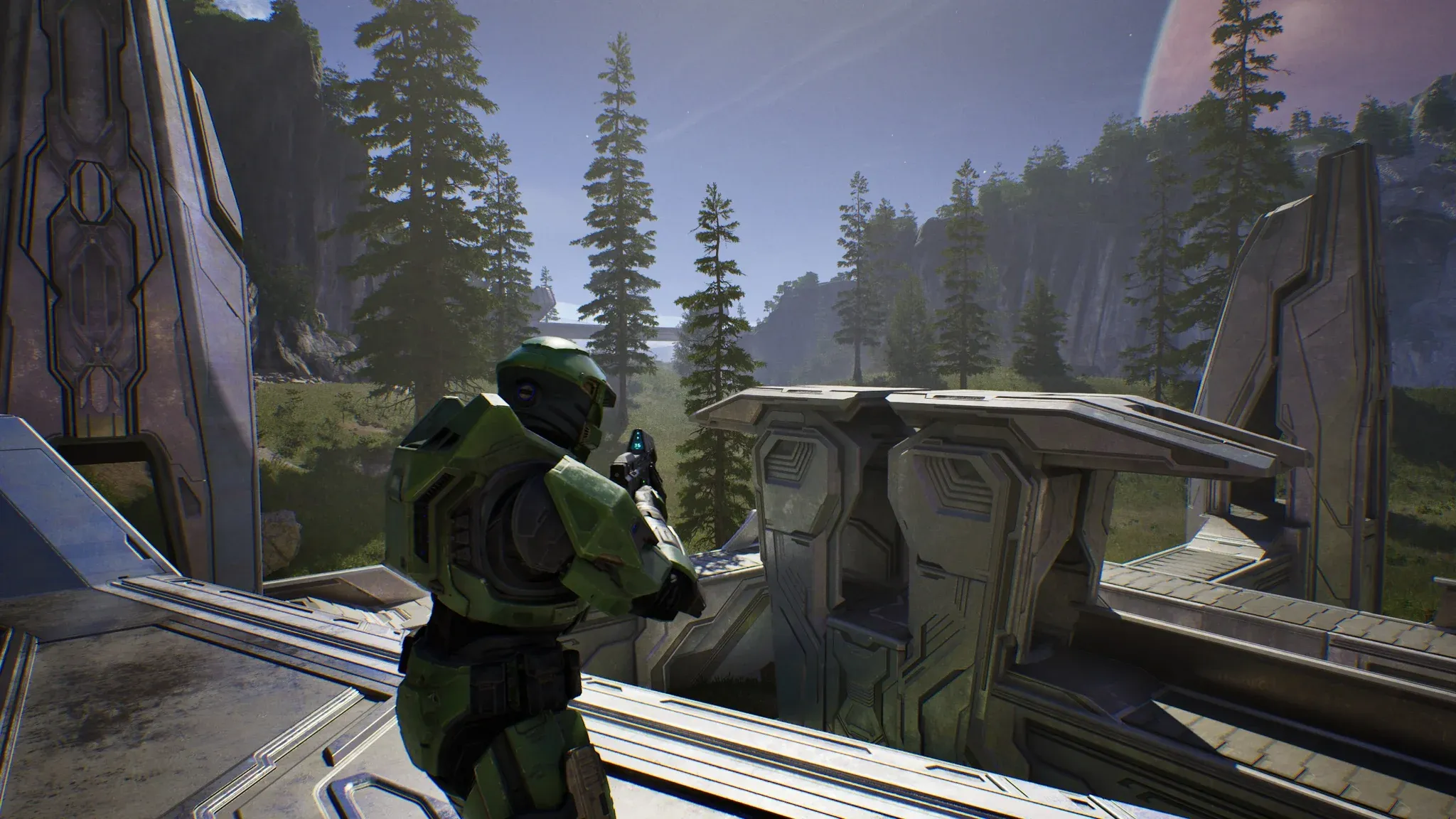
The most useful application is framing shots that normal first-person gameplay makes impossible. After testing the freecam across several missions, the clearest wins are:
If you're playing on PS5 for the first time and want to make sure your account is set up before recording, the Microsoft and Xbox account linking guide covers that setup step by step.
For more tips, walkthroughs, and feature breakdowns across the whole game, the full Halo: Campaign Evolved guides collection has everything organized in one place.