
To change your crosshair in Marvel Rivals, open Settings, select Keyboard or Controller, then go to Combat > HUD. Choose a reticle shape, expand Advanced to adjust its appearance, and select Save As New to keep the preset.
You can use one crosshair across your roster or save separate setups for heroes such as Hela and Spider-Man. PC supports importing crosshair codes, while PlayStation and Xbox players can customize the same sliders and copy reticles through pro profiles. The instructions below use the Season 10.5 menu layout.
How do you change your crosshair on PC, PS5, and Xbox?
The reticle controls are available from the main menu and during matches. The important choice is your input tab: edit Keyboard for mouse and keyboard, or Controller if that is how you play.
- Open Settings from the main menu or the match pause menu.
- Select Keyboard or Controller to match your input.
- Open Combat, then scroll down to HUD.
- Change Reticle Type and check the preview on the right.
- Select the plus icon beside Advanced to reveal the customization sliders.
- Adjust the reticle, then choose Save As New for a separate preset or Save to update the preset you are editing.
The Advanced controls let you change width, opacity, outline, spacing, and color. Start with the shape, then adjust its visibility. There is little point perfecting an outline around a circle you were about to replace with a dot.
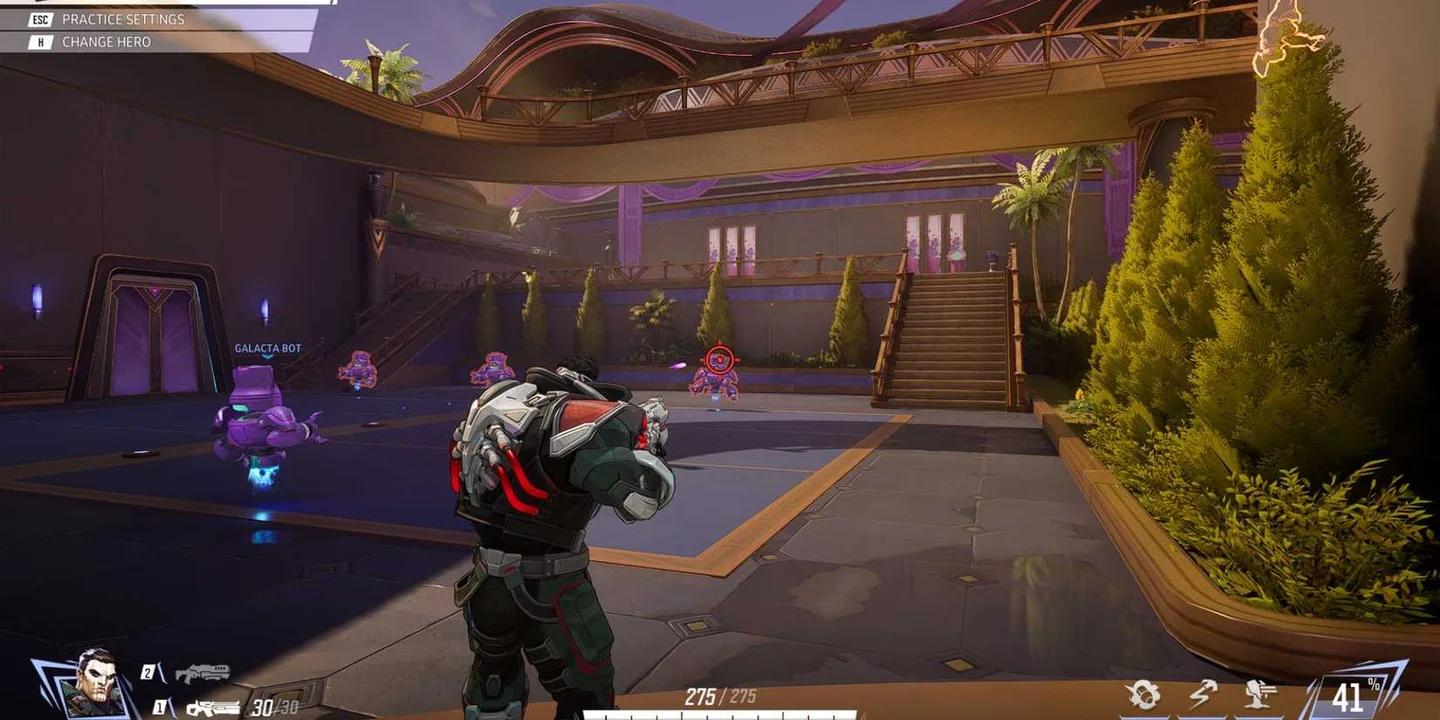
Expand the reticle sliders

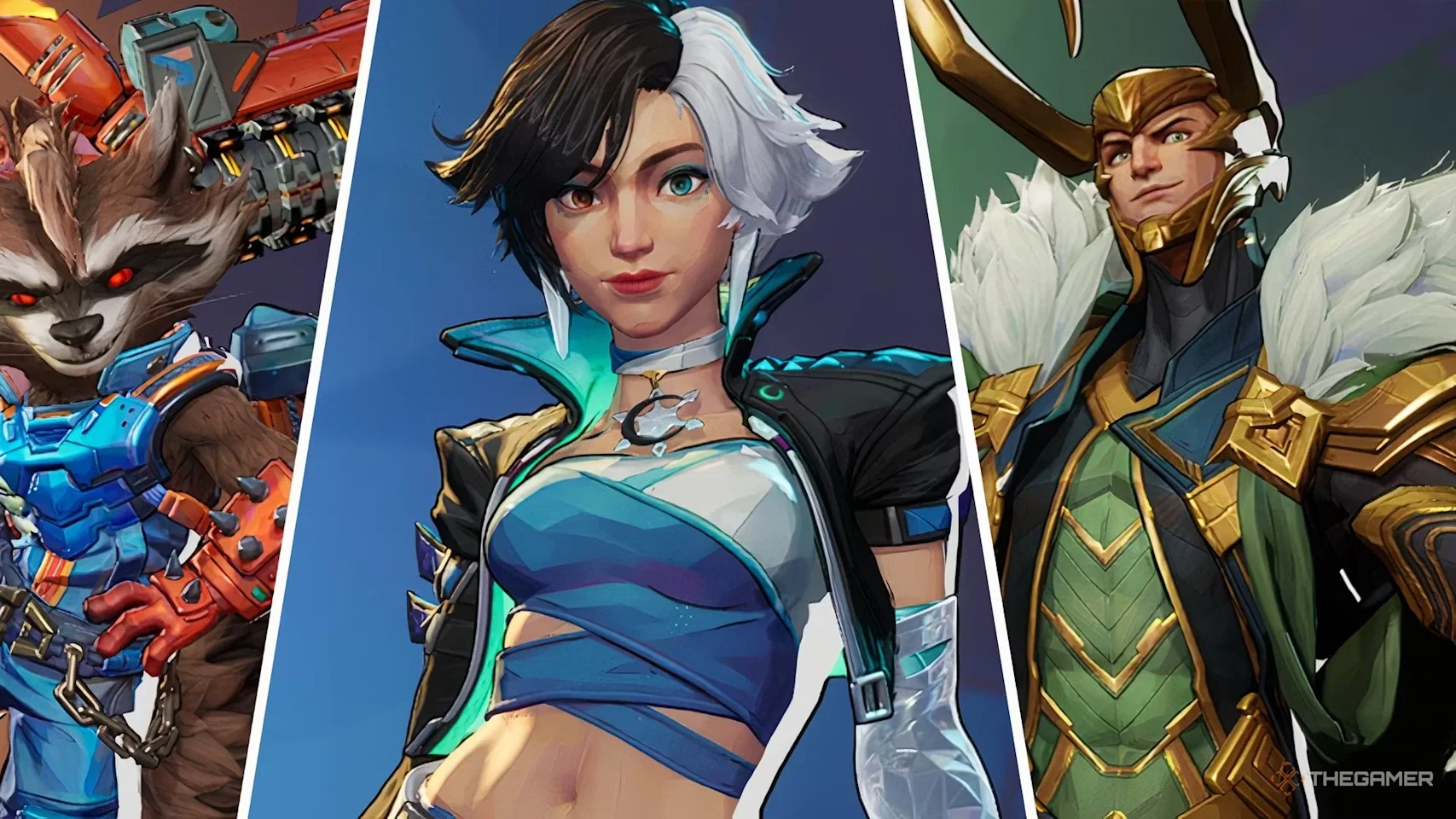
Which reticle shapes can you choose?
Reticle Type has five options. Pick the shape around the attacks you need to aim, rather than expecting one design to suit every hero.
| Reticle type | Appearance | Best for |
|---|---|---|
| Default | The game's standard reticle | Keeping the stock appearance |
| Dot | A single aiming point | Precision shots with minimal obstruction |
| Crosshairs | Four lines with an optional dot | A general-purpose ranged setup |
| Circle | A ring with an optional dot | Close-range attacks and nearby tracking |
| Circle and Crosshairs | A ring combined with four lines | Heroes mixing precise and wider attacks |
How do you give each hero a different crosshair?
Open the All Heroes selector in the top-left corner of the Combat menu, choose a hero, and confirm the selection. Reticle changes made with that hero selected apply to that hero rather than your whole roster.
For example, you can give Hela a small dot without forcing The Punisher to use it. Selecting All Heroes again returns you to the shared settings, but changes there do not replace an existing hero-specific reticle.
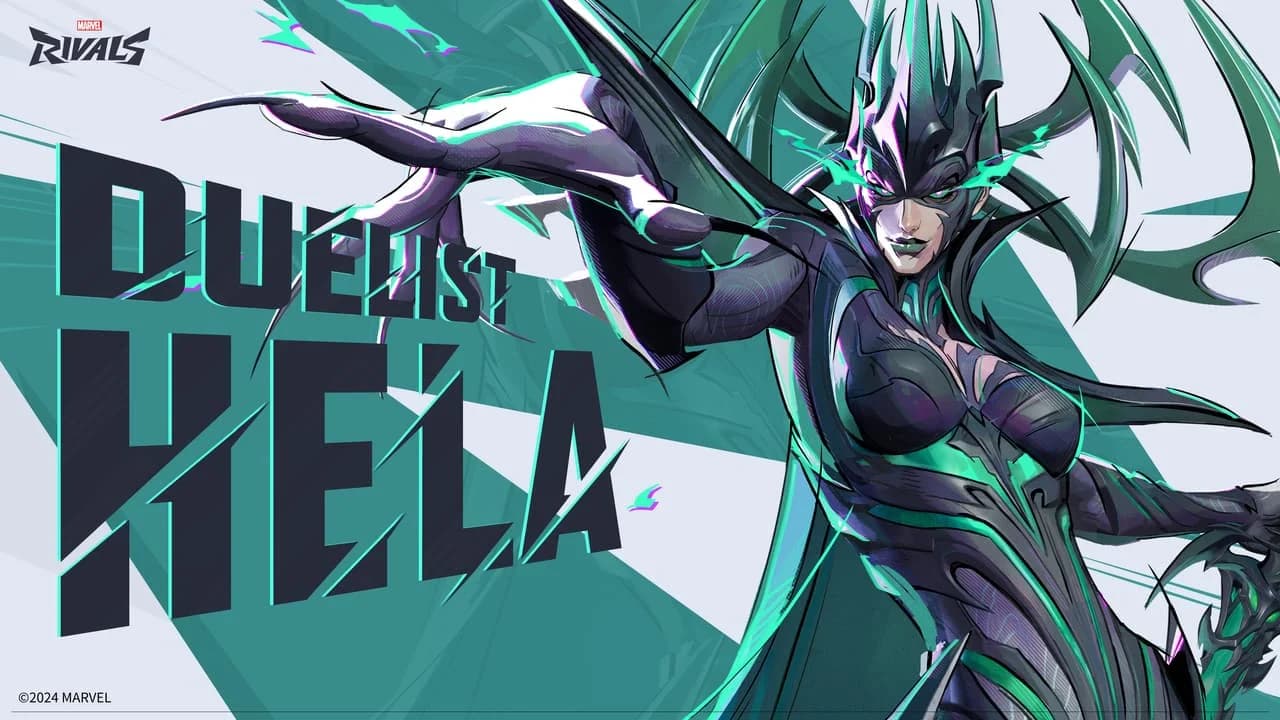
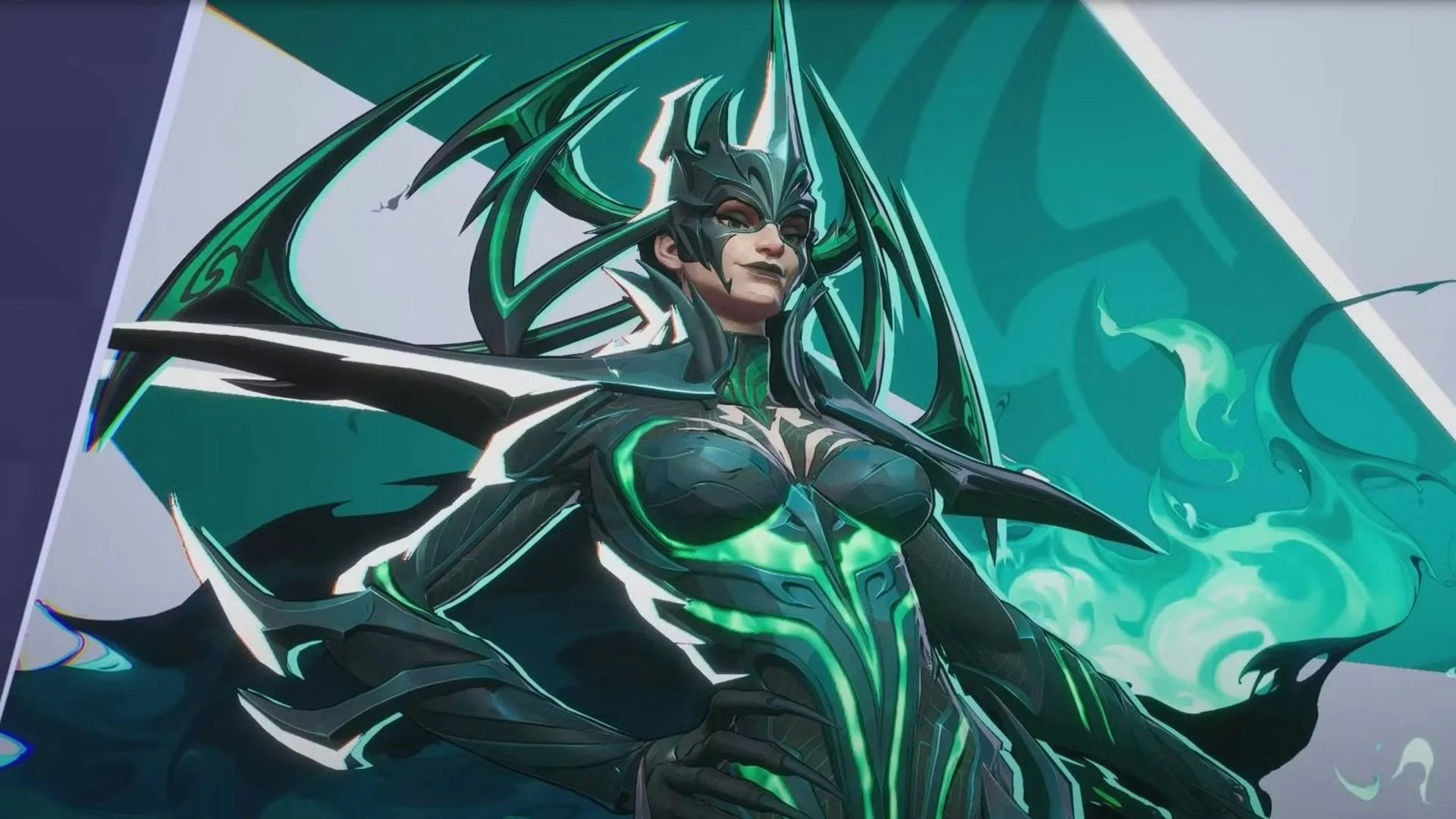
Give Hela her own reticle
These are useful starting choices for heroes with different aiming demands:
- Hela: Try Dot with a Dot Width of 12. Her hitscan Nightsword Thorn can land critical hits, so the small marker leaves more of an enemy's head visible.
- The Punisher: Try Circle and Crosshairs. The lines provide a rifle aiming reference, while the circle gives you a rough reference for the shotgun's wider spread.
- Hawkeye: Try short Crosshairs. The lines provide reference points when aiming above distant targets with his arcing Piercing Arrow.
- Spider-Man: Try a bright circle or a slightly larger dot. Either can make the aiming point easier to find during fast movement.
What crosshair settings should you start with?
A compact, static cross is a sensible first setup for most ranged heroes. You want an aiming point that stays readable without covering the target, so keep the lines short and leave a little space around the center.
| Setting | Starting choice | Reason |
|---|---|---|
| Reticle Type | Crosshairs | Provides a center reference and short guide lines |
| Reticle Animation | Off | Keeps the reticle size consistent during firing and movement |
| Color | Cyan, green, or yellow | Offers strong contrast against many backgrounds and effects |
| Dot Width | Around 10 to 16 | Keeps the center visible without making it unnecessarily large |
| Reticle Opacity | 100 for visible components | Prevents the marker from looking faint |
| Blur | 0 | Keeps the edges sharp |
Use thin, short crosshair lines and a small center gap for precision aiming. Add a subtle outline if the reticle disappears against light backgrounds, then check it in the Practice Range rather than judging only the menu preview.
For a ready-made alternative, the crosshair settings and codes guide includes the Basic preset, its PC import code, and manual console values. Treat any preset as a starting point: keep the shape if it suits you, but change a color you struggle to see.
How do you import, export, or copy a crosshair?
PC players can transfer a complete reticle through a code. On PlayStation and Xbox, use the customization sliders or copy a reticle through a pro player's profile instead.
| Feature | PC | PlayStation and Xbox |
|---|---|---|
| Adjust reticle sliders | Yes | Yes |
| Save hero-specific reticles | Yes | Yes |
| Import and export codes | Yes | No |
| Copy pro profile reticles | Yes | Yes |
How do you import a crosshair code on PC?
Return to Settings > your input tab > Combat > HUD, then find Reticle Save.
- Copy the complete crosshair code, without surrounding quotation marks or extra spaces.
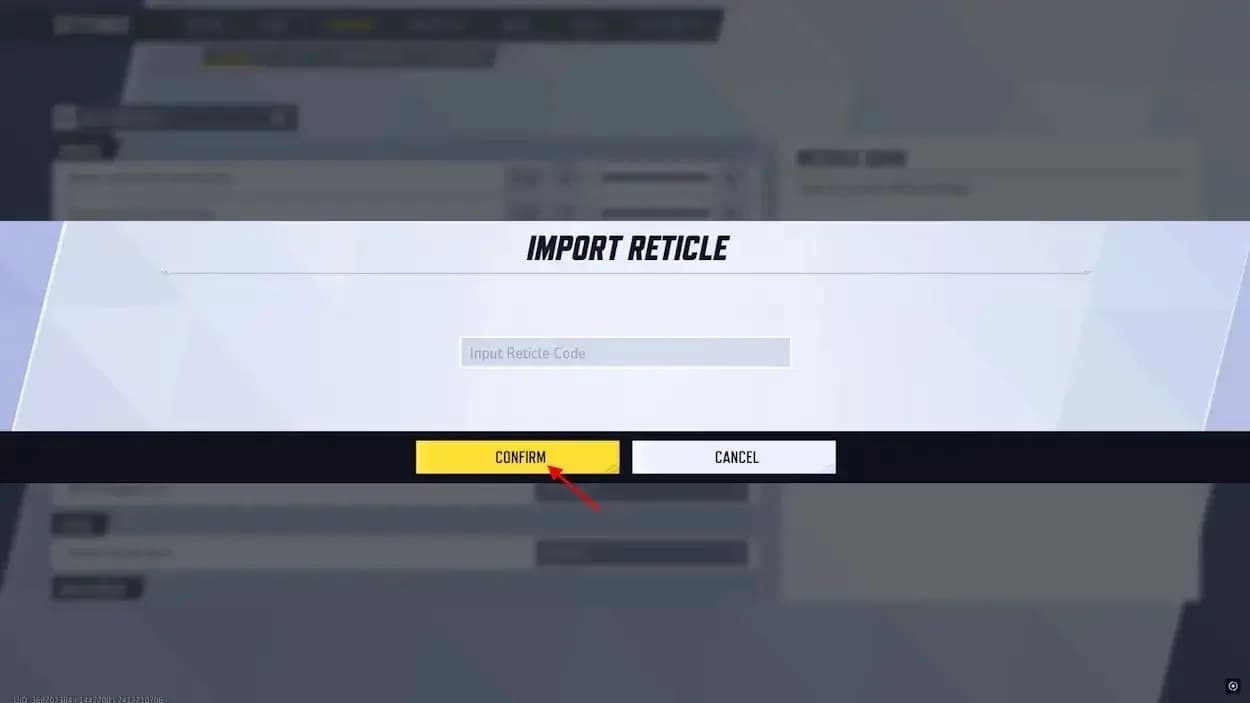
- Select the Import Save icon beside the Reticle Save dropdown.
- Paste the code and select Confirm.
- Inspect the preview, adjust anything you dislike, and save the reticle.
To back up or share your own preset, select Export Save. The game copies the current reticle's code to your clipboard. Keeping your favorite codes in a text file gives you a quick way to restore them later.
How do you copy a pro player's crosshair on console?
Open a pro player's profile, such as through the in-game Esports hub, and find their reticle preview. Use the profile's copy option for the reticle you want to try.
The Favorite Reticle profile feature works across platforms. Season 8 expanded profile copying to individual heroes, so you can copy a hero-specific setup rather than relying only on a player's general favorite.
Copy a reticle through profiles
A copied reticle still needs to suit your display and eyesight. Check it on the intended hero, especially if the profile preset uses a very small dot or an unfamiliar color.
If you are also moving between PC and console, use the account-linking guide to handle account setup separately from reticle customization.
Common mistakes and fixes
Why isn't your new crosshair appearing?
If the preview looks right but your match still shows the old reticle, check the Combat settings before rebuilding the preset.
- A hero-specific reticle is overriding the shared setup. Select that hero through All Heroes and edit its individual settings.
- You changed the wrong input tab. Make sure you edited Keyboard or Controller to match how you play.
- You need to save the edited preset. Use Save to update an existing setup, or Save As New to keep a separate version.
- Your reticle save slots are full. Remove an unused preset through Reticle Save before creating another.
Why won't your PC code import?
Check that you copied the entire code into Import Save. Remove extra spaces and quotation marks, then try again. A partial string will not recreate the intended preset.
Changing a circle's size also does not change The Punisher's actual weapon spread. Reticle customization changes the aiming marker, not the weapon's accuracy.
Pro tips
Test visibility before changing sensitivity
Use the Practice Range to compare your reticle against bright and dark backgrounds. Keep the same hero and sensitivity while checking the new shape, otherwise it becomes harder to identify which adjustment helped.
A repeatable practice routine is:
- Track moving bots for 5 minutes.
- Spend another 5 minutes flicking between targets.
- Play one unranked match to check visibility during ability-heavy fights.
- Change one setting to address a specific problem, then compare again.
If the reticle stays visible but tracking still feels uncomfortable, check sensitivity separately in Combat. A different outline cannot fix a sensitivity setting that makes precise aiming difficult.
Turn on healing feedback for Strategists
Luna Snow benefits from Healing Reticle Feedback because her Light & Dark Ice shots can damage enemies and heal allies. The setting makes the reticle glow when a heal lands, giving you immediate visual confirmation.
Select each healer through All Heroes, scroll to the Hero section, and enable Healing Reticle Feedback. It is off by default and must be configured per hero.
Frequently asked questions
Can you change your crosshair during a match?
Yes. Open the pause menu, enter Settings, and follow the same input tab > Combat > HUD path used from the main menu.
Can you use custom crosshairs in ranked?
Yes. Marvel Rivals' built-in reticle customization works in ranked matches. You can use the settings menu to change the shape, color, and other supported options.
Does a custom crosshair change aim assist or damage?
No. Reticle settings only affect the marker's appearance. They do not alter aim assist, damage, projectile speed, weapon spread, or hit registration.
Do crosshair settings transfer between platforms?
NetEase has not confirmed cross-platform reticle syncing. Keep a PC export code or a record of your preferred slider values when switching devices. For more help configuring Marvel Rivals, browse the Marvel Rivals guide collection.