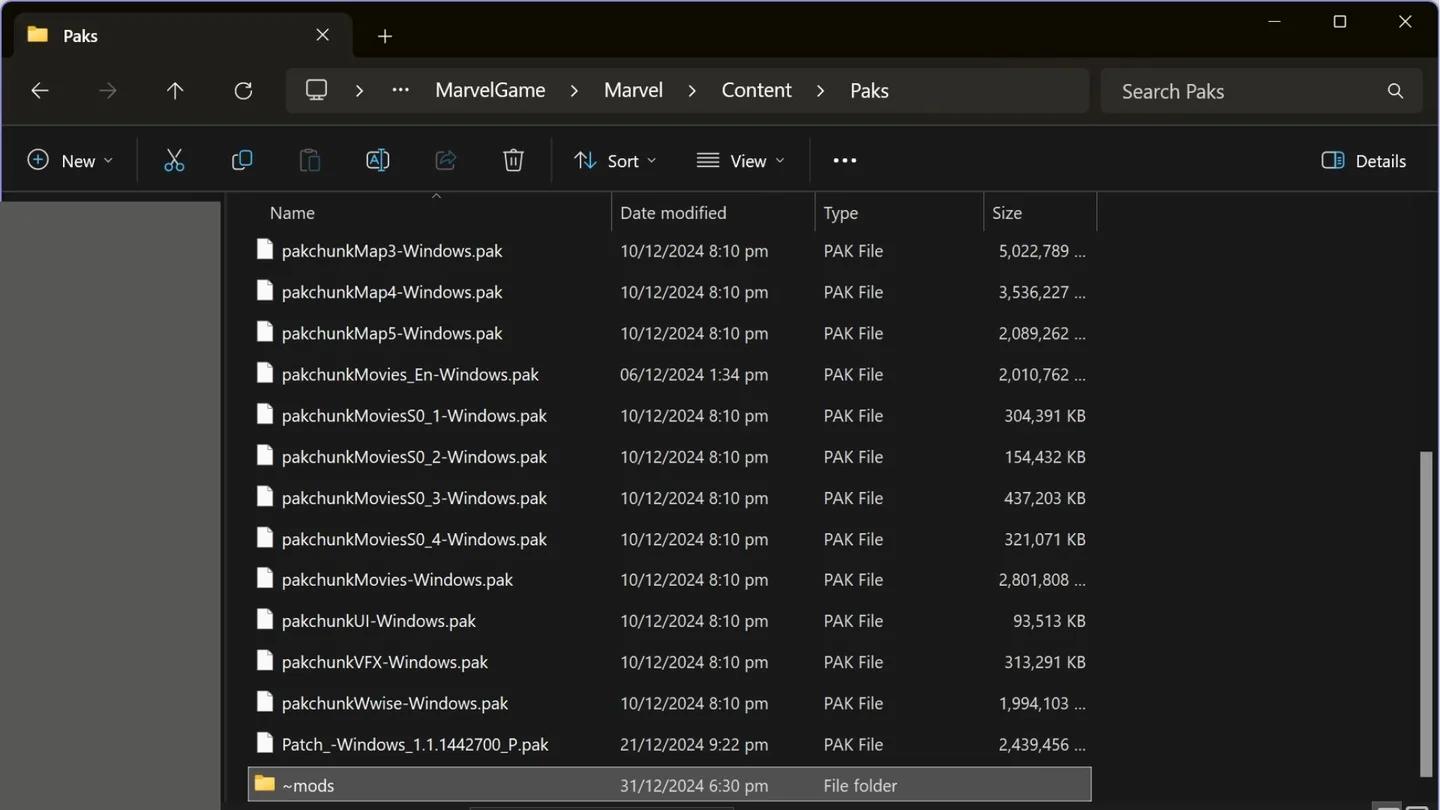
To mod Marvel Rivals on Windows PC, put compatible mod files in MarvelGame/Marvel/Content/Paks/~mods and install a UTOC Signature Bypass so the game can load them. For a skin mod, you must also select the costume it replaces.
There is an account risk. NetEase prohibits modifying the game client, including cosmetic changes that only appear on your PC. Before installing anything, understand which files you are adding, what makes them load, and how to remove them if a game update breaks compatibility.
Can Marvel Rivals mods get you banned?
NetEase's rules prohibit client modifications. Skin mods change game files, and a signature bypass changes how the client accepts mod packages. Neither comes with a guarantee that your account will avoid penalties.
A skin mod is a local cosmetic replacement. It changes the costume on your PC, does not add that costume to your account, and does not make other players see your replacement. Being local does not make it an approved modification.
If your goal is simply a clearer aiming reference, the Marvel Rivals crosshair settings guide covers settings and presets without needing a skin mod or signature bypass.

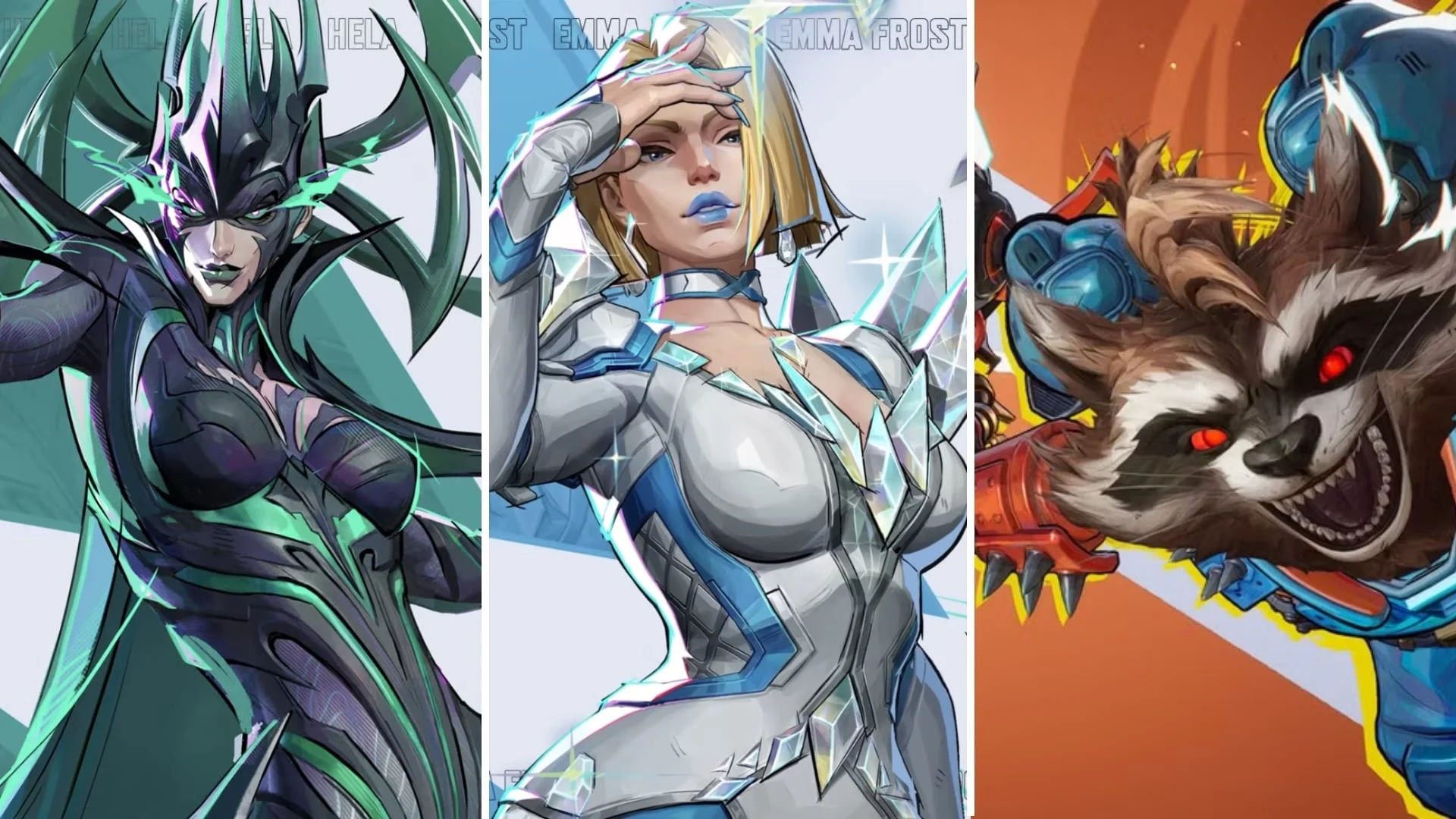
Which files do you need before installing mods?
A skin can arrive as a .pak file alone or as a matching set containing .pak, .utoc, and .ucas files. Keep every supplied companion file and preserve the original filenames. The .utoc is the table of contents for an Unreal Engine IoStore container.
The bypass is separate from the skin. DeathChaos's UTOC Signature Bypass is an .asi plugin, while ThirteenAG's Ultimate ASI Loader loads that plugin when Marvel Rivals starts.
| Component | What it does | Location inside the game installation |
|---|---|---|
| Mod .pak and any supplied .utoc/.ucas files | Supplies the mod's replacement content | MarvelGame/Marvel/Content/Paks/~mods |
| dsound.dll | Loads the ASI plugin at startup | MarvelGame/Marvel/Binaries/Win64 |
| MarvelRivalsUTOCSignatureBypass.asi | Allows mod packages to load | MarvelGame/Marvel/Binaries/Win64/plugins |
| Ultimate ASI Loader License.txt | Includes the loader's MIT license | MarvelGame/Marvel/Binaries/Win64 |
Compatibility note: This walkthrough covers UTOC Signature Bypass v1.3. The September 3 game update changed mod packaging, so having the bypass installed does not guarantee that an older mod package still works. Later updates can require another compatibility fix.
How do you install Marvel Rivals mods manually?
Extract the mod into the correct folder
Close Marvel Rivals before installing the bypass. Then prepare the mod files:
- Extract the downloaded .zip, .7z, or .rar archive.
- Open your Marvel Rivals installation folder.
- Open MarvelGame, then Marvel, Content, and Paks.
- Create a folder named ~mods if it does not already exist.
- Copy the extracted mod files into ~mods. If the package includes matching .pak, .utoc, and .ucas files, copy all three without renaming them.
Marvel Rivals also reads subfolders inside ~mods, so each skin can have its own folder. That is useful for manual installs because removing one skin does not require picking its files out of a mixed pile.
Locate the mod loading folder
Install the signature bypass separately
Install the compatible bypass through your mod manager, or place its loader, plugin, and license in the locations shown in the table. Without the bypass, mod packages can remain in ~mods while never appearing in the game.
Windows may request administrator permission because the installation is under Program Files. A game library in a folder your Windows account can already write to may not trigger that request. An Unknown publisher label means Windows has no verified publisher identity for that unsigned app, not that the file has been proven safe.
Select the costume the skin replaces
Start Marvel Rivals and select the costume targeted by the skin. A mod installed correctly can still appear absent if you select a different costume.
If your skin manager has a Replaces field, use it to identify the target costume. The mod changes that costume's appearance locally; it does not unlock a costume your account does not own.
How can a Skin Manager simplify installation?
For players managing several skins, a Skin Manager can handle importing, previews, and switches. The controls below apply to the third-party Windows workflow with a Skins tab, not to menus inside Marvel Rivals.
Import and preview a skin
If your manager includes these controls, follow this route:
- Open Skins, select Import, and choose a .zip, .7z, .rar, or .pak file. Drag-and-drop importing is also supported in this workflow.
- Check the hero and replacement costume identified on the imported row.
- Use the eye button to inspect the 3D preview.
- Turn on the skin's switch when you are ready. Imported skins begin switched off.
An archive containing several versions, such as recolors, opens Choose which to install when imported by itself. Import that archive separately rather than including it in a batch, where it is skipped.
Disable a skin without deleting it
The Skin Manager's switch adds .off to the mod filenames when disabling them and removes that marker when enabling them again. The trash button deletes the files instead. Use the switch when you want to keep a skin available for later.
Why are your Marvel Rivals mods not working?
Start with the symptom. A missing bypass, an incomplete skin package, and a costume conflict need different fixes.
| Symptom | What to check | Next action |
|---|---|---|
| No mod packages appear | Signature bypass installation | Check whether the loader and plugin are still present |
| One skin does not appear | Selected costume and competing skins | Select its target costume and disable competing replacements |
| Skin Manager shows Broken | Missing .pak or incompatible texture format | Hover over the label, then download a complete or updated version |
| A skin add-on shows Hidden | Its base skin is covering it | Use the add-on's Load first control |
| Mod Manager shows Outdated | Packaging compatibility after an update | Use Fix, or Tools > Fix Mods for Game Update |
| Installation returns RF-1304 | Antivirus quarantine | Check whether dsound.dll or the ASI plugin was removed |
| A Bad Image error names the plugin | Smart App Control or S Mode | Check the Windows security message before changing anything |
Resolve costume conflicts first
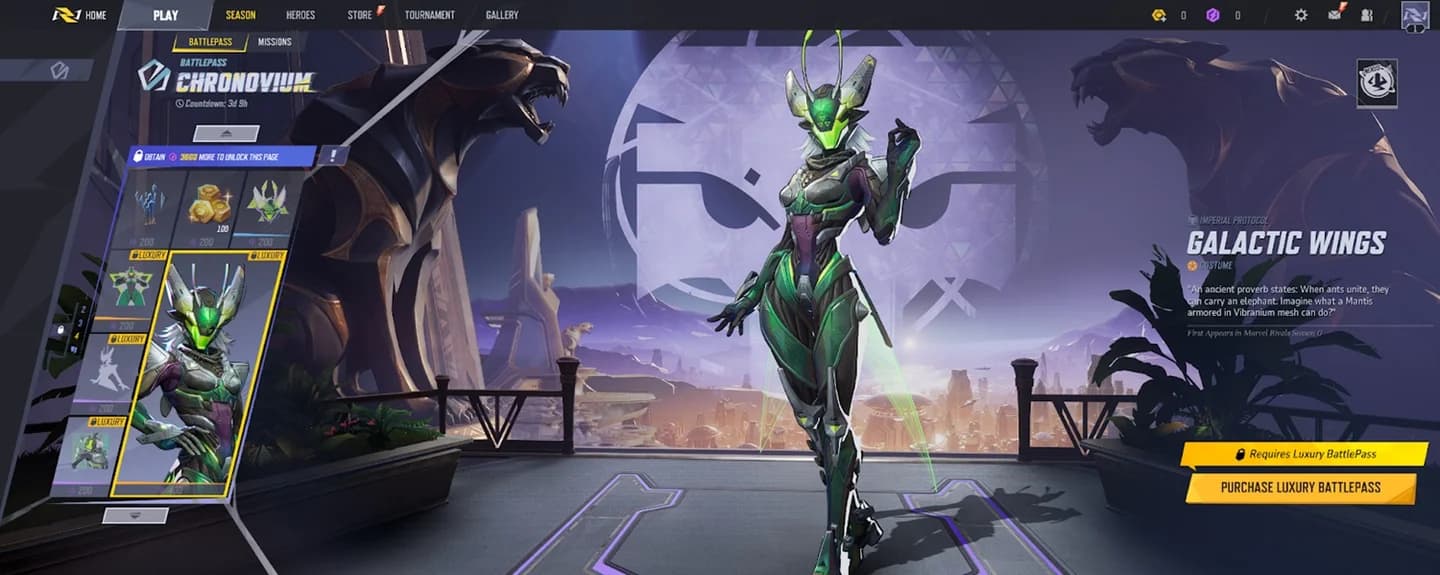
You can use skins for different heroes or different costumes on the same hero. Two replacements targeting the same costume can both load, but the game can display only one.
In the Skin Manager workflow, Two skins, one costume warns about that conflict. Use this one keeps your chosen replacement enabled and switches off the competing skins. That is more predictable than leaving the selection to the game.
Keep one mod per costume
Check the bypass and packaging after updates
If all mods disappear after a Marvel Rivals update, check the bypass before replacing every skin. Reinstalling missing bypass components does not require removing your mod files.
If the bypass is still installed, check for Outdated packages. In the supported Mod Manager workflow, launching the game does not automatically run Fix Mods for Game Update.
How do you remove Marvel Rivals mods?
For a manually installed skin, move its files outside ~mods or delete them. For a managed skin, switch it off to retain the files, or use its trash button to remove them.
Removing a skin and removing the bypass are separate jobs. In the manager workflow with these controls, choose the option that matches your goal:
| Goal | Control | Result |
|---|---|---|
| Stop loading managed mods temporarily | Mod Manager > Tools > Disable All Mods | Disables mods but leaves the bypass installed |
| Remove the managed bypass | Mod Manager > Tools > Disable Bypass | Removes the manager's bypass files and leaves mods on disk |
| Remove the bypass through settings | Settings > Game Install > Signature Bypass Uninstall | Performs the same bypass removal |
| Undo the manager's changes more broadly | Settings > Diagnostics > Revert All Changes | Reverts its changes, including the bypass, while leaving your own mods alone |
For a manually installed bypass, remove only the matching components you added, as identified in the earlier file table. Leave unrelated DLLs and plugins alone.
Do not assume uninstalling a mod manager also removes its bypass. In this workflow, the uninstaller's Also undo every change made to Marvel Rivals option is off by default.
Common mistakes
- Copying the archive instead of extracting it: Manual installation needs the mod files inside the archive.
- Leaving out companion files: A package supplied with matching .pak, .utoc, and .ucas files needs the complete set.
- Selecting the wrong costume: Check the mod's target or its Replaces field.
- Stacking replacements for one costume: Keep one active replacement per costume unless an add-on is specifically intended for the base skin.
- Confusing disabled mods with a removed bypass:Disable All Mods leaves the loader and plugin installed.
Pro tips
Keep add-ons with their intended skin
A tattoo or hair-color add-on may be designed for a particular remodel rather than the original costume. Keep its required base skin enabled. If the manager marks the add-on Hidden, use its Load first control instead of treating it as a competing full replacement.
Separate cosmetic setup from learning a hero
A costume replacement changes appearance on your PC. If Spider-Man is the hero you want to learn, the Spider-Man combos and movement guide covers his playstyle rather than mod installation.
Frequently asked questions
Can other players see your skin mods?
No. Skin mods replace files on your PC, so other players see the default costume rather than your local replacement.
Do all graphics adjustments need a signature bypass?
No. Mod packages do, including graphic packs and sound mods. The Lower Render Resolution feature described in the Quality workflow changes a game setting rather than adding a package, so it does not require the bypass.
Can you preview a skin before enabling it?
Yes, if your Skin Manager has the eye-button 3D viewer. The preview works while the skin is disabled, although it may need updated mappings after a game patch.
Where can you find help with heroes and modes?
For character strategies and mode walkthroughs beyond mod setup, browse the Marvel Rivals guide collection.