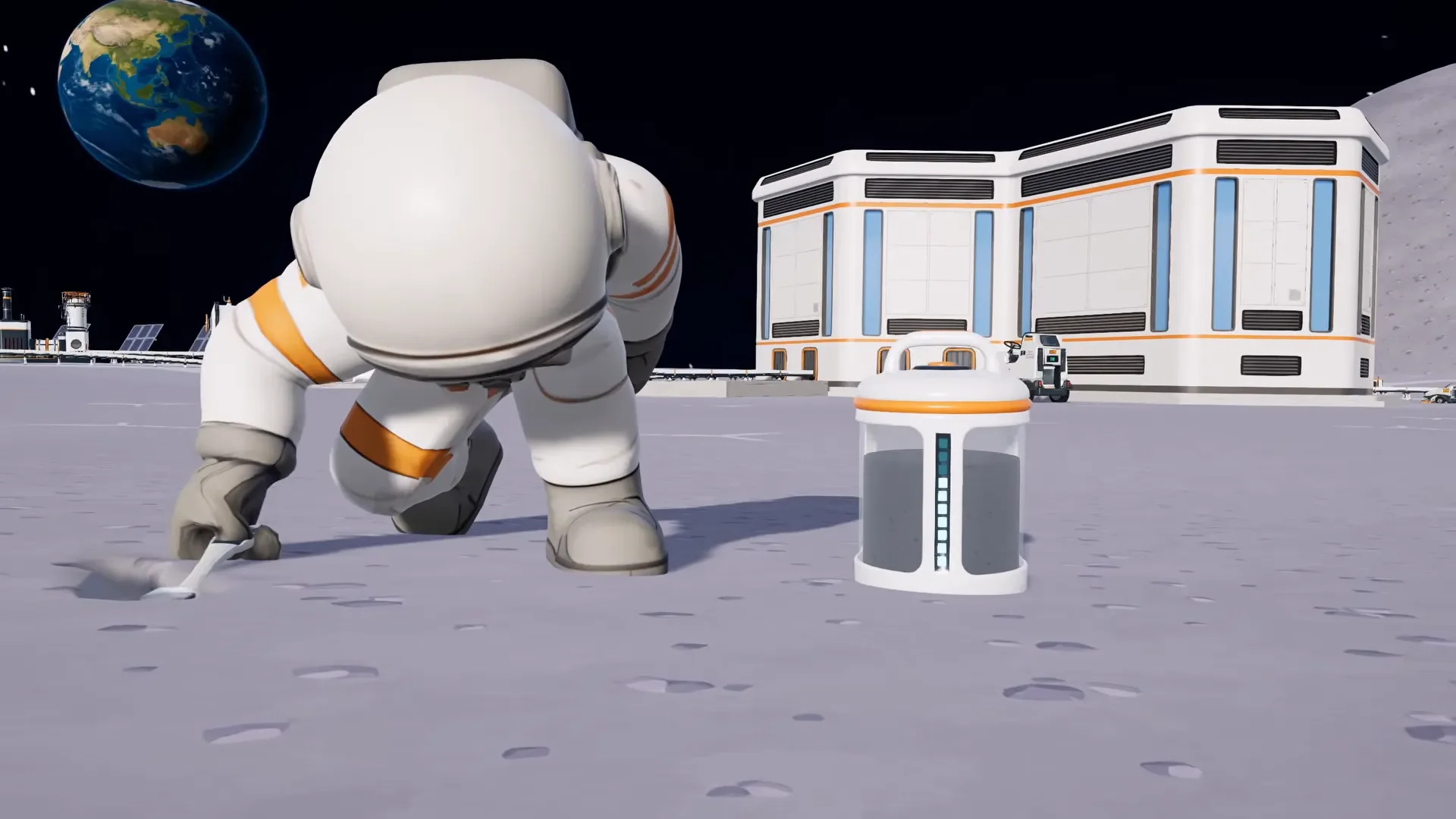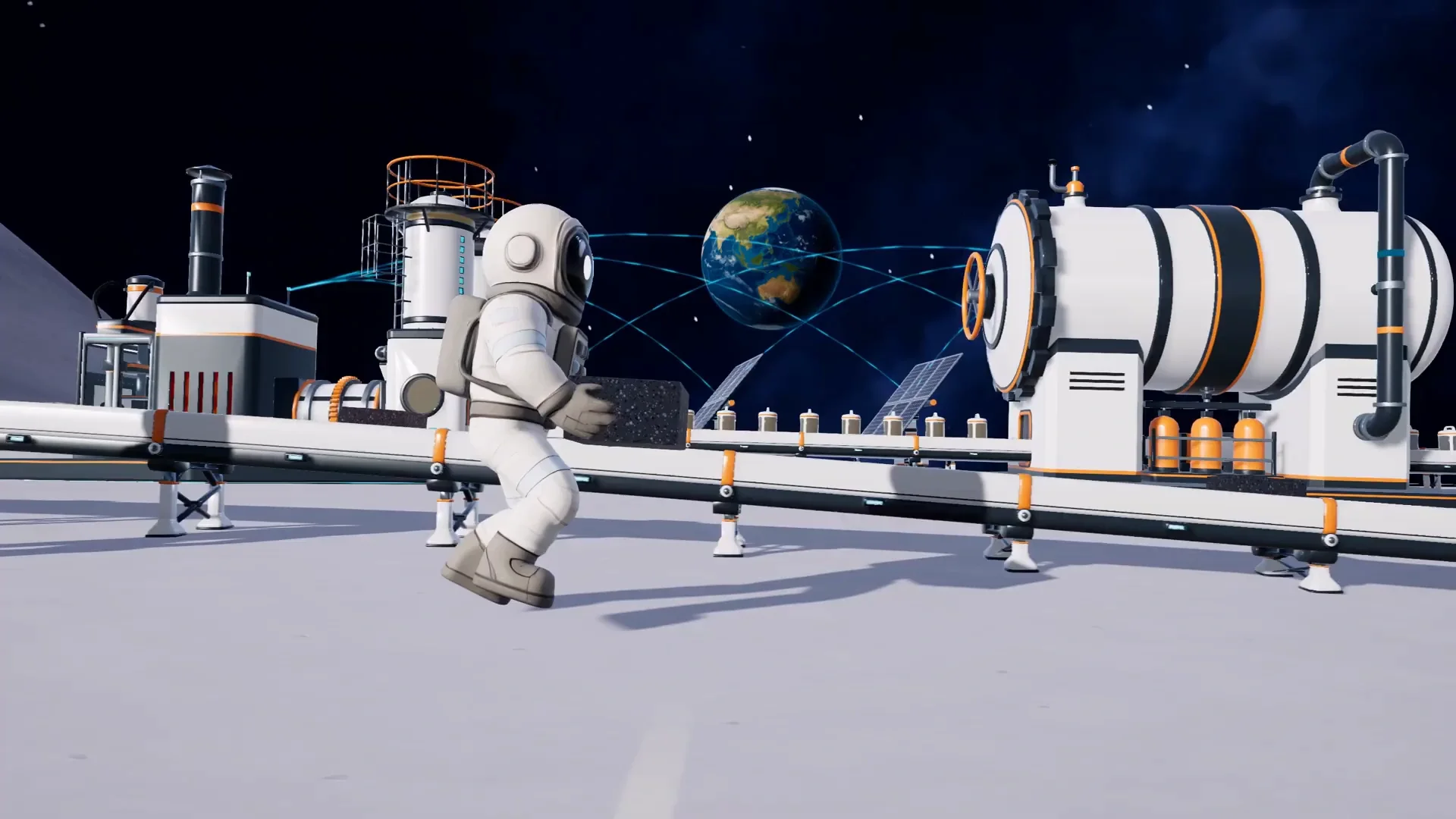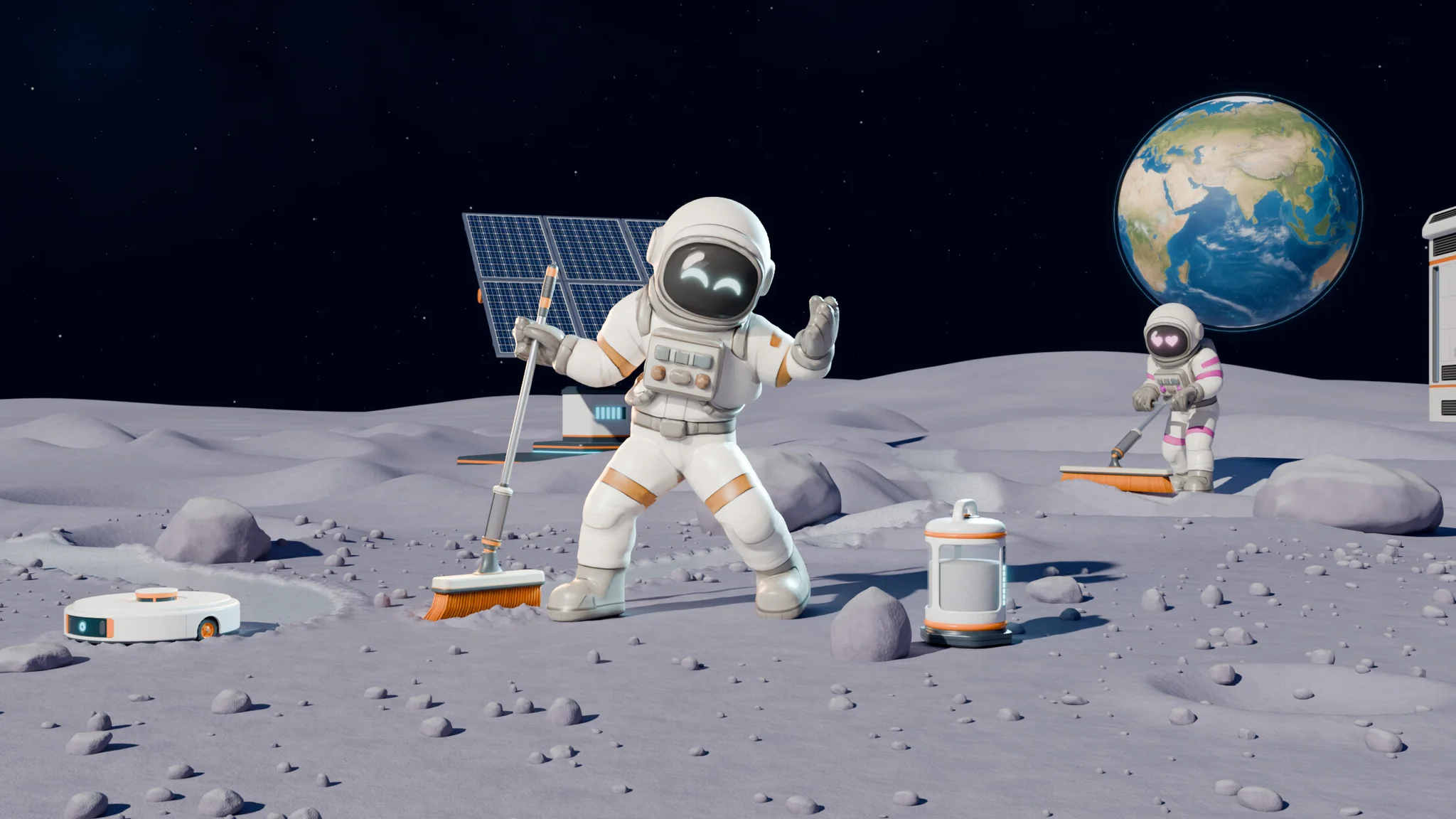

Start your Moon Sweepers PC setup with Detect for this PC, then try setting Bloom quality to Low. If your graphics card has 4 GB of video memory or less, try Half textures, while preserving enough Object detail to follow capsules and machine parts.
The Low preset changes render resolution, anti-aliasing, and several detail settings together. A Custom configuration gives you more control over those compromises, particularly when distant capsules matter more to you than the glow around a lamp.
Version context: The preset values below apply to Moon Sweepers PC v1.0.4. Display controls reflect the pre-1.0.5 menu, while the stability advice includes patch 1.0.5. Updates can change these settings and their behavior.
What PC hardware does Moon Sweepers need?
Check your hardware before choosing a preset. Both requirement tiers call for a 64-bit processor and operating system, plus a broadband internet connection.
| Component | Minimum | Recommended |
|---|---|---|
| Operating system | Windows 10 | Windows 11 |
| Processor | Intel Core i5-8400 / AMD Ryzen 5 2600 | Intel Core i5-10400 / AMD Ryzen 5 3600 |
| RAM | 8 GB | 16 GB |
| Graphics card | NVIDIA GeForce GTX 1650 / AMD Radeon RX 570 | NVIDIA GeForce GTX 1660 Super / AMD Radeon RX 5600 XT |
| DirectX | Version 11 | Version 12 |
| Available storage | 2 GB | 4 GB |
The recommended hardware tier has no attached resolution, graphics preset, or FPS target. A GTX 1660 Super or RX 5600 XT therefore does not come with a guaranteed 60 FPS result.

How do you establish a useful baseline?
Open Settings > Graphics and select Detect for this PC. Treat its selection as a starting configuration, then compare individual changes in the same view of your base.
- Note the detected settings before adjusting them.
- Change one option at a time.
- Return to a similar view of the same machinery and capsules.
- Use Restore defaults if you want to return to the default configuration.
Changing individual graphics settings switches the preset label to Custom. That is useful: you can retain most of the detected setup without accepting every compromise in Low.
For help choosing brushes and vehicles alongside your PC setup, use the Moon Sweepers beginner strategies guide.
What are the best Moon Sweepers PC settings?
A sensible starting configuration keeps the detected Shadows and Terrain detail values, tries Low Bloom, and adjusts Texture quality around your GPU's video memory. Keep Object detail high enough for the capsules you actually need to watch.
What does each graphics preset change?
In PC v1.0.4, the presets adjust more than effects quality. High uses 100% Render resolution, Medium uses 85%, and Low uses 67%.
| Graphics option | High | Medium | Low |
|---|---|---|---|
| Render resolution | 100% | 85% | 67% |
| Anti-aliasing | SMAA | SMAA | FXAA |
| Texture quality | Full | Full | Half |
| Object detail | High | Medium | Low |
| Shadows | High | Medium | Low |
| Terrain detail | High | Medium | Low |
| Bloom quality | High | Medium | Low |
| Upscaling | FSR 1.0 | FSR 1.0 | FSR 1.0 |
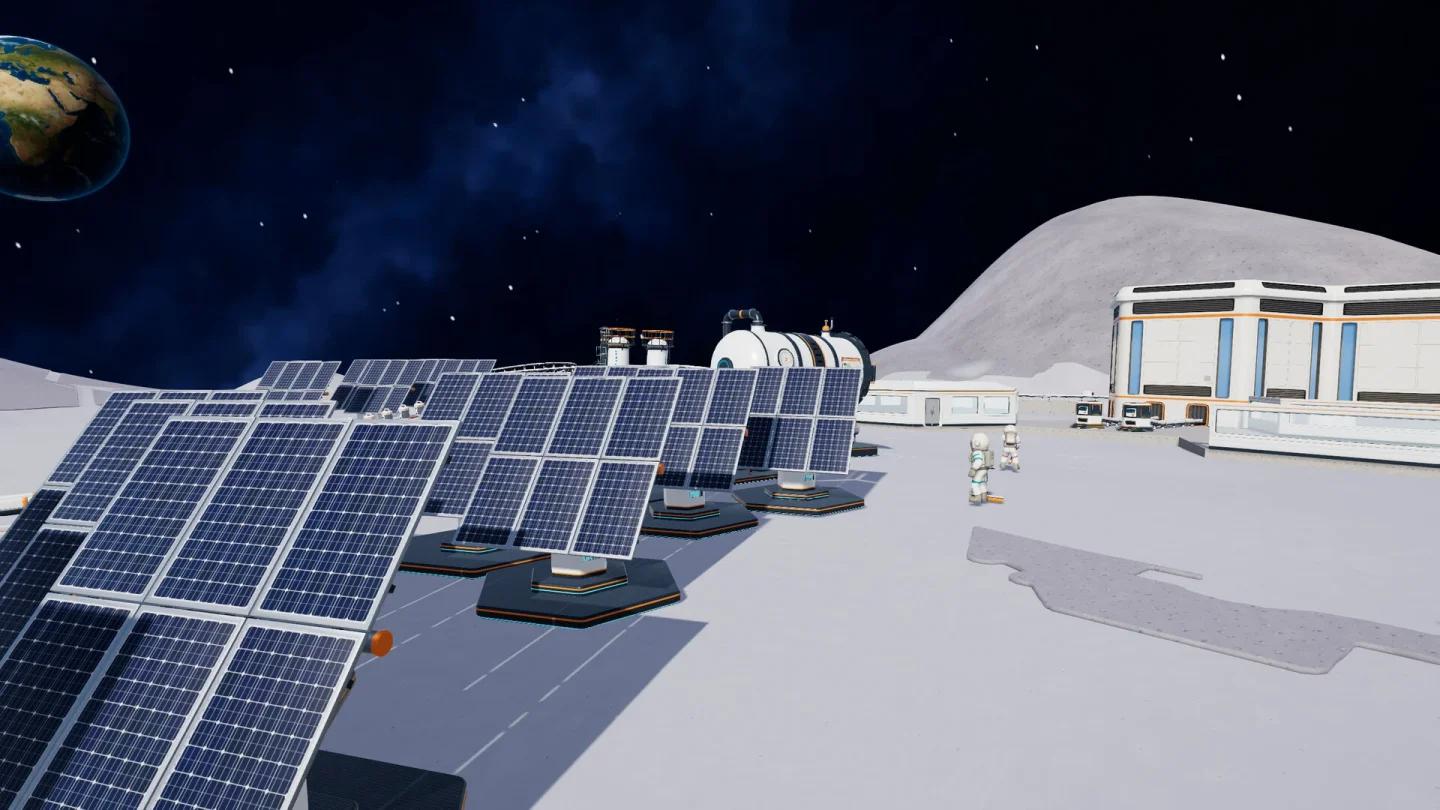
Inspect the full preset trade-off
If Low makes the image less clear than you want, inspect Render resolution and Anti-aliasing alongside the detail settings. You may prefer a Custom setup that preserves particular details while reducing Bloom or Texture quality.
The Render resolution percentages belong to the game's graphics settings. They are separate from the output Resolution option in the Display tab.
Which settings should you lower first?
Bloom quality is a reasonable first adjustment if you can accept less glow around lamps and bright lights. Its tooltip explicitly connects lower quality with lower graphics-card cost. That makes Low worth trying, without promising a particular FPS increase.
Texture quality deserves attention on graphics cards with 4 GB of video memory or less. Try Half on those cards because lower texture quality uses less video memory. Best for: setups where video-memory capacity is the relevant constraint.
Keep Shadows and Terrain detail at their detected values during that first comparison. Changing several unrelated settings together makes it harder to tell which compromise helped.
Which upscaling option should you choose?
FSR 1.0 is the starting choice across all three v1.0.4 presets. The Upscaling tooltip describes the alternatives this way:
| Upscaling option | In-game description | When to consider it |
|---|---|---|
| FSR 1.0 | Keeps the image sharp | Start here to match the presets |
| STP | Smoother presentation with edge smoothing, intended for faster cards | Compare it if that presentation suits your setup |
| Bilinear | The simplest option | Consider it when you want the simplest reconstruction choice |
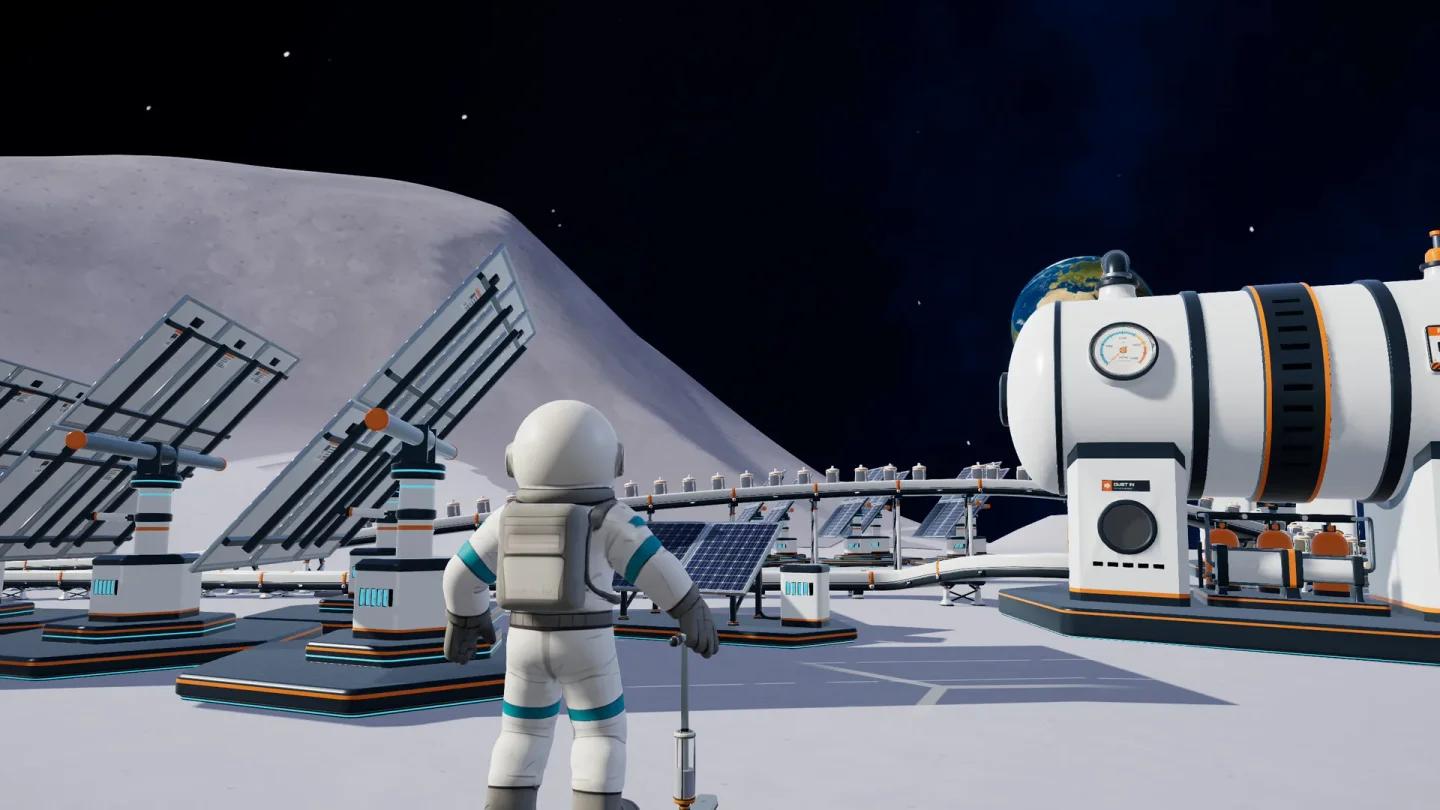
Review the upscaling choices
Treat these descriptions as guidance about presentation, rather than an FPS ranking. Compare Upscaling separately from Render resolution so you know which change you are judging.
How do you keep capsules and machinery visible?
Object detail needs more care than a blanket Low recommendation. It controls when machines, vehicles, and robots switch to simpler shapes, as well as how far their small parts and capsules remain drawn.
Stand where you normally look across your base before changing Object detail. If capsules become difficult to follow at that distance, raise the setting until the view is useful again. Best for: players watching production across a spread-out base.
Object detail describes rendering behavior, including simpler models and drawing distance. It does not establish that lowering the setting stops the underlying machinery from being simulated.
If the machinery itself needs reorganizing, the factory layout and automation guide covers that side of the setup. For graphics tuning, keep using a familiar viewing position so a different arrangement does not muddy the comparison.
Which Display settings should you adjust?
The separate Display tab contains Window mode, Resolution, VSync, Frame rate limit, Limit FPS in the background, Field of view, and Motion blur. Use Apply display to apply changes made there.
Why is Frame rate limit greyed out?
With VSync set to On, the Frame rate limit row is dimmed in the pre-1.0.5 menu. Switching VSync to Off makes that control available, including the Unlimited option.
Turn VSync Off if you specifically want access to the frame limiter, then choose among the options in your installed build. Off and Unlimited are not a universal performance profile, and an increased FPS counter alone does not establish better input responsiveness.
What should you do with Field of view and Motion blur?
Review Field of view and Motion blur separately from your graphics-preset comparison. Both are available in Display, but there is no supported universal value to prescribe here.
Keep the rest of the configuration unchanged while deciding which presentation you prefer. Finish with Apply display, rather than mixing those changes into a simultaneous adjustment of textures, shadows, and render resolution.
How should you investigate big-base stutters?
Check your patch version before repeatedly lowering graphics quality. Patch 1.0.5 reduces garbage-collection stutters in large bases and fixes memory leaks associated with leaving a world or removing structures.
That patch also identifies a separate recurring freeze roughly half a minute after loading some worlds, affecting both DirectX 11 and DirectX 12. If your session stops at that point, treat it as a stability problem rather than another reason to reduce Object detail.
For a graphics comparison, return to the same base and a similar view, then change one option. Comparing a quiet area with a much busier factory makes it harder to separate the setting's effect from the scene itself.
Common mistakes
- Dropping straight to Low without checking its other changes. It also selects 67% Render resolution, FXAA, and Half textures in v1.0.4.
- Cutting Object detail until capsules become hard to track. The setting affects the drawing distance of small parts and capsules, not just machine shapes.
- Lowering textures regardless of memory capacity. Half textures address video-memory use; an FPS improvement is not guaranteed when your card already has enough capacity.
- Treating a frozen session as ordinary low FPS. Patch 1.0.5 distinguishes big-base stutters from the recurring post-load freeze.
Pro tips
Keep the comparison useful
Use a familiar base view and keep track of which single setting changed. That is more useful than switching several options and guessing whether Bloom, textures, or Render resolution made the difference.
Separate picture quality from the preset name
A Custom configuration can retain Full textures or a preferred Object detail setting while reducing another option. Use the actual values to judge your setup, rather than treating High, Medium, and Low as complete answers.
Frequently asked questions
Does the recommended hardware guarantee 60 FPS?
No. The recommended tier includes 16 GB RAM and a GTX 1660 Super or RX 5600 XT, but it specifies no FPS target, output resolution, or graphics preset.
Should you use Half textures with 4 GB of video memory?
Half is a sensible starting point. The game's Texture quality guidance points cards with 4 GB or less toward a lower setting because it uses less video memory.
Does 100% Render resolution with FSR 1.0 prove native rendering?
No. FSR 1.0 remains selected in the v1.0.4 High preset at 100% Render resolution. Those menu values alone do not establish a native internal-rendering path.
Why does changing one option make the preset say Custom?
Custom indicates that you have adjusted individual graphics values rather than retaining an unchanged preset. It lets you keep useful details while making targeted compromises elsewhere.
For your next factory or equipment decision, browse the Moon Sweepers guide collection and pick the system you want to work on next.