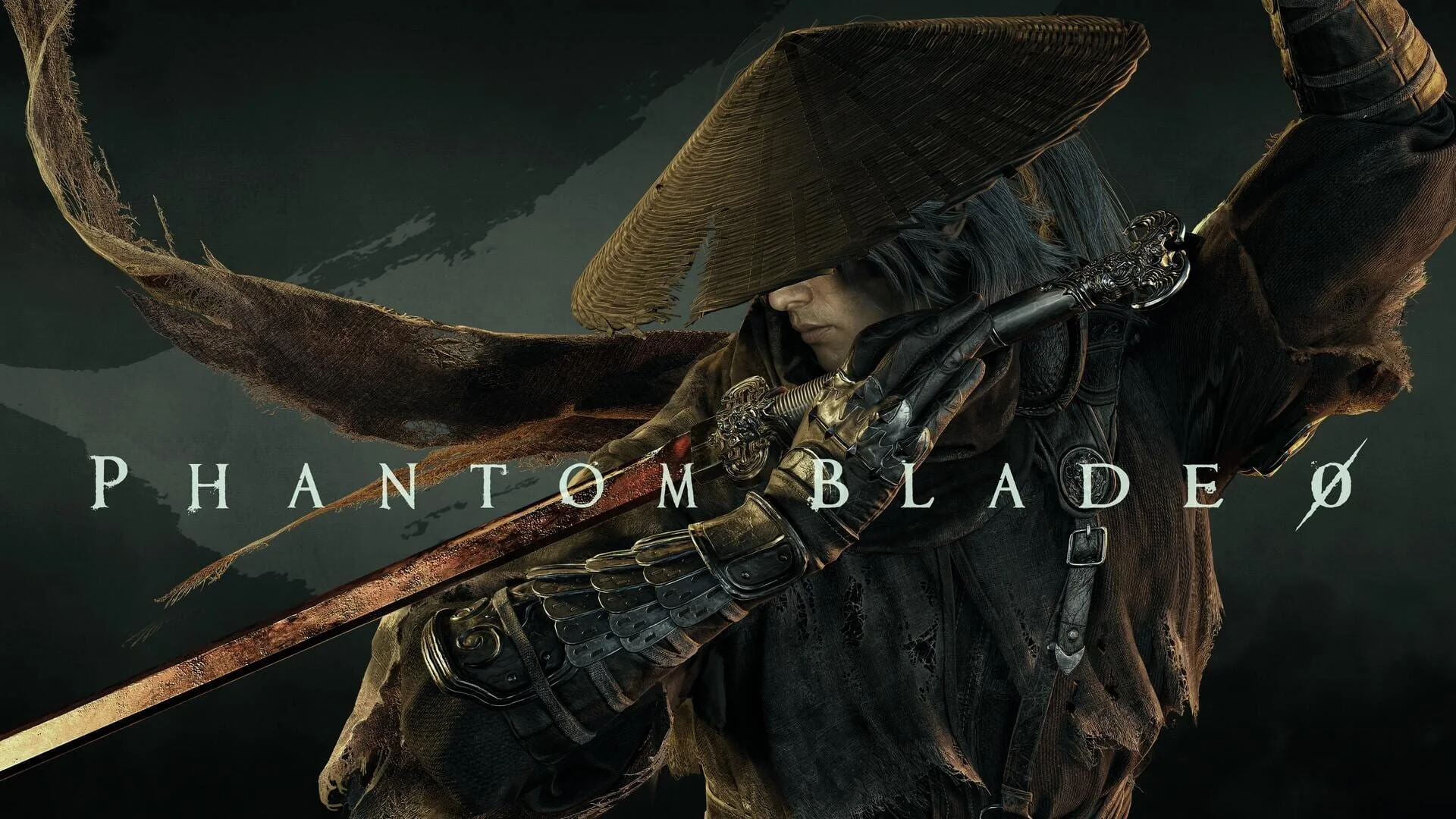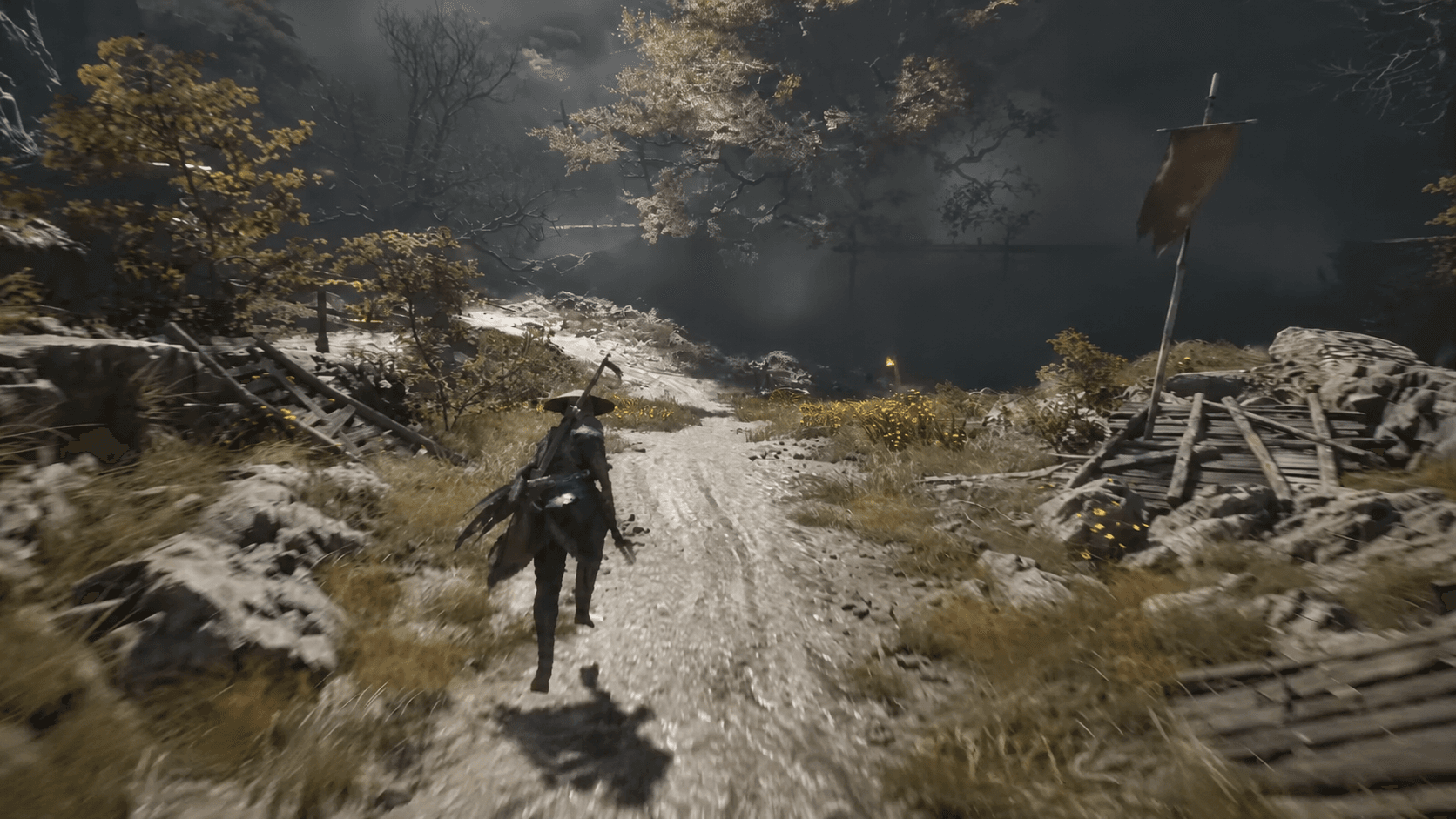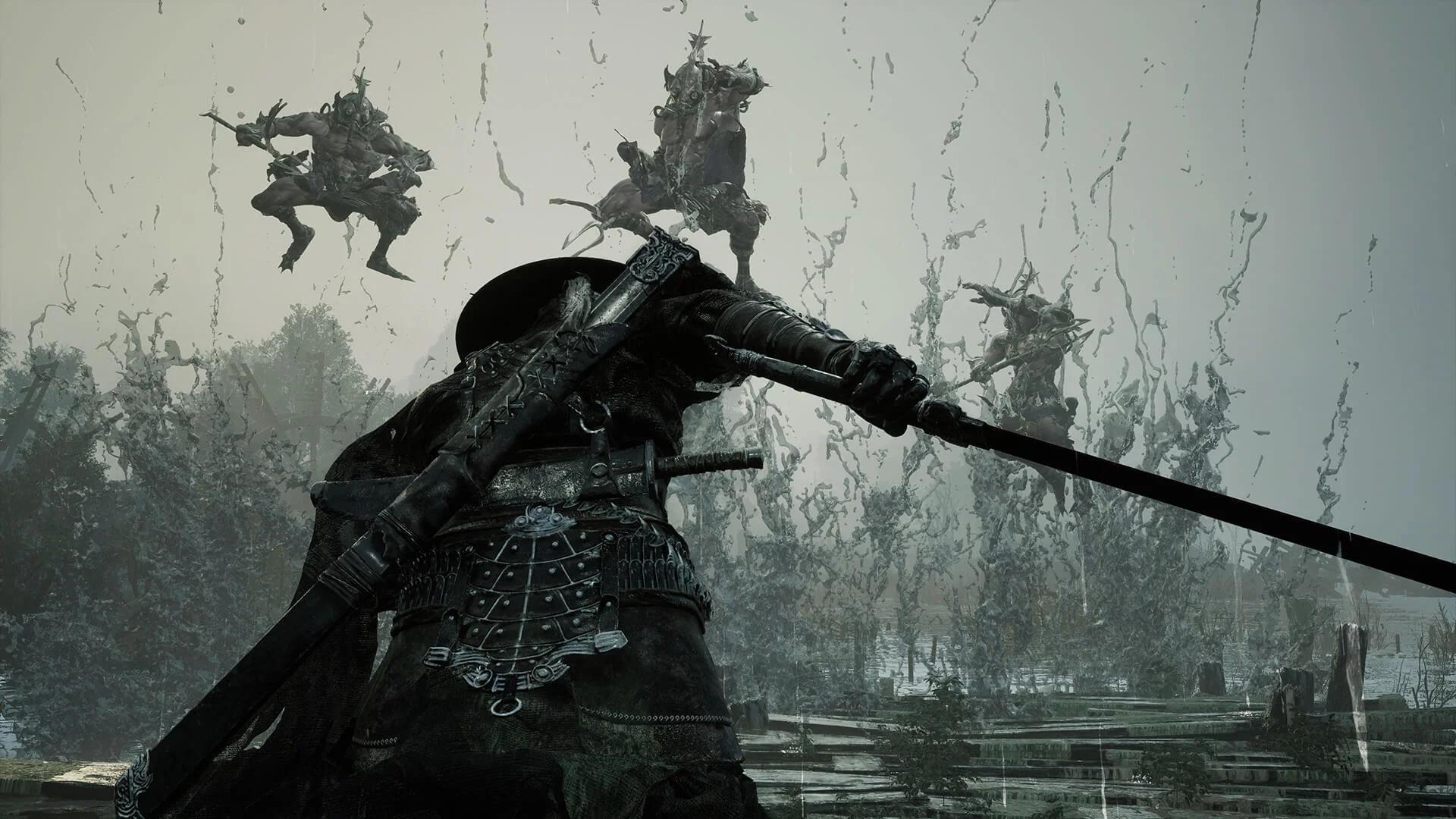

Start your Phantom Blade Zero PC troubleshooting by finishing the day-one patch and checking your graphics driver. S-GAME recommends NVIDIA 617.42 with a clean installation after finding instability on 621.01. SteamAPI and Denuvo startup errors still have no confirmed game-specific fix.
If the game closes after the logo, pauses on Compiling Shaders, or hitches during fights, those symptoms need different checks. Work through the matching section below instead of reinstalling everything at once. You can investigate the problem without disabling Windows security features or changing several settings together.
Version scope: Steam Windows launch build with the approximately 5 GB day-one patch. NVIDIA guidance reflects S-GAME's October 28, 2026 announcement. Later patches and drivers may change these recommendations.
Are your system requirements and game updates covered?

Check hardware and installation space
Before troubleshooting Phantom Blade Zero crashes, compare your PC with these launch requirements. An SSD is required, including at the minimum specification.
| Component or storage check | Launch requirement or guidance |
|---|---|
| Memory | 16 GB RAM |
| Graphics API | DirectX 12 GPU |
| Minimum NVIDIA GPU | GeForce GTX 1660 6 GB |
| Minimum AMD GPU | Radeon RX 5500 XT 8 GB |
| Installation drive | SSD required |
| Installed size | About 145 GB |
| Free space requested for pre-loading | At least 300 GB |
The 145 GB installation size and 300 GB pre-load space request describe different storage needs. If Steam is struggling to unpack a pre-load, check free space on the drive containing that Steam library, rather than checking only your Windows drive.
For a broader hardware comparison, check the Phantom Blade Zero PC system requirements before spending time on graphics tweaks.
Check the PC hardware baseline
Finish the day-one patch
S-GAME's day-one patch is approximately 5 GB and includes ray tracing and path tracing performance improvements, plus bug fixes. Pre-loaded copies need that update before launch; downloads of the released game already include it.
Steam unpacking is separate from downloading the patch. Slow unpacking and repeat downloads of roughly 130–140 GB have been reported, but S-GAME has not explained the repeat downloads or announced a specific fix.
If unpacking appears stalled, first check the 300 GB pre-load space guidance and give Steam time to work. Restarting Steam and verifying files are general troubleshooting options, but neither is a confirmed solution for an installation stuck at 1%.
How do you verify game files and choose a graphics driver?
Verify the Steam installation
Steam's verification tool checks for missing or damaged installation files and repairs them when needed. This is best for ruling out an installation problem before you consider a full re-download.
- Open your Steam Library.
- Right-click Phantom Blade Zero and select Properties.
- Open Installed Files.
- Select Verify integrity of game files.
- Let the check finish, then try launching again.
Verification has not been established as a cure for Phantom Blade Zero's SteamAPI or Denuvo errors. If Steam finishes the check and the same error returns, move to that error's troubleshooting steps rather than repeating verification indefinitely.
Repair missing or damaged files
Use the game-specific NVIDIA guidance
For this launch build, NVIDIA 617.42 takes priority over generic advice to install the newest driver. S-GAME found performance instability on 621.01 and recommends rolling back to 617.42 using a clean installation.
To follow that recommendation:
- Get driver 617.42 from NVIDIA's driver archive.
- Run the installer and choose Custom (Advanced).
- Select Perform a clean installation.
- Complete the installation and confirm the installed version before launching.
Device Manager's Roll Back Driver option returns to a previously installed version, which might not be 617.42. Check the resulting version instead of assuming the rollback selected S-GAME's recommendation.
For AMD and Intel GPUs, compatible driver updates remain a general troubleshooting step. S-GAME has not issued an equivalent game-specific driver recommendation for those cards.
How do you troubleshoot crashes on startup?
Is it a crash or shader compilation?
If Phantom Blade Zero displays Compiling Shaders, a stationary progress bar does not automatically mean the game has crashed. Reported first-launch examples include 15–20 minutes on a Ryzen 7 9800X3D and about 55 minutes on an Intel Core i7-9700K.
The percentage can remain unchanged for several minutes while CPU usage is high. S-GAME has not published an official completion time, and shader compilation may run again after a graphics-driver change.
What if SteamAPI cannot initialize?
The SteamAPI startup error asks you to make sure Steam is running and signed in to an account that owns Phantom Blade Zero. Start with that account check, then try file verification.
There is no confirmed game-specific fix for this error. Restarting Steam, restarting Windows, and verifying files have already failed for some affected players, so none should be presented as a reliable solution.
What if Denuvo says the server is unreachable?
For The Server is not reachable, check your internet connection and try a normal home connection without a VPN or proxy. This is a diagnostic check for the connection error, not a confirmed Denuvo fix.
Country-based outbound firewall rules are another possible factor. Two players with regional restrictions reported launching after easing a block affecting an Ireland-hosted server, but the server details and workaround are unverified.
If you need to review Windows app permissions, open Windows Security, then Firewall & network protection, and select Allow an app through firewall. Check Phantom Blade Zero's entry and the permissions appropriate to your network.
What if the game closes after its logo?
Crashes immediately after the Phantom Blade Zero logo and messages such as current device not supported have no confirmed universal fix. Check the driver version, verify files, restart Windows, and test without overlays before considering more disruptive changes.
Workarounds involving Windows Memory integrity and virtualization-based security have produced mixed results. Disabling those protections lowers Windows security, and hypervisor changes can affect WSL and virtual machines. They are a poor first response to a launch crash, so this guide does not recommend them as routine troubleshooting.
How do you reduce stuttering and frame-time spikes?
Start with ray tracing and path tracing
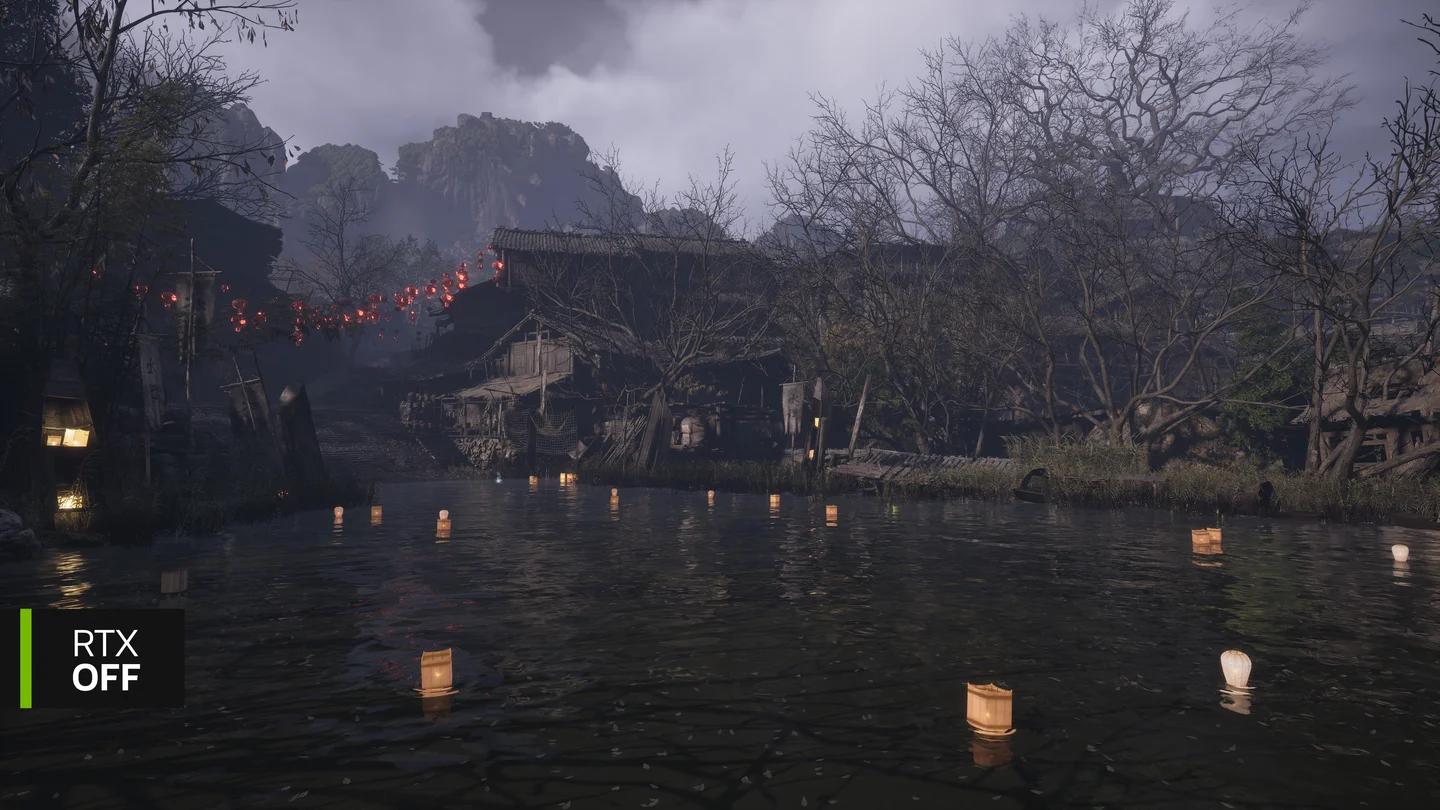
For stutter during fights or movement between areas, turn off path tracing and ray tracing as a diagnostic baseline. Both add substantial rendering cost, and launch-build reports include traversal stutter with tracing enabled.
Change these options from the main menu before resuming play. Install the day-one patch first, since its stated improvements specifically include ray tracing and path tracing performance.
Test tracing before resuming play
A useful comparison is to change one tracing option, return to the area where you noticed the problem, and check whether the hitching changes. Keep a note of the result so the next adjustment builds on something observable.
Check frame generation separately
A high FPS counter does not guarantee smooth motion. Phantom Blade Zero players have reported choppy camera movement despite high displayed frame rates, and no single fix has been confirmed.
Try disabling Frame Generation, then review V-Sync and the frame-rate limit individually. These are diagnostic comparisons for reported motion problems, not established fixes for every frame-time spike.
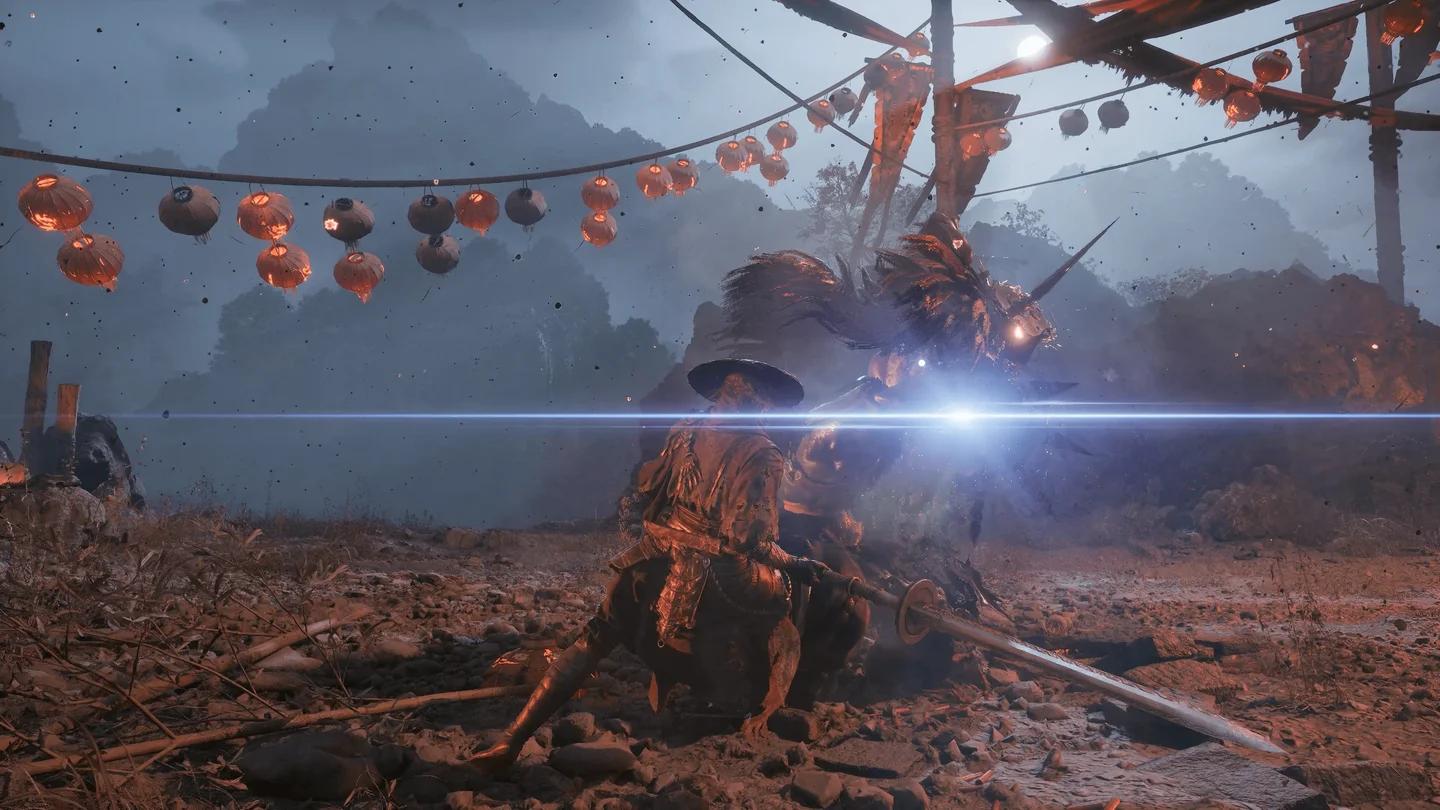
For trails or artifacts during fast camera turns, try Motion Blur off. This has helped in a reported configuration, but it is not a verified universal solution for frame-generation artifacts.
Compare motion with blur disabled
If the main problem is softness rather than hitching, inspect Super Resolution output scale. Raising a reduced scale to 100% may improve clarity at a performance cost; changing the Anti-Aliasing option affects TSR, not DLSS.
Once startup is reliable, use the best Phantom Blade Zero PC settings guide to work on image quality and steadier performance.
Recognize graphics bugs without chasing a false fix
White sky rectangles have been reported on Radeon RX 9070 XT, RX 9070, and RX 9060 XT cards. Older AMD drivers and graphics-setting changes have helped individual players, but there is no verified fix or S-GAME AMD driver recommendation.
Recurring traversal or mid-fight stutter also lacks a universal fix. Completing shaders, using an SSD, following the NVIDIA guidance where applicable, and comparing tracing settings can help isolate the issue without promising that every hitch will disappear.
Which overlays and background applications should you check?
Recording, monitoring, and chat overlays are worth checking when Phantom Blade Zero crashes or black-screens. Closing these tools is general Windows troubleshooting, not a confirmed game-specific fix.
- Close recording and capture tools, then launch again.
- Disable monitoring overlays for a comparison run.
- Check chat overlays separately.
- Note which change, if any, affects the crash or freeze.
Changing the NVIDIA driver, disabling several overlays, and lowering graphics together makes the result harder to interpret. Separate those checks so you can identify which adjustment matters.
What should you include in a bug report?
A useful Phantom Blade Zero bug report distinguishes a startup failure from shader compilation, a graphics artifact, or stutter during play. Include the details that let someone understand your exact configuration and symptom:
- Hardware: CPU, GPU, GPU memory, and system RAM.
- Software: Windows version and exact graphics-driver version, such as 617.42 or 621.01.
- Installation: Steam Windows build, SSD installation, and whether the day-one patch finished installing.
- Failure point: Before the logo, after the logo, during shader compilation, or during a specific gameplay sequence.
- Error text: Copy the SteamAPI, Denuvo, or device-support message exactly.
- Graphics settings: Resolution, upscaler, ray tracing, path tracing, and frame generation.
- Checks completed: File verification, driver changes, overlay checks, and the result of each.
For intermittent Phantom Blade Zero problems, distinguish between “the game closes” and “the picture stops briefly, then continues.” Those descriptions identify different symptoms without guessing at the cause.
Common mistakes
- Installing NVIDIA 621.01 automatically: S-GAME specifically recommends 617.42 for this launch build because of observed instability.
- Force-closing shader compilation too quickly: Progress can pause for minutes, and reported completion times extend beyond 50 minutes on some CPUs.
- Treating 145 GB as the pre-load space requirement: S-GAME requested at least 300 GB free for that process.
- Disabling Windows security as the first fix: Memory integrity workarounds are unconfirmed and carry a security trade-off.
- Calling every hitch a shader problem: Phantom Blade Zero also has reported traversal and combat stutter after the initial compilation.
Pro tips
- Keep the NVIDIA version in your notes. “Updated drivers” is less useful than knowing whether the game was running on 617.42 or 621.01.
- Compare tracing settings before fine-tuning other graphics options. Ray tracing and path tracing are expensive enough to make them useful first checks for performance problems.
- Back up Steam saves before uninstalling. Phantom Blade Zero's Steam Windows saves are inside its installation directory, so copy the numbered account save folder somewhere outside that directory first.
- Record unsuccessful checks too. Knowing that Steam verification or an overlay change made no difference keeps your next troubleshooting attempt focused.
Frequently asked questions
Does Phantom Blade Zero require an SSD?
Yes. The Steam minimum and recommended specifications require an SSD. An HDD is not a supported substitute for that requirement.
How long should the first shader compilation take?
S-GAME has not published an official duration. Reported examples include 15–20 minutes on a Ryzen 7 9800X3D and about 55 minutes on an i7-9700K, with progress sometimes holding still for several minutes.
Will verifying files fix SteamAPI or Denuvo errors?
Steam verification can repair missing or damaged installation files, but it is not a confirmed fix for Phantom Blade Zero's SteamAPI initialization or Denuvo server errors.
What should you do if the game still crashes?
Use the bug-report checklist above to document the exact failure, driver version, and checks already completed. For help with other systems once Phantom Blade Zero is running, browse the Phantom Blade Zero guide collection.