
Turn off High-Quality Hair and ray tracing before cutting every graphics setting in Phantom Blade 0. On an 8 GB mid-range GPU, start with the Very High preset, DLSS or FSR Quality, High shadows, and a 100% Super Resolution Output Scale.
Weaker cards need a different starting point: an RTX 3050 6GB reached 58 FPS at 1080p Medium with DLSS Quality, versus 38 FPS at High. Match your preset to your hardware, then check an actual fight before spending performance on prettier lighting.
How do you establish your performance baseline?
Build reference: Phantom Blade Zero's PC launch build, October 29, 2026. The roughly 5 GB day-one update improves ray tracing and path tracing performance. Later updates may change these trade-offs.
Install the launch update before tuning graphics. On NVIDIA hardware, S-GAME recommends driver 617.42 after identifying instability with 621.01, so automatically grabbing the newest driver is not the right launch-day advice here.

Match your resolution to your hardware
S-GAME's four hardware targets below all use upscaling. Treat them as starting targets, then select your preset through combat checks.
| GPU | Resolution and frame rate target | Rendering mode |
|---|---|---|
| GTX 1660 6GB / RX 5500 XT 8GB | 1080p, 30 FPS | Standard rasterized graphics |
| RTX 3060 Ti / RX 6700 XT | 1440p, 60 FPS | Standard rasterized graphics |
| RTX 5060 8GB | 1080p, 60 FPS | Ray tracing |
| RTX 5080 16GB | 2160p, 60 FPS | Path tracing |
The minimum and recommended profiles also require 16 GB RAM, an SSD, and supported Windows 10/11 64-bit hardware. Check the PC requirements and edition details if you still need to compare your system with those profiles.
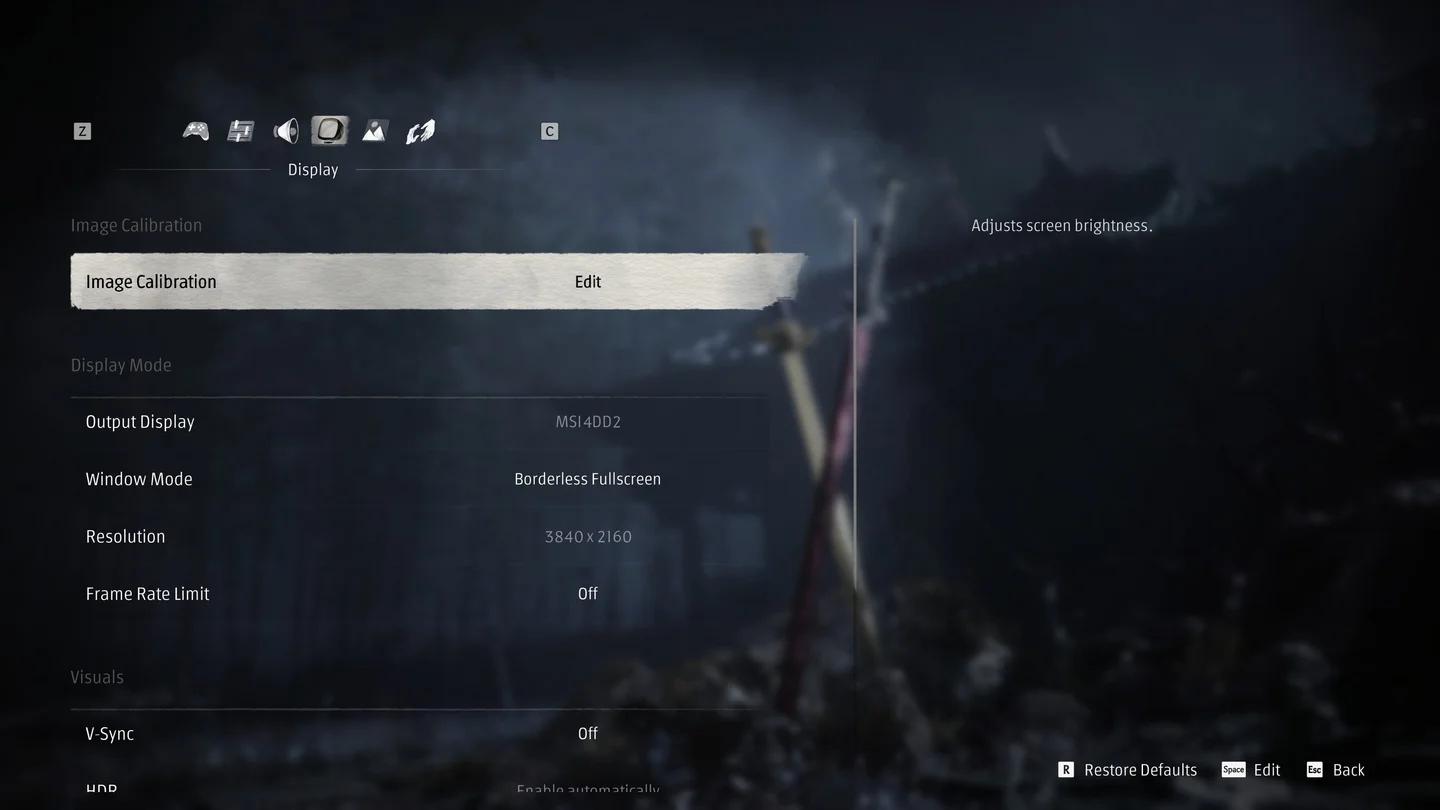
Build a clean display baseline
Set up a clean starting configuration
Before adjusting individual detail settings:
- Set Resolution to your monitor's normal resolution.
- Disable ray tracing, path tracing, and Frame Generation.
- Start at Low or Medium on weaker hardware. Use Very High as a starting point for the 8 GB mid-range profile above.
- Select a supported upscaler. Try Quality first, then Balanced if performance remains too low.
- Set Super Resolution Output Scale to 100%.
This separates your underlying performance from generated frame output. A GTX 1650, for example, reached 57 FPS with FSR 3 Quality at 1080p Low, while adding FSR Frame Generation raised displayed output to 89 FPS.
Which graphics settings have the biggest FPS impact?
High-Quality Hair, shadows, and advanced lighting deserve your attention before texture quality. Launch-build comparisons on an RTX 3060 Ti paired with a Ryzen 7 5700X3D at 1440p show why.
The comparisons below use separate settings configurations. The ray-tracing figures specifically use Ultra with DLSS Quality.
| Setting | Recommended starting point | Launch-build comparison |
|---|---|---|
| High-Quality Hair | Off | 91 FPS off versus 64 FPS on |
| Shadow Quality | High | High: 61 FPS; Very High: 56 FPS; Ultra: 48 FPS |
| Ray Tracing Quality | Off on an 8 GB card | Off: 76 FPS; ray tracing: 68 FPS; path tracing: 55 FPS |
| Character and Environment Texture Quality | Very High initially | Very High used 6,202 MB VRAM; Ultra used 6,359 MB with DLSS Quality |
Why keep shadows at High?
On that RTX 3060 Ti comparison, Low and Medium shadows both ran at 60 FPS, while High reached 61 FPS. Dropping below High removed much of the scene's shadow detail without improving performance in that run.
What should weaker PCs reduce next?
For a lower-end fallback, reduce Reflection Quality, Lighting Quality, Effects Quality, and Environment Detail Quality to Low. A lighter custom configuration can keep Post-Processing Quality, Ambient Occlusion Quality, Depth of Field Quality, and View Distance at Medium, with Hair Off and Motion Blur Quality Low.
Best for: PCs struggling with the Medium or High presets. These are supported custom-setting starting points, not a guaranteed frame rate for every minimum-spec system.
The RTX 3050 6GB comparison makes preset choice particularly important: Medium delivered 58 FPS with a 42 FPS 1% low, while High dropped to 38 FPS with a 25 FPS 1% low at 1080p DLSS Quality. That is a better reason to use Medium than chasing a preset label.
Which upscaling options preserve image quality?
The PC launch menu includes DLSS, FSR, XeSS, and TSR under Super Resolution Method. Controls change with the selected method: FSR exposes a sharpness slider, while DLSS includes Quality, Balanced, Performance, Ultra Performance, and DLAA.
Choose your upscaler before lowering output scale
| Control | What it changes | Recommended use |
|---|---|---|
| DLSS Quality / FSR Quality | Upscaling quality | Starting point when you need more FPS without immediately choosing aggressive scaling |
| DLSS Balanced / FSR Balanced | A lower quality upscaling mode | Next option when Quality falls short of your performance target |
| DLAA | Renders at native resolution | For image quality when you have performance headroom |
| Super Resolution Output Scale | Output image percentage | Set to 100% for a consistent baseline |
| Dynamic Resolution Quality | Adjusts upscaler quality below a base-frame-rate target | Optional 30 FPS or 60 FPS target after establishing your baseline |
On an RTX 3060 Ti at 1440p with DLSS Quality, Auto selected a 90% output scale, producing 2304 × 1296 rather than 2560 × 1440. Set this control explicitly instead of letting an automatic choice soften the image unnoticed.
Should you enable dynamic resolution?
Dynamic Resolution Quality offers Off, Target Frame Rate: 30, and Target Frame Rate: 60. It lowers upscaler quality when performance before Frame Generation falls below the selected target, so it trades image consistency for help maintaining that target.
Keep it off while comparing individual settings. Consider enabling it afterward if you prefer automatic scaling during demanding fights. The control is unavailable while Ray Reconstruction is enabled.
How can you make enemy attacks easier to read?
Start with Motion Blur Quality at Low and Post-Processing Quality at Medium. Those launch-menu settings give you a lighter starting point for checking sword swings and enemy movement without assuming separate controls for every visual effect exist.
Avoid sacrificing image clarity through an unnoticed 90% output scale while leaving expensive hair rendering enabled. The RTX 3060 Ti hair comparison gained 27 FPS by switching Hair Off, giving you a specific performance cut to try before reducing output resolution.
Check movement, not a still scene
Test your visibility settings while dodging, parrying, and moving the camera during a fight. A sharp stationary image does little for you if motion makes an incoming attack harder to follow.
Once the picture is readable, use the Sha-Chi, parry, and Ghoststep combat guide to work on the combat systems themselves. Graphics tuning helps you see and respond to attacks; learning those attacks still matters.
How do you test frame rate and frame pacing?
Repeat a demanding fight with the same resolution and settings, then change one control at a time. Check movement, dodges, and parries rather than judging performance while standing still.
A useful comparison includes average FPS and 1% lows, which help expose dips that an average can hide. For example, an optimized RTX 3060 Ti configuration with lower ground clutter and DLSS Balanced averaged 71 FPS with a 54 FPS 1% low, against 46 FPS and a 32 FPS 1% low for Ultra in the same area.
What performance can different GPUs deliver?
These PC launch-build results are reference points for the exact hardware and settings shown. All rows use 1080p unless the resolution column states otherwise; Frame Generation is enabled only where specified.
| GPU and CPU | Resolution | Settings | Average FPS | 1% low |
|---|---|---|---|---|
| GTX 1650 4GB, i5-13600K | 1080p | Low, native | 35 | 26 |
| GTX 1650 4GB, i5-13600K | 1080p | Low, FSR 3 Quality | 57 | 44 |
| RTX 3050 6GB, i5-12400F | 1080p | Medium, DLSS Quality | 58 | 42 |
| RTX 3050 6GB, i5-12400F | 1080p | High, DLSS Quality | 38 | 25 |
| RTX 4060 8GB, Ryzen 7 5800X | 1080p | High, DLSS Quality | 81 | — |
| RTX 4060 8GB, Ryzen 7 5800X | 1080p | High, DLSS Quality, Frame Generation 2x | 120 | — |
| RTX 5070, Ryzen 7 9800X3D | 1440p | Very High, DLSS Quality | 87 | 74 |
| RTX 5070, Ryzen 7 9800X3D | 4K | High, DLSS Quality | 62 | 54 |
When should you enable Frame Generation?
Get your base performance near 60 FPS first, then try Frame Generation. It increases displayed frame output, but input response does not automatically match the higher counter.
RTX 50 cards expose 2x through 6x and Dynamic modes. GTX 16 and RTX 30 cards can use FSR Frame Generation, while the RTX 4060 comparison above used 2x to increase output from 81 to 120 FPS.
Watch the lows as well as the average. In one RTX 5070 comparison at 1440p with path tracing, Frame Generation increased output from 58 to 104 FPS, but the 1% low fell from 49 to 39 FPS.
The launch menu's NVIDIA Reflex control uses Off or Enable automatically. With Frame Generation active, it is locked to Enable automatically. AMD's Low Input Latency option also offers automatic activation, with its description specifying activation when V-Sync is enabled.
Pro tips
- Compare without Frame Generation first. This gives you a clear baseline before generated frames raise the displayed counter.
- Recheck the same fight after each change. A repeatable encounter makes a hair, shadow, or upscaling comparison more useful than unrelated scenes.
- Use a sustainable frame limit. If your configuration consistently holds 60 FPS, try a 60 FPS limit rather than chasing fluctuations above it.
- Raise textures after expensive effects are settled. At 1440p DLSS Quality, the RTX 3060 Ti texture comparison used 6,202 MB at Very High and 6,359 MB at Ultra.
Common mistakes
- Copying the Very High recommendation onto a weaker GPU. The RTX 3050 6GB performed much better at Medium than High in the 1080p comparison.
- Dropping every setting to Low. RTX 3060 Ti shadows showed no gain below High in the separate shadow comparison.
- Combining path tracing with an 8 GB memory budget. At 1440p Ultra with DLSS Quality, path tracing pushed RTX 3060 Ti VRAM usage to 9,008 MB, compared with 7,727 MB with ray tracing off.
- Leaving output scale on Auto without checking it. The 1440p RTX 3060 Ti example selected 90% rather than 100%.
- Treating a generated FPS number as your only performance check. The RTX 5070 path-tracing comparison increased displayed output while its 1% low worsened.
Frequently asked questions
Can a GTX 1650 run Phantom Blade Zero?
Yes, although it sits below the official GTX 1660 minimum. A GTX 1650 4GB paired with an i5-13600K reached 35 FPS at 1080p Low native, 57 FPS with FSR 3 Quality, and 89 FPS with FSR Frame Generation 2x added.
Is Steam Deck performance confirmed?
Steam Deck performance is not confirmed. A ROG Ally X with a Z1 Extreme running SteamOS at 25 W reached 39 to 62 FPS at 1080p with FSR Balanced, Dynamic Resolution targeting 30 FPS, and a custom configuration including Medium shadows and Low reflections.
Should you turn on High-Quality Hair?
Leave it off on a mid-range GPU unless you have spare performance. The RTX 3060 Ti comparison at 1440p dropped from 91 FPS with Hair Off to 64 FPS with it enabled.
What should you prioritize before your first playthrough?
Establish a playable base frame rate, check a demanding fight, and aim for consistent performance before adding Frame Generation or advanced lighting. Once combat feels steady, use the Phantom Blade 0 beginner's guide to choose early weapons and plan upgrades.