
For the best PC settings in Remothered: Red Nun's Legacy, finish shader compilation, use supported native upscaling, and adjust subtitles before changing the picture.
Your GPU and driver determine which upscaler is supported, while generated frames need a separate responsiveness check. Keep a repeatable scene and a record of your starting settings. The goal is to preserve readable dark environments without treating a higher FPS counter as proof that every part of the experience has improved.
PC requirements and performance baselines
The Steam listing and Stormind Games' FAQ give the following hardware requirements. Both configurations require a 64-bit processor and operating system.
| Component | Minimum | Recommended |
|---|---|---|
| Operating system | Windows 11 x64 | Windows 11 x64 |
| Processor | Ryzen 5 3600X or Core i5-11600K | Ryzen 7 5800X or Core i5-12600K |
| Memory | 16 GB RAM | 24 GB RAM |
| Graphics | NVIDIA 2070 Super or AMD 5700 XT | NVIDIA 3080 Ti or AMD RX 6900 XT |
| Available storage | 50 GB | 50 GB |
These hardware tiers are not guaranteed FPS targets. Check your configuration against them, then judge performance at the resolution you actually use. Pay particular attention to the recommended 24 GB RAM requirement when checking your system.

Finish startup shader compilation
Let startup preparation finish
A later hitch still needs its own diagnosis. Completing this preparation does not guarantee stutter-free play, and the warning does not justify deleting shader caches whenever a slowdown occurs.
Display and resolution settings
Match native upscaling to your GPU
On compatible NVIDIA hardware, Stormind Games recommends DLSS Super Resolution through the game's native DLSS 4.5 implementation. Compare the modes offered by your installed build at a fixed output resolution, checking both the picture and performance.
The native AMD feature list names FSR 4.1.1, while the compatibility guidance identifies its machine-learning implementation as FSR 4.1 ML. The implementation you can use depends on your graphics card and driver.
| GPU or configuration | Native FSR implementation | Setup decision |
|---|---|---|
| Radeon RX 9000 or RX 7000 with Adrenalin 26.6.2 or later | FSR 4.1 ML | Use this supported configuration when choosing the ML implementation |
| Radeon RX 6000 with Adrenalin 26.10.1 or later | FSR 4.1 availability is listed, but is untested and not officially supported | Do not treat availability as a supported upgrade |
| Other supported AMD cards, or older drivers | Analytical FSR 3.1.5 | Use the supported native implementation for your configuration |
| Supported NVIDIA cards using FSR | Analytical FSR 3.1.5 | Compare it separately from DLSS without changing other settings |
Keep the game's native implementation as your baseline. Driver overrides, OptiScaler, and replacement DLL configurations fall outside Stormind Games' official testing and support.
Intel Arc is not officially supported. Performance, stability, and XeSS functionality are not fully validated; this restriction does not establish that the game cannot launch on Arc.
Keep display behaviour consistent
VRR support includes Adaptive Sync, HDMI VRR, FreeSync, G-Sync, and G-Sync Compatible. Its behaviour depends on your display, GPU, and configuration.
Keep your display configuration and any existing frame limit unchanged while comparing upscaling options. Test a different limit separately so you can identify which adjustment changed the result.
Graphics settings to adjust first
Establish your upscaling baseline before experimenting with Frame Generation or hardware ray tracing. These are separate choices, not requirements for using DLSS Super Resolution.
| Feature you choose to enable | Recommended companion | What to check |
|---|---|---|
| Frame Generation on compatible NVIDIA hardware | NVIDIA Reflex Low Latency | Responsiveness as well as the displayed FPS count |
| Hardware Ray Tracing, where compatible features are available | Ray Reconstruction | Visual quality and stability in the same scene |
Stormind Games recommends Reflex alongside Frame Generation for responsiveness. A generated FPS count does not establish the underlying response rate, so check how camera movement and actions feel during the comparison.
Ray Reconstruction is the recommended companion for hardware ray tracing where supported. This pairing does not make ray tracing compulsory. Compare it as its own configuration after choosing your upscaling setup.
Change one feature or recommended pairing per comparison. Enabling several options together makes it harder to identify the cause of a clearer image, a slowdown, or a responsiveness change.
Brightness and visibility calibration
Make dialogue readable first
Subtitle settings can be adjusted in the options menu. Start there if dialogue is difficult to follow instead of brightening the entire picture to solve a text problem.
Use the subtitle adjustments your installed build presents, then return to dialogue to check the result. Treat text readability and room visibility as separate checks.
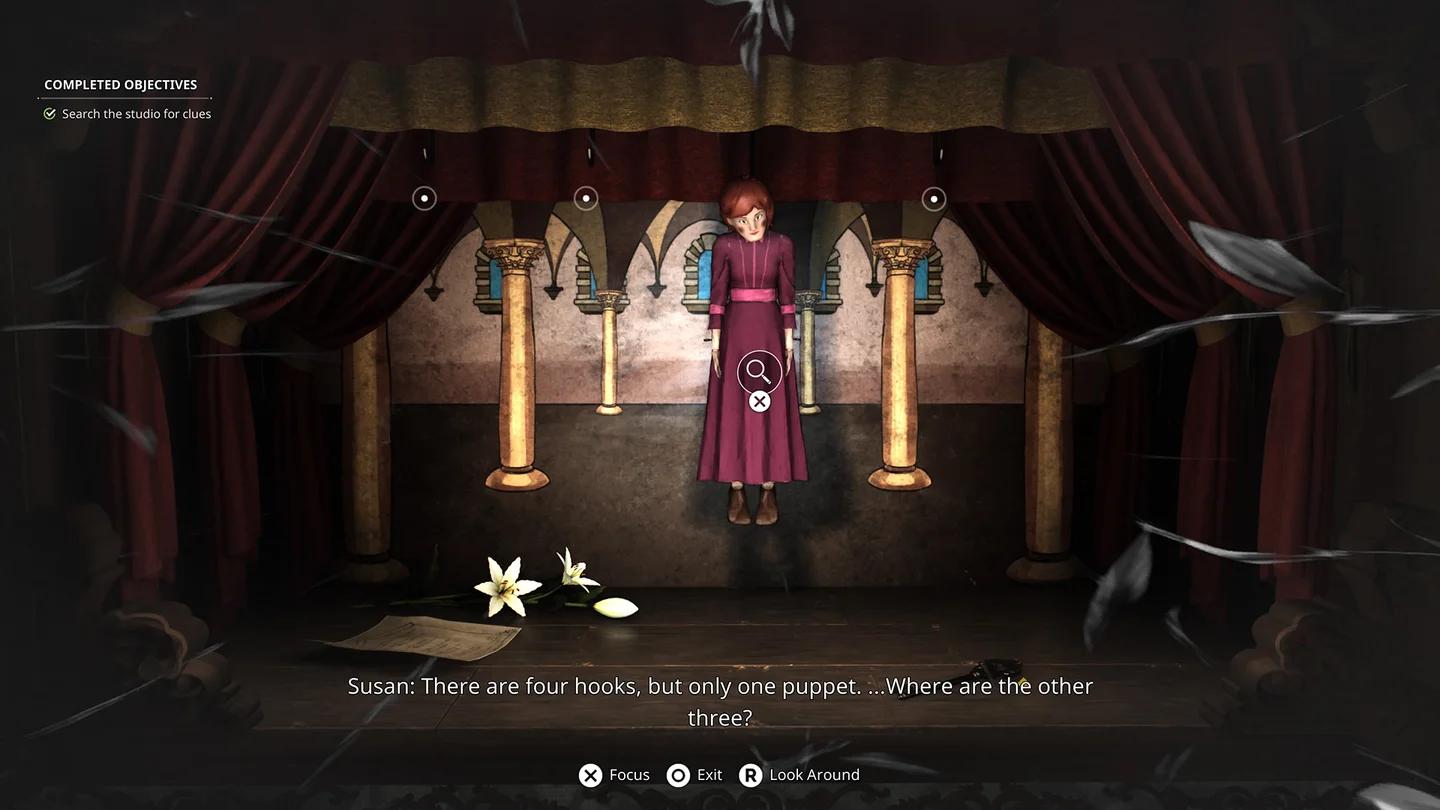
Make dialogue easier to follow
If you can read the interface but still struggle to move safely, the Remothered: Red Nun's Legacy beginner survival tips cover stealth and torch management inside Ashmann Villa.
Choose the appropriate colour-vision mode
The game includes Protanopia, Deuteranopia, and Tritanopia modes. Choose the mode appropriate to your colour-vision needs, then check it in gameplay as well as in the options menu.
Keep your resolution and upscaling selection unchanged during this check. Otherwise, you are comparing a colour-vision adjustment and an image-reconstruction change at the same time.
Use SDR for the launch display setup
HDR was absent at launch. Stormind Games' post-launch announcement schedules HDR support for an upcoming update, with an HDR-capable display required. That announcement is not an HDR calibration preset for the launch version.
Compare visibility in the same dark scene, keeping the viewing position and other settings consistent. If you adjust your monitor's brightness, judge environmental detail separately from subtitle legibility. Avoid using whole-image brightening as a substitute for readable text.
When you move from display checks to supernatural puzzles, the Remothered: Red Nun's Legacy hypnosis powers guide explains Retrocognition, Secrets in Mirrors, and Moth Manipulation.
How to test performance changes
Run a controlled comparison
Use a short stretch of exploration that you can revisit. Keep the scene, output resolution, and display configuration consistent, then follow this sequence:
- Record your starting graphics options and upscaling mode.
- Note whether Frame Generation and hardware ray tracing are enabled.
- Change one supported option or recommended feature pairing.
- Repeat the same route and camera movements.
- Compare image clarity, visible stuttering, responsiveness, and any performance readings.
- Restore the previous configuration if the change does not improve your chosen priority.
Record the GPU and driver version alongside your settings, especially when comparing FSR implementations. A result from an unsupported configuration should not replace your supported baseline without a separate comparison.
Check the picture during movement as well as while standing still. Keep a change only when its performance benefit is worth any loss of detail you can see in the same scene.
Finish a blocked route before comparing it
If the entrance puzzle is blocking your progress, use the Remothered: Red Nun's Legacy front door puzzle guide before returning to a repeatable route for comparisons.
Save a record of the configuration you choose. For persistent problems, send your hardware, driver version, affected settings, and reproduction steps through Remothered's official support form.