
Star Wars Zero Company shipped without Steam Workshop support or an official modding kit. That means every mod lives on Nexus Mods, and the only reliable way to manage them is through the Vortex mod manager. The process is straightforward once you understand the three-piece setup required before any mod will actually load, but skip one step and you'll be staring at an unmodified game wondering what went wrong.
What do you need before installing mods?
Three things have to be in place before a single mod does anything in-game. Getting the order right matters because most gameplay and customization mods depend on a script framework that has to load first.
| Requirement | Purpose |
|---|---|
| Vortex mod manager | Installs, enables, deploys mod files, and launches the modded game |
| Star Wars Zero Company game extension | Lets Vortex recognize and manage the game; downloaded from the Games tab |
| UE4SS for Star Wars Zero Company | Script framework that most gameplay and customization mods require to run |
| Save file backup | Protects your campaign progress if a bad install corrupts your save |
A free Nexus Mods account is enough for everything here. A premium account only speeds up downloads and handles automatic collection installs, so you don't need to pay anything to get started.
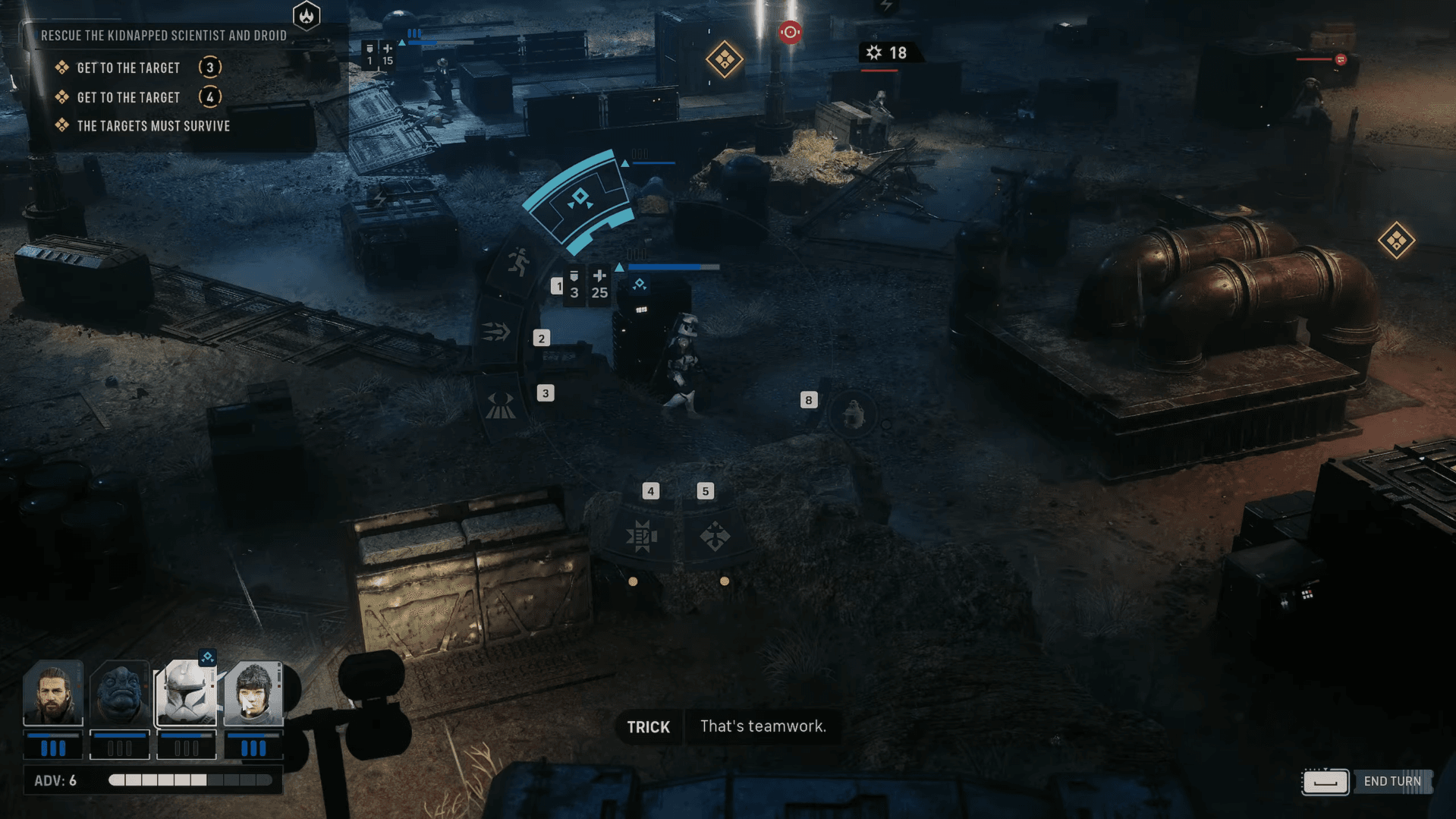
Star Wars Zero Company Guide: How to Install Mods

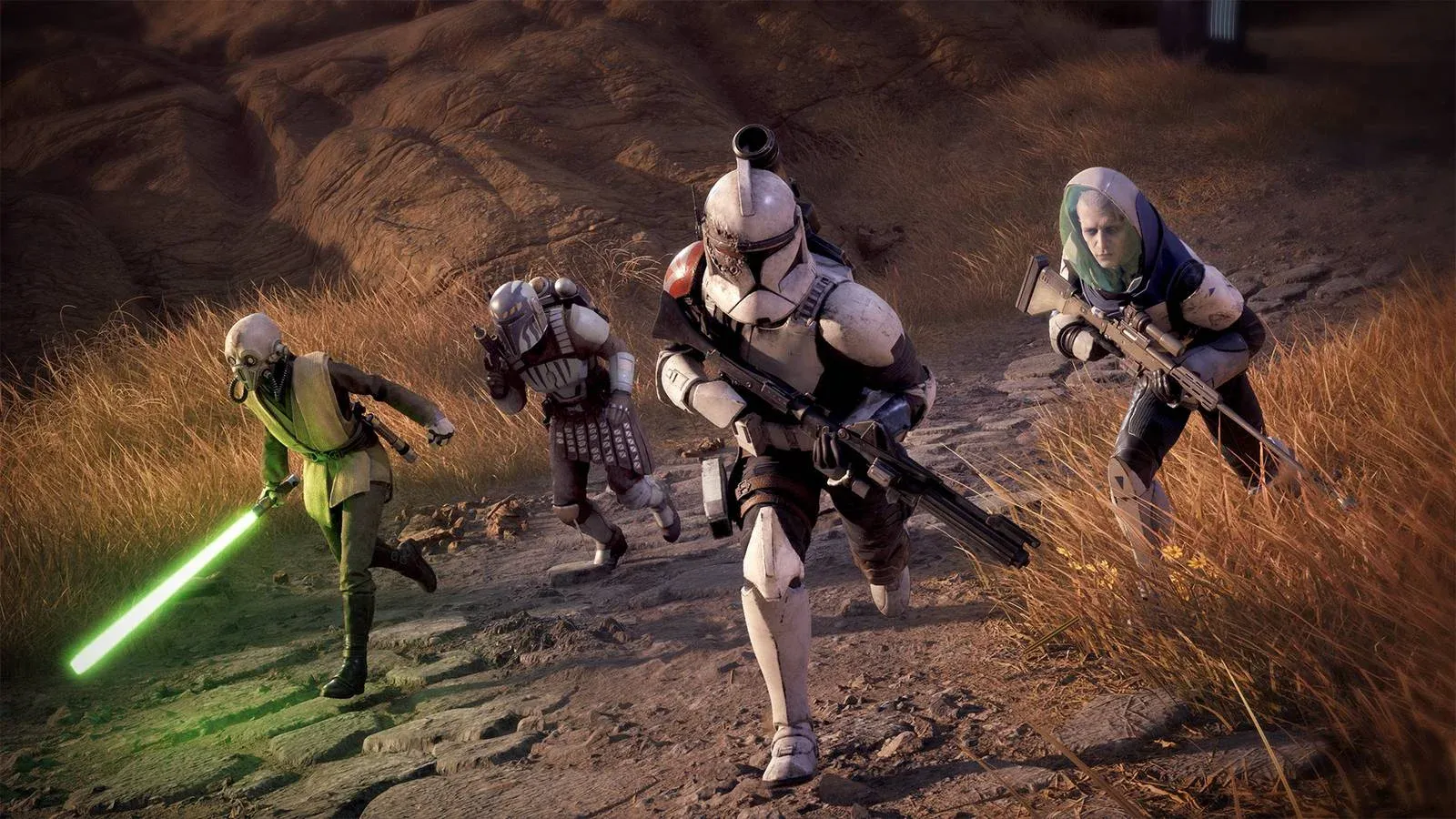
How to set up Vortex for Star Wars Zero Company
Start by downloading and installing Vortex from the Nexus Mods website, then sign in with your Nexus Mods account. Once you're in:
- Open the Games tab inside Vortex.
- Search for Star Wars Zero Company and let Vortex download the game extension when prompted. Restart Vortex if it asks.
- Click Manage on the game tile. Vortex will detect your installed copy and set itself as the active manager, which unlocks the Mods screen and the Play button.
If the game doesn't appear in the search results, the extension hasn't downloaded yet. Restart Vortex and try again before moving on.
How to download and install mods
With Vortex managing the game, head to the Star Wars Zero Company page on Nexus Mods and grab UE4SS for Star Wars Zero Company first. Save the zip file somewhere easy to find, like your Downloads folder. Then grab any other mods you want the same way. Files arrive as zip archives with the mod name and version in the filename.
Back in Vortex:
- Open the Mods screen.
- Click Install from File, select a downloaded zip, and click Open. Vortex unpacks the archive into its own staging folder.
- Repeat for each additional mod.
- Check the Status column for every mod. Each one should read Enabled. If any show only Installed, click to enable them and let Vortex deploy the files.
- Hit the Play button in the bottom-left corner of Vortex to launch the game.
Always launch through Vortex rather than directly through Steam or a desktop shortcut. Launching via Steam bypasses the staging folder, so your deployed mod files won't load.
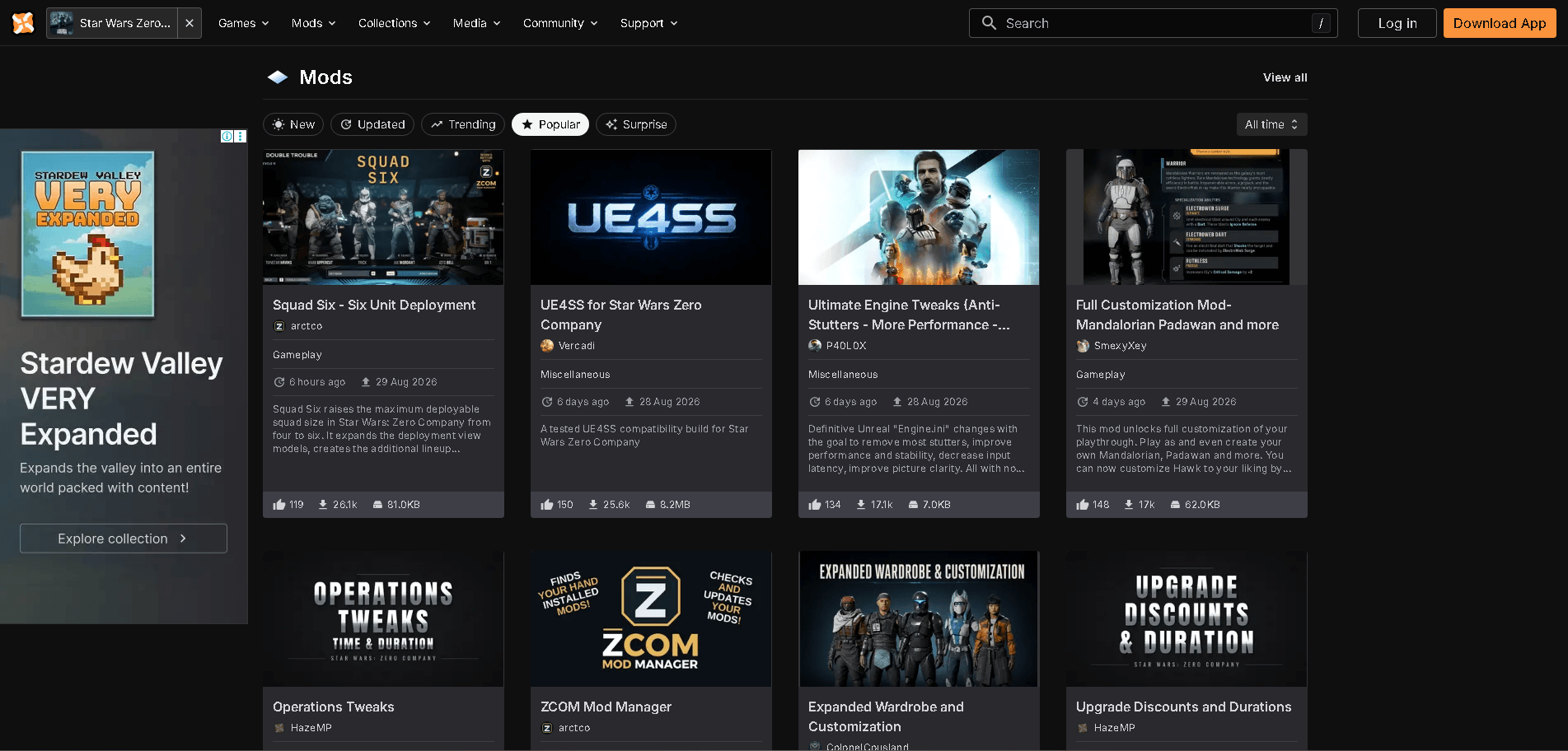
Star Wars Zero Company Guide: How to Install Mods
How do you know the mods actually loaded?
The fastest confirmation is a startup mod. If you installed Skip Bitreactor Startup Intro or Faster Loading, the developer logo sequence and the press-any-key screen should disappear entirely and you'll land in the main menu noticeably faster than usual.
For everything else, check the specific thing each mod changes. A camera mod should respond to the mouse wheel with smooth zoom the first time you enter a mission. A customization mod should show new options the next time you open the appearance editor. If the game looks exactly the same as before, the files were not deployed correctly.
Which mods are worth installing first?
The current Nexus Mods catalog for Zero Company leans heavily toward quality-of-life improvements rather than sweeping overhauls. That makes it a low-risk starting point.
| Mod | What it does |
|---|---|
| UE4SS for Star Wars Zero Company | Script framework; install this before anything else |
| Faster Loading | Skips the intro, shader precaching, press-any-key prompt, and the eight-second cockpit animation |
| Skip Bitreactor Startup Intro | Removes the Bit Reactor logo sequence for faster startup |
| Better Camera | Adds gradual mouse-wheel zoom with wider limits and keeps zoom consistent across camera stances |
| Full Customization Mod (Mandalorian Padawan and more) | Expands character appearance options available to your squad |
Because Zero Company is single-player only, there's no anti-cheat system or multiplayer ban risk attached to any of this. The real danger is a corrupted save, so keep a backup before stacking mods on top of a long campaign.
Troubleshooting: why mods stop working
| Problem | Fix |
|---|---|
| Game doesn't appear in Vortex | Install the Zero Company extension from the Games tab, then restart Vortex |
| Mod installed but nothing changes in-game | Set the mod to Enabled and redeploy, then relaunch from the Vortex Play button |
| Script or gameplay mod does nothing | Install UE4SS first; most mods won't run without it |
| Everything breaks after a game patch | Disable affected mods and wait for updated versions from the mod authors |
If you're still having trouble getting the game to run smoothly after modding, the best PC settings guide for Star Wars Zero Company covers frame drops, crashes, and stutters across different hardware tiers, which can sometimes interact with mod performance.
For more on Zero Company, the full Star Wars Zero Company strategy guides collection has everything from class rankings to trophy hunting covered.