
To accept a Deadlock invite, open your Steam playtest invitation, select Accept Invite, and install the game from your library.
Deadlock remains invite-only, with access sent by existing playtesters on your Steam friends list. You do not need a separate Deadlock account, an access code, or a signup form. If your friend has submitted an invitation but you cannot see it yet, check Steam’s playtest invitation screen before assuming something went wrong. An email notification is helpful, but you can accept access without finding that message.
How to accept your Deadlock invite in Steam

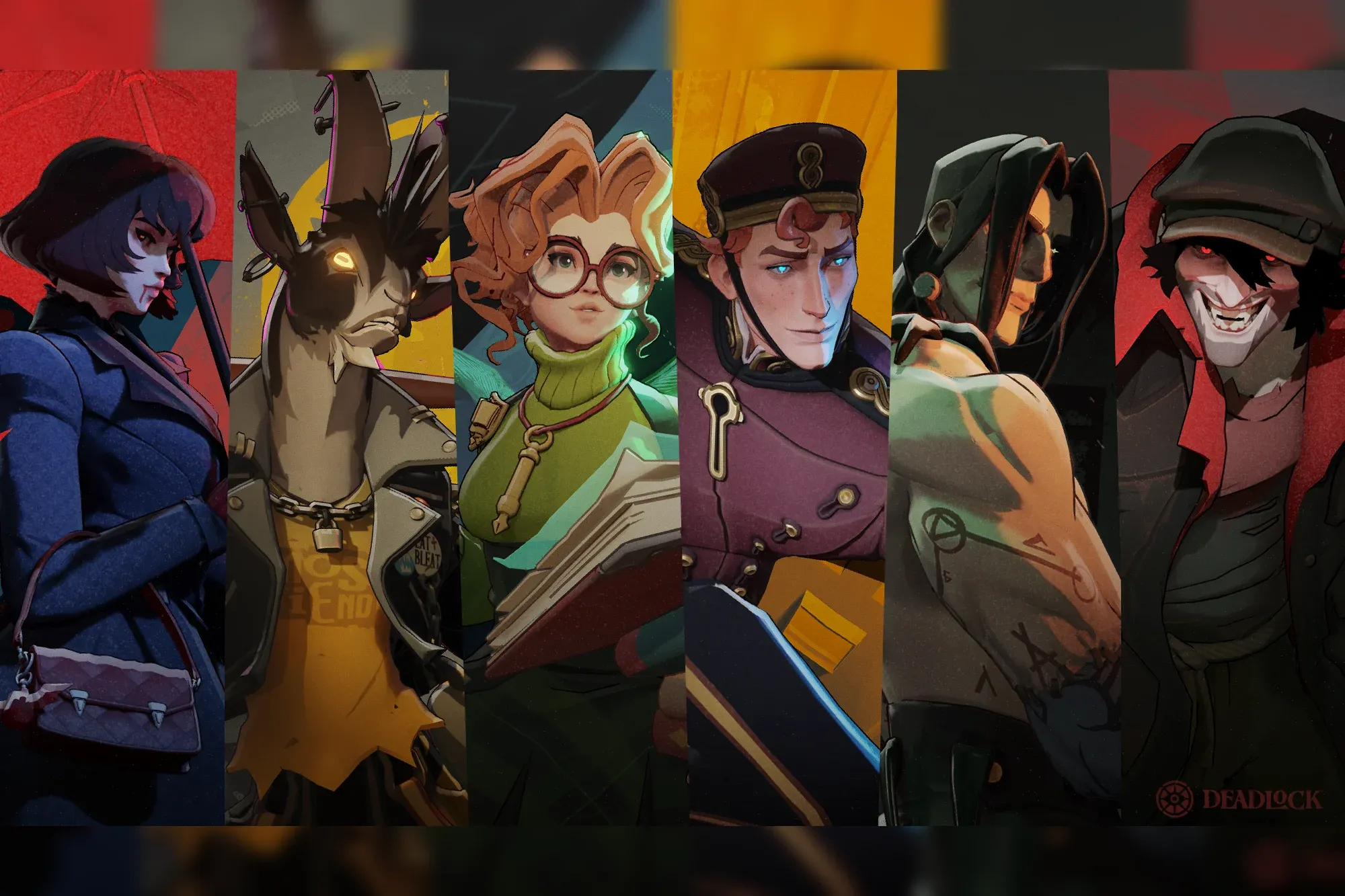
Open the invitation from your notification
If Steam has notified you that your invitation is ready, follow these steps:
- Open Steam and sign in to the account your friend invited.
- Open the Deadlock invitation notification.
- Select View Invite to open the invitation.
- Check that the invitation is for Deadlock, then select Accept Invite.
The notification opens the acceptance screen. Your friend clicking the invite button does not complete this step for you.
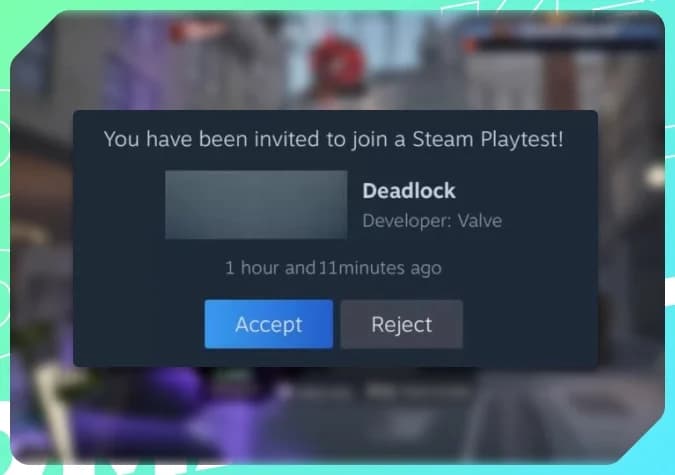
Open your playtest invitation
Find the invite without a notification
You can also reach pending invitations through your Steam account settings. Use this route if you dismissed the alert or never noticed one:
- Open Steam in the client or your browser.
- Select your account avatar in the top-right corner.
- Open Account Details, then select Playtests.
- Find Deadlock under Steam Playtest Invites.
- Select Accept Invite beside its invitation.
The Playtest Invites screen is the most useful place to check access. It can display an invitation even when an email or client alert has been missed. If Deadlock is absent, move to the troubleshooting section below.
Accept access inside Steam
Install Deadlock from your library
Accepting the invitation automatically adds Deadlock to your Steam library. Open Library, select Deadlock, and choose Install. Once the download finishes, launch it with Play.
The playtest is free to download and play. Official support is for Windows through Steam, so accepting access does not make the game installable on every device that can run the Steam client.
What to do if your Deadlock invite is missing
Allow time for the invitation to arrive
Deadlock invitations typically take one to two days to arrive, and some take longer. That is a typical processing window, not a guaranteed deadline. If your friend submitted the request recently, allow a few days before treating the delay as an error.
Check the inbox and spam or junk folders for the email address attached to your Steam account. A missing email alone does not establish that the request failed.
If an invitation is still absent from Steam, ask the sender to check your status in Deadlock. Their invite menu provides a more useful next step than repeatedly submitting requests.
Ask the sender to check your status
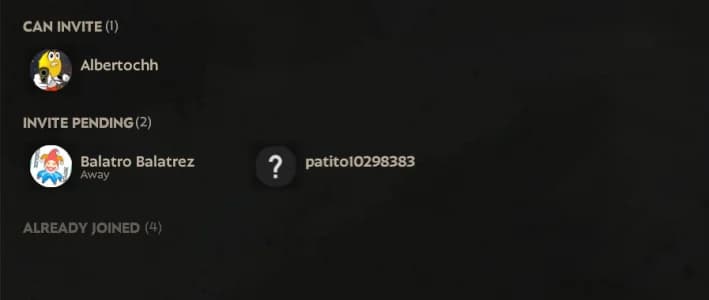
Your friend can open Deadlock and select Invite Your Friends in the bottom-right of the main menu. Ask which label appears beside your account.
| Status | What it means | What to do next |
|---|---|---|
| Can Invite | Your account is listed as eligible for an invitation. | Ask your friend to select your account and click Invite. |
| Invite Pending | An invitation request has already been submitted. | Wait for processing. Repeated invitations do not speed it up. |
| Already Joined | Your account already has Deadlock access. | Search your Steam library for Deadlock. Restart Steam if the game is missing. |
After a successful submission, the sender should see Successfully submitted. That confirms the request was sent, not that it has already reached your acceptance screen.
Check whether the Steam friendship is complete
A pending Steam friend request is not enough. You and the playtester must be Steam friends before they can select your account for an invitation. Accept any outstanding friend request, then have them check the invite menu again.
Limited Steam accounts cannot send friend requests. If that stops you from connecting with the playtester, ask them to send the friend request to you instead. Completing the friendship and receiving Deadlock access are separate steps.
If nobody has submitted an invitation yet, follow the Deadlock Steam access guide to find the appropriate route before troubleshooting delivery.
What to do after installing Deadlock
Start with Learn to Play
Open Learn to Play before queueing for a live match. The tutorial introduces zipline travel, movement, combat controls, abilities, item purchases, and objectives. Follow the Deadlock essential guide for new players when you need help connecting those controls with hero selection and match decisions.
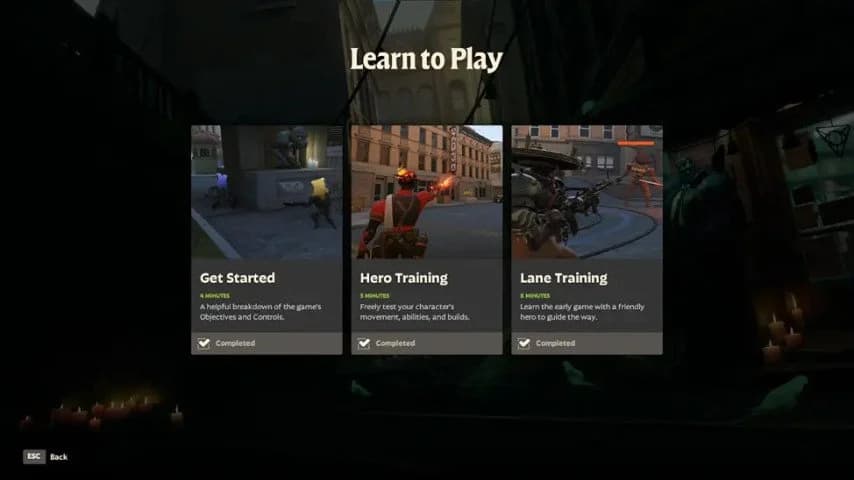
Start with the tutorial
Deadlock combines third-person shooting with lane pushing and an item shop. Your team’s goal is to defeat the enemy Patron, so practice moving between objectives as well as aiming and using abilities.
A four-versus-four Street Brawl match against bots is another practice option. Use it to get comfortable with combat before facing other players.
Try abilities and items in Sandbox Mode
Enter Sandbox Mode when you want to try hero abilities, movement, and items without the pressure of a live match. The Deadlock Sandbox guide explains how to turn that practice into useful build and movement checks.
Pick a hero, try its abilities, and compare item choices before entering a live match.