
If FINAL FANTASY RESONANCE crashes on startup or opens to a black screen, restart your PC and Steam, verify the installation, and check Windows and graphics-driver updates. Test optional overlays individually, and resolve any Steam Cloud warning before playing.
A whole-PC shutdown needs a different response, especially on hardware covered by AMD’s Adrenalin 26.10.1 known issue. The steps below cover the native Windows/Steam version, separating startup failures from uneven performance while keeping your demo progress out of the firing line.
Check updates and known issues
Start with Windows updates and the graphics driver appropriate for your device. Final Fantasy Resonance requires Windows 11 and DirectX 12, so checking compatibility belongs ahead of graphics tweaks.


Does the game close, or does the entire PC shut down?
Watch what remains available after the failure. If Windows and your other applications keep running, you have a game-only exit. If the entire machine powers off, stop treating it as an ordinary desktop crash.
| What happens | First action | Why it matters |
|---|---|---|
| The game closes to the desktop | Restart, then verify the Steam installation | Checks the installed files before more involved troubleshooting |
| A black window appears before the main menu | Record the failure stage, then follow the startup checks | A black screen alone does not identify the cause |
| The entire PC shuts down | Check the hardware-specific AMD notice | System shutdowns need a separate response |
| Steam displays a Cloud warning | Resolve synchronization before playing | Continuing can create conflicting save copies |
| The game runs but has uneven frame rates | Adjust performance settings individually | This lets you compare each change without mixing results |
AMD Software: Adrenalin Edition 26.10.1 lists intermittent Final Fantasy Resonance system shutdowns on Ryzen AI MAX PRO 400 Series processors. That entry supplies no game-specific workaround and applies to that stated hardware and symptom, not every AMD system.
For AMD laptops and all-in-ones, use the manufacturer’s driver guidance. AMD recommends manufacturer-validated drivers and directs users having trouble with its AMD.com package to the OEM driver for full support.
Troubleshoot startup crashes
For a game-only crash or black window, begin with a clean restart of Windows and Steam. Note whether the failure happens before the Square Enix logo, at the logo, or after reaching the main menu. That detail is more useful than simply writing “it crashes.”
Could an overlay or recording feature be involved?
If the failure began after enabling an overlay or recording feature, temporarily disable that specific feature. This is a diagnostic check, not a confirmed universal Final Fantasy Resonance fix.
To test Steam’s overlay:
- Right-click Final Fantasy Resonance in your Steam Library.
- Open Properties, then General.
- Turn off Enable the Steam Overlay while in-game.
- Retry the game, and restore the setting if the result is unchanged.
For background recording, open Steam → Settings → Game Recording and set the game’s background recording option to Do not record for the trial.
Change one optional feature at a time. Disabling Steam recording, Discord’s overlay, and a GPU overlay together leaves you guessing which change mattered. Keep antivirus and firewall protection enabled during these checks.
What if verification succeeds but startup still fails?
Successful Steam verification does not diagnose every startup failure. If Final Fantasy Resonance still stops at the same point, record the exact message and move through the remaining relevant checks rather than repeating verification indefinitely.
For “Application suspension detected,” preserve that wording and identify whether you are running the demo or full game when contacting support. A confirmed retail cause or fix for that message has not been established.
Check installation and storage
Steam’s installation check is the sensible first repair attempt for missing or damaged game files. Use it for startup failures before considering manual file changes.
How do you verify Final Fantasy Resonance on Steam?
- Open your Steam Library.
- Right-click Final Fantasy Resonance and select Properties.
- Open Installed Files.
- Select Verify integrity of game files.
- Let verification finish before launching again.
Run verification for one game at a time. If Steam replaces files, include that result in your troubleshooting notes.
Does your PC meet the minimum requirements?
Compare your system with the Windows/Steam minimum before chasing performance settings. Square Enix’s stated minimum target is 1080p at 30 FPS on Low, not a guarantee that every compatible PC will be free of crashes.
| Component | Minimum requirement |
|---|---|
| Operating system | Windows 11 |
| Graphics API | DirectX 12 |
| Processor | AMD Ryzen 3 2300X or Intel Core i3-8100 |
| Graphics card | AMD Radeon RX 6400, Intel Arc A580, or NVIDIA GeForce GTX 1650 |
| RAM | 8 GB |
| Storage | 15 GB |
| Performance target | 1080p, 30 FPS, Low settings |
Check storage against the 15 GB requirement, but keep installation checks separate from save troubleshooting. A completed verification does not tell you which copy to choose in a Steam Cloud conflict.
Reduce stutter and frame rate drops
Once Final Fantasy Resonance reaches gameplay reliably, work on frame pacing. Start with the PC and console settings guide for display and performance setup, then compare changes individually.
Which settings should you adjust first?
Shadow quality and volumetric lighting are useful starting points for reducing graphics load. A sustainable frame cap is also more useful than selecting a target your PC repeatedly misses.
| Setting or feature | Adjustment to try | Best for |
|---|---|---|
| Shadow quality | Lower the setting, then compare the same area | Players seeing frame-rate drops during gameplay |
| Volumetric lighting | Reduce it separately from shadows | Systems struggling with lighting-heavy scenes |
| Frame-rate cap | Choose a limit your PC can sustain | Players experiencing inconsistent frame delivery |
| Optional overlay or recording | Temporarily disable one feature | Problems that appeared after enabling that feature |
Use an area you can revisit for the comparison. Keep the other settings unchanged, and restore an adjustment if it makes no useful difference.
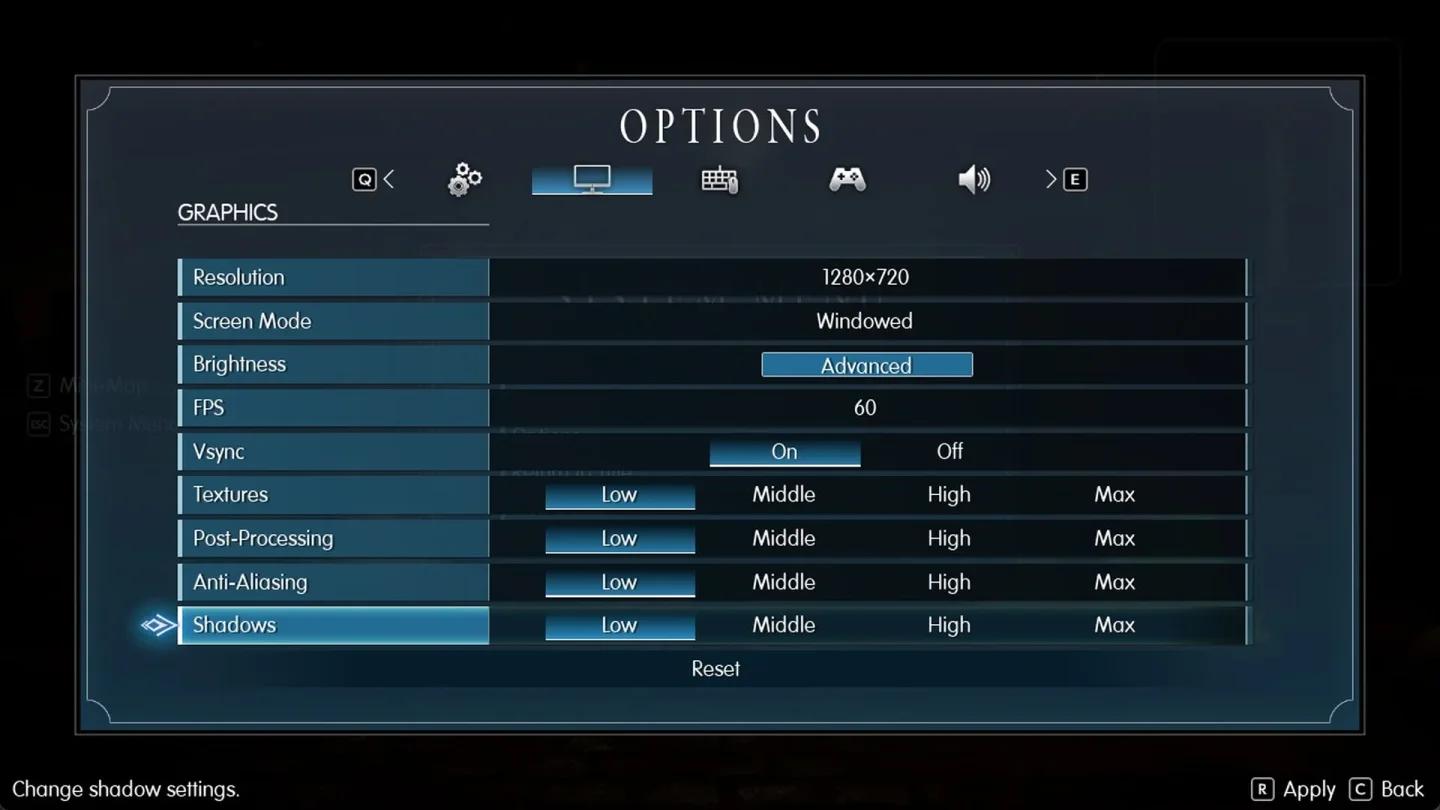
Adjust shadow quality on its own
Remember the minimum specification’s 1080p, 30 FPS, Low target when setting expectations. A graphics adjustment can help uneven performance, but a whole-PC shutdown still belongs on the hardware-specific troubleshooting path.
Reset settings without losing saves
If Final Fantasy Resonance still opens its settings, reverse your most recent graphics changes individually. Return each option to its previous value instead of deleting folders to force a broad reset.
What if you cannot reach the settings menu?
Use Steam verification and the support-report route below. Keep save and configuration folders intact during the initial launch checks, particularly if you have Steam demo progress to preserve.
Square Enix supports carrying Steam demo save data into the full game. Treat any Steam Cloud warning as a separate problem to resolve before continuing.
A newer timestamp is useful evidence, but your session history matters too. Think about which PC you last used and whether that session finished synchronizing.
Steam Cloud synchronizes saves; it is not a separate backup. Avoid deleting save files or switching Cloud off as a casual startup experiment.
Information to include in a support report
If Final Fantasy Resonance still fails after the relevant checks, contact Square Enix support and select Games for technical or gameplay support. A useful report explains the failure clearly enough that someone else can understand where it occurs.
What should your report contain?
Prepare these details before opening the ticket:
- Edition and platform: Steam demo or full game, plus the Steam build if known.
- Windows version: Include the version installed on the affected PC.
- Failure type: Game-only desktop exit, black window, whole-PC shutdown, or another observed symptom.
- Failure stage: Before the logo, at the Square Enix logo, during loading, or during gameplay.
- Exact error: Copy the message and attach a screenshot if available.
- Hardware: CPU, GPU, and graphics-driver version.
- Frequency: Explain how often the issue has already occurred.
- Checks completed: Record verification results and each optional setting you changed or restored.
- Save status: Mention any Steam Cloud warning and whether demo progress is involved.
For the AMD 26.10.1 shutdown issue, the AMD Bug Report Tool accepts system details, symptoms, reproduction information, and driver history. Report the events you have already observed without deliberately causing another power-off.
Remove personal information before sharing screenshots or notes. Keep fixes and error descriptions specific to Final Fantasy Resonance rather than applying instructions written for another Final Fantasy game.
Common mistakes
- Treating every failure as a graphics-settings problem. Separate a desktop exit from a full shutdown before changing presets.
- Changing several features together. Test an overlay or recording option individually so the result means something.
- Deleting folders before checking saves. Preserve Steam demo progress and resolve Cloud warnings first.
- Leaving unsuccessful diagnostic changes enabled. Restore optional settings when the failure remains unchanged.
- Installing replacement DLLs for a black window. Stick to Steam’s installation check and a specific support report.
Pro tips
Keep troubleshooting notes short and useful
Write down the setting changed, the result, and whether you restored it. “Steam overlay off, same black window at Square Enix logo, overlay restored” gives support a usable observation.
Once your save loads correctly and startup is reliable, follow the Final Fantasy Resonance opening checklist for your next session. Keep performance tuning separate from learning the opening systems.
Frequently asked questions
Is there one confirmed fix for every black screen?
No universal retail Final Fantasy Resonance black-screen fix is established. Start with Windows and driver checks, Steam verification, and individual overlay trials, then report the exact failure if it persists.
Should you keep launching after your whole PC shuts down?
If your configuration matches the Ryzen AI MAX PRO 400 Series issue in AMD Adrenalin 26.10.1, stop repeated attempts and contact AMD support. A system shutdown needs a different response from a game-only crash.
Does Steam verification guarantee the game will launch?
No. Verification checks the installed files, but a successful result does not rule out other startup problems. Record the result and continue with the checks relevant to your symptom.
Does Steam demo progress carry into the full game?
Yes. Steam demo save data carries over to the full game. Resolve synchronization warnings before playing, and compare conflicting copies against your actual session history.
When your progress is loading correctly and the game is stable, use the Final Fantasy Resonance guide collection to plan your next session.