
To cancel Fortnite Crew, open your Epic Games account’s Subscriptions page, select Manage Subscription, and finish through the platform that bills you.
Your cancellation route follows the original payment platform, even if you now play on another device. Use the sections below for Epic Games, Xbox, PlayStation, Nintendo Switch, Apple, ONE store, or Samsung Galaxy Store. Purchases billed directly through Epic also have cancellation options inside Fortnite and the Epic Games Store app.
Find which platform bills your subscription
If you cannot remember where you subscribed, check your Epic Games account’s Subscriptions tab or your bank or credit card statement. Choose the cancellation route that matches the store taking the payment, not simply the device you use most often.

Start from your Epic Games account
Epic’s account page provides a starting point for managing Crew across supported billing platforms:
- Sign in to your Epic Games account and open Subscriptions.
- Select Manage Subscription for Fortnite Crew.
- Sign in with the relevant platform account credentials and complete its cancellation process.
You can also open your billing platform directly. This table compares the available routes.
| Subscription paid through | Where you can cancel |
|---|---|
| Epic Games | Epic account website, Fortnite, or Epic Games Store app |
| Xbox | Microsoft account website |
| PlayStation | PS5, PS4, or PlayStation Store website |
| Nintendo Switch | Nintendo eShop or Nintendo Account website |
| Apple App Store | Apple device settings or Apple Account website |
| ONE store | ONE store app |
| Samsung Galaxy Store | Galaxy Store app |
Cancel Fortnite Crew through Epic Games
Use these methods if Epic Games bills your subscription. Playing Fortnite on PC or mobile does not automatically mean Epic handles the payment, so check the billing platform first.
Epic Games account website
- Open the Epic Games account website and sign in.
- Select Subscriptions in the left-hand menu.
- Select the cog icon at the top-right of your Fortnite Crew subscription entry.
- Choose Cancel Subscription.
- Follow the remaining cancellation prompts.
Inside Fortnite
For a subscription purchased through Epic, you can reach the cancellation controls without leaving the game:
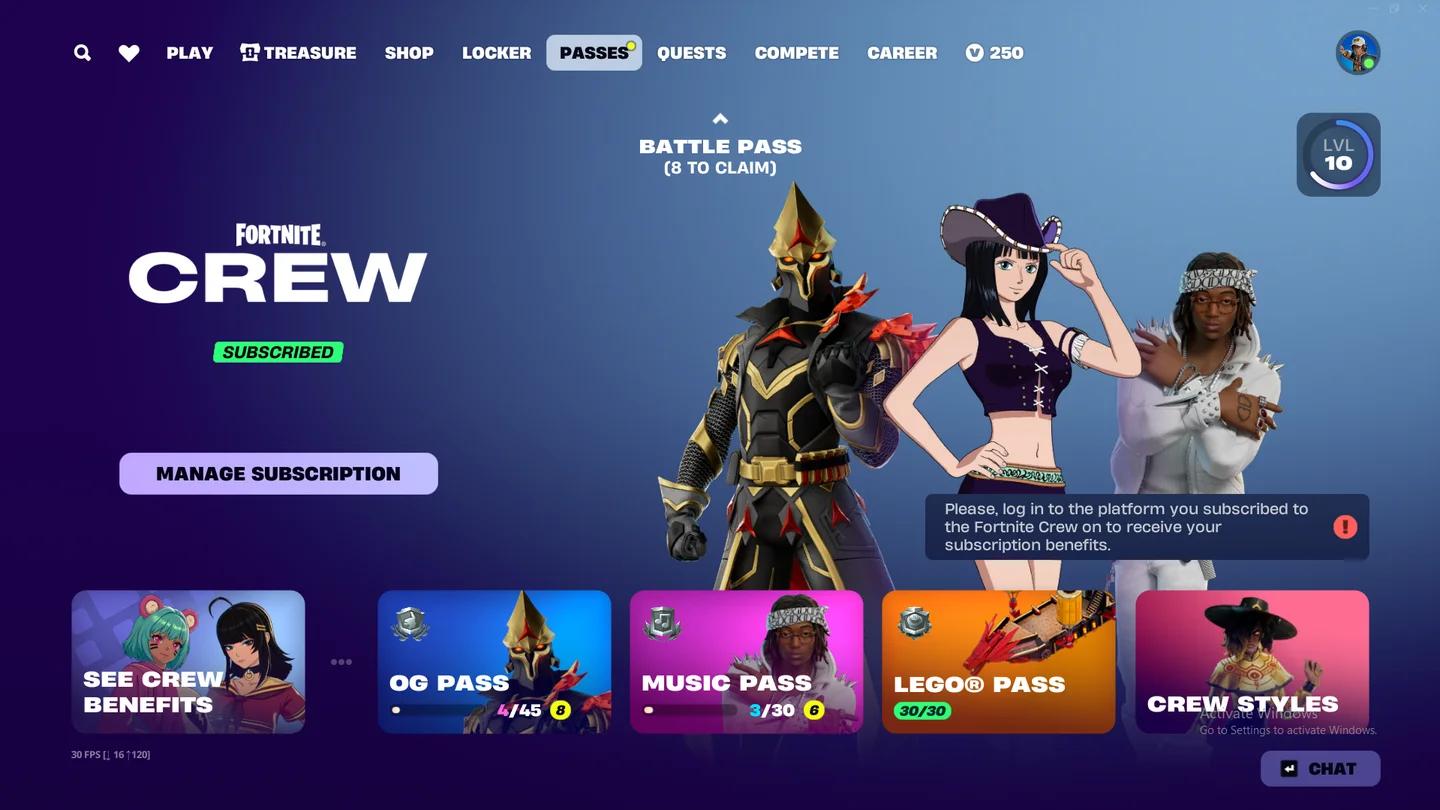
- Open the Passes tab.
- Select Manage Subscription.
- Select Cancellation Info.
- Select Cancel Subscription.
Epic Games Store app
The store app offers another route for Epic-billed subscriptions:
- Open the Epic Games Store app.
- Select your profile.
- Choose Account.
- Open the Subscription tab.
- Select Cancel.
Cancel Fortnite Crew on Xbox
Xbox subscriptions use your Microsoft account’s billing controls. You can complete this process in a web browser.
- Open the Microsoft account website and sign in with the account used to purchase Crew.
- Select Services & Subscriptions on the left side of the page.
- Find Fortnite Crew and select Manage beside it.
- Select Turn off recurring billing.
- Complete the prompts to disable renewal.
Stop Xbox recurring payments
Cancel Fortnite Crew on PlayStation
PlayStation offers separate console paths for PS5 and PS4, plus a browser option. Use the PlayStation Network account that purchased the subscription.
PlayStation 5
- From the home screen, open Settings.
- Go to Users and Accounts, then Accounts.
- Select Payment and Subscriptions.
- Open Game and App Services.
- Select Fortnite from the games list.
- Find Fortnite Crew and select Turn Off Auto-Renew.
The Crew entry displays the subscription’s expiration date after you turn off auto-renew. Note that date if you want to track when the remaining paid period ends.
PlayStation 4
- From the home screen, open Settings.
- Select Account Management.
- Open Account Information.
- Select Services List.
- Choose Fortnite.
- Find Fortnite Crew and select Turn Off Auto-Renew.
PlayStation web browser
- Open the PlayStation Store website and sign in to your PlayStation Network account.
- Select your profile picture, then Subscriptions Management.
- Find Fortnite Crew and select Turn Off Auto Renew.
Cancel Fortnite Crew on Nintendo Switch
Nintendo-billed Crew subscriptions can be managed through Nintendo eShop or the Nintendo Account website. Both routes use the subscription’s automatic renewal control.
Nintendo Switch console
- Press the Home button and open Nintendo eShop.
- Select your account icon in the top-right corner.
- Open Your Subscriptions.
- Find Fortnite Crew and select Turn Off Automatic Renewal.
- Complete the cancellation prompts.
Nintendo web browser
- Open the Nintendo Account website’s subscription management page and sign in to the account used to subscribe.
- Find your Fortnite Crew subscription.
- Select Turn Off Automatic Renewal and follow the prompts.
Cancel Fortnite Crew on Apple, ONE store, or Samsung
Mobile cancellation depends on which store processed the subscription. Use the Apple, ONE store, or Samsung steps only for a subscription billed through that store. An Epic-billed mobile subscription uses the Epic Games methods above.
Apple App Store
On the Apple device used to subscribe:
- Open the Settings app.
- Select your name.
- Open Subscriptions.
- Select Fortnite Crew.
- Select Cancel Subscription.
- Select Confirm.
You can also start from the Apple Account website in a browser. Sign in with your Apple Account and follow the onscreen instructions to manage the subscription.
Confirm your Apple cancellation
ONE store on Android
- Open the ONE store app on the device used to subscribe.
- Open the My menu.
- Open Settings, then Subscription.
- Select Fortnite.
- Select Cancel Subscription.
- Select Schedule Cancellation.
The final scheduling step is part of this cancellation route. Do not stop after opening the subscription entry.
Samsung Galaxy Store
For a Fortnite Crew subscription billed through Samsung Galaxy Store:
- Open Galaxy Store on your phone.
- Open Menu, then Subscriptions.
- Select Fortnite and choose Cancel.
What happens after you cancel Fortnite Crew?
Canceling stops future renewals. It does not immediately end the paid period you are already using, and it does not automatically refund that period.
| Part of your subscription | Result after standard cancellation |
|---|---|
| Future recurring payments | Stop once cancellation is completed |
| Current Crew benefits | Remain active until the current billing period ends |
| Previously received cosmetics and V-Bucks | Stay on your account |
| Money paid for the current period | Is not refunded by cancellation |
| Benefits for a later unpaid period | Are not provided once the subscription ends |
You do not need to wait until the last day of your paid period to cancel. Turning off renewal earlier preserves your remaining paid time while preventing the next subscription charge.
Keeping rewards you already received is different from keeping an active subscription. Your claimed Crew cosmetics remain yours, but canceling does not grant future monthly rewards after your paid period ends.
What if you cannot access the game or original console?
If you cannot access the platform account where you subscribed, contact PlayStation, Xbox, or Nintendo support for help with that subscription.
You cannot open Fortnite
The browser methods above do not require you to launch the game. If the Fortnite Esp-Dist-001 error blocks access, you can handle that separately while canceling Crew through your billing platform’s website.
You no longer have the console
Xbox, PlayStation, and Nintendo all have browser cancellation routes, so the original console is not your only option. Sign in to the account used for the purchase and use the matching web steps above.
Finish any cancellation confirmation prompts before leaving the subscription page.