
To enable 2FA on Fortnite, sign in to your Epic Games account, open Password & Security, and set up a two-factor authentication method.
You can use an authenticator app, email codes, or SMS where supported. This protection belongs to the Epic account linked to your game, so console players also complete setup through Epic's website. Choose a method you can reliably access, then finish its verification process before returning to Fortnite.
How to enable Fortnite 2FA
Have access to your Epic account email and the device you plan to use for verification. Opening the setup menu is not enough: you must enter the requested security code to activate your chosen method.


Sign in to the account you play on
Open the official Epic Games website in your browser and sign in. If you play on a console and are unsure which Epic account is connected, use your console provider's sign-in option to reach the linked account.
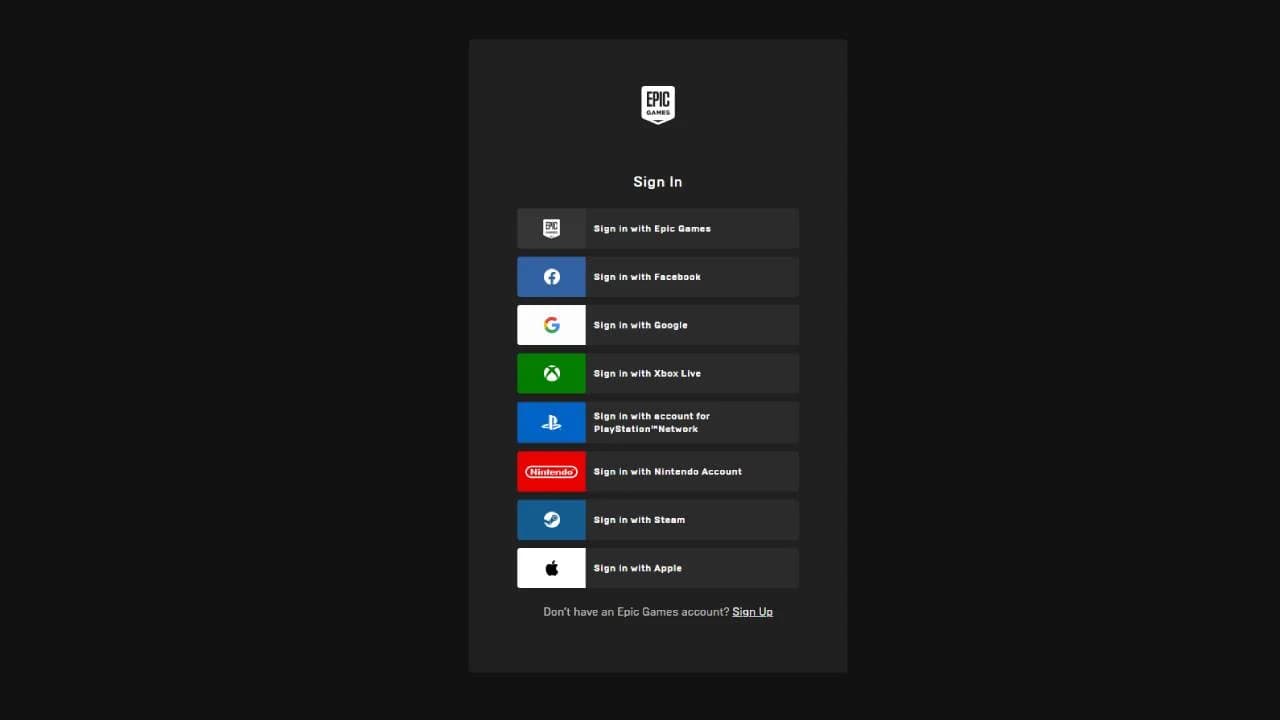
Epic Games account sign-in
Check the account before changing its security settings. Protecting a different Epic account will not enable 2FA for the Fortnite account you actually use. Some console-only accounts need an email address added before setup can continue.
Open the security settings and finish verification
Select your account name, open Account, and choose Password & Security. Find the Two-Factor Authentication section, which contains the available verification methods and their setup controls.
Epic account security settings
Complete these steps:
- Choose the authentication method you want to use.
- Select Set up beside that method.
- Follow its prompts to connect an authenticator app, use your account email, or register a phone number.
- Enter the verification code when Epic requests it.
- Check that the method appears as active in the Two-Factor Authentication section.
Epic also sends an email confirming activation. If the method is not active, finish the verification prompt before leaving the page.
Which Fortnite 2FA option should you choose?
An authenticator app is the best default because it generates codes without relying on mobile reception or message delivery. Email is convenient if you do not want another app, while SMS requires access to your registered phone number and a supported region.
| Method | Where your login code comes from | Main advantage | Main limitation |
|---|---|---|---|
| Authenticator app | A code generated inside the app | Codes can be generated offline | Losing or changing your device can interrupt access |
| Email authentication | A message sent to your Epic account email | No separate authenticator app required | Access depends on the security and availability of your inbox |
| SMS authentication | A text sent to your registered number | Familiar text-message verification | Regional availability, reception, delivery delays, and SIM-swap risks |
Each option adds a verification requirement beyond your password. Choose the one you can keep secure and access when you sign in.
Set up an authenticator app
Use a supported app, such as Microsoft Authenticator or Authy. During setup, Epic displays a QR code and a manual key. Add the account to your authenticator by scanning that QR code or entering the key.
Open the new Epic account entry in the app and enter its current code into Epic's verification prompt. Authenticator codes expire, so use the code currently displayed instead of one you copied earlier.
Save your backup codes somewhere secure and separate from the device running the app. They provide a recovery option if that device becomes unavailable.
Set up email authentication
Choose email authentication and check the inbox associated with your Epic Games account. Enter the 6-digit verification code into the setup prompt.
Protect that email account with its own two-factor authentication. If someone gains access to the inbox receiving your Epic codes, email-based verification offers less protection.
Set up SMS authentication
Choose SMS authentication, enter your phone number, and submit the 6-digit code Epic sends by text. SMS is not available in every region, so use an app or email if the option is unavailable to you.
Keep the registered number current. An old number will not help when a future sign-in requires a text-message code.
Choose a primary method
You can enable more than one authentication method and select one as your primary option. Epic uses the primary method by default for future logins, so choose the method you normally have ready.
Configure an additional method through the same security section, complete its verification, and then select your preferred primary method. You do not need to limit the account to a single option.
What changes after you enable Fortnite 2FA?
Two-factor authentication adds a security-code check to account sign-ins, including when you use a new device. Someone who obtains your password would also need access to the verification method to pass that check.
Rewards and feature requirements
Enabling 2FA grants the Boogie Down emote automatically. You do not need to redeem a Fortnite code to receive this security reward.
Save the World players also receive 50 Armory Slots, 10 Backpack Slots, and one Legendary Troll Stash Llama. These are one-time activation rewards, so disabling and re-enabling 2FA does not grant another set.
You do not need 2FA for ordinary Fortnite gameplay. It is required for gifting and certain tournaments, so enable it before attempting those features.
How to fix Fortnite saying 2FA is inactive
An inactive message can appear when you enabled authentication on a different Epic account. Start by checking the linked account before changing a working authentication method.
Check your console account connection
Sign out of the Epic website, then sign back in using the console provider you use to play Fortnite. Inspect that account's security settings and email address.
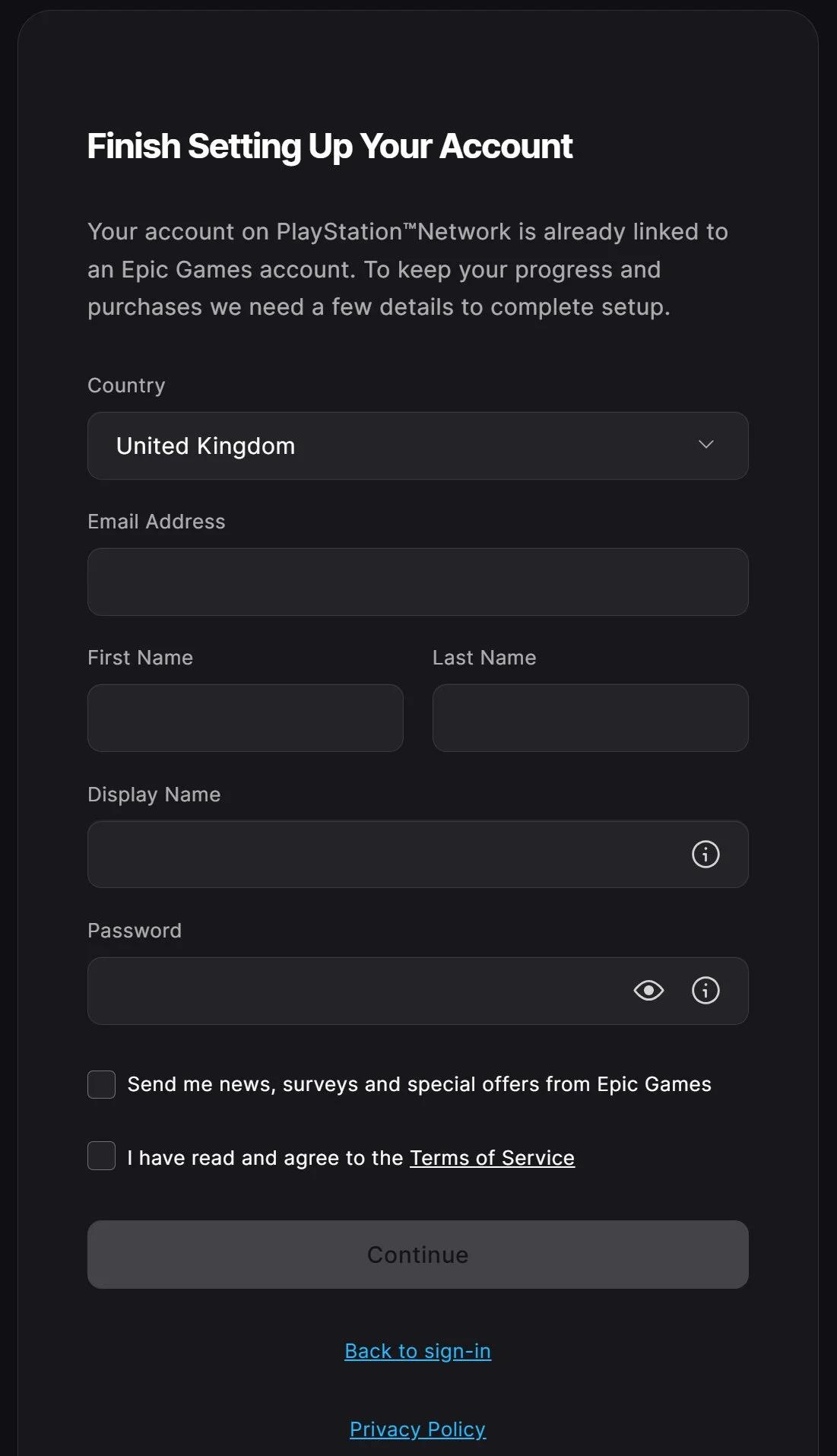
If the linked account needs an email address, complete that account setup first. Then activate authentication on that account. Creating or securing another account will not resolve the mismatch.
Fix missing or rejected verification codes
Use the check that matches the method you selected:
| Problem | What to check next |
|---|---|
| Email code does not arrive | Look in spam or junk folders and confirm the account's email address |
| SMS code does not arrive | Confirm the registered number and check your phone's reception |
| Authenticator code is rejected | Check that your phone's date and time are correct, then use the current code |
| Setup still appears incomplete | Return to the selected method and complete its verification prompt |
If you lose access to your verification method and cannot recover the account with your saved recovery options, contact Epic Games support for account-recovery assistance. Keep 2FA enabled once access is restored, and update any email address or phone number you no longer control.