

To turn off Simple Build in Fortnite, open Settings → Game → Building, and set Simple Build to Off.
Simple Build groups several structures under one input and assigns walls to another. Disabling it returns you to individual build-piece selection, so you can use your established wall, floor, stair, and roof controls. You can make this change during a match. The important part is finding the right setting and saving it before checking your controls.
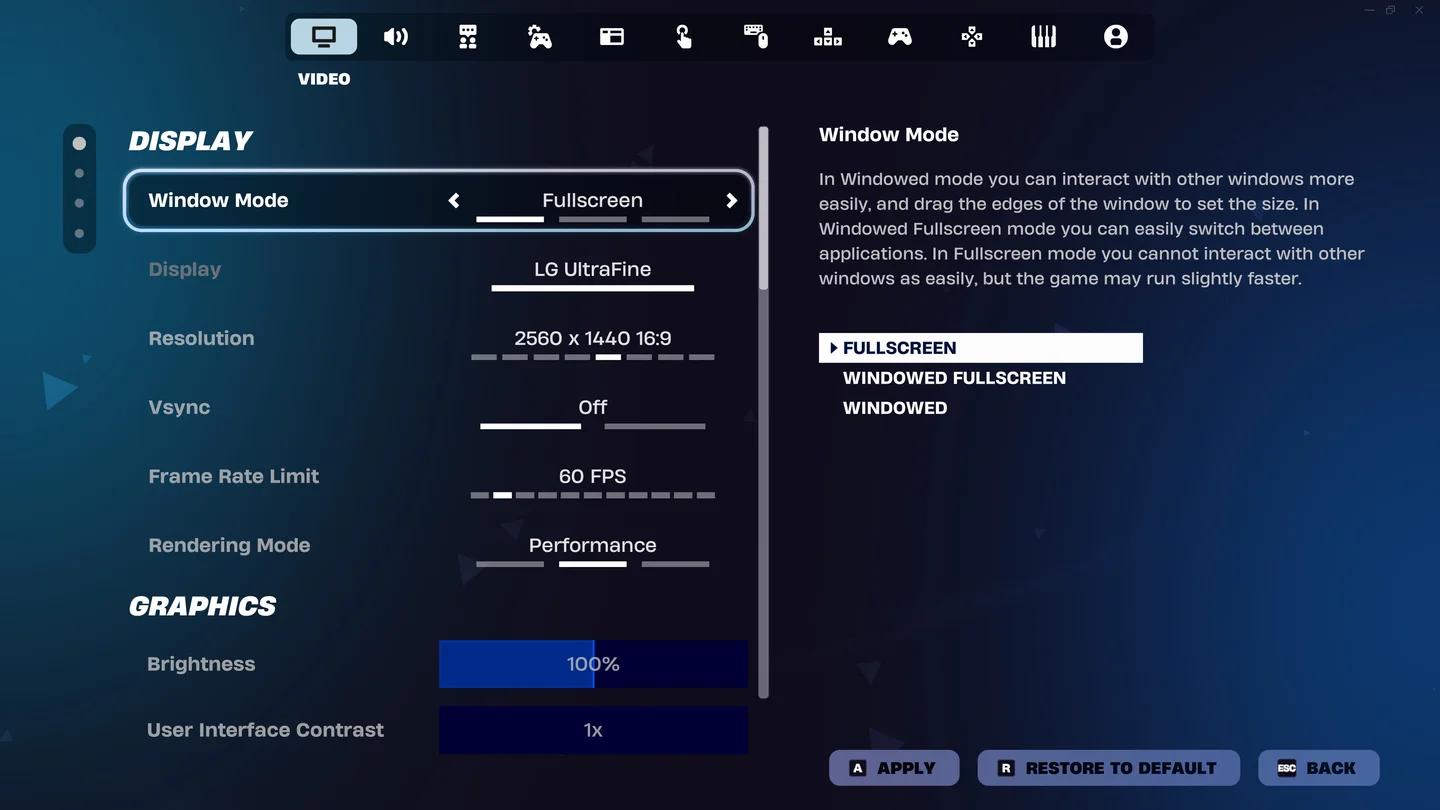
Open the settings shortcut
How to turn off Simple Build


Find the setting in the Game tab
Follow these steps to reach the toggle:
- Open the in-match menu. On keyboard, press Esc.
- Select Settings.
- Open the Game tab.
- Scroll down to the Building section.
- Find Simple Build and change its value to Off.
Use the tab's name to navigate. You do not need to change your graphics settings or edit individual key bindings to disable this feature.
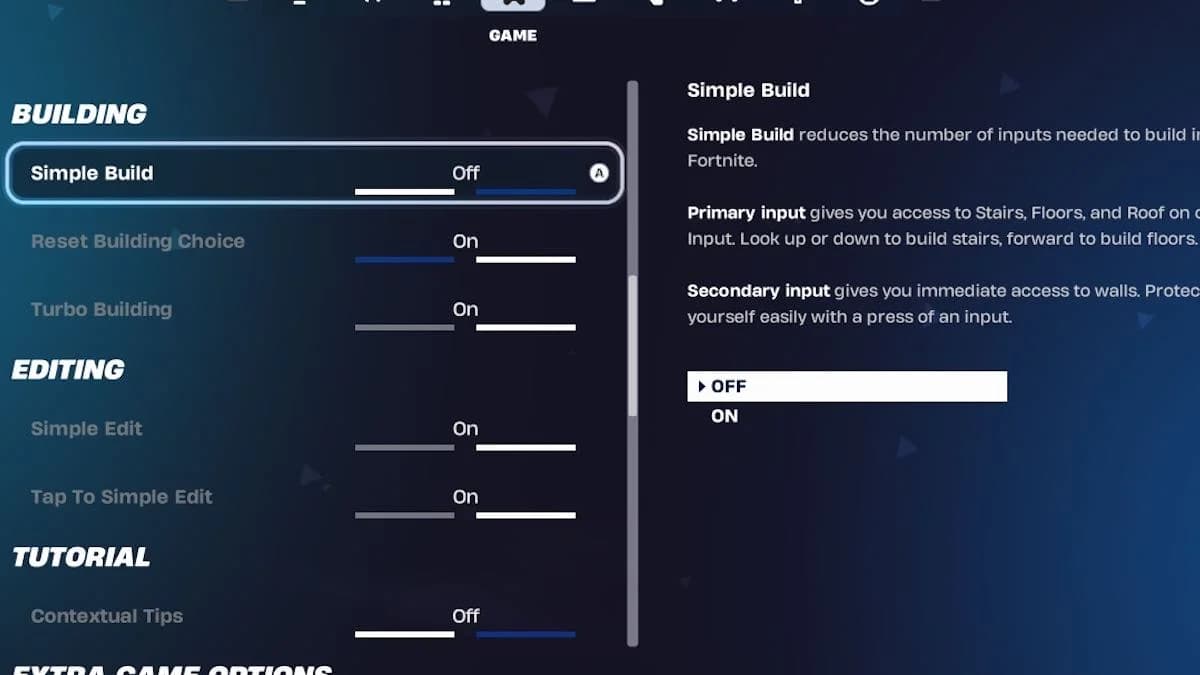
Find the Simple Build toggle
Check that your individual controls are back
Return to gameplay and enter build mode. Inspect the build-piece prompts on your HUD. You should see your individual building bindings instead of the grouped Simple Build controls.
If you have building materials, check each structure separately:
- Select a wall with your wall control.
- Select a floor with your floor control.
- Select stairs with your stairs control.
- Select a roof with your roof control.
Use the prompts displayed for your own layout. Another player's keyboard shortcuts are not a replacement for checking your bindings.
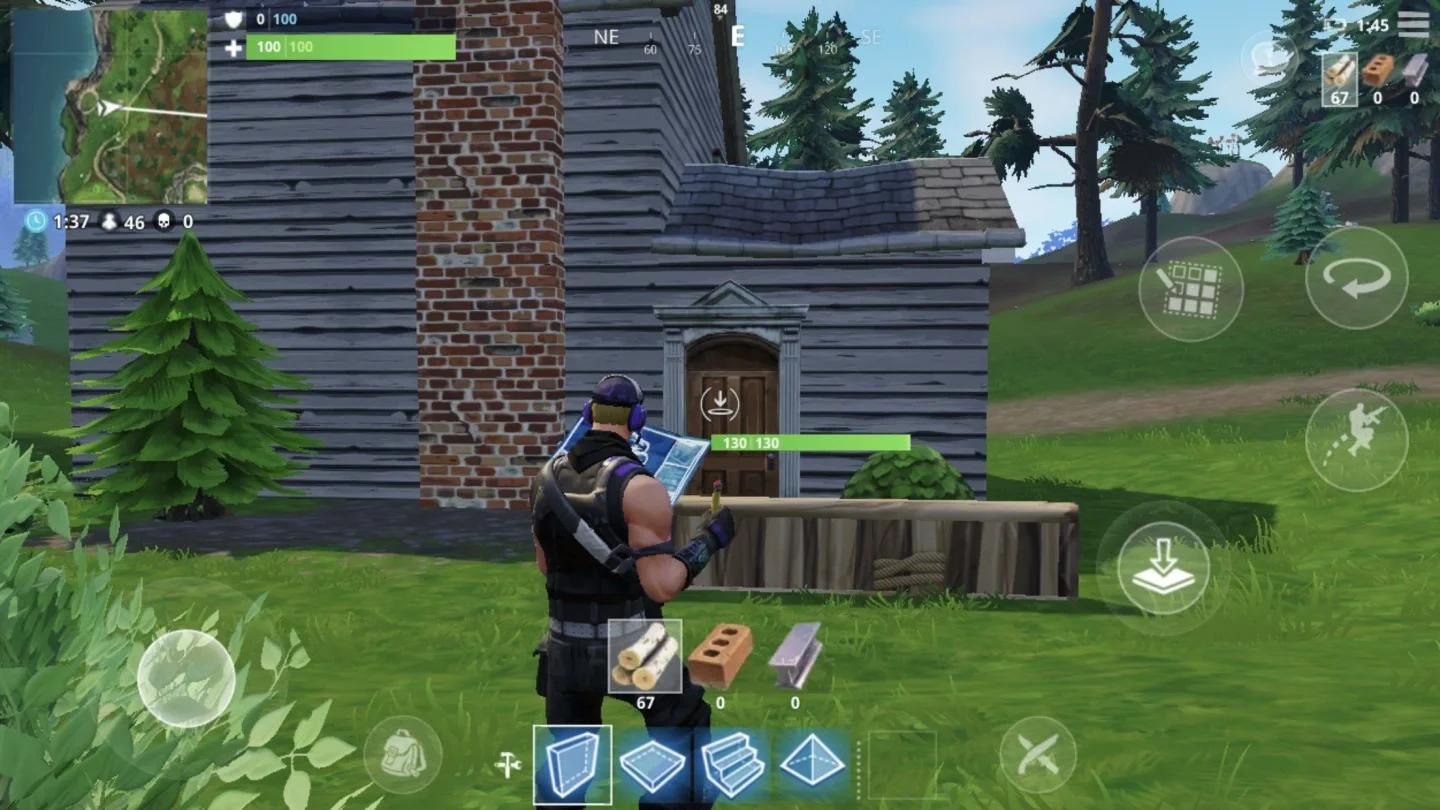
Check individual build prompts
What changes when Simple Build is off?
Simple Build reduces the number of distinct inputs you need for building. Its primary action groups stairs, floors, and roofs, while its secondary action provides access to walls. Your viewing direction helps select the structure used by the primary action.
Turning it off restores manual selection through your individual build-piece bindings. The choice is about how you select structures, not a promise of faster building or better results.
| Control behavior | Simple Build on | Simple Build off |
|---|---|---|
| Stairs, floors, and roofs | Share a primary input | Use individual build-piece bindings |
| Wall selection | Uses the secondary input | Uses your wall binding |
| Role of viewing direction | Helps choose the primary-action structure | You choose the structure through its binding |
| Reason to choose it | Reduce the number of distinct building inputs | Keep an established individual-piece layout |
Keep Simple Build off if you already know which control you want for each structure. A familiar layout lets you select the piece directly without learning the feature's direction-based selection.
Keep it on if reducing the number of building inputs is your priority. Fewer inputs still require practice: you need to learn how your viewing direction affects the structure you select.
Why building may still feel different
Continuous placement is a Turbo Building setting
Selecting a structure and repeatedly placing it are separate actions. If you can choose individual pieces but holding the build button keeps placing them, check Turbo Building.
With Turbo Building on, holding the build button continues placing the selected piece as you look around. With it off, each placement requires a press. Leave this option unchanged if your only goal is to stop Simple Build from grouping structures.
This is also why turning off Simple Build does not necessarily make every build require a separate button press. You can retain individual piece selection while keeping continuous placement enabled.
Check the binding that matches the problem
If a particular structure responds to an unexpected key, inspect its individual binding. The input settings include actions such as Wall and Stairs; check those actions against the prompts on your build HUD.
If the grouped primary and secondary controls are still showing, return to the Simple Build toggle and check its saved value. Avoid changing several unrelated controls at once, because that makes it harder to identify which change affected your layout.
Stuttering and low frame rates need a different fix. Use the Fortnite FPS and settings guide if the game is running poorly even when the correct build controls appear.
Can you change Simple Build's buttons instead?
If you like the grouped building system but dislike its assigned buttons, you can change its bindings instead of disabling it. This keeps the reduced-input approach while letting you choose different controls.
In the keyboard binding settings, find the Simple Build actions:
- Primary (Traversal)
- Secondary (Wall)
- Simple Build Change Material
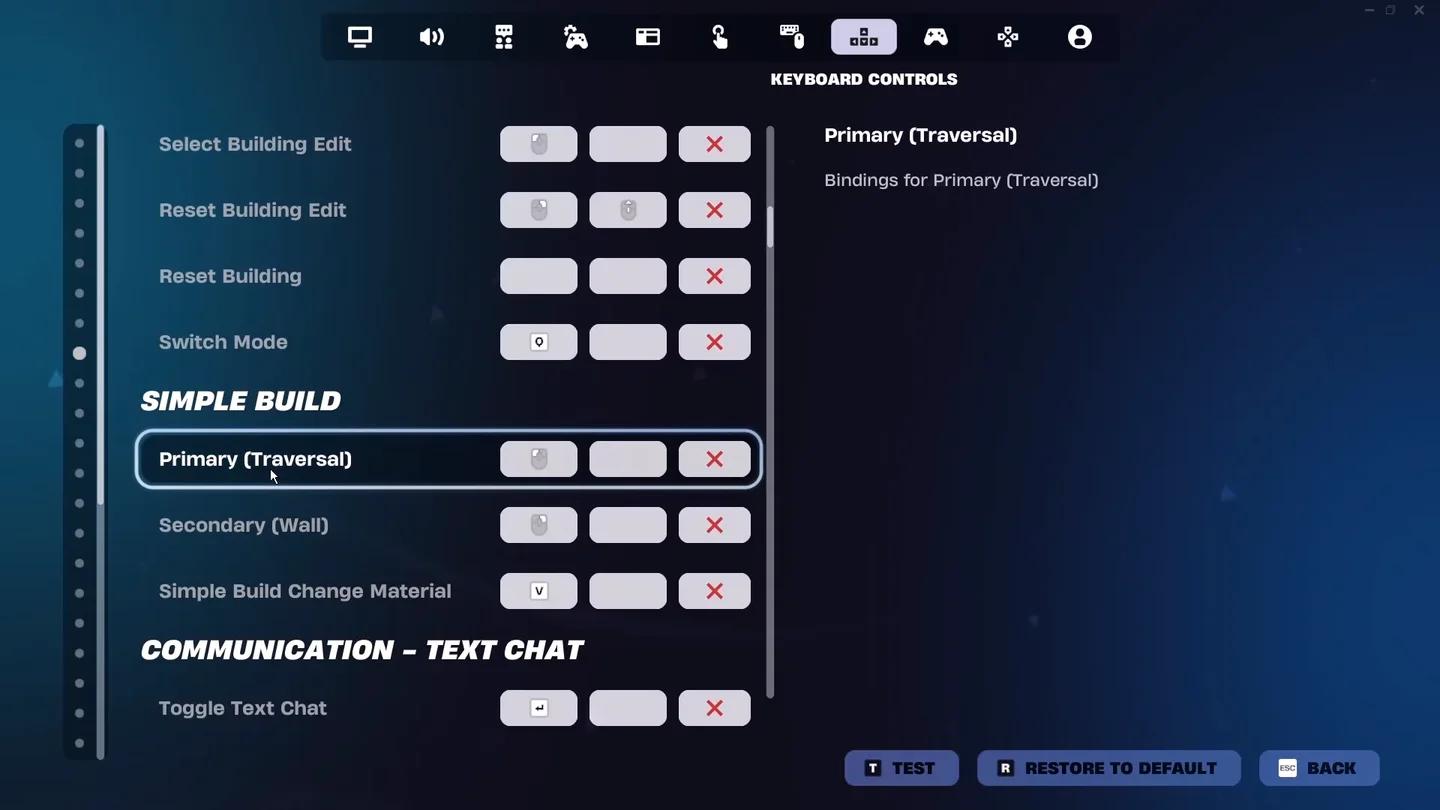
Remap the grouped build inputs
Change the action that causes the problem. For example, remapping the wall action is a more targeted adjustment than replacing your entire layout when that is the only button you dislike.
You can also re-enable the feature through the same Game → Building path by choosing On and applying the change. Use the Simple Build bindings when you want grouped controls, and the individual structure bindings when you want to select every piece yourself.