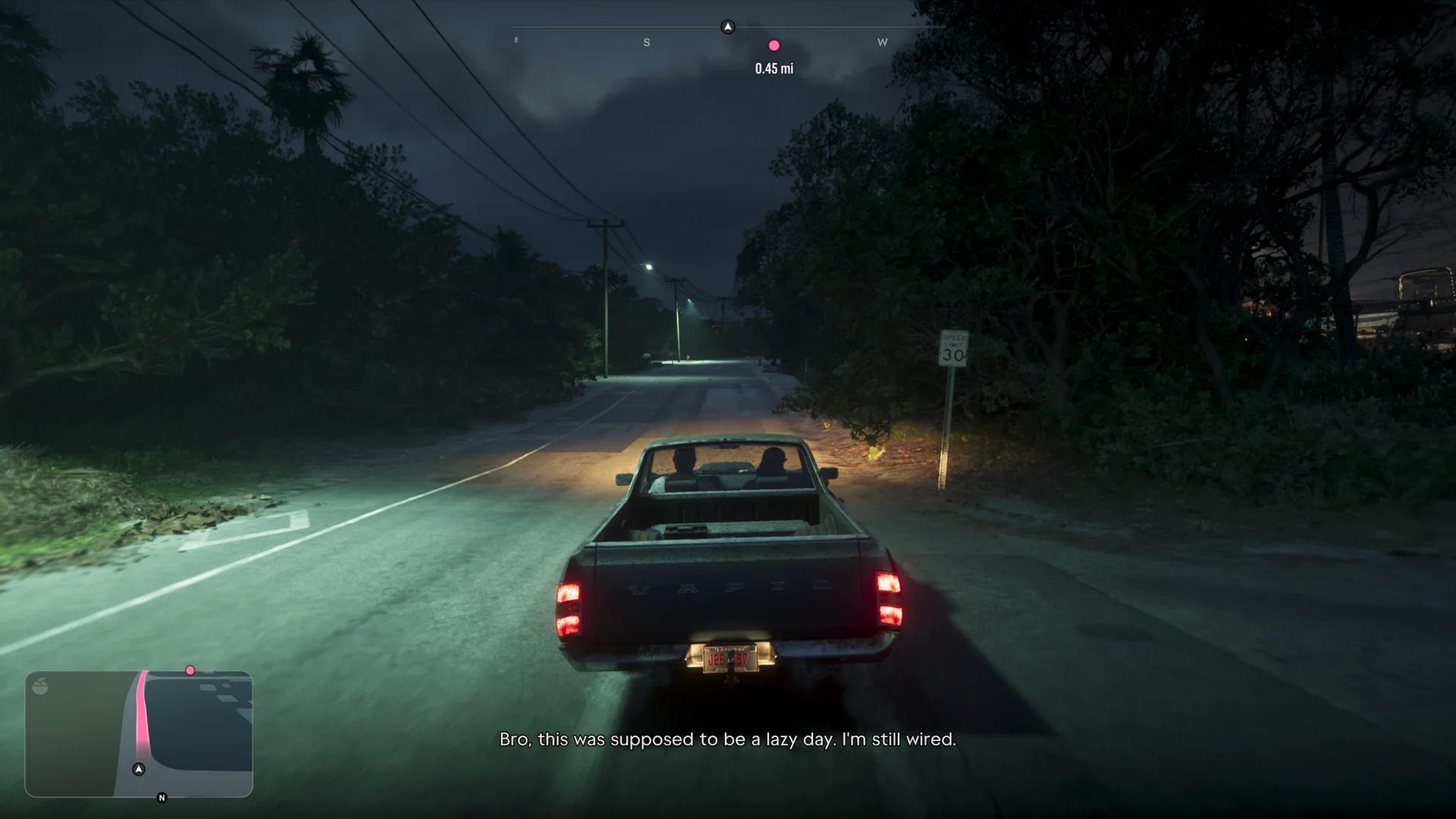

To enable auto-drive in Grand Theft Auto 6, set a waypoint, enter cinematic view, and hold Circle on PlayStation or B on Xbox.
The feature is available from the beginning, so you do not need a later story unlock. Its controls sit inside the camera options, making it easy to miss if you normally keep the standard driving view. Auto-drive works with both road and water vehicles. The instructions below use the default controller layout.
How to enable auto-drive


Set your destination and position the car
Get into a car and place a waypoint on the map at a destination you can reach by road. This gives auto-drive a route to follow once you activate it.
Start driving and move onto the right side of the road before handing over control. Set up your road position first, then use the camera controls below.
Enter cinematic view and activate it
The camera-view options appear in the bottom-right corner of the screen. Follow these inputs in order, keeping the distinction between a button press and a button hold.
| Step | PlayStation default control | Xbox default control | Result |
|---|---|---|---|
| Open the camera choices while driving | Hold D-pad Down | Hold D-pad Down | Displays the camera-view options |
| Select Cinematic view | Press Options | Press Menu | Switches to cinematic camera angles |
| Start auto-drive | Hold Circle | Hold B | Your character drives toward the waypoint |
Selecting the cinematic camera and activating auto-drive are separate inputs. The camera change alone does not hand over the driving.
Cinematic view switches between side, overhead, and front-facing angles, which can make manual steering awkward. If camera movement or road visibility makes driving uncomfortable, the Grand Theft Auto 6 console settings guide covers camera and visibility adjustments.
How to change speed and stop auto-drive
Cycle between three speed levels
While auto-drive is active, press L2 or R2 on PlayStation, or LT or RT on Xbox, to cycle through its three speed levels.
The difference between the slowest and fastest settings is slight. Treat them as pace adjustments for the automated journey, not a large boost to travel speed. There is no need to leave cinematic view just to change the pace.
Return to manual driving
Hold D-pad Down to exit auto-drive and return to the regular Grand Theft Auto 6 driving controls. Take back control when you want to choose your own speed or handle the route yourself.
What to expect during a road journey
Auto-drive follows traffic signals and road rules at all three speed settings. Even the fastest setting waits for signals. Traffic jams and road accidents can also hold up your vehicle, so a slow or stationary car does not necessarily mean the feature has stopped working.
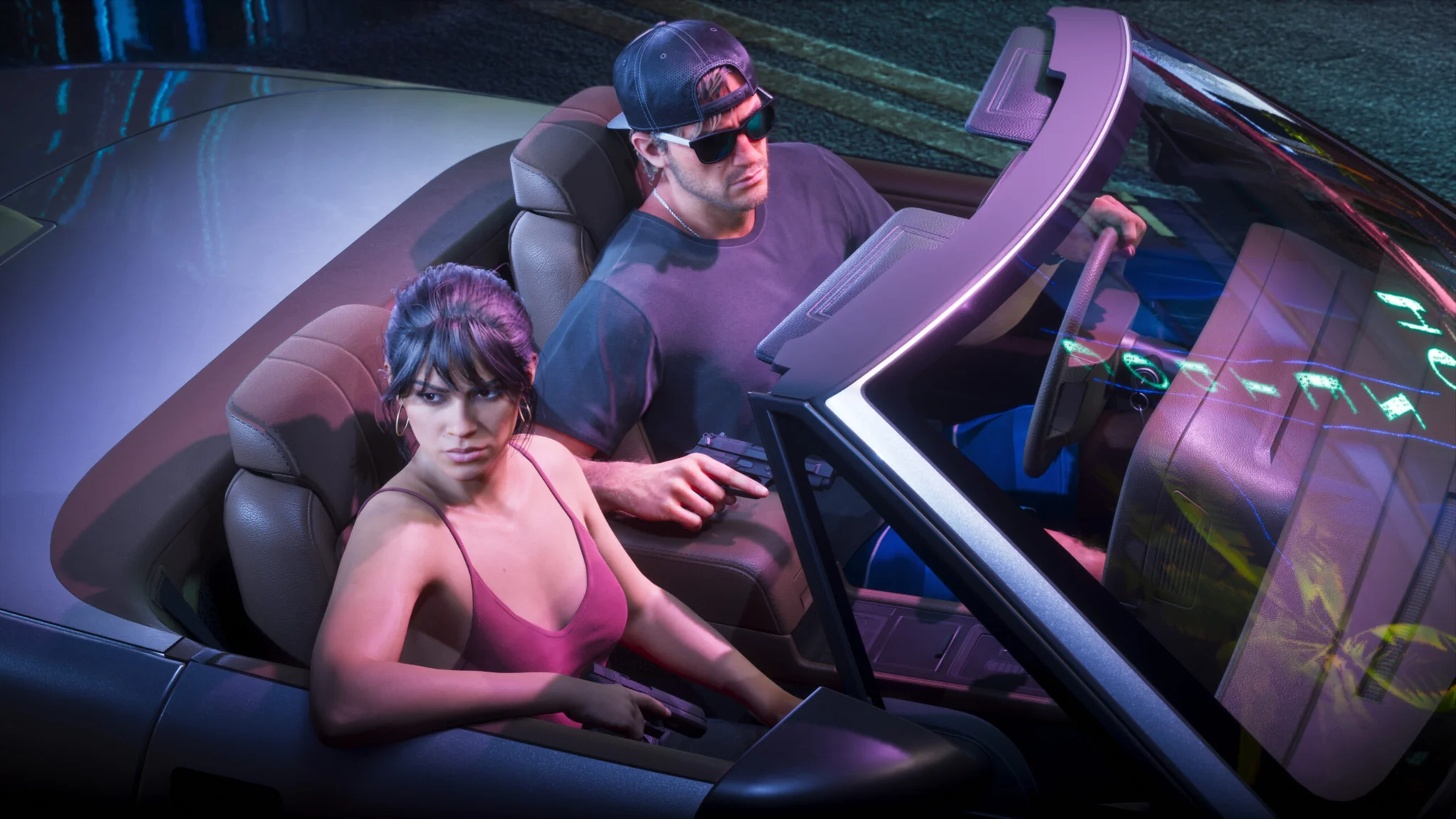
Long drives are a useful time to enable it, especially when you want to watch the surroundings or follow an in-car conversation without steering through traffic. Both Jason and Lucia can drive automatically. Choose manual driving when reaching the destination quickly is your priority, because automated travel can take longer.
Auto-drive reduces continuous steering during travel, while Grand Theft Auto 6 accessibility settings address broader input and camera comfort. The travel feature is useful for a lower-input journey, but it does not remove traffic delays.
How to use auto-drive in a boat
Water vehicles support the same cinematic-view activation sequence. Set a waypoint in an ocean or lake, then activate auto-drive with the controls above. Your character follows a route through navigable water.
The destination needs to suit the vehicle. A boat can follow a water route, but choosing an inland destination does not create a route across land.