
For the best Rob Run PC settings, lower mouse polling when movement causes FPS drops, then check drivers and overlays before sacrificing image clarity.
Start by identifying when performance breaks down. A frame-rate collapse triggered by moving your mouse needs a different fix from a loading freeze or repeated crash. Keep your current image settings as a reference, change one thing at a time, and compare the result under similar conditions. The aim is smoother movement with details you can still read, not a lower-quality picture that leaves the original fault untouched.
Check PC requirements before changing settings
Compare your hardware with both specification tiers below. Check your processor and memory as well as your graphics card, and confirm that your Windows version and available storage meet the requirements.
| Component | Minimum | Recommended |
|---|---|---|
| Processor | Intel Core i5-6600K / AMD Ryzen 5 1600 | Intel Core i5-9600K / AMD Ryzen 5 3600 |
| Memory | 12 GB | 16 GB |
| Graphics | GTX 1050 Ti / RX 580 / Arc A380 | RTX 2070 / RX 5700 XT / Arc B570 |
| Operating system | Windows 10 64-bit or later | Windows 10 64-bit or later |
| DirectX | 11 | 11 |
| Available storage | 20 GB | 20 GB |
Use these tiers to check your starting point, then judge performance on your own PC. Keep a note of your CPU, GPU, and RAM while troubleshooting; those details will also help if you need to report a persistent crash.


Best PC settings changes for higher FPS
Lower mouse polling for movement-triggered drops
An excessively high mouse polling rate can make FPS fall to single digits while the mouse moves. If performance collapses during mouse movement and recovers when you stop, address this setting before reducing resolution.
- Open your mouse configuration software, such as Logitech, Razer, or Bloody.
- Find Polling Rate and record its current value.
- Select a lower polling rate.
- Return to Rob Run and repeat the movement that triggered the slowdown.
Keep your graphics settings unchanged for this comparison. You need to know whether the polling-rate adjustment fixes the symptom on its own.
Address stutter that continues
If lowering polling rate does not resolve the mouse-triggered stutter, work through these follow-up actions separately:
| Action | When it applies | What to compare afterward |
|---|---|---|
| Update the graphics driver | Mouse-related stutter continues | Repeat the same mouse movement |
| Update the BIOS | Your PC uses a 13th- or 14th-generation Intel CPU | Check whether the original stutter persists |
| Disable Discord or GeForce Experience overlays | Those overlays are active | Compare the same scene without the overlay |
The BIOS step applies specifically to the Intel CPU generations listed above. Do not treat it as a general graphics-setting adjustment for every PC.
Record the result after each change. If you disable an overlay and reduce resolution together, you cannot tell which adjustment affected performance.
Balance visibility, resolution, and image quality
Establish a clear reference image
Once you have checked the mouse-related issue, choose a scene you can return to for visual comparisons. Note your position and viewing direction, then look at readable text and small scene details while stationary and moving.
For Rob Run, as with other action games, assess responsiveness and visibility separately. Keep track of both: whether movement feels interrupted and whether the image remains clear enough to follow what is happening.
Use this checklist to make each comparison consistent:
| Test | Keep consistent | Look for |
|---|---|---|
| Stationary clarity | Position and viewing direction | Text and details that become harder to distinguish |
| Camera movement | Direction and duration of mouse movement | Sudden interruptions tied to mouse input |
| Clarity in motion | Route through the scene | Details that become difficult to follow while moving |
| Repeat check | The full test sequence | Whether the same result happens again |
Compare resolution one change at a time
Write down your original resolution before trying an alternative. Leave other image-quality choices alone, inspect the same scene, and repeat the movement test.
Keep the alternative only if the performance difference is useful and the image remains readable. If text or scene details become difficult to distinguish without an improvement you can reproduce, return to the original resolution.
Avoid treating a sharper stationary image as the whole visibility test. Check the picture during movement, too, because that is when you need to follow changing details while controlling the game.
Test performance around other players
Repeat the same sequence in multiplayer
A quiet scene gives you a controlled starting point. Follow it with a test around other players before settling on your settings.
Use the same sequence for each comparison:
- Stand still and observe the scene without moving the mouse.
- Repeat the camera movement used in your earlier test.
- Move through the area while checking for interruptions and lost clarity.
- Repeat the sequence before deciding whether to keep the change.
Compare similar conditions where possible. A single pass through a different area is a weak basis for choosing between two settings.
Keep a short settings log
Record the adjustment, the symptom, and whether it improved. A useful entry is specific: “Lower polling rate, mouse movement no longer triggers the drop.” Avoid recording only “better,” which leaves you without a clear result to compare later.
Separate three observations in your notes:
- Smoothness: Did movement remain continuous, or did it pause and hitch?
- Readability: Could you still distinguish the same text and scene details?
- Repeatability: Did another pass produce the same result?
Keep a change when it addresses the problem you were testing. If a new adjustment makes no useful difference, restore the previous value before moving on.
Fix loading freezes and crashes separately
Match the symptom to the next action
A game that cannot finish loading needs a repair check before another visual comparison. Use the symptom below to choose your next step.
| Symptom | Next action |
|---|---|
| Game will not load or freezes during loading | Check your connection, restart the game and Steam, update the graphics driver, and verify game files |
| Repeated crashes | Close unused applications and restart your PC |
| Error E-0101 or E-0110 | Check your internet connection and confirm that websites load |
| Error E-0124 | Verify game files to address the internal asset-loading error |
E-0101 and E-0110 concern access to server configuration or startup data. Reducing image quality is not the repair path for those connection errors.
Verify the installation in Steam
For file verification, open Rob Run's Steam properties and follow:
Properties → Installed Files → Verify integrity of game files
After verification, check whether the original loading problem or asset error returns. Resume your performance comparisons once you can reach normal play.
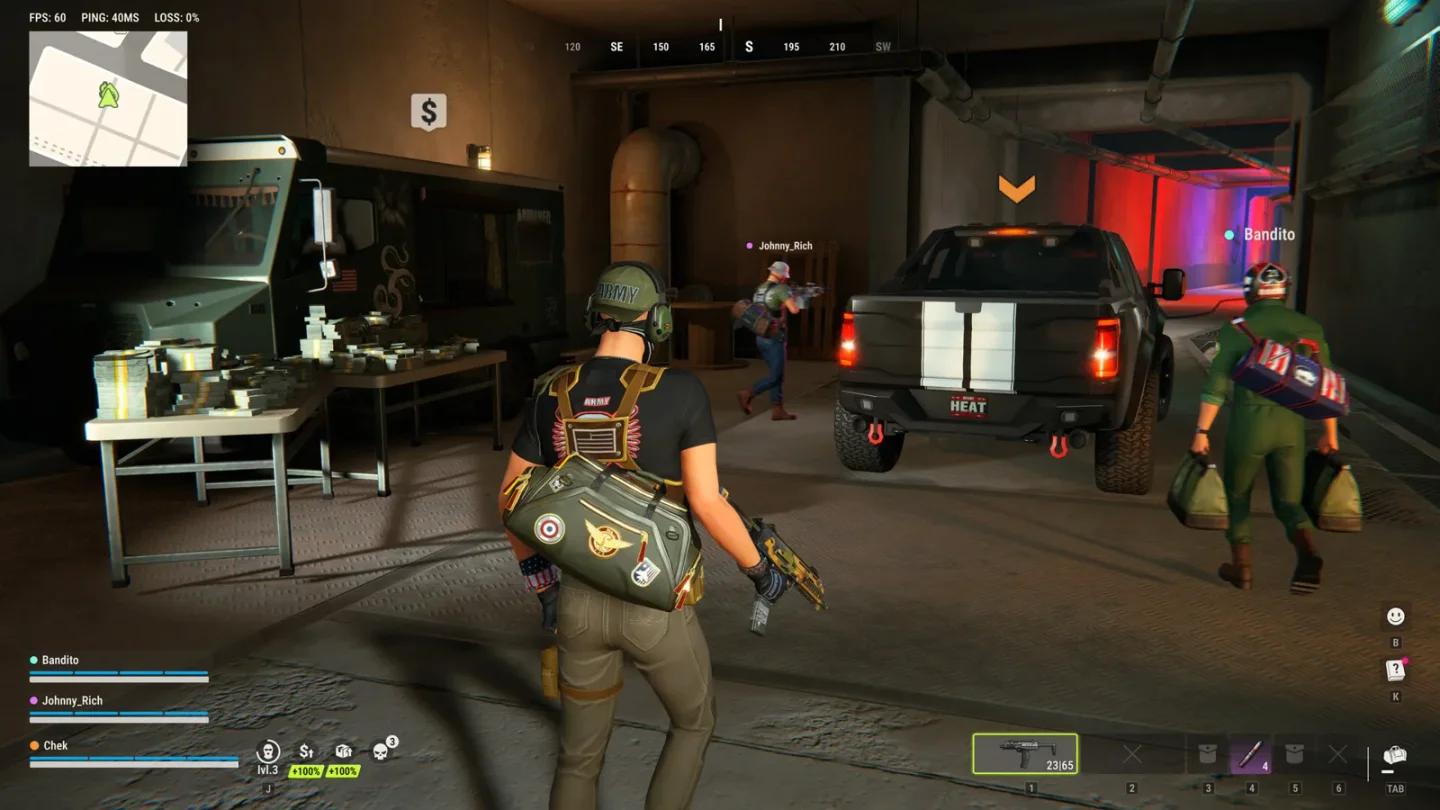
Repair local Rob Run files
Report a persistent crash
Collect the details support needs
If crashes continue after closing unused applications and restarting your PC, collect your hardware specifications, the exact error text, and a description of what happened immediately before the crash. Include a screenshot or video when possible.
Describe the trigger precisely, such as loading or a particular action, and list the fixes you already tried. Keep crashes separate from frame-rate drops in the report so the symptom is clear.
Send the report through the game's support contact options, including the steps that reproduce the crash and any error message shown.