


The console version of The Blood of Dawnwalker ships with more settings than most players expect from an RPG at launch. Getting them right before you start matters: the directional combat system is hard enough to learn without a shaky camera, motion blur, and the wrong frame rate fighting against you at the same time.
These recommendations cover PS5, PS5 Pro, Xbox Series X, and Xbox Series S.
What difficulty should you start on?
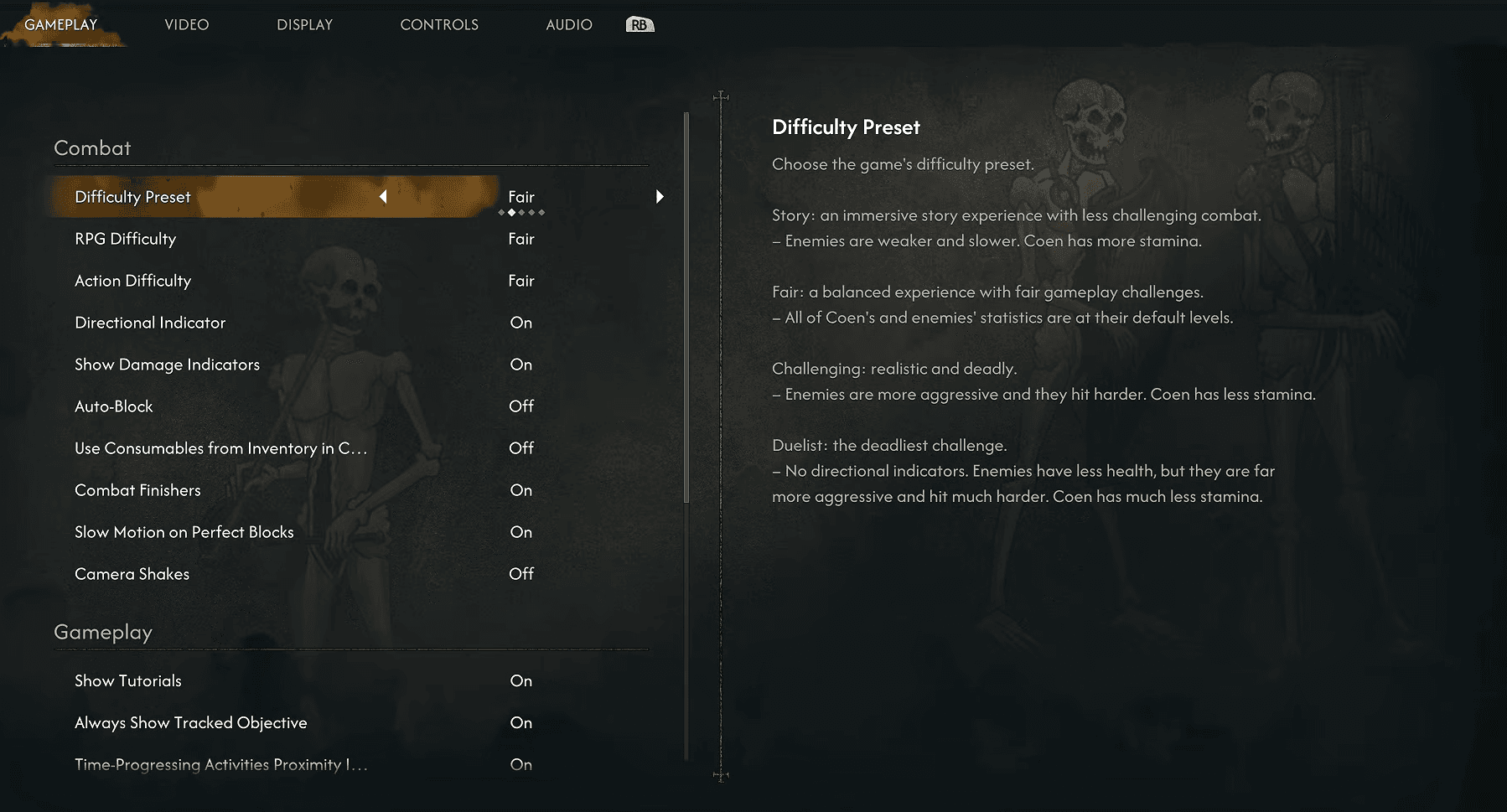
Start on Fair. The game splits difficulty into two separate sliders, RPG Difficulty and Action Difficulty, both of which default to Fair. That split is worth understanding before you change anything.
RPG Difficulty controls enemy stats and Coen's stamina economy. Action Difficulty controls how forgiving enemy timing is during combat. Keeping both at Fair gives you enough room to learn directional attacks, blocking, and Perfect Blocks without the game handing you a free pass.
Once the combat systems feel natural, bump Action Difficulty up for a more demanding experience. There's no shame in leaving RPG Difficulty where it is while you adjust.
Best gameplay settings
Directional Indicator is the one setting you should never turn off while you're still learning. The combat system punishes wrong-direction blocks with stamina loss, and the indicator removes the guesswork entirely.
The Time-Progressing Activities Proximity Indicator deserves special attention. Blood of Dawnwalker's time system is central to how the game works, and accidentally triggering a time-advancing activity without realizing it can catch you off guard. Leave this one on.
For a deeper look at how these combat mechanics connect, the Blood of Dawnwalker combat guide breaks down directional attacks, Perfect Blocks, and stamina management in full detail.
What are the best camera settings?
Set both camera distances to Far. The wider view gives you a much better read on surrounding enemies during group fights, which happen often enough that the default closer distance becomes a real liability.
Camera Shakes add nothing to readability and actively make combat harder to follow. Turn them off.
Best map settings
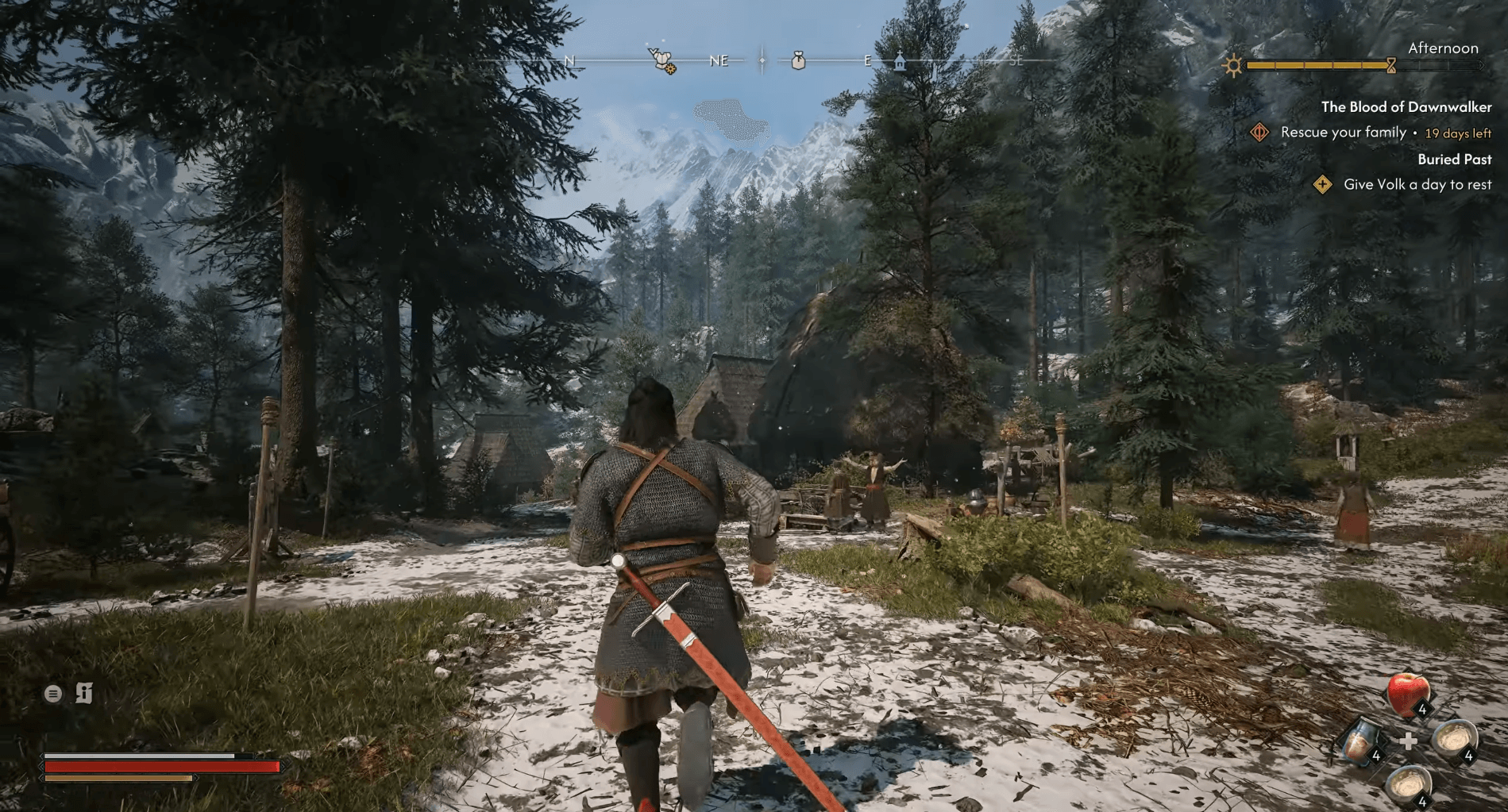
All of these on. Vale Sangora has enough going on that missing a merchant or a quest trigger because the map was too clean is a real cost. If you want a more natural exploration feel, turning off Show Undiscovered Locations is the one toggle that actually changes how discovery feels without hiding useful information.
Which graphics mode should you use?
Performance Mode is the right call on every console that supports it. The directional combat system reads better at 60 FPS, and the difference is noticeable the moment fights get busy.
Rendering mode breakdown
PS5 Pro owners get a clean 60 FPS Performance Mode without needing VRR. On base PS5 and Xbox Series X, a VRR-compatible display helps smooth out any frame-rate dips under Performance Mode. Without VRR, compare Performance and Balanced to see which feels more consistent on your specific setup.
Xbox Series S doesn't have access to the same 60 FPS Performance Mode, so the default 30 FPS option is your baseline there.
Best post-processing settings
Motion Blur and Chromatic Aberration are the two easiest wins here. Both off, no exceptions. Motion Blur muddies fast directional attacks, and Chromatic Aberration adds color fringing that serves no practical purpose.
Bloom and Depth of Field are more subjective. Leaving both on keeps the visual presentation close to what the developers intended, but neither affects readability in a meaningful way.
Best controller settings
The default controller layout holds up well for a first playthrough. The directional blocking system maps cleanly to it, and there's no obvious reason to remap before you've spent time with the combat.
Vibration is purely personal. Turn it off if you find it distracting during longer sessions.
Recommended settings for consoles
This setup keeps the game readable without stripping out the mechanics that make combat interesting. Once directional blocks and Perfect Blocks feel automatic, turn Auto-Block off and consider pushing Action Difficulty up a notch.
For everything else you need to get started, the Blood of Dawnwalker beginner's guide covers early skills, fast travel, loadouts, and time management in one place. The full Blood of Dawnwalker guide collection has you covered as you push further into Vale Sangora.