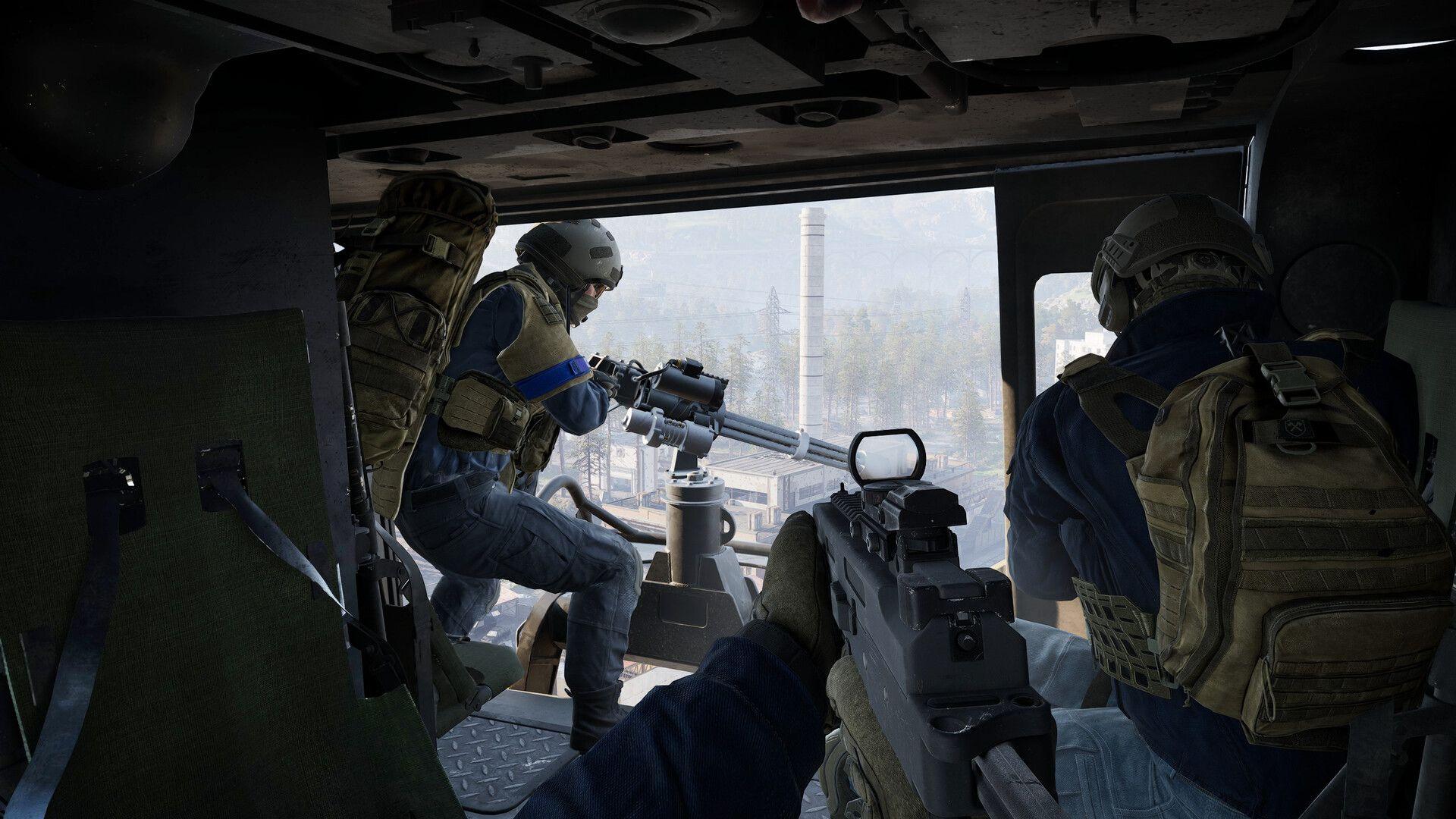


Getting the most out of WARDOGS on PC does not mean dragging every slider to its lowest value. Some settings have almost no FPS cost and should stay reasonably high, while others hammer your GPU for zero competitive benefit. This guide breaks down exactly which settings to change, which to leave alone, and why, so you can push your frame rate without turning the game into an unrecognizable blur of low-res textures.
Quick settings reference
Here is the full recommended settings list at a glance. These are a solid starting point rather than a locked-in preset, so adjust from here based on your hardware.
Gameplay settings
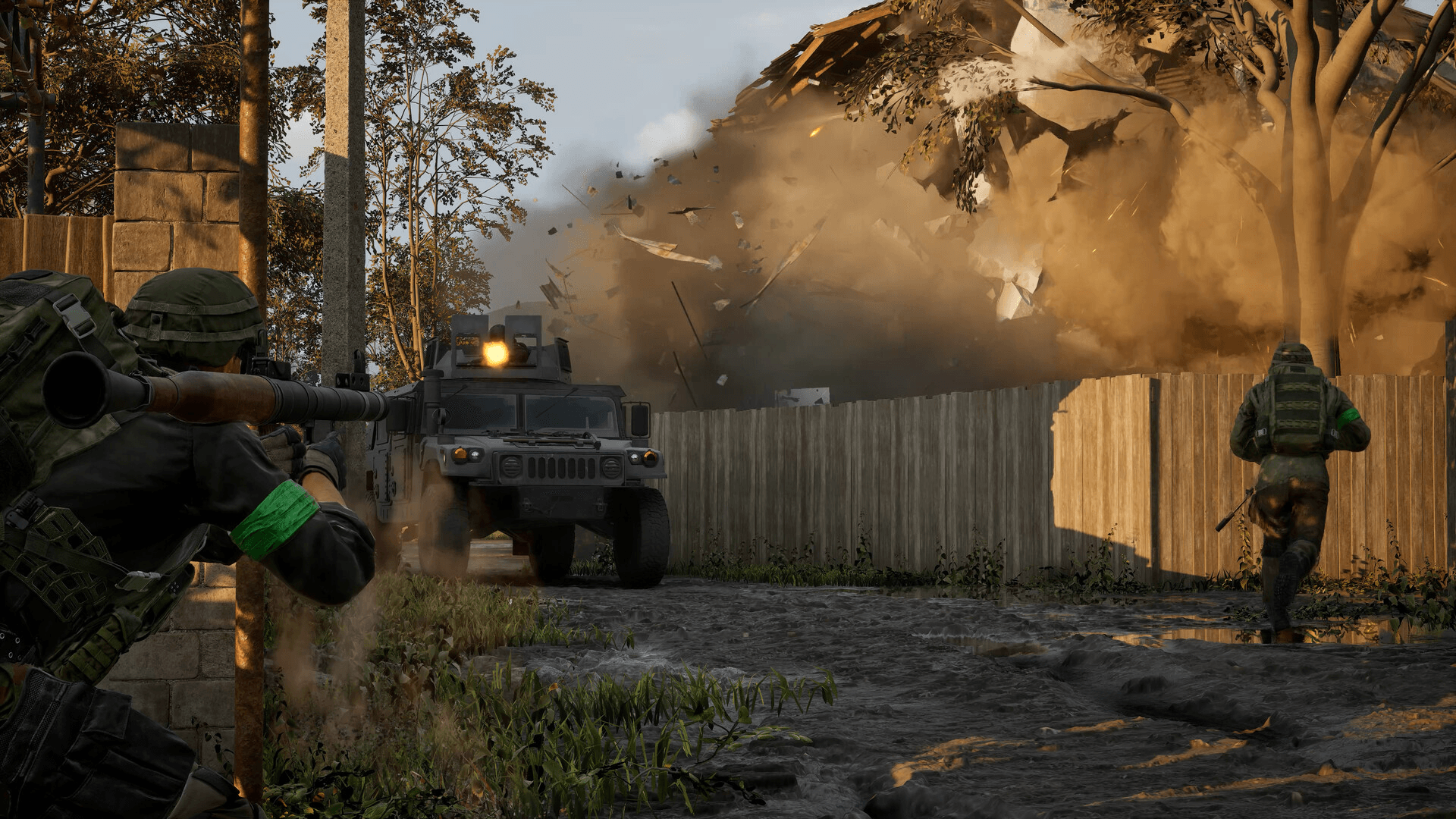
WARDOGS Guide: Best PC Settings for Max FPS
What FOV should you use in WARDOGS?
Field of View is personal preference, but WARDOGS has a lot of long-range fights, which means very high FOV values can work against you. At maximum 120 FOV, distant targets shrink noticeably on screen. A range of 95 to 110 is a better starting point for most players, with 95 being a common recommendation specifically because of those longer sightlines.
Weapon View Model Scale controls how much of your screen the gun fills. If the model feels like it is eating into your view, increase the value and test it in the Firing Range before taking it into a real match.
For vehicles, bumping up both first-person and third-person Vehicle FOV helps with situational awareness while driving. It is a small change that pays off during chaotic moments.
Aim Down Sight FOV has two options: Affected and Independent. Affected brings lower-magnification optics closer to your normal FOV, while Independent keeps a more distinct zoom feel. Neither option meaningfully affects FPS, so pick whichever feels natural.
Why you should disable Picture-in-Picture Scope
This one is easy. Picture-in-Picture Scope renders a separate view through your optic, which costs real GPU performance. Disabling it can produce a noticeable frame rate improvement, especially when using magnified scopes. Turn it off.
Video settings
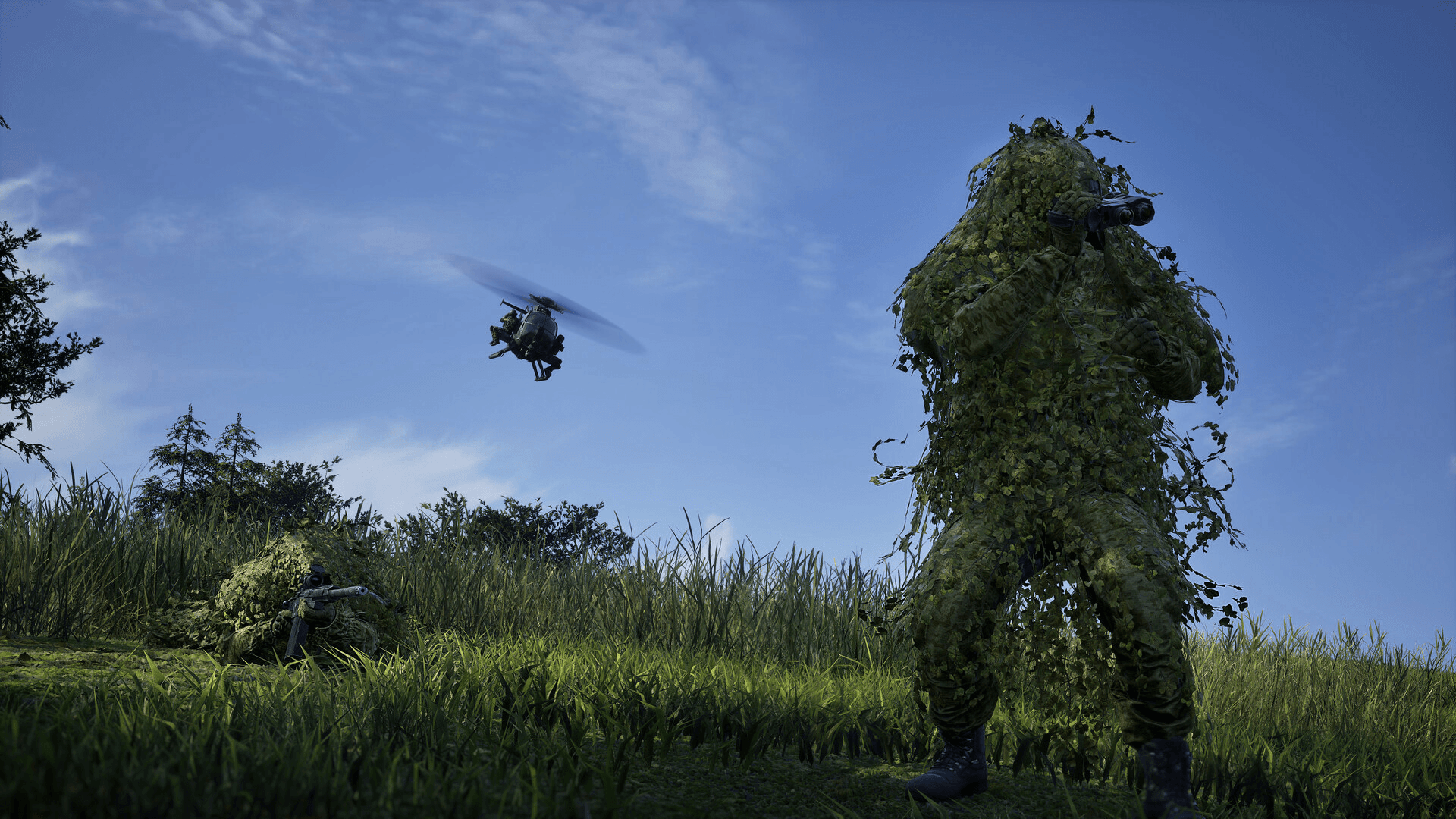
WARDOGS Guide: Best PC Settings for Max FPS
Display mode and frame rate
Windowed Fullscreen is the practical choice for anyone who regularly Alt+Tabs. If you want to squeeze out every possible frame and do not switch between windows often, Fullscreen can offer slightly better performance or lower latency depending on your system, so it is worth testing.
Set Frame Rate Limit to Off when chasing maximum FPS. The exception is if you are seeing unstable frame times or stuttering, in which case capping near your monitor's refresh rate can smooth things out.
VSync adds input latency, which is the last thing you want in a shooter game. Disable it. If you are using G-Sync or FreeSync, manage synchronization through your monitor or GPU control panel instead.
NVIDIA Reflex
For supported NVIDIA GPUs, set NVIDIA Reflex to Enabled. It is designed to reduce system latency and has no meaningful downside at the Enabled setting. Players who want to experiment further can test other Reflex modes after establishing a baseline.
DLSS and FSR: which mode should you pick?
Upscaling is one of the biggest free performance gains available in WARDOGS, and the mode you choose matters.
NVIDIA DLSS (RTX cards): Start with Quality mode. It gives a strong balance between image sharpness and extra frames.
AMD FSR (all GPUs): Also start with Quality mode for the same reason.
If FPS is still not where you need it, step down to Balanced. Avoid jumping straight to Performance or Ultra Performance modes. WARDOGS has plenty of long-distance combat, and aggressive upscaling can make enemies at range harder to read clearly.
Frame Generation can push displayed frame rates significantly higher on supported hardware, but it introduces some latency. For competitive play, get a stable base FPS without Frame Generation first. Once that is solid, test Frame Generation and decide whether the smoother motion is worth the tradeoff for your playstyle.
Graphics quality settings
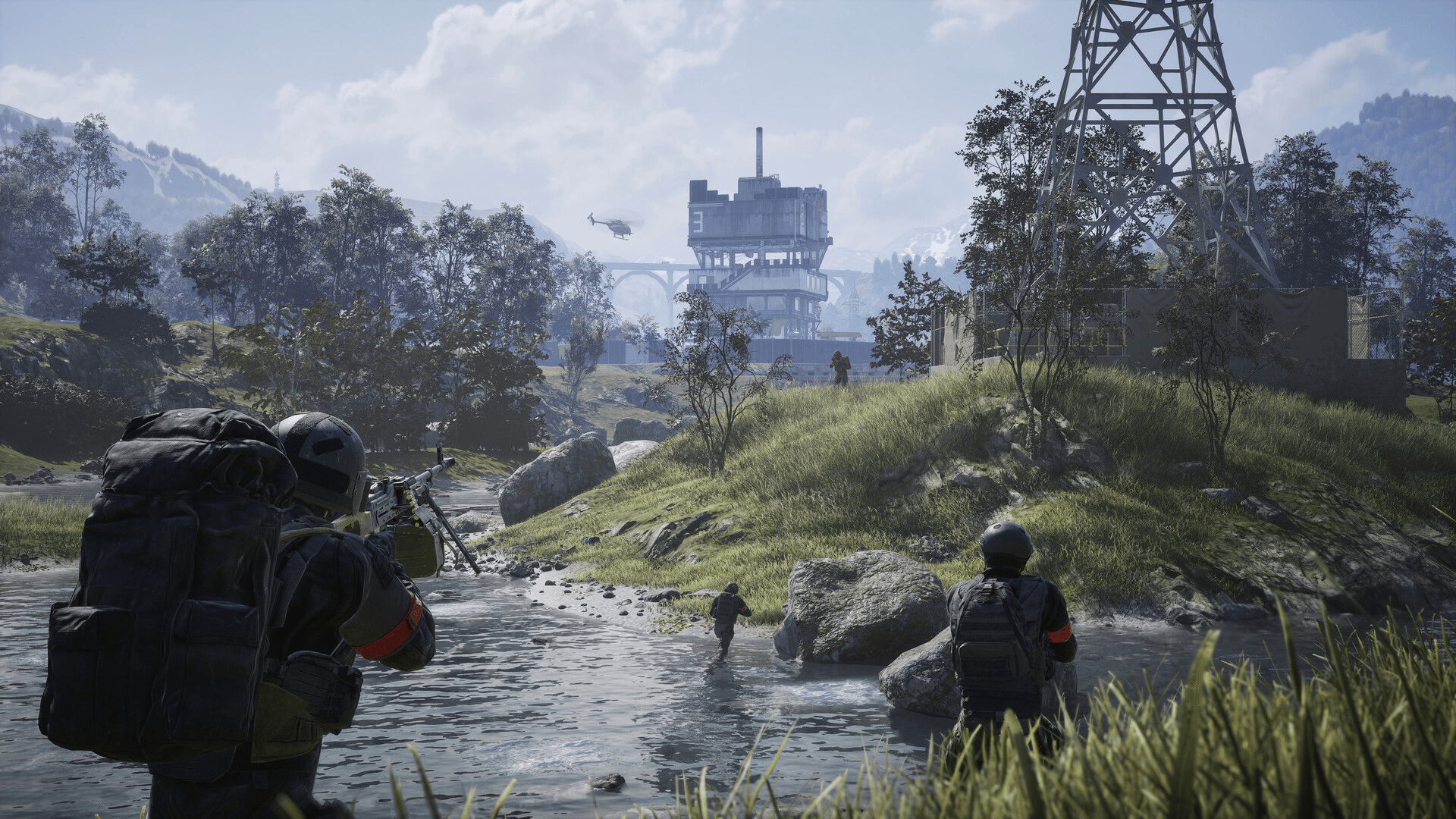
WARDOGS Guide: Best PC Settings for Max FPS
Mesh Detail, View Distance, and Shading
Set Mesh Detail to Medium. Character and world geometry stay readable without burning extra performance on detail you will not notice mid-fight.
View Distance deserves more thought than most settings. Medium works if raw FPS is the priority, but WARDOGS has long sightlines where distant fights are common. Players with enough headroom should keep this at High. Dropping View Distance too aggressively can make those longer engagements harder to track.
Shading can go to Low without much visual cost during actual combat. Higher shading settings add detail that rarely influences whether you win a gunfight.
Global Illumination, Shadows, and Reflections
Global Illumination is one of the first things to disable. It has a noticeable GPU cost, especially in busier scenes, and turning it off is a straightforward FPS gain with minimal visual impact during gameplay.
Shadows at Medium keeps the image from looking too rough while saving performance compared to High or Ultra. Players on weaker hardware can drop further to Low or Potato if needed.
Reflections can go straight to Potato. Reflections are largely irrelevant during gunfights, making this one of the cleanest settings to sacrifice.
Effects, Particles, and Post-Processing
Set Effects and Particle Spawn Rate to Potato or Low. WARDOGS can throw a lot at the screen simultaneously, with explosions, smoke, and destruction all happening at once. Lower particle settings help maintain FPS during those heavier moments without affecting your ability to see enemies.
Post-Processing at Low keeps the image clean without going full Potato. The Potato option does give more performance, but Low is a better middle ground before the game starts looking genuinely rough.
Turn off these four settings completely
Disable all four of these. They are purely visual effects with no gameplay benefit:
- Motion Blur - smears the image during fast movement
- Depth of Field - blurs parts of the scene you need to see clearly
- Lens Flare - adds visual noise around light sources
- Bloom - softens bright areas and reduces clarity
Removing all four also makes the image sharper and cleaner during fights, which is a direct visibility improvement on top of any FPS gain.
Texture settings
Textures are often the last thing worth sacrificing. As long as your GPU has sufficient VRAM, they have a smaller FPS impact than most players expect.
World Textures, Character Textures, and Effects Textures can stay on High if your card has enough memory. The benefit is a cleaner, more readable image that makes spotting players easier.
For Texture Streaming, cards with around 8GB of VRAM or more can start at a higher setting. Less VRAM means Medium or Low is safer if you notice stuttering or textures loading in late.
Texture Filtering sits well at Medium for a balance between visual quality and performance.
Audio tip
This has nothing to do with FPS, but it is worth doing anyway. WARDOGS includes a Tinnitus Audio effect that creates a ringing sound after nearby explosions. Disabling it in the Audio settings makes other sounds easier to hear immediately after explosions, which has real value during fights where audio cues matter.
What settings should low-end PC players prioritize?
If FPS is still not where it needs to be after the settings above, work through this list in order:
- Drop DLSS/FSR to Balanced
- Set View Distance to Medium
- Drop Shadows to Low
- Set Effects and Particle Spawn Rate to Potato
- Keep Global Illumination disabled
- Keep Motion Blur, Depth of Field, Lens Flare, and Bloom all disabled
Lower these before touching textures or resolution scale. Keeping the image legible matters more than squeezing out a few extra frames with a blurry mess that makes enemies harder to identify across the map.
Where to go next
Once your settings are dialed in, the next step is making sure your loadout matches your playstyle. The WARDOGS weapon tier list breaks down every gun from the FAL to the M1911, ranked for Early Access, so you can build around weapons that actually perform. For everything else, the full WARDOGS guides collection covers loadouts, mechanics, and more as the game continues to develop through Early Access.