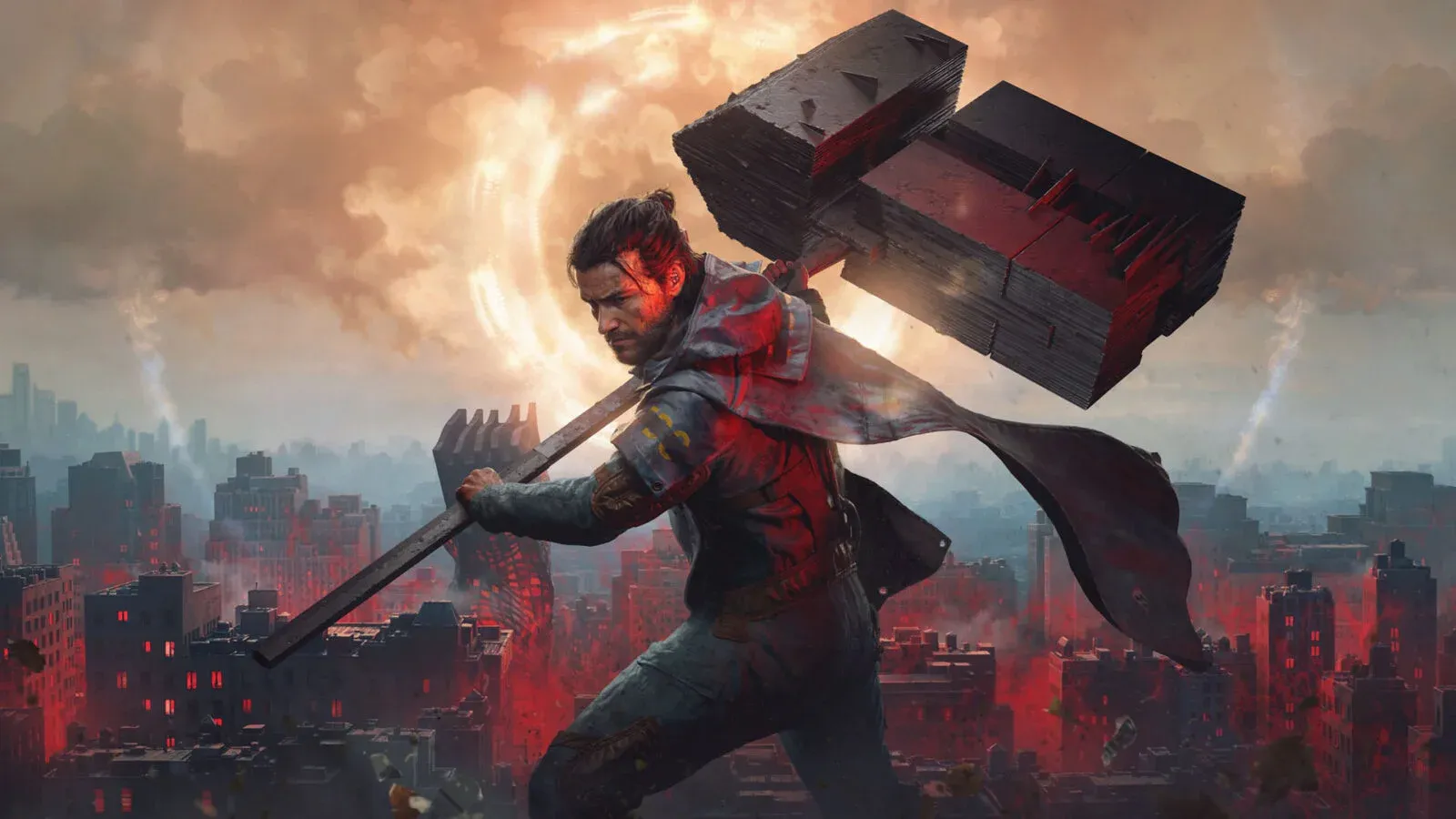


CONTROL Resonant is a demanding game on PC, especially once ray tracing enters the picture. Remedy has built a genuinely good-looking title that holds up well at lower presets, which means you have real room to trade a few visual bells and whistles for a much smoother frame rate. The sweet spot for most mid-range hardware is Medium graphics, DLSS or FSR enabled, and ray tracing off. Everything below is built around that principle.
What are the best graphics settings for Control Resonant?
The table below covers a solid starting point for any PC around the recommended hardware tier. You can always push individual settings higher once you confirm your frame rate is stable.
Keeping Texture Resolution and Texture Filtering at High while leaving everything else at Medium is a deliberate choice. Textures have a relatively small performance cost compared to lighting and shadow systems, and they make the biggest visible difference at close range. The rest of the settings at Medium give you a clean, detailed image without hammering your GPU.
Remedy's own recommended PC target for 1440p at 60 FPS points at an RTX 3060 Ti, RX 6700 XT, or Intel Arc B580-class GPU running Medium graphics with Balanced upscaling and ray tracing disabled. That is a useful benchmark for calibrating your own setup.
Control Resonant Best PC Settings for Optimize Performance
How do DLSS and FSR work in Control Resonant?
Control Resonant supports NVIDIA DLSS 4.5 and AMD FSR 4.1, including Frame Generation for both. These are among the most up-to-date versions of each upscaling technology, so the image quality at Quality mode is genuinely good.
Start at Quality mode and only move to Balanced or Performance if you still need more headroom after adjusting other settings. The difference between Quality and Balanced is noticeable at 1080p, less so at 1440p and above.
Frame Generation is worth enabling once you have a stable base frame rate, not before. Using it to rescue an already unstable frame rate tends to add input latency without fixing the underlying problem. Get your rasterized performance where you want it first, then let Frame Generation push you higher.
Should you enable ray tracing in Control Resonant?
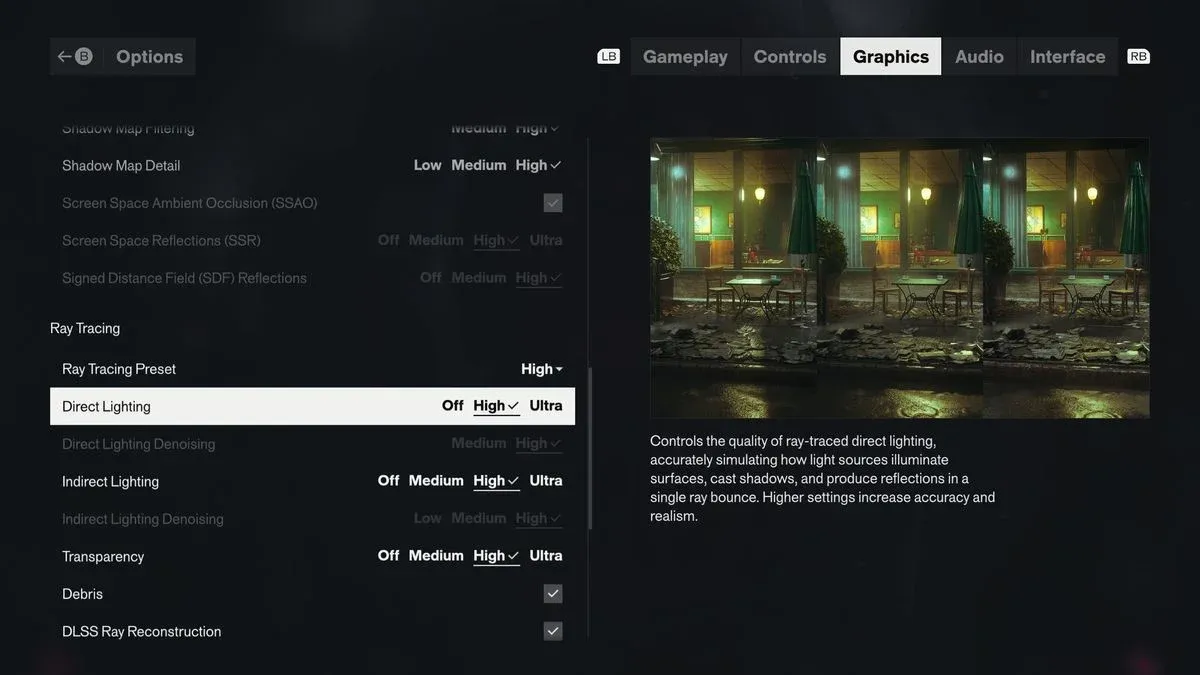
Ray tracing is the single biggest performance cost in the game. The short answer for most players: leave it off.
Remedy's official ray tracing targets are specific: RTX 4070 Ti or Radeon RX 9070 for 1440p at 60 FPS with Medium ray tracing, and an RTX 5080 for 4K at 60 FPS with full path tracing using Performance upscaling. Those are high bars. If your GPU sits below the RTX 4070 Ti tier, the frame rate hit from enabling ray tracing almost never justifies the visual gain over a well-configured rasterized setup.
When you do enable ray tracing, drop everything else to Medium first and confirm your frame rate is acceptable before touching upscaling quality.
What post-processing settings should you change?
Post-processing options have a smaller performance cost than core graphics settings, but several of them meaningfully affect readability during combat.
Turn off Lens Distortion, Film Grain, and Vignetting for a cleaner image. These effects add a stylized look that some players enjoy in cutscenes, but they reduce visual clarity during fast combat. Motion Blur is a personal call: Control Resonant uses a lot of rapid movement and telekinetic abilities where blur can feel intentional, but on PC you can safely disable it without losing anything meaningful.
Depth of Field is worth keeping on. It contributes to the cinematic framing Remedy is going for and has a negligible performance cost.
Best controller and camera settings for Control Resonant
If you are playing on PC with an Xbox controller or DualSense, these values give you faster horizontal turning without making vertical movement feel twitchy.
Controller settings
The gap between horizontal (60) and vertical (45) sensitivity keeps turns snappy while preventing the camera from overshooting on vertical adjustments. Quick Camera Lock-On is worth enabling early since Control Resonant's combat gets chaotic fast. Backwards Dodge on lets you retreat without manually rotating the camera, which matters a lot in tight spaces.
Mouse and keyboard players should set sensitivity based on their own DPI rather than mapping these values directly.
Control Resonant Best PC Settings for Optimize Performance
Camera settings
A 90 FOV keeps Dylan and nearby enemies readable during close-range encounters without making the screen feel cramped. Ultrawide monitor users should push this higher. Switch Target When Current Target Dies is one of the more useful toggles here since it keeps your lock-on active without requiring a manual re-target mid-combo.
What PC hardware does Control Resonant require?
Control Resonant needs 16GB RAM and a 120GB SSD across all performance profiles. An SSD is required, not optional. If the game is installed on an HDD, expect streaming and loading problems regardless of your GPU.
For a full breakdown of minimum and recommended specs, the Control Resonant PC system requirements guide covers every performance tier in detail.
How do you get the most FPS out of Control Resonant?
The fastest path to better performance follows this order:
- Confirm ray tracing is Off
- Set your upscaler to DLSS or FSR Quality (or Balanced at 1440p and above)
- Use a Custom Medium preset with Texture Resolution at High
- Disable Lens Distortion, Film Grain, Vignetting, and SDF Reflections
- Only lower individual settings from Medium to Low if FPS is still short of your target
Dropping everything to Low immediately is rarely the right call. Control Resonant maintains most of its visual identity at Medium settings, and the difference between Medium and Low on lighting and shadows is more noticeable than the frame rate gain usually justifies.
Frame Generation can push you past your target once the base frame rate is stable, but treat it as a final boost rather than a primary fix.
For more on building your character effectively once you are in the game, the Control Resonant best talent upgrades guide covers which skill tree investments pay off earliest. The full Control Resonant guides collection has everything else you need to get started.