
To play Fortnite split screen, connect two controllers to a supported PlayStation or Xbox, sign in both players, and launch a compatible match.
Fortnite calls this feature Local Multiplayer, also known as couch co-op. Two people share one console and display, but you still need an internet connection. Setup happens in the lobby; the screen splits when you enter a supported game. An unchanged lobby view does not mean the setup failed. Check the platform, account, and game requirements below before troubleshooting your controllers.
Fortnite split-screen requirements

Supported consoles
Fortnite split screen works on the following PlayStation and Xbox consoles. Connecting another controller does not enable the feature on an unsupported platform.
| Platform | Split-screen support |
|---|---|
| PlayStation 4 | Yes |
| PlayStation 5 | Yes |
| Xbox One | Yes |
| Xbox Series X and Xbox Series S | Yes |
| PC | No |
| Nintendo Switch | No |
| Mobile devices | No |
Controllers, accounts, and connection
Before opening a match, have these ready:
- Two controllers, both connected to the same supported console.
- A separate PlayStation or Xbox account for the second player. Guest and Quick Play console accounts are not supported.
- An Epic Games account for each player, with any required permissions accepted.
- A stable internet connection.
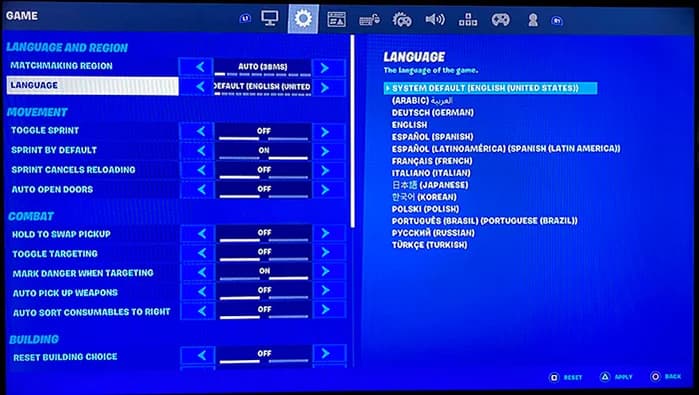
- The same language setting on both players' accounts.
Install any pending Fortnite update before starting. If the second player needs an account, finish creating it first so account registration does not interrupt the join process.
Linking the second player's Epic Games account gives them access to their Locker outfits, Battle Pass, Quests, and other progress. They do not need to use the first player's account or cosmetic collection.
Link the second player's account
How to set up Fortnite split screen
Sign in the second player
Follow these steps on either PlayStation or Xbox:
- Open Fortnite with the first controller. Sign in to the first player's console account, launch the game, and enter the lobby.
- Connect the second controller. Turn it on and select the second player's own console account when the console asks who is using it.
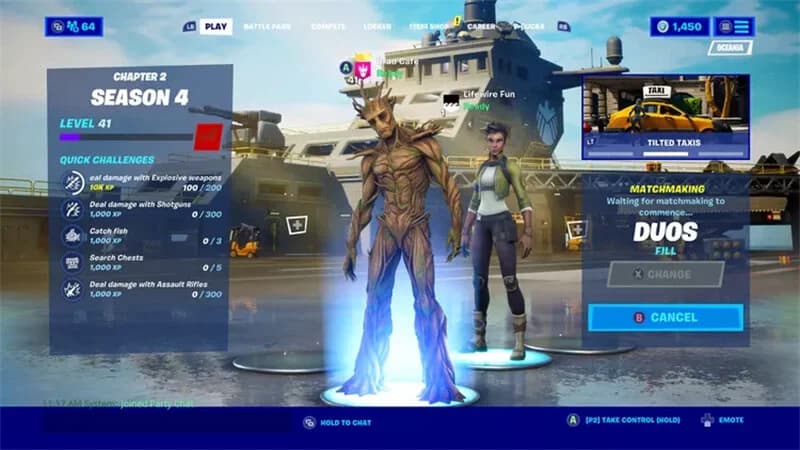
- Complete the Fortnite sign-in prompt. Fortnite can automatically ask the second player to link their Epic Games account. If the lobby displays [P2] LOG IN (HOLD), hold the indicated button on the second controller.
- Finish linking the second Epic Games account. Follow the on-screen instructions, then wait for the second player's character to appear in the lobby. Dismiss the information pop-up if one appears.
- Choose a compatible game and start matchmaking. Select a supported mode, such as an unranked Duos match, and complete the Ready prompts. Local Multiplayer begins automatically when the match starts.
The join button depends on your console:
| Console | Button to hold when the P2 login prompt appears |
|---|---|
| PlayStation | X |
| Xbox | A |
Follow the prompt shown on your screen. Signing in to the console and signing in to Fortnite are separate parts of the process; the second controller being active does not mean the second Epic Games account has finished joining.
Check that setup worked
Both players' characters should appear in the lobby before you queue. You do not need to find a separate split-screen switch in the settings.
In a split-screen Battle Royale match, the first player's view appears above the second player's view. Each person controls their own character. The lobby and sub-menus do not use that split layout.
Once both controllers respond correctly, review Fortnite controller settings if either player needs to adjust sensitivity or deadzones before playing.
Which Fortnite games support split screen?
Battle Royale is not the only option. LEGO Fortnite Odyssey and LEGO Fortnite Brick Life also support Local Multiplayer on PlayStation and Xbox.
| Game or mode | Local multiplayer support | What to select |
|---|---|---|
| Battle Royale | Yes, in compatible team playlists | Unranked Duos or Squads |
| Zero Build | Yes, in compatible team playlists | Unranked Duos or Squads |
| LEGO Fortnite Odyssey | Yes | Its supported Local Multiplayer experience |
| LEGO Fortnite Brick Life | Yes | Its supported Local Multiplayer experience |
| Solos | No | Choose a supported team playlist instead |
| Ranked Mode | No | Choose an unranked option |
| Creative and Limited Time Modes | No | Choose a supported game |
| Save the World | No | Choose a supported game |
Check support in Discover
After the second player connects, open Discover and look for the Great for Local Multiplayer row. This is the direct way to find games intended for a shared-console session.
You can also open a game's Game Details and look for the Local Players tag. Use that tag to check a particular experience before trying to launch it with both accounts.
Do not assume that every multiplayer game supports split screen. Online multiplayer and Local Multiplayer are different features, and a game supporting an online party does not make it compatible with two controllers on one console.
Check support before matchmaking
What changes when you share a screen?
Sharing a display does not create a combined supply of weapons or items, so coordinate your loadouts and tell your teammate what you need.
Inventories and menus stay separate
Each player has their own inventory.
The split-screen layout applies during a match, not across every menu. Expect to handle account and menu actions separately outside gameplay instead of navigating two independent menu panels at once.
Communication still helps even when you can see your teammate's view. Call out enemy positions and agree on where to move so both players can follow the same plan without constantly checking the other half of the display.
How to fix Fortnite split screen not working
The second player cannot join
Start with the second controller and its account assignment. Check that the controller is connected to the console and signed in as the intended second player, then complete Fortnite's Epic Games account prompt.
If the controller works but the second character never appears, check that the account has the required permissions. Give the login process a moment to finish before restarting Fortnite and trying again.
Both players join, but the match will not start correctly
Check the selected game's Local Players tag first. Switch to a supported unranked Duos or Squads match if you were trying Ranked, Solos, or another unsupported mode.
Next, compare both players' language settings. Select the same language for both accounts before attempting Local Multiplayer again.
Use the same language setting
The session disconnects or runs poorly
Check the internet connection before changing unrelated gameplay settings. Local Multiplayer requires a stable connection even though both players are sitting at the same console.
Restart Fortnite, install any pending update, and restart the console if the problem continues. Keep the console well ventilated if it is overheating.
If the match loads but play remains laggy, work through the relevant console and network checks in the Fortnite FPS and settings guide. If joining still fails after the account, language, connection, and mode checks, contact Epic Games support.