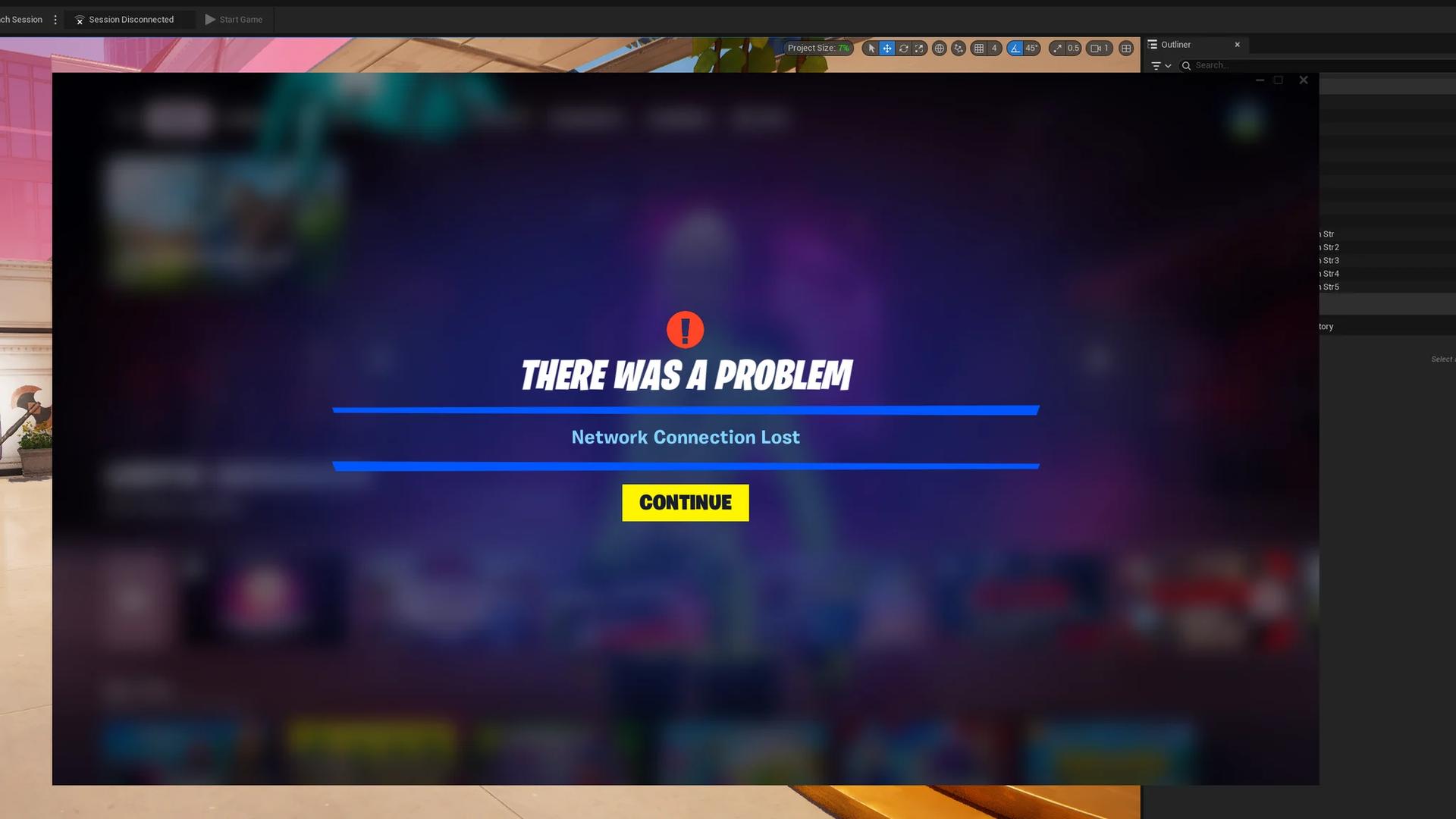

Fortnite may stop working because of server downtime, connection problems, missing updates, damaged files, or local cache and software conflicts.
The fastest way to narrow it down is to identify where the game stops: before launch, at login, in the lobby, or inside a match. A loading-screen error and a low-FPS match need different fixes. Start with service status, then make one local change at a time and retry the same action. Leave reinstalling until the targeted checks are finished.
Check whether Fortnite is down
Open the Epic Games Public Status page, expand Fortnite, and check these services:
- Login: Problems here can prevent you from signing in.
- Game Services: Disruption can affect access to the game.
- Matchmaking: Problems here can stop you from joining matches even when the lobby loads.
If the relevant service shows maintenance or an outage, wait for Epic to restore it. Router resets, file verification, and reinstalling cannot repair an Epic-side interruption.
The official Fortnite Status account also posts maintenance announcements, known connectivity problems, and restoration updates. Maintenance length varies, so follow those updates instead of assuming every patch finishes within the same window.
On consoles, check PlayStation Network, Xbox network, or Nintendo's network service status too. A separate platform disruption can block access even when Fortnite's services are operational. If neither service has a reported problem, install any pending Fortnite update before continuing.

Match the symptom to the next step
A failed login does not prove that Fortnite is down for everyone. Use the point of failure to choose your next check.
| What happens | Possible causes | Best next step |
|---|---|---|
| Login fails or servers do not respond | Epic service interruption, network problems, or security restrictions | Check service status, then troubleshoot your connection |
| The lobby opens, but matches will not start | Matchmaking disruption, region selection, or unstable internet | Check Matchmaking status and test Auto region selection |
| Fortnite crashes or stays on a loading screen on PC | Missing files, graphics compatibility, or software conflicts | Verify the installation |
| Epic Games Launcher will not open or connect | Launcher cache, permissions, or security software | Clear its webcache and check permissions |
| A console cannot connect or launch reliably | Local cache or connection problems | Restart the console, then use its cache-clearing procedure |
| Matches load, but gameplay stutters | Graphics settings, drivers, or storage performance | Follow performance troubleshooting |
Fix login and matchmaking connection errors
Restart your connection cleanly
A working browser does not rule out a network problem. Packet loss and unstable Wi-Fi can interrupt Fortnite even when ordinary websites load.
Try this sequence:
- Completely close Fortnite and, on PC, Epic Games Launcher.
- Turn off your PC or console.
- Disconnect your router and modem from power for approximately 30 seconds.
- Reconnect the networking equipment and wait for internet access to return.
- Start your device and retry Fortnite.
Use Ethernet if possible, and pause downloads or streaming that compete for bandwidth. Temporarily turn off any VPN or proxy while checking the connection.
You can also test a mobile hotspot. If Fortnite connects through it but not your usual network, focus further troubleshooting on your home connection.
If the screen names ESP-DIST-001, the Fortnite ESP-DIST-001 error fixes cover its console cache and connection checks in more detail. This code generally concerns connectivity to Epic services; it does not indicate an account ban.
Check your matchmaking region
If you can reach the lobby but cannot join a match, set Matchmaking Region to Auto first. If the problem continues, test a nearby region with a low displayed ping.
Avoid choosing a distant region simply because it lets you queue. Higher latency can make the match less responsive even if the connection succeeds.
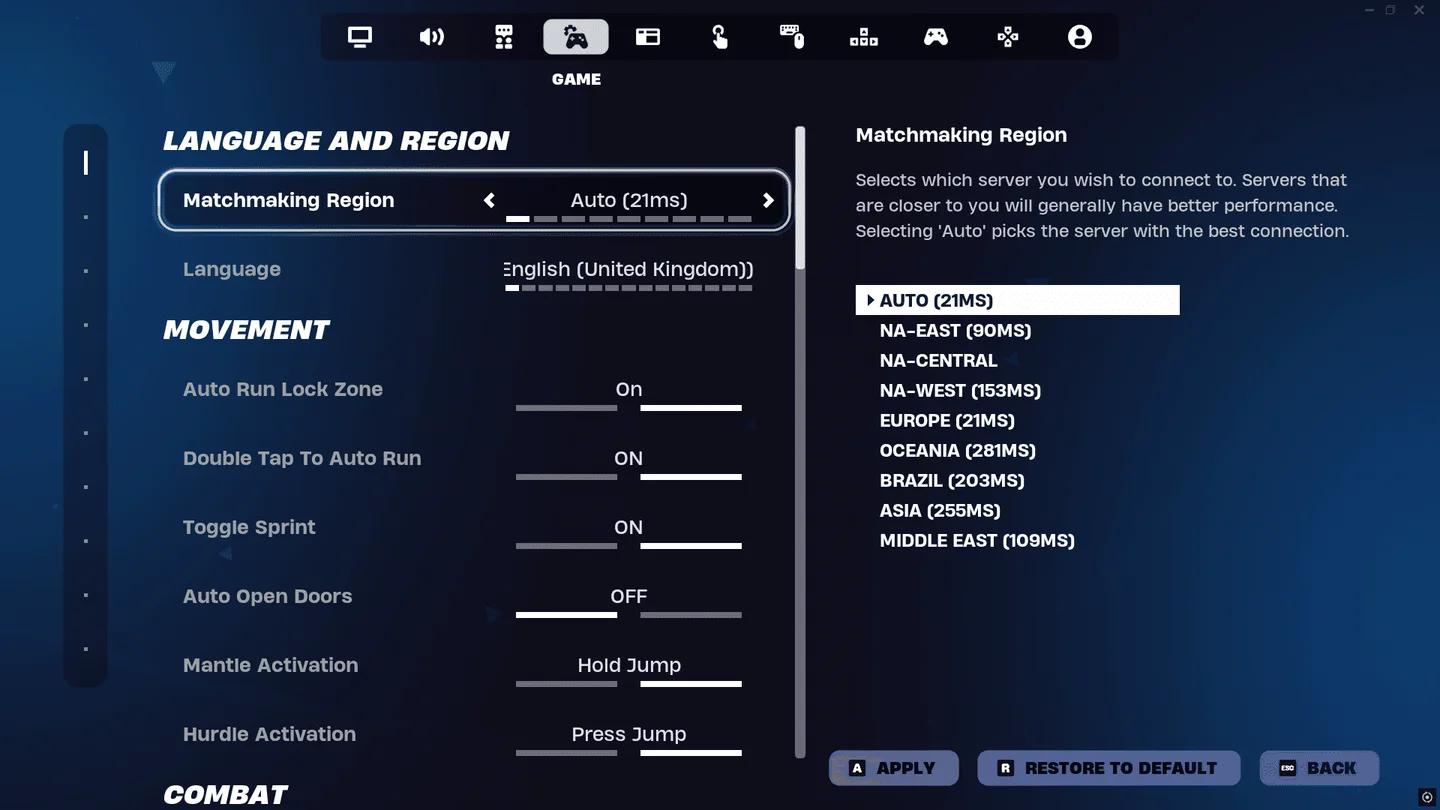
Choose a nearby matchmaking region
Refresh DNS on Windows
Outdated DNS records can interfere with finding Epic's service addresses. To clear Windows' DNS cache:
- Search for Command Prompt in the Start menu.
- Select Run as administrator.
- Enter ipconfig /flushdns and press Enter.
- Restart your PC and retry Fortnite.
If the connection still fails, you can test Google Public DNS:
- Open Control Panel > Network and Internet > Network and Sharing Center.
- Select your active Wi-Fi or Ethernet connection, then open Properties.
- Select Internet Protocol Version 4 (TCP/IPv4) and open its Properties.
- Choose Use the following DNS server addresses.
- Enter 8.8.8.8 as the preferred server and 8.8.4.4 as the alternate server.
- Save the settings and reconnect.
Record your original DNS settings before changing them. Public DNS can help with address-resolution problems, but it is not a guaranteed ping improvement.
Fix Fortnite not launching or loading on PC
Verify the game files
Interrupted updates and crashes can leave installation files missing or damaged. Verify checks those files and downloads replacements without deleting your saved progress.
- Open Epic Games Launcher.
- Select Library and find Fortnite.
- Open its three-dot menu.
- Select Manage > Verify.
- Wait for the check to finish, then relaunch the game.
Use this before downloading the entire game again, particularly when loading problems begin after an update.
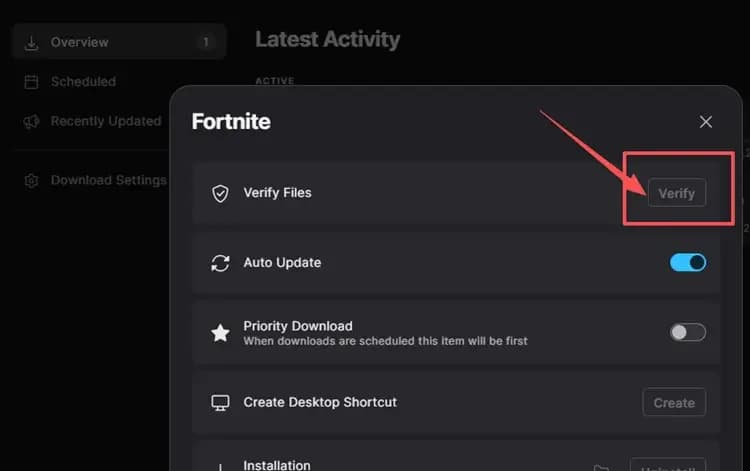
Repair the Fortnite installation
Clear the Epic Games Launcher cache
Corrupted launcher cache data can interfere with startup and connections. Close the launcher completely, including its system-tray entry, and check Task Manager to make sure it is no longer running.
Then:
- Press Windows + R.
- Enter %localappdata%\EpicGamesLauncher\Saved and press Enter.
- Delete folders named webcache, webcache_4147, or webcache_4430, if present.
- Restart your PC and open the launcher again.
Delete only those cache folders for this step. The launcher recreates its temporary cache when it starts.
Check drivers, rendering, and background apps
Update your graphics driver if Fortnite crashes during startup or fails to render correctly. If the problem occurs with DirectX 12, test DirectX 11 by entering -dx11 in the launcher's Fortnite command-line arguments, then relaunch. Remove the argument if it does not help.
Close unnecessary overlays and background programs one at a time. Retrying after each change helps identify a software conflict without removing several programs at once.
For launcher permission problems, completely close Epic Games Launcher, right-click its shortcut, and select Run as administrator. Check whether Fortnite starts before making further changes.
Check firewall permissions
Security software can block Fortnite or Epic Games Launcher from reaching required services. Open Windows Security > Firewall & network protection > Allow an app through firewall, then check that both applications are allowed on your active network.
If you use third-party security software, add the relevant applications as trusted apps instead of switching off protection.
Bitdefender users seeing ESP-DIST-001 should update the security software first. Version 27.0.60.341 includes a fix for a firewall-related cause of that error.
Fix console launch and cache problems
Cache problems need platform-specific steps. A full restart is a sensible first check on any console, but the PS5 recovery menu is not the same as the Nintendo Switch settings menu.
Clear the PS5 system software cache
- Completely close Fortnite and turn off the PS5.
- Wait until the console has fully powered down.
- Hold the power button until the second beep to enter Safe Mode.
- Connect your controller with a USB cable.
- Select Clear Cache and Rebuild Database.
- Choose Clear System Software Cache.
- Restart the console and launch Fortnite.
Choose the cache option for this procedure, not a console reset.
Use the correct procedure on other consoles
| Platform | Restart or cache procedure |
|---|---|
| Xbox Series X|S | Fully turn off the console, disconnect its power cable for approximately two minutes, reconnect it, and start Fortnite again |
| PlayStation 4 | Fully shut down and restart the console before retrying the game |
| Nintendo Switch | Open System Settings > System > Formatting Options > Reset Cache, choose your user profile, confirm, and restart |
| Nintendo Switch 2 | Open System Settings > System > Data-Clear Options > Clear Cache, choose your user profile, confirm, and restart |
The listed cache-clearing procedures do not delete downloaded games or saved game progress.
Use local resets and reinstalling as last steps
Reset Fortnite's local PC data
If the earlier PC checks fail, removing the local FortniteGame folder can address corrupted local data.
- Close Fortnite and Epic Games Launcher.
- Press Windows + R, enter %localappdata%, and press Enter.
- Delete the FortniteGame folder.
- Restart your PC and open Epic Games Launcher as administrator.
- Use Fortnite's Manage > Verify option again.
Fortnite recreates the required local files when it launches. Epic also recommends keeping at least 10 GB free on the drive containing Fortnite.
Decide whether you need a fresh installation
If Fortnite opens and joins matches but still stutters, use the Fortnite FPS and settings guide for graphics and system adjustments. Slow storage can also affect asset loading; an SSD reads maps and assets faster than a traditional hard drive.
Reinstall Fortnite only after the checks for your symptom fail. On consoles, remove it through the platform's game-management settings and download it again. On PC, consider reinstalling Epic Games Launcher if the launcher itself still cannot open or connect. Check that you have enough free storage before starting the fresh download.