
If Moon Sweepers will not launch, start with Steam file verification and a current graphics driver. For stuttering or co-op trouble, check graphics settings, base simulation load, and the host connection separately. These problems can look similar while needing different fixes.
Dust effects, long conveyor networks, and sessions with up to 16 players put pressure on different parts of your PC. A crash before the main menu needs a different investigation than low FPS around an automated factory. Follow the section matching your symptom, and copy your save before replacing files.
Build scope: Moon Sweepers on Steam for PC, focused on the October 23, 2026 launch release. Menu options and troubleshooting advice can change with title updates.
What should you check before changing settings?

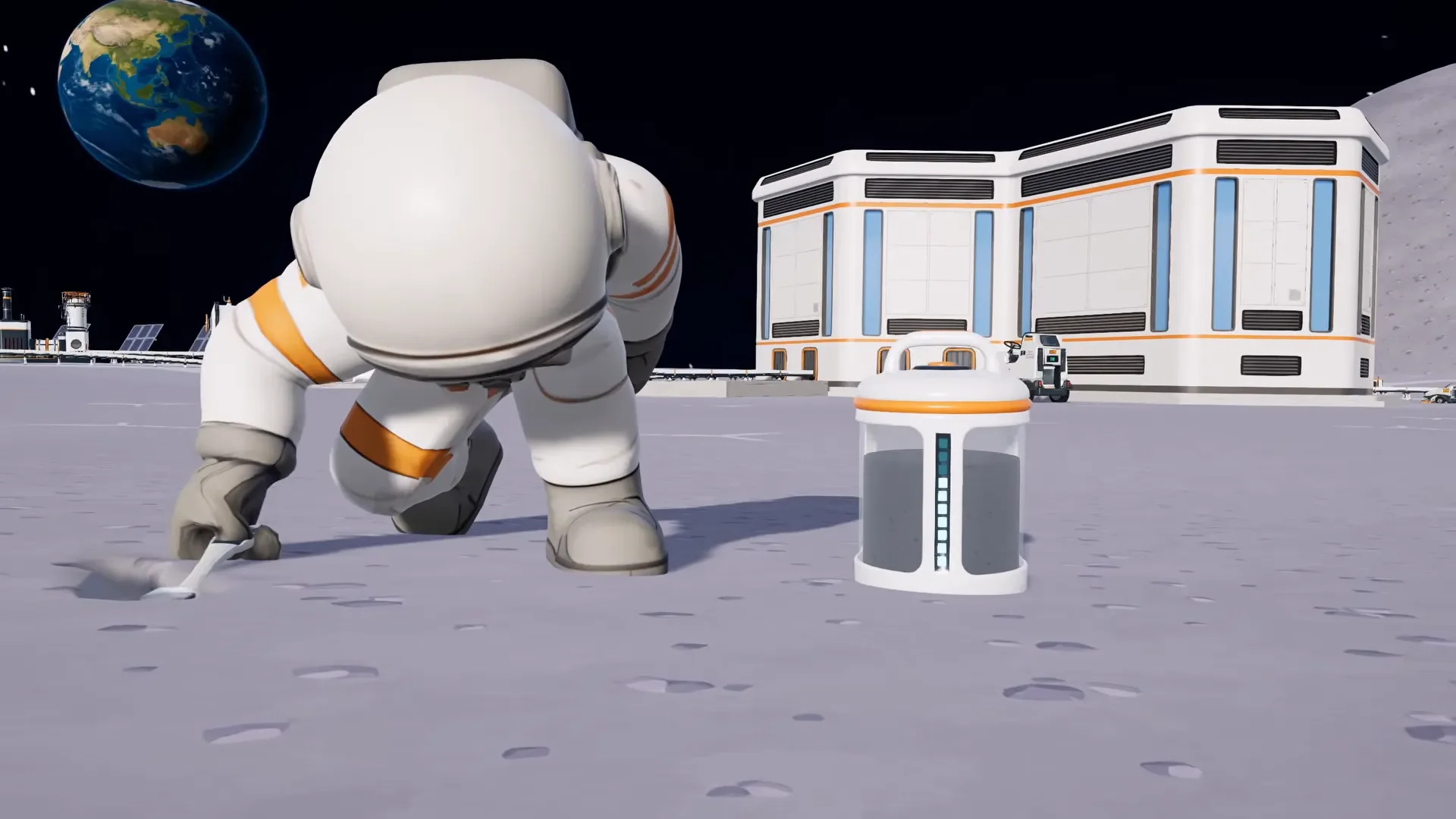
Check requirements and pending updates
Open the Moon Sweepers store page in Steam and compare your operating system, processor, memory, and graphics card with its requirements. Check your GPU's VRAM capacity too, because texture quality and dust effects affect graphics-memory demand.
Before troubleshooting the launch itself:
- Let pending Moon Sweepers downloads finish in Steam.
- Install a current graphics driver for your NVIDIA, AMD, or Intel GPU.
- Confirm every co-op player has the same game version.
- Check the game's update notes for an issue matching your symptom.
Identify which problem you actually have
Use the point of failure to choose your next step. A moving rover snapping backward is a different problem than the entire application closing.
| What happens? | What to investigate first | Why it fits |
|---|---|---|
| The application closes before the main menu | Installation files, graphics driver, and background software | These checks target startup failures |
| FPS drops while you sweep dust | Dust particles, shadows, and the rendering API | Sweeping adds particle and lighting work |
| Performance worsens around a large factory | Active robots, conveyor routes, and loose capsules | Automated equipment adds simulation work |
| Other players rubberband while driving | Host hardware, connection, and network rate | The host handles the shared simulation |
| One world fails while another loads | The affected save and its backups | The failure is tied to a particular world |
What should you do if Moon Sweepers will not launch?
A failure before the main menu is a good reason to verify files and check your driver first. If Moon Sweepers opens normally but crashes after entering a large automated base, investigate the world's workload instead.
For crashes during an active session, temporarily reduce the number of running robots and machines. If stability improves, that gives you a useful lead: the problem follows the simulation load rather than simply opening the application.
Protect your save before replacing files
Steam Cloud synchronizes your active save after a clean exit. Make a separate local copy before overwriting a save slot or attempting recovery.
- Close Moon Sweepers completely.
- Wait for Steam Cloud synchronization to finish.
- Duplicate your local save folder.
- Store the copy somewhere separate, such as an archive folder.
If Moon Sweepers still opens but your astronaut has fallen through terrain, use the in-game Unstuck Character option in the gameplay menu. A vehicle trapped in terrain has a separate Unstuck Vehicle option; board it before using that control.
How do you verify files and check background software?
Repair the Steam installation
Steam's verification tool checks the installation and replaces missing or damaged files. This is the first repair step for a game that refuses to start.
- Open your Steam Library.
- Right-click Moon Sweepers and select Properties.
- Open Installed Files.
- Select Verify integrity of game files.
- Let the check finish, then launch Moon Sweepers again.
Test overlays and recording tools separately
The Steam Overlay, recording tools, and RGB utilities can interfere with the rendering process. Treat disabling them as a diagnostic test, not proof that one particular application caused the crash.
Start with the Steam Overlay toggle in Moon Sweepers' Properties. Launch again with that disabled, then separately check nonessential recording software, Discord's overlay, or RGB utilities such as iCUE and Armoury Crate.
Changing one background application at a time makes the result easier to interpret. If disabling an application makes no difference, restore it before moving to the next check.
How do you diagnose low FPS and stuttering?
Which graphics settings should you change first?
Volumetric Dust Particles and Shadow Quality are the first settings to lower when FPS drops during sweeping. Both add work precisely when dust collection fills the scene with effects.
Use this as a starting profile rather than a promised frame rate. Your hardware, factory size, and co-op session still affect performance.
| Setting | Starting value | Best for and why |
|---|---|---|
| Display Mode | Exclusive Fullscreen | Players investigating uneven frame pacing |
| Volumetric Dust Particles | Medium | Sweeping-related FPS drops, because it reduces particle load |
| Shadow Quality | Medium | Heavy dust scenes and overlapping lights, because shadows add rendering work |
| Texture Quality | Medium with 4 GB VRAM; High with 6 GB or more | Matching texture demand to graphics-memory capacity |
| View Distance | Medium | Reducing distant rendering work |
| Post-Processing | Low | Cutting extra visual effects and bloom |
| Motion Blur | Off | Keeping fast vehicle turns clearer |
| Terrain Deformation | High | Preserving useful detail while checking the more demanding effects first |
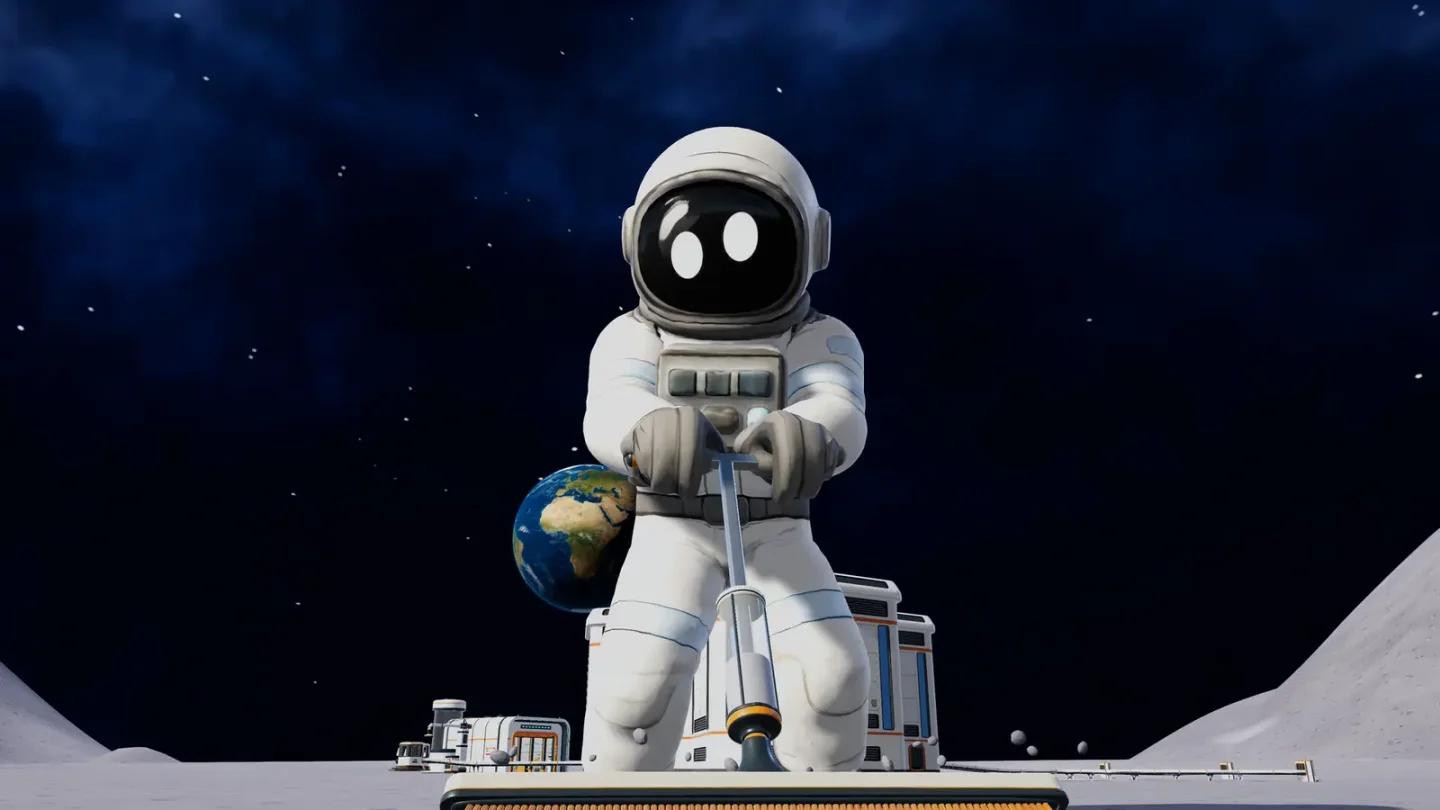
Reduce dust and shadow costs
How do you try DirectX 11?
A DirectX 11 launch override is worth trying when you get short hitches as dust effects or other visuals appear. It targets rendering-related stutter; it does not reduce the number of machines your CPU must simulate.
To apply the override:
- Right-click Moon Sweepers in your Steam Library.
- Select Properties, then General.
- Find the Launch Options field.
- Enter -force-d3d11.
- Close the window and launch the game.
If startup becomes worse after adding the override, remove it and check your graphics driver. On AMD hardware, remove any existing option that forces DirectX 12 before continuing the startup investigation.
For persistent frame-pacing trouble on a Windows 11 multi-monitor setup, another supported check is the executable's Disable fullscreen optimizations setting. Find the Moon Sweepers executable in its installation folder, open Properties, then check the option under Compatibility.
Why does performance drop around large factories?
Active robots, long conveyor routes, and circulating capsules add simulation work. Lowering shadows can help rendering, but it does not remove that factory workload.
Check these parts of your base:
- Pause or remove robots covering already-clean ground.
- Route capsules into storage or a depot instead of leaving them circulating in endless belt loops.
- Inspect long conveyor routes with many mergers.
- Avoid clustering overlapping floodlights and vehicle headlights.
If you are rebuilding conveyor routes, use the factory layout and automation guide to plan the production chain alongside these performance checks.
Fast travel across unexplored terrain can also produce loading stutter. Note whether a hitch occurs during exploration, sweeping, or standing inside your factory, because those are different reproduction conditions.
How do you troubleshoot co-op connection problems?
What should you check when a friend cannot join?
Start with the session setup before changing network settings. Moon Sweepers supports up to 16 players, but everyone still needs a matching game version and access to the host's co-op session.
- Confirm the host and joining player have the same version.
- Confirm the host opened a co-op session rather than a solo save.
- Open the crew menu through Esc and check whether the player was banned from that world.
- Restart Steam if the session does not appear.
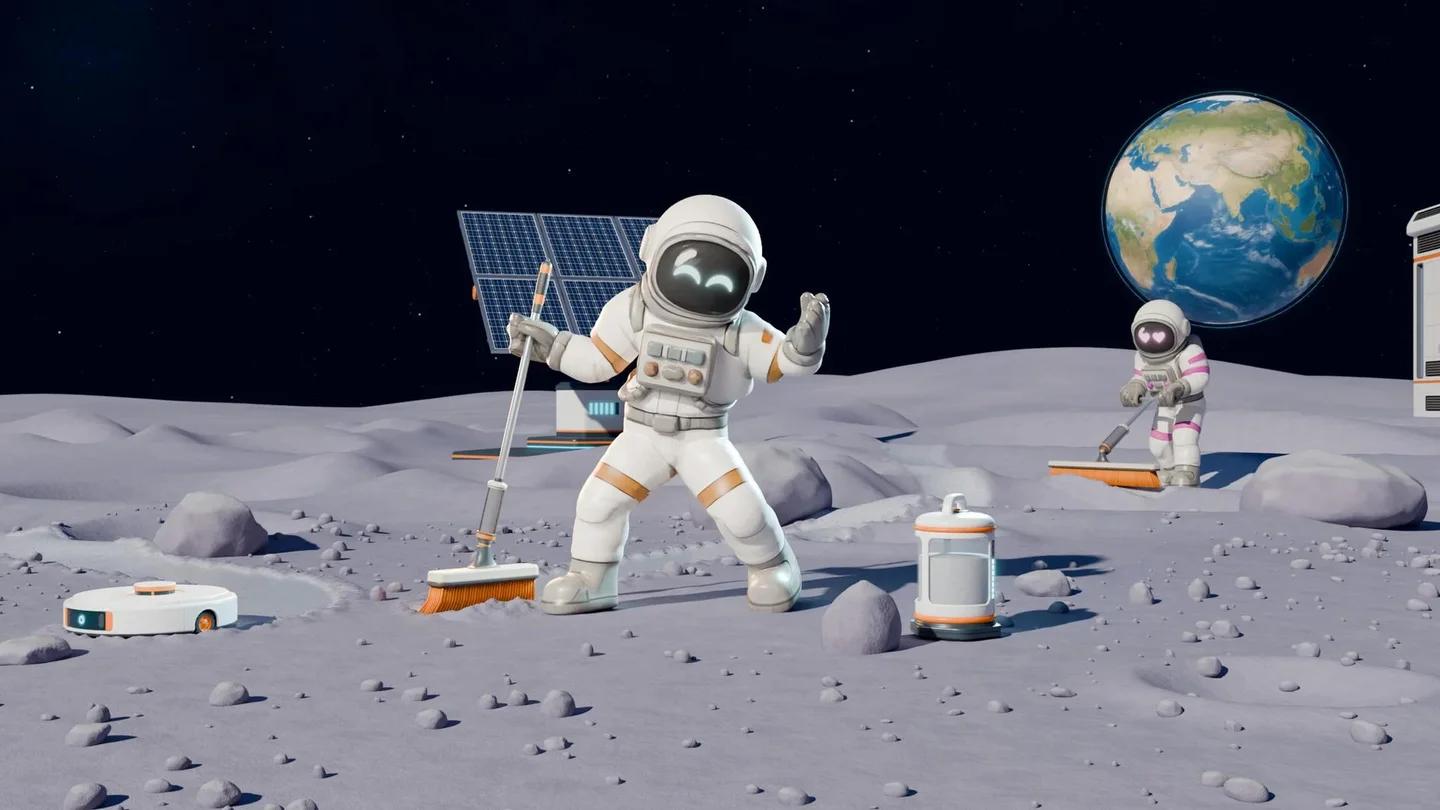
Inspect the co-op crew list
What should you check when players rubberband?
The host PC handles physics for connected players. Choose a host with strong CPU single-core performance and a wired Ethernet connection, especially as the crew and factory grow.
If clients snap backward while driving, open Settings > Gameplay > Network Rate on the host. Change High (60 Hz) to Normal (30 Hz) and check the same driving route again.
What details should you collect for a bug report?
A useful Moon Sweepers report describes exactly where the failure happens. “Crashes after loading this factory save” gives a clearer starting point than “the game is broken.”
Record these details before changing more settings:
- Build and system: Game version, Windows version, CPU, GPU, RAM, VRAM, and graphics-driver version.
- Failure point: Before the menu, during world loading, while sweeping, near a factory, or while joining co-op.
- Session details: Solo or co-op, host or client, and connected player count.
- Graphics setup: Display mode, dust and shadow settings, and any DirectX launch override.
- Steps to reproduce: The world you loaded, the action immediately before failure, and any displayed error text.
- Checks already completed: File verification, driver update, overlay checks, and whether another world loads.
For a large-base crash, include whether reducing active robots or machines changed the result. For rubberbanding, include whether the host's 60 Hz or 30 Hz network setting changed what clients saw.
Common mistakes
Treating every stopped machine as a PC freeze
A factory that stops at night can have a power problem rather than a performance problem. Solar output reaches zero at night, and an empty battery stops connected machinery. Check stored charge with the solar panels, batteries, and electricity guide before troubleshooting the graphics driver.
Lowering every graphics option at once
Changing dust particles, textures, shadows, and the rendering API together makes the result hard to interpret. Start with the setting connected to your symptom, such as dust particles for sweeping-related drops, then repeat the same activity.
Assuming one troubled save means the installation is broken
Compare the affected world with another save before replacing files. If the application launches and other worlds load, preserve the failing world's copy and investigate recovery separately.
Pro tips
- For dust-effect hitches: Compare Medium dust particles and Medium shadows before lowering terrain detail. Those effects are the heavier rendering targets.
- For factory slowdowns: Follow capsules through the conveyor network. Endless loops keep objects active without delivering them to storage or sale.
- For co-op diagnosis: Record the host and player count each time. A different host changes the hardware running the shared simulation.
- For save protection: Exit cleanly and let Steam Cloud finish before making your separate local copy.
Frequently asked questions
Does DirectX 11 fix every Moon Sweepers crash?
DirectX 11 targets rendering-related hitches and compatibility problems. Missing files, background software conflicts, and excessive base simulation load need their own checks.
Should you lower textures or dust particles first?
Lower dust particles first when FPS drops during sweeping. Check texture quality when graphics memory is the concern, using Medium as the starting point for a 4 GB GPU.
What if Moon Sweepers works solo but struggles in co-op?
Check matching versions, the host PC, and the host connection. For driving-related rubberbanding, compare the 60 Hz and 30 Hz network settings while keeping graphics settings unchanged.
For help setting up your Moon Sweepers session after troubleshooting, browse the Moon Sweepers strategy guide collection.