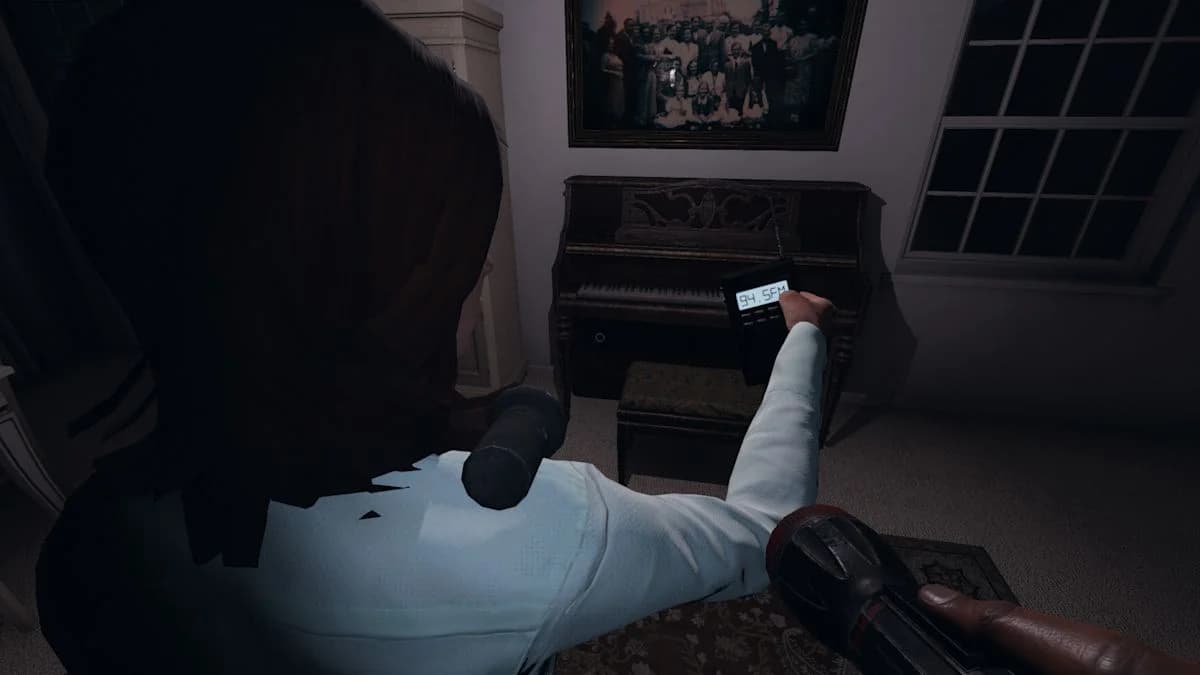

The new Ghost commands in Phasmophobia will let you request nearby door and switch interactions, thrown objects, and signs of a Ghost's presence. You'll be able to make those requests through Voice Recognition or Text mode, with VR Text commands accessible through the Sanity watch. A new Journal page will provide the usable phrases, giving you an in-game reference instead of leaving you to guess the wording. This guide explains those upcoming options and the microphone settings console players can prepare beforehand.
How do you ask the Ghost to interact with doors and switches?
Resonance will expand Voice Recognition with requests for the Ghost to interact with nearby objects, including doors and switches. With spoken input, you'll use a supported phrase to ask for that interaction. Kinetic Games describes this as a chance to prompt the Ghost to act.
The interaction requests apply to nearby objects. Doors and switches are specifically named examples, so these are the requests to look for when checking the new phrase reference in the Journal.

Use the Journal's wording
Once Resonance arrives, open the new Journal page containing usable Voice Recognition phrases. Find the wording for the interaction you want, then use that phrase through your chosen input method. The Journal will be your reference for what the game recognizes.

Nearby door interaction requests
For details about individual Ghosts beyond these interaction requests, use the ghost behaviors and hidden abilities guide.
How do you ask the Ghost to throw objects or give a sign?
The new commands will also include requests for the Ghost to throw objects or give a sign of its presence. These are part of the same Voice Recognition expansion as the door and switch interactions, and they will also be available through Text mode.
Use the Journal to find the supported wording for the action you want to request. The distinction is the requested behavior: asking for an object throw calls for that action, while asking for a sign concerns the Ghost making its presence known.
Choose the request that matches your goal
The announced interaction categories are:
- Interacting with nearby doors or switches.
- Throwing objects.
- Giving a sign of the Ghost's presence.
The Journal's phrase page will put the usable wording inside the game. That's the practical improvement here: you'll have somewhere to check a request during an investigation instead of relying on a remembered phrase.
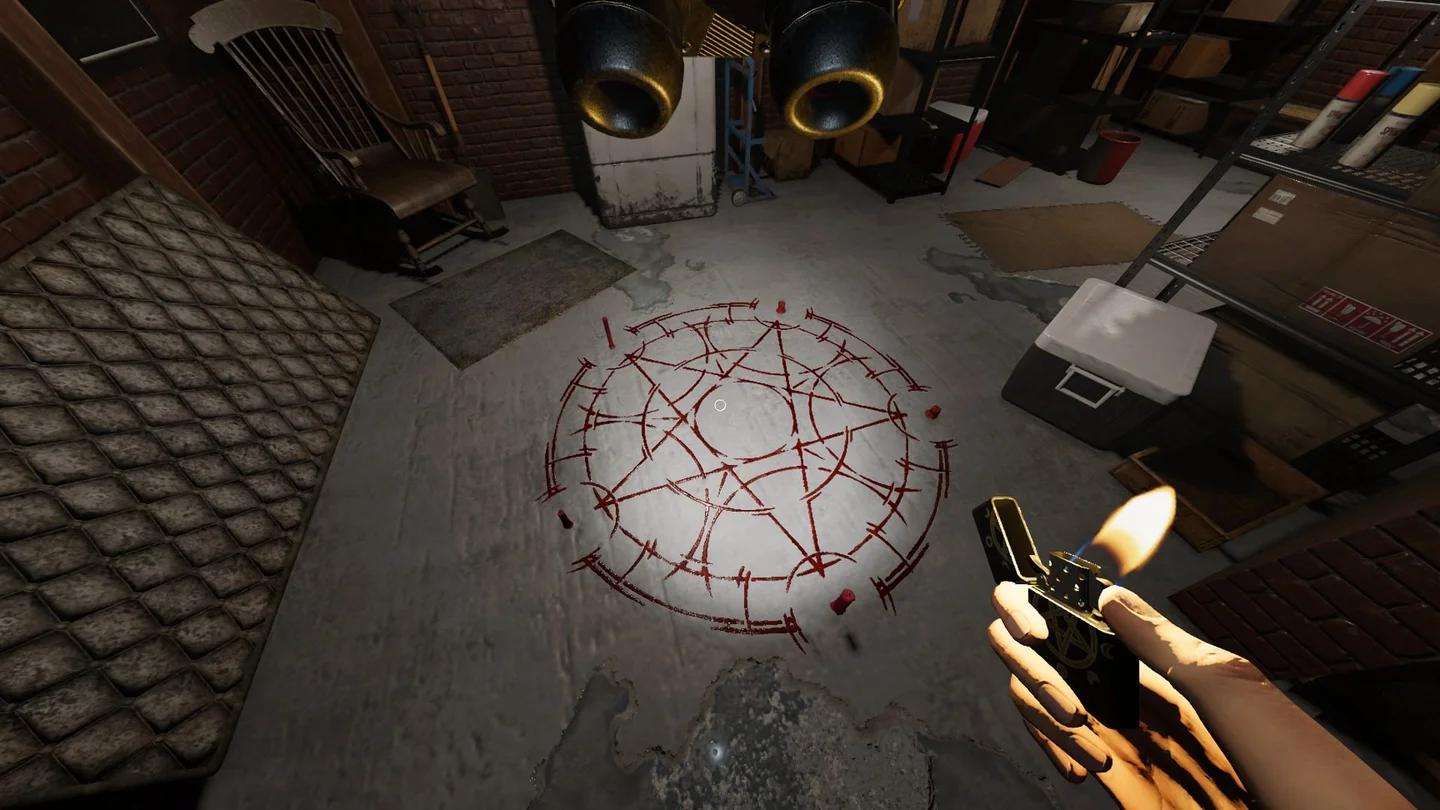
Requests for visible Ghost activity
If you also plan to document investigation activity, the photo, video, and sound rewards guide covers the recording side of a contract.
How do you use Ghost commands with Voice Recognition set to Text?
Set your Voice Recognition mode to Text to access the new interaction options without speaking the requests. Resonance will make these commands available in Text mode alongside their spoken counterparts.
Your input method determines how you issue a request. Voice Recognition accepts the spoken phrases, while Text mode provides the interaction options through text. VR players using Text mode will access those options through the Sanity watch.
| Input method | How you'll issue commands | Announced interaction options |
|---|---|---|
| Voice Recognition | Speak usable phrases | Nearby object interactions, object throws, and signs of presence |
| Text mode | Use the available Text options | The new interaction requests |
| VR with Text mode | Access commands through the Sanity watch | The new interaction requests |
Check the setting name
For console players, the setting is Voice Recognition Mode. Choose Voice for spoken recognition or Text for text input. The console voice update, v0.11.1.2, renamed the VOSK option to Voice, so that is the label to look for in the settings.
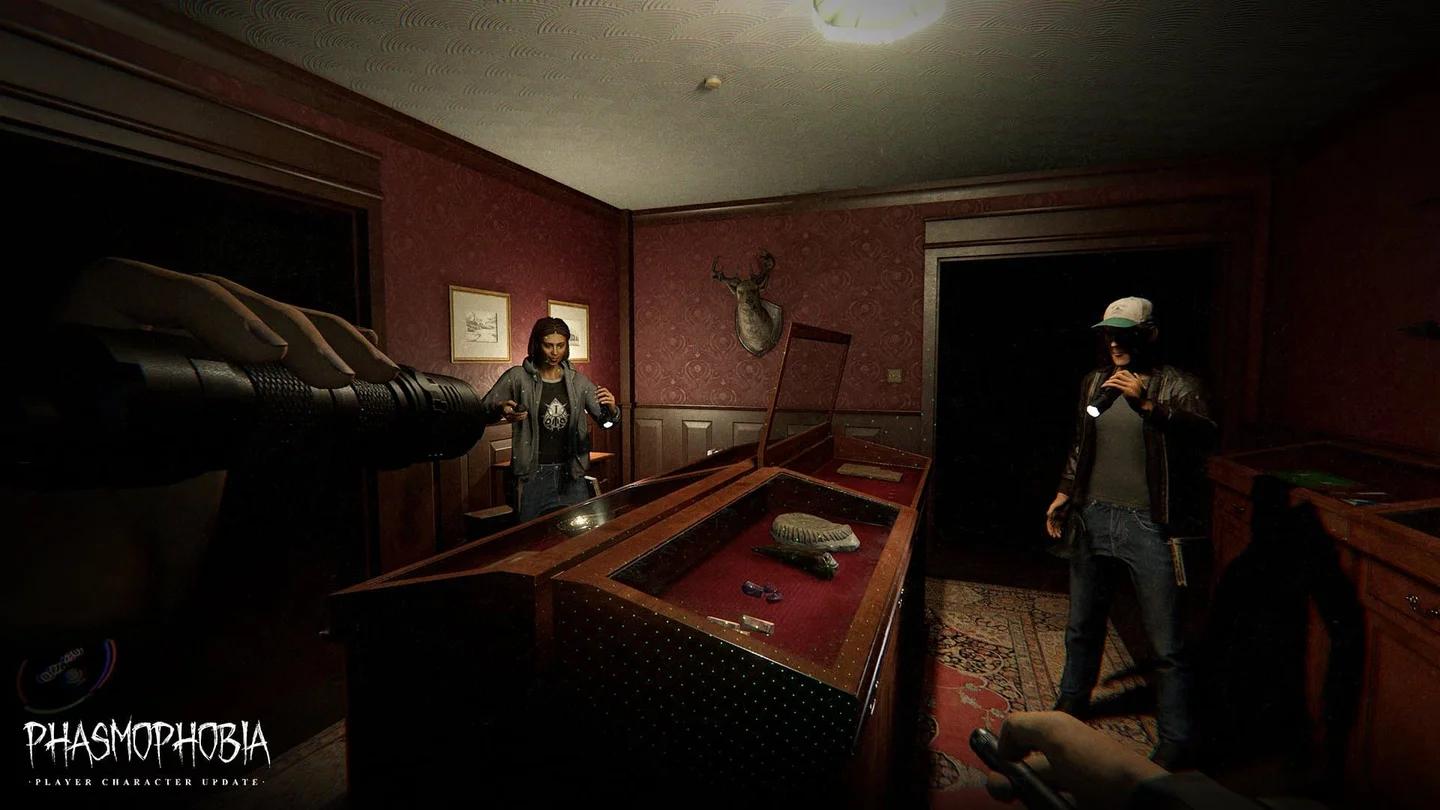
Choose spoken or Text commands
How do VR players access Text commands through the Sanity watch?
VR players using Text mode will access the new Ghost commands through the Sanity watch. That gives you the announced access point for requests involving nearby objects, object throws, and signs of presence.
To use this route when Resonance launches, set Voice Recognition to Text, then access the commands through the Sanity watch. The watch is specifically the VR access point for these Text options; spoken requests remain part of Voice Recognition.
Keep the watch and Journal roles clear
The Sanity watch will give VR Text users access to the commands. The Journal will provide the usable Voice Recognition phrases. One is your command access point in VR Text mode, and the other is your wording reference.
Where can you find usable Voice Recognition phrases in the Journal?
Resonance will add a dedicated page to the Journal listing usable Voice Recognition phrases. Open that page when you want to check what you can say to the Ghost.
The page matters because the new system covers several interaction requests. You'll be able to check supported wording in the Journal rather than guessing how to ask for a door interaction, an object throw, or a sign of presence.
A quick reference for each input route
- Using spoken requests: Check the Journal for usable Voice Recognition phrases.
- Using Text mode: Use the new interaction options available through Text input.
- Using Text mode in VR: Access those commands through the Sanity watch.
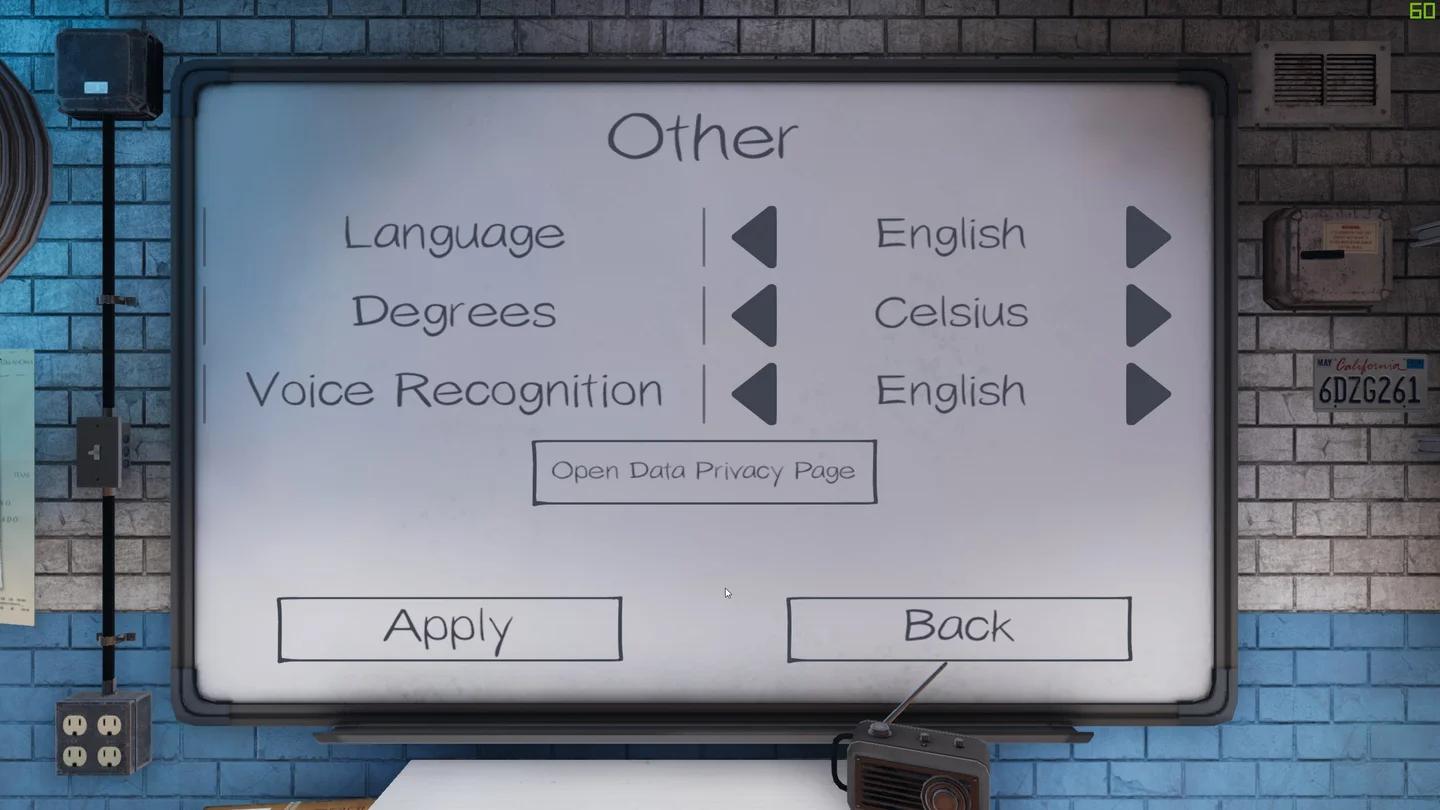
Usable phrases inside the Journal
What can console players set up before Resonance launches?
Spoken Voice Recognition is already supported on PlayStation 5, PS VR2, and Xbox Series X/S through v0.11.1.2. You can prepare your microphone and recognition setting before Resonance adds the new interaction requests.
Xbox microphone setup
Connect a compatible headset through the controller jack or a supported wireless connection. From the main menu, open the game options in the Journal and set Voice Recognition Mode to Voice for spoken input.
PlayStation 5 and PS VR2 microphone setup
On PlayStation 5, you can use the DualSense controller's built-in microphone or a supported connected headset. PS VR2 players can use the headset's built-in microphone. Open the game options from the main menu and choose Voice under Voice Recognition Mode for spoken recognition.
Before Resonance arrives in late November, check your preferred input setting and microphone connection. For help with the rest of your investigations, browse the Phasmophobia guide collection.