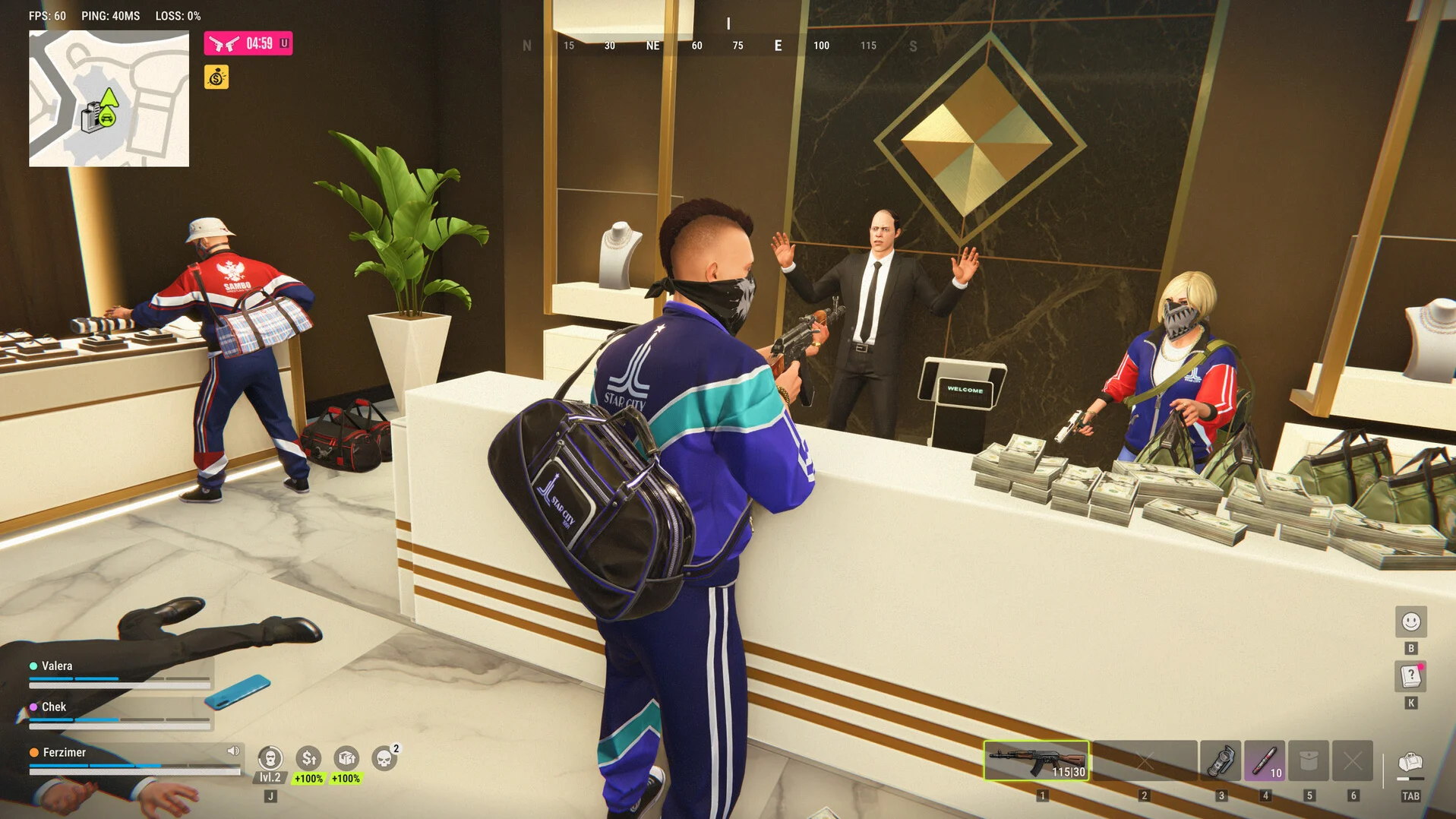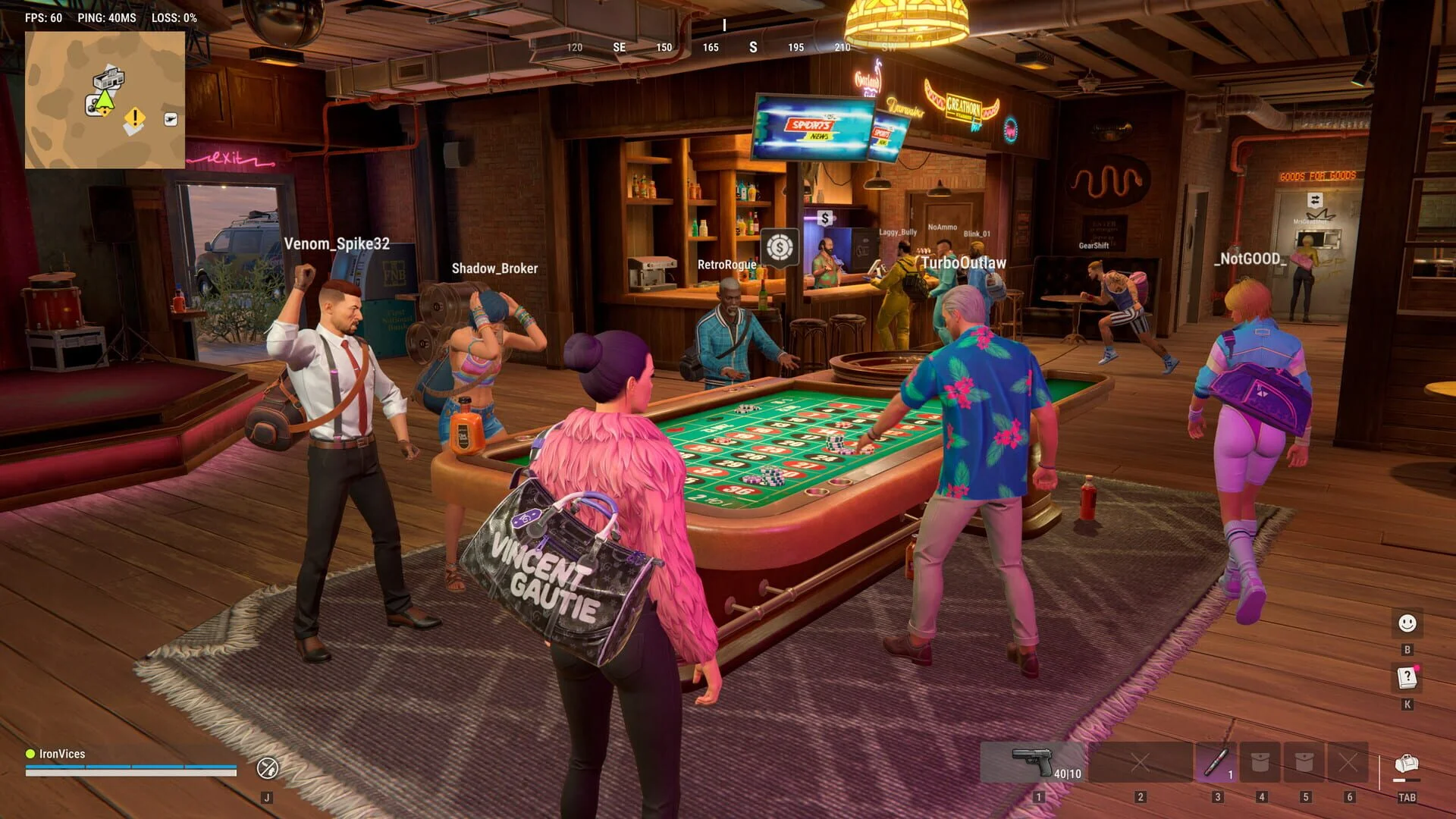

To change region or server in Rob Run, surrender to the Feds through the Global Map’s Prison, then choose your destination inside prison.
There is no dedicated main-menu server-switch button. Moving is a fresh start for your current-state belongings, so check your destination before confirming the surrender. If you want to join a friend, you may only need a party invitation. This guide explains how to check, what the transfer removes, where to select your destination, and what to do if the region change stalls.
Check your friend’s state before surrendering
Rob Run calls its servers states. Each has its own number, population, and lifetime. Open the Global Map and check the state number in the upper-left corner, then ask your friend to check theirs.
Your next action depends on whether those numbers match:
- Same state: Open the Party menu with Tab and send an invitation. You do not need to surrender.
- Different states: Agree on which state to use. The player moving must take the prison transfer route.
Matching regions alone is not enough. Two players can both select EU and still occupy different states, so get the specific state number before anyone gives up their current run.
If a fresh invitation still reports that your friend is elsewhere after you have matched states, report the synchronization problem to Kefir. Repeating the surrender process is not a guaranteed fix.
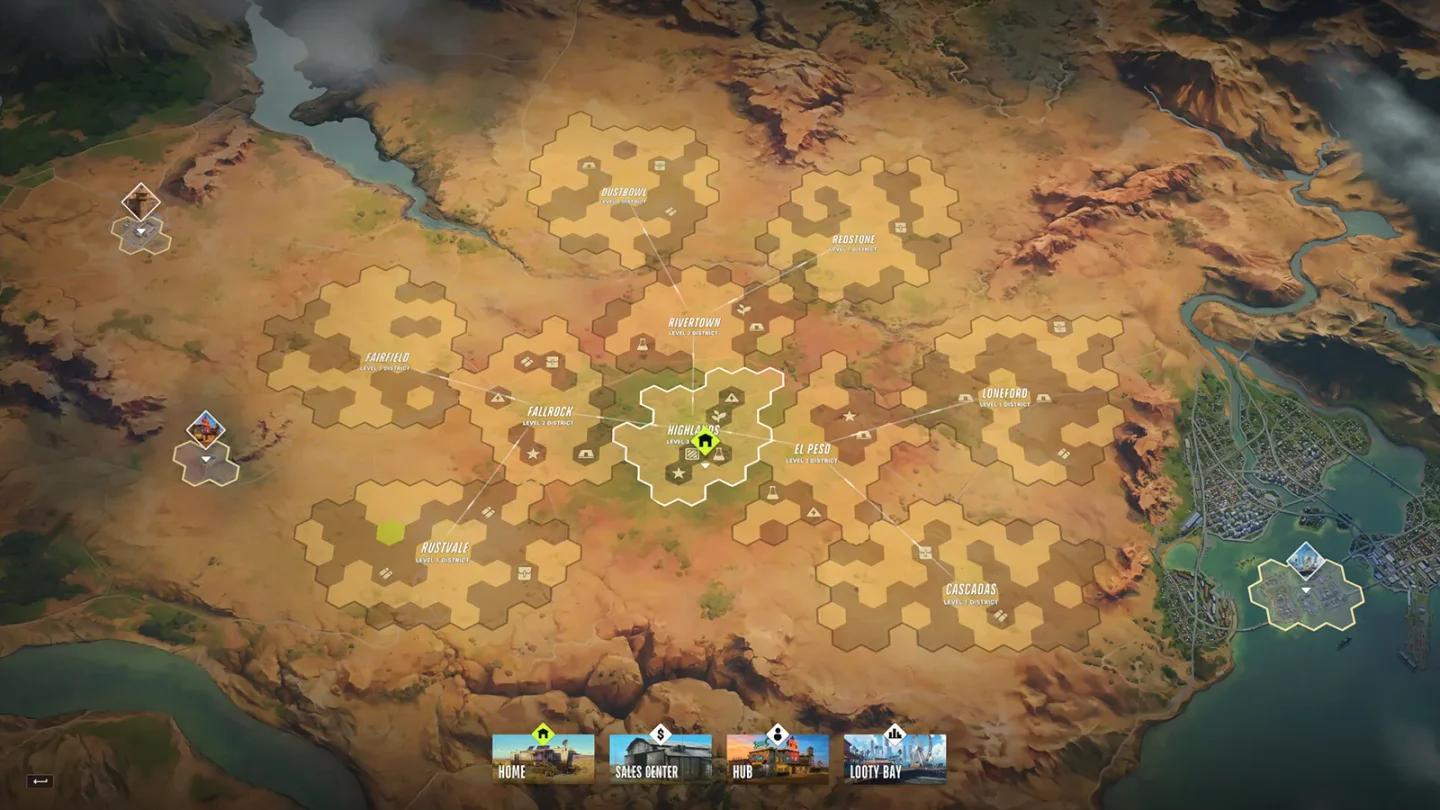
Global Map and state details

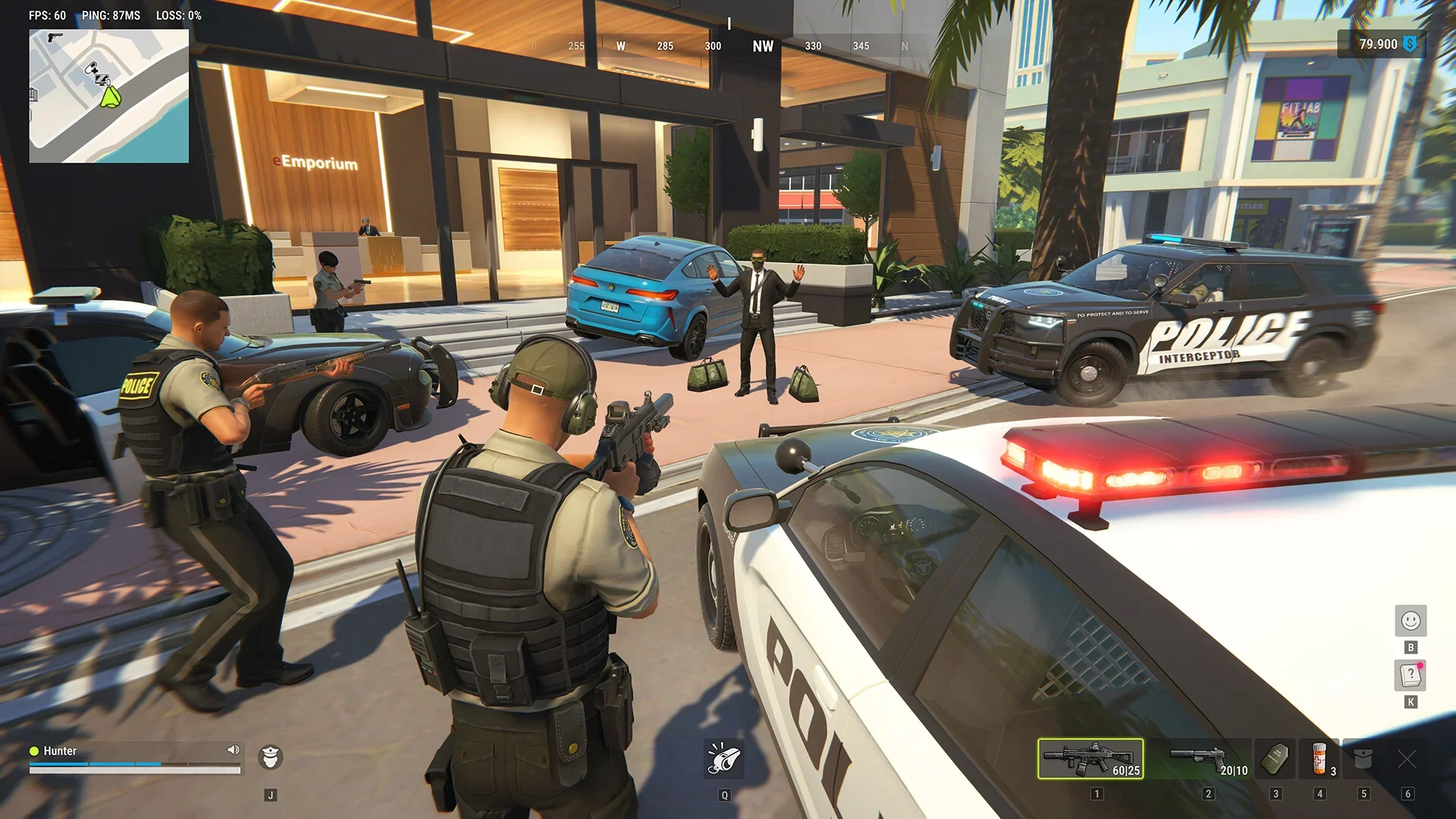
What you lose and keep when changing servers
A standard state transfer resets the belongings and money attached to your old state. Banking cash does not protect it, and selling equipment before leaving only turns it into another asset that will be lost.
Use this checklist before confirming the move:
| Asset or progress | Standard state-transfer result |
|---|---|
| Carried cash and bank balance | Lost |
| Weapons and equipment | Confiscated |
| Vehicles | Lost |
| Base and stored contents | Lost |
| Owned or rented property | Lost |
| Clan membership | You leave the clan |
| B-Coin | Kept |
| Cosmetics and tattoos | Kept |
| Premium account | Kept |
| Accumulated jail time | Kept |
| Shipment menu progress | Kept |
| Player name, settings, and tutorial progress | Kept |
Highlands residents have a property-retention exception when moving to a new state. The property reset in the table applies to ordinary transfers.
If you accept the reset, prioritize Rob Run equipment for your next trip before spending on a large replacement stockpile. The transfer keeps account-level progress, but it does not bring your ordinary loadout to the destination.
How to change region and server through prison
The transfer has two parts: surrendering on your current state and selecting a destination inside prison. Agree on the destination first so you do not reach the selector without knowing which state to choose.
Enter prison through the Global Map
Open the Global Map and find Prison in the far northwest. Selecting it opens the Surrender to Feds prompt, including the warning about losing your current-state belongings.
Follow these steps:
- Select Prison on the map.
- Choose Surrender to Feds.
- Read the confirmation warning and accept only if you are ready for the reset.
- Wait for your character to enter prison.
You can also find Surrender to Feds under Settings > Other. Surrender assigns a prison sentence for the crimes you committed; it is not simply a matchmaking command.
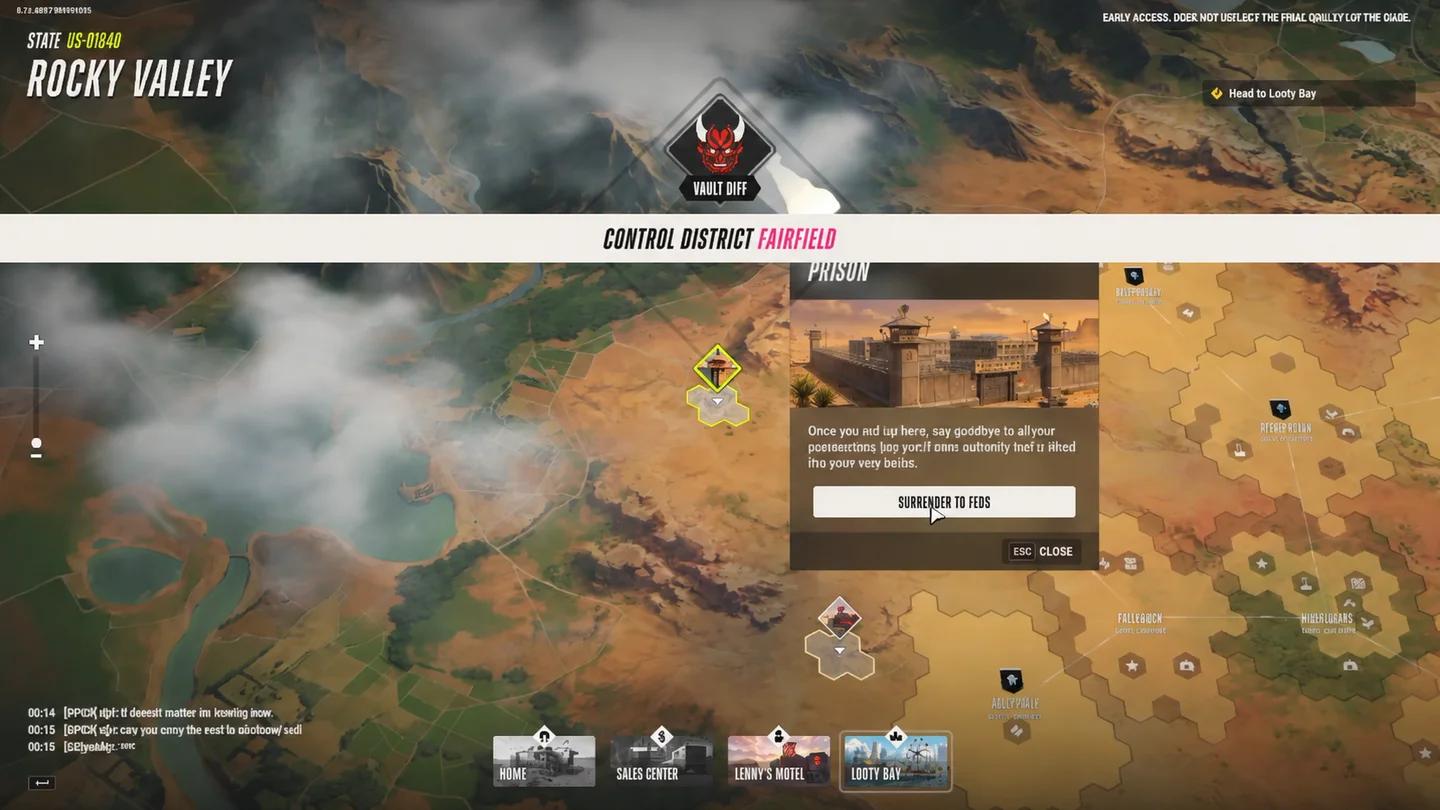
Federal surrender confirmation
Select your destination inside prison
The region controls are available inside prison under Esc > Settings > Other. Choose the region you want before completing the move.
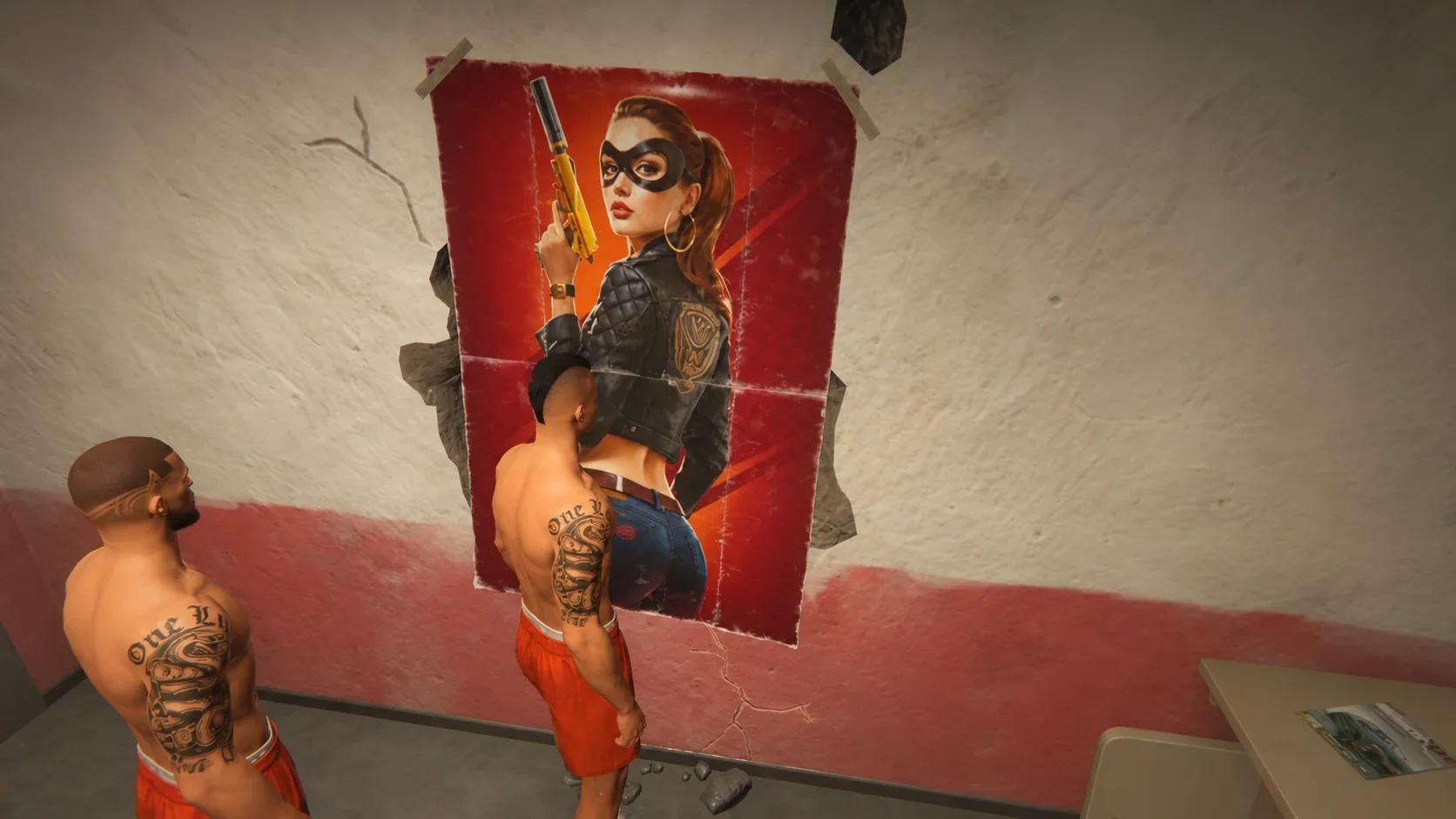
The prison escape route also leads to the state selector. Find an open cell with a large poster, then interact with the escape route behind it.
In the destination selector, choose the intended state and confirm entry. If you are joining someone, match the number they gave you, not just the region name.
After the destination loads, send a new party invitation. An invitation sent before the transfer does not replace this final step.
Which region and state should you choose?
Rob Run currently offers two regions: EU and East US. Asia, Oceania, South America, and US West are not separate region options.
For playing together, choose the region containing your agreed state. For a fresh start, check the state’s age as well as its region, because a recently opened state and an older state have different amounts of time left before their Federal Raid.
| Region | Scheduled daily opening for new states |
|---|---|
| EU | 5:00 PM UTC |
| East US | 8:00 PM ET |
Additional states can open automatically when server load requires them. These opening times are not a shared wipe time for every existing state in that region.
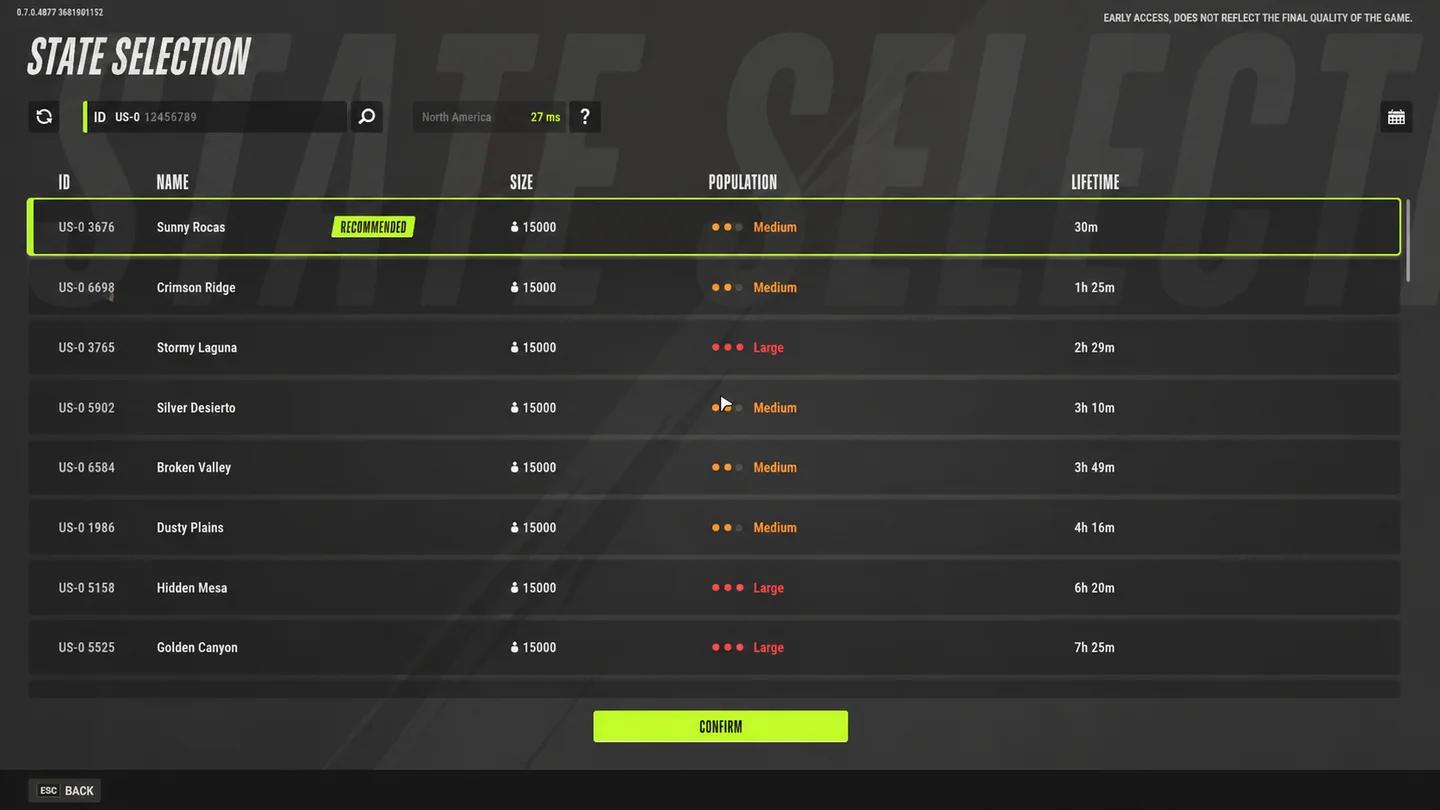
Region and state selection
Fresh states and the seven-day cycle
Each state has a seven-day lifespan before its Federal Raid. A fresh state starts that cycle with less established competition, but it is not a permanent home for a base.
An older state can already have established clans and well-equipped players. Choose a fresh one if your goal is to rebuild from the beginning, or choose your friend’s existing state if playing together is the priority.
Plan purchases around the time remaining in that state. The Rob Run progression guide explains how shipment requirements and the Federal Raid affect what you should work toward between resets.
What to do if Rob Run gets stuck changing region
A stalled region handoff can come from server load or an outage. Check Kefir’s latest developer posts in the Rob Run Steam hub for service problems before changing Windows settings or reinstalling the game.
If a server restart or outage is active, local network changes will not restore the service. If service is running, work through the following checks from the least disruptive option upward.
Relaunch and verify the game
Give the transfer time to process first. If it remains stuck, close Rob Run completely with Alt + F4, then relaunch it through Steam. Check whether the transfer completed before choosing another destination.
If the game still hangs, verify its files:
- Open your Steam Library.
- Right-click Rob Run and select Properties.
- Open Installed Files.
- Select Verify integrity of game files.
- Launch the game again after verification finishes.
File verification addresses damaged local files. It cannot resolve an unavailable destination server.
Check the connection before trying again
If service is running and verification does not help, try these connection checks:
- Disable an active VPN.
- Restart your router, leaving it unplugged for a full minute.
- Use Ethernet instead of Wi-Fi where possible.
- Sync the Windows clock.
- Check that Windows Firewall allows Rob Run and Easy Anti-Cheat.
For recurring disconnects or connection errors beyond the transfer screen, use the Rob Run PC crash and connection fixes to match the symptom to the next check.
If the game still will not load after these checks, report the connection problem to Kefir instead of repeatedly surrendering or switching destinations.