Search games, articles, guides...CtrlK
Sign InGet Started
Learn how to open Aion 2's built-in Combat Analysis, read every stat, compare builds on Training Scarecrows, and set up macros.

Written by Abdalla
Content Writer
See more GAMES.GG guides on Google
Add us as a preferred source and our guides show up first in your results.
Aion 2 Soul Binding Guide: Bind, Sync, Reset & Stat Rolls
Master Soul Binding in Aion 2: learn how Bind, Sync, and Reset work, which stats to target, and when to invest your materials.
Aion 2 Draupnir Expedition Guide: All Bosses and Rewards
Beat every boss in Aion 2's Draupnir dungeon, survive Bakarma's wave phases, and maximize your Anguish and Bakarma gear drops.

Aion 2 Krao Cave Expedition Guide: Clear Every Boss Fast
Master Krao Cave in Aion 2 with boss mechanics, stagger timing, and reward tips for both Exploration and Conquest modes.
Aion 2 ships with a built-in DPS meter called Combat Analysis, and it is one of the most underused tools in the game. Most players hit max level, slot their Stigmas, and start running Expeditions without ever checking whether their rotation is actually working. The Combat Analysis tells you exactly how much damage each skill contributed, how many hits were critical or came from behind, and what your sustained DPS looks like over a full boss fight versus a quick trash pull. That gap between your opener burst and your real sustained output is usually where builds fall apart.
Press Ctrl + X on PC to open the Combat Analysis window. If that key conflicts with something else in your setup, remap it under Settings > Key Bindings > Gameplay, where the entry is listed as Combat Analysis. You can also reach it through the main menu under Content.
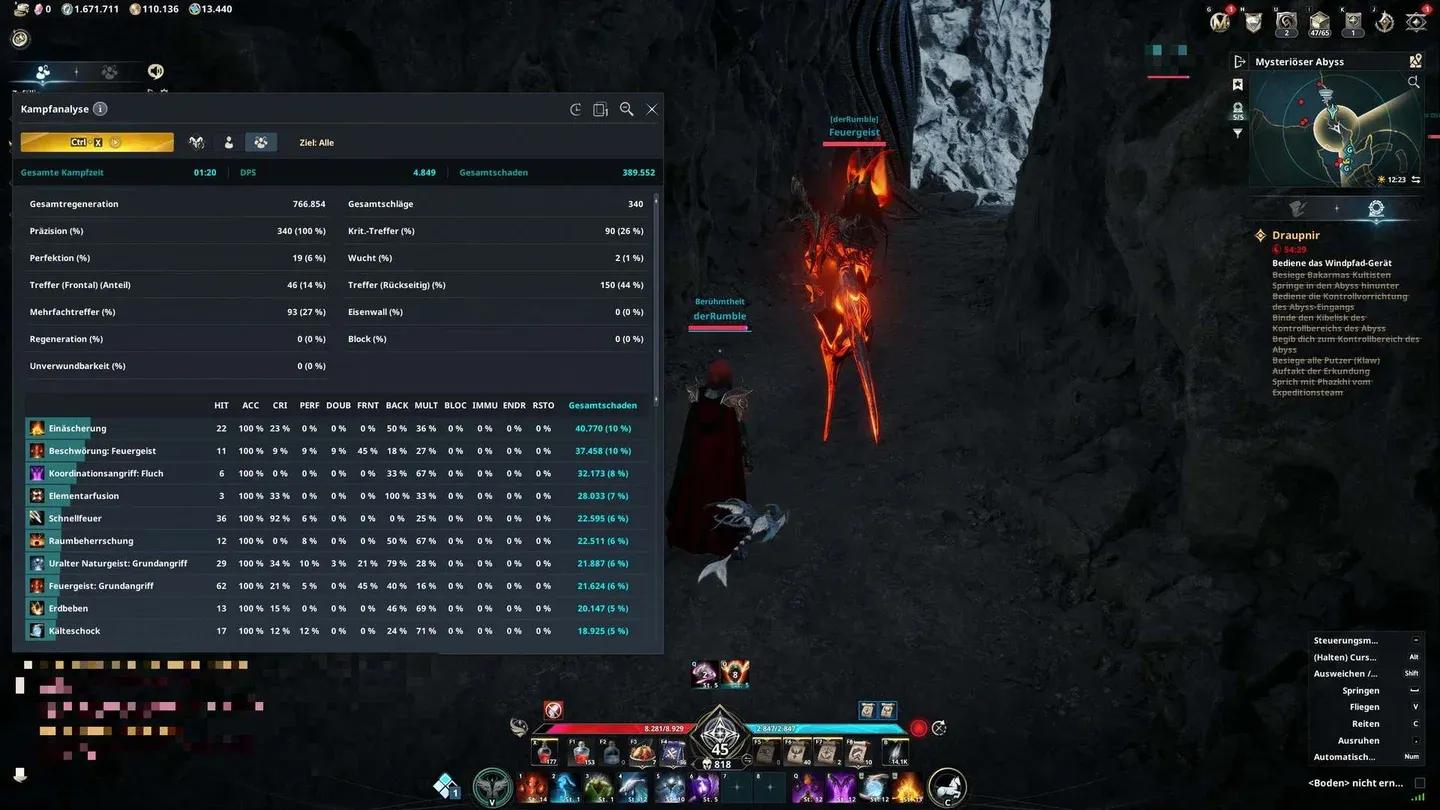
The window is freely movable and stays visible while you fight. At the top you will find the keybind reminder, three mode icons, and your current target. A history panel on the right stores your saved sessions, and a reset button clears all records at once.
Combat Analysis main window
The tool does not record passively at all times. You pick a mode that tells it when to start and stop.
| Mode | How it starts | Best used for |
|---|---|---|
| Auto-Analysis | Automatically when you attack a Training Scarecrow or a boss | Scarecrow tests and boss fights |
| Single-Target | Select a target, press Start, begins on your first hit | Comparing performance against one specific enemy |
| Multi-Target | Press Start manually, ends when you press Stop | Dungeon sections, farming multiple enemies |
Auto-Analysis is the most convenient for build testing because you just walk up to a Training Scarecrow and start swinging. Single-Target mode is the right call when you want a clean measurement against exactly one enemy without anything else contaminating the data. Multi-Target is better for realistic dungeon simulations where you are hitting several targets at once.
One thing worth knowing: once the maximum number of saved records is reached, the oldest session is deleted automatically. Clear old records with the reset button before starting a new test series so your history stays readable.
The top of the window shows three numbers that matter most: total combat time, your DPS (damage per second), and total damage dealt. Below that is a full breakdown of every hit in the session.
| Stat | What it means |
|---|---|
| Total Heal | HP healed during the session |
| Total Hits | Number of hits registered |
| Accuracy (%) | Share of attacks that connected |
| Critical Hit (%) | Share of hits that were critical |
| Perfect (%) | Share of perfect hits |
| Double (%) | Share of double hits |
| Front / Back | Hits from the front versus from behind |
| Multi-Hit (%) | Share of multi-hit procs |
| Endurance / Regeneration / Block / Invincibility | Share of hits that triggered each defensive event |
Scroll further down and you get a per-skill table, sorted by total damage contribution. The rightmost column shows each skill's percentage of your overall damage. The column headers use abbreviations:
| Abbreviation | Meaning |
|---|---|
| HIT | Hit count |
| ACC | Accuracy |
| CRI | Critical hit rate |
| PERF | Perfect hit rate |
| DOUB | Double hit rate |
| FRNT | Damage from the front |
| BACK | Damage from behind |
| MULT | Multi-hit rate |
| BLOC | Block rate |
| IMMU | Invincibility triggers |
| ENDR | Endurance triggers |
| RSTO | Regeneration triggers |
At the very bottom, Combat Analysis also tracks the damage you received: total damage taken, hits absorbed, and the breakdown of critical, perfect, and frontal hits against you. Tanks and healers reviewing a boss pull will find this section especially useful.
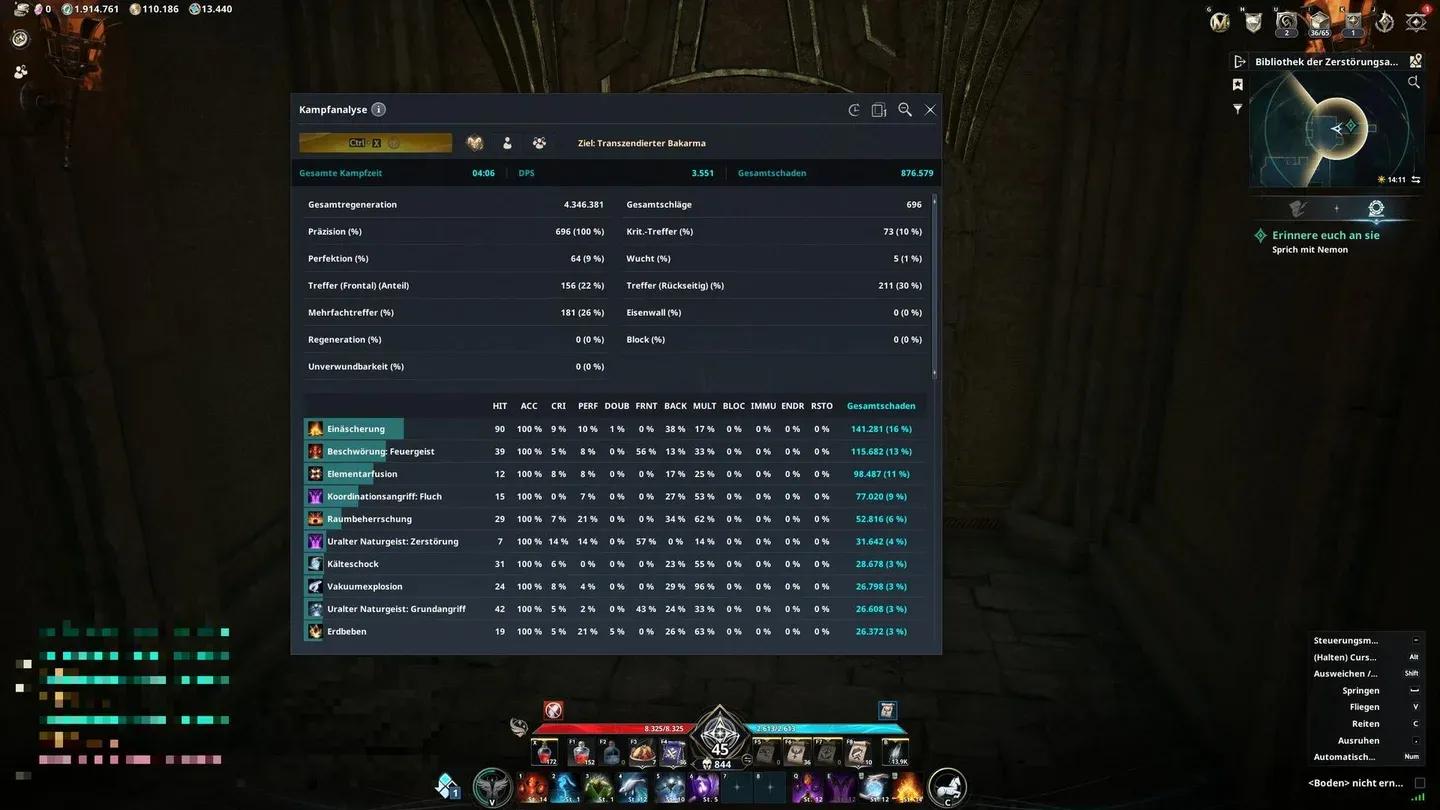
Per-skill damage breakdown
The mistake most players make is comparing a dungeon run against a scarecrow session and wondering why the numbers look different. Movement, phase transitions, and mechanics all cut into your uptime during a real fight. A Spiritmaster running Multi-Target mode through the Draupnir Expedition dungeon, for example, might land 4,849 DPS over 1 minute 20 seconds, then drop to 3,551 DPS against the final boss Transcendent Bakarma over a 4-minute-plus fight with dodging and phases involved. That is not a gear problem. That is just how real combat works.
For clean build comparisons, follow these steps:
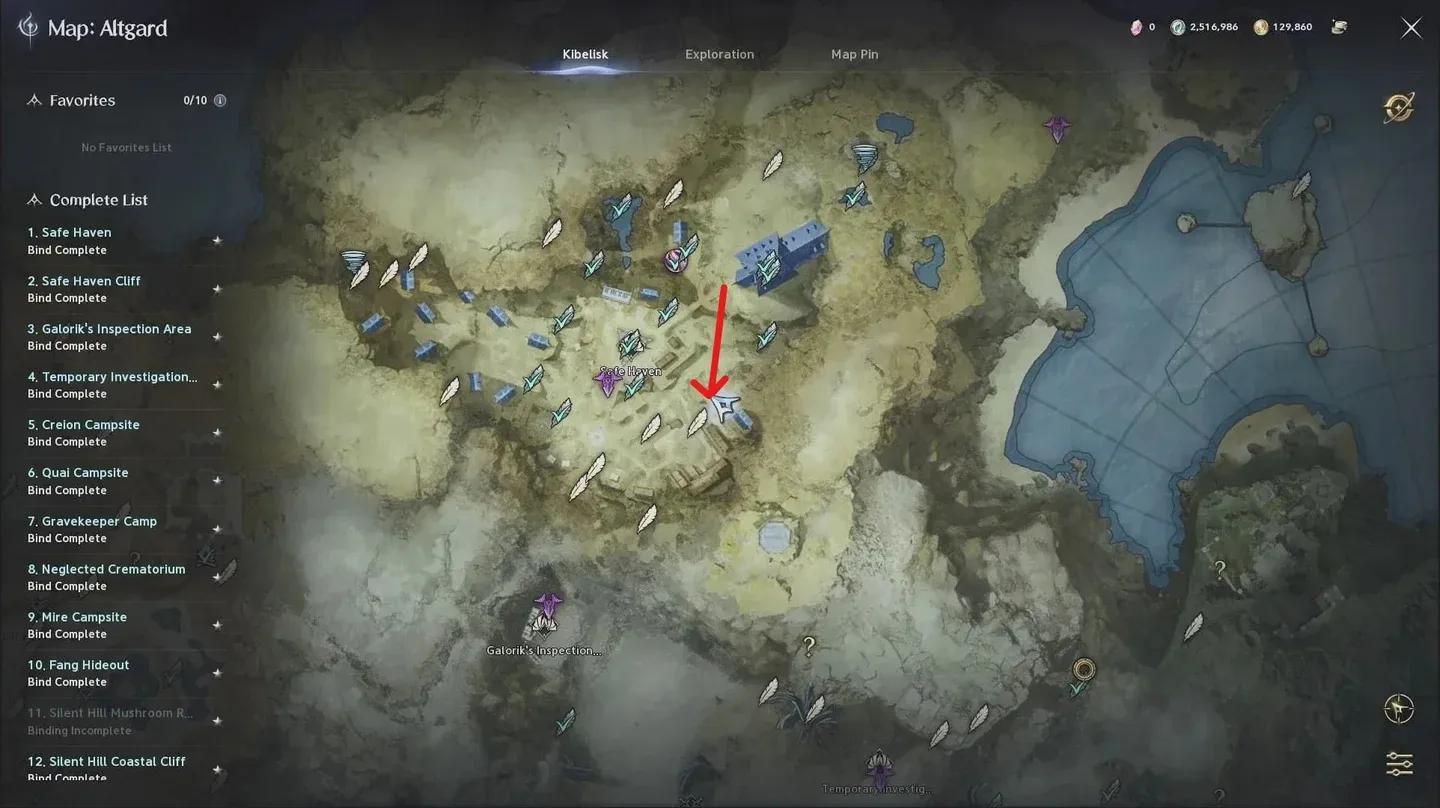
Training Scarecrows in Safe Haven
The in-game macro system and Combat Analysis work together as a feedback loop. You build a macro, run it on the scarecrow, and the Combat Analysis tells you whether the change helped.
To set up a macro:
The macro runs while you hold the key. If you press a skill manually during the sequence, your input takes priority. Two limitations to know: mouse button bindings do not work in AION 1 control mode, and because the macro continuously attempts the next step, the execution order is not guaranteed in every situation.
For a practical example, the Templar can combine a Judgment chain into one macro slot and a buff chain into another, then assign Vicious Strike to a mouse button and the macro to another. Holding both inputs simultaneously lets the macro handle the chain while Vicious Strike fires on its own. Testing on a training dummy showed this kind of setup can push Templar DPS from roughly 33,000-35,000 up to around 40,000 through smoother animation canceling. Adding Pummel to the front of the Judgment chain provides an additional benefit: Pummel only fires when Judgment is unavailable, so it does not disrupt the main rotation, and it helps reduce the cooldown on Punishment for extra damage over a longer fight.
After every macro adjustment, go back to the Training Scarecrow and run a fresh Combat Analysis session to verify the change actually improved your numbers rather than assuming it did.
Beyond the built-in Combat Analysis, a community tool called Abyss Logs exists for players who want more depth. It works as a passive packet reader, meaning it records the game's own combat data off the network interface without modifying or interacting with the game client. The tool provides a live overlay with DPS bars, boss HP, a berserk timer, skill and buff timelines, and the ability to share fight logs via a web link. It supports all six regions and tracks both eDPS (whole fight) and aDPS (active time only). The developers state it does not risk account bans because it does not touch the game client.
For most players optimizing builds and rotations, the built-in Combat Analysis is sufficient. The third-party option becomes more relevant for groups doing coordinated endgame content who want shareable logs and leaderboard comparisons.
For more on building your character's stats to support higher DPS output, the guide on how to increase Combat Power fast covers the progression side of the equation. If you play a specific class and want rotation guidance to pair with your Combat Analysis testing, the Aion 2 strategy guides collection has class-specific breakdowns for every role.
Can I see my party members' DPS in Combat Analysis? No. The built-in tool only tracks your own character. There is no party-wide ranking in the native Combat Analysis window.
Does Combat Analysis work in PvP? The tool records combat data whenever you are fighting, but its most useful application is PvE content where you can repeat the same test against consistent targets.
How accurate is the built-in DPS meter? It records the game's own combat data directly, so the numbers reflect exactly what happened in the session. The main variable is your own uptime and positioning, not measurement error.
Should I use the built-in tool or a third-party overlay? For solo build testing and rotation work, the built-in Combat Analysis covers everything you need. Third-party tools add value for groups who want shareable logs and party-level breakdowns.
Does the Melee Training Scarecrow behave differently from the regular one? The level 45 Melee Training Scarecrow is designed for max-level testing. Use it once you have reached the endgame and are comparing high-level skill setups. The regular scarecrow works fine for earlier testing.
For class-specific build guidance to use alongside your Combat Analysis sessions, check out the Aion 2 Gladiator PvE build guide or the Aion 2 Templar guide depending on your role.